ആമുഖം
This manual provides essential instructions for setting up, operating, maintaining, and troubleshooting your Vibox I-26 PC Gaming Complete System. Please read this manual thoroughly before using your new system to ensure optimal performance and longevity.
1. സജ്ജീകരണ ഗൈഡ്
1.1 അൺബോക്സിംഗും ഘടക പരിശോധനയും
പാക്കേജിംഗിൽ നിന്ന് എല്ലാ ഘടകങ്ങളും ശ്രദ്ധാപൂർവ്വം നീക്കം ചെയ്യുക. താഴെ പട്ടികപ്പെടുത്തിയിരിക്കുന്ന എല്ലാ ഇനങ്ങളും നിലവിലുണ്ടെന്ന് ഉറപ്പാക്കുക:
- Vibox I-26 PC Tower
- 22 ഇഞ്ച് മോണിറ്റർ
- ഗെയിമിംഗ് കീബോർഡ്
- ഗെയിമിംഗ് മൗസ്
- ഗെയിമിംഗ് ഹെഡ്ഫോണുകൾ
- മൗസ് പാഡ്
- വൈഫൈ അഡാപ്റ്റർ
- Power Cables (for PC and Monitor)
- Video Cable (DVI-D or VGA)

Image 1.1: The complete Vibox I-26 PC Gaming System, including the PC tower, 22-inch monitor, gaming keyboard, gaming mouse, and gaming headphones.
1.2 പെരിഫറലുകൾ ബന്ധിപ്പിക്കുന്നു
- മോണിറ്റർ കണക്ഷൻ: Connect the monitor to the PC using the provided video cable (DVI-D or VGA). Ensure the cable is securely fastened.
- കീബോർഡും മൗസും: Plug the gaming keyboard and mouse into available USB ports on the rear of the PC.
- ഹെഡ്ഫോണുകൾ: Connect the gaming headphones to the audio jacks (usually green for audio out, pink for microphone in) on the front or rear of the PC.
- വൈഫൈ അഡാപ്റ്റർ: Insert the WiFi adapter into an available USB port. Drivers may install automatically.
- ശക്തി: Connect the power cables to the PC and the monitor, then plug them into a power outlet.
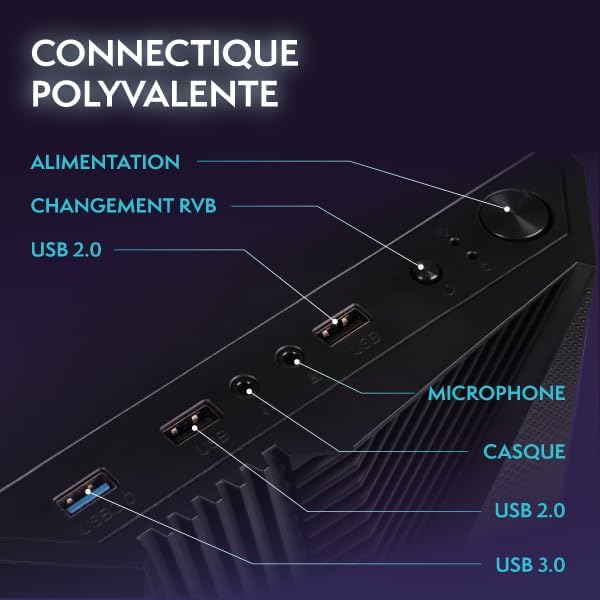
Image 1.2: Front panel connectivity ports, showing USB 2.0, USB 3.0, headphone, and microphone jacks for easy access.
1.3 പ്രാരംഭ ബൂട്ടും വിൻഡോസ് 11 സജ്ജീകരണവും
Press the power button on the PC tower. The system will boot up. Follow the on-screen instructions to complete the Windows 11 Home setup. This typically involves selecting your region, language, creating a user account, and connecting to a network.
2. നിങ്ങളുടെ പിസി പ്രവർത്തിപ്പിക്കൽ
2.1 അടിസ്ഥാന പ്രവർത്തനം
- പവർ ഓൺ/ഓഫ്: Press the power button to turn on the PC. To shut down, click the Start button in Windows, then Power > Shut down.
- പുനരാരംഭിക്കുക: To restart the system, click the Start button, then Power > Restart.
- സ്ലീപ്പ് മോഡ്: To put the PC into sleep mode, click the Start button, then Power > Sleep.

ചിത്രം 2.1: ഒരു ആന്തരിക view of the PC tower, highlighting the main components and RGB lighting.
2.2 Windows 11 Navigation and Features
Windows 11 Home is pre-installed, offering a modern interface and optimized performance. Key features include:
- Faster loading times with DirectStorage.
- Auto HDR for enhanced graphics.
- Seamless Xbox Game Pass integration.
- Optimized CPU performance.

Image 2.2: Visual representation of Windows 11 Home features, emphasizing its benefits for gaming and general use.
2.3 Installing Software and Games
You can install software and games from various sources:
- മൈക്രോസോഫ്റ്റ് സ്റ്റോർ: Access a wide range of applications and games directly from the pre-installed Microsoft Store.
- Game Launchers: Download and install popular game launchers like Steam, Epic Games Store, or GOG Galaxy for your gaming library.
- Web ഡൗൺലോഡുകൾ: Install software downloaded from trusted webസൈറ്റുകൾ.
3. പരിപാലനം
3.1 നിങ്ങളുടെ പിസി വൃത്തിയാക്കൽ
പതിവായി വൃത്തിയാക്കുന്നത് മികച്ച പ്രകടനം നിലനിർത്താൻ സഹായിക്കുകയും നിങ്ങളുടെ പിസിയുടെ ആയുസ്സ് വർദ്ധിപ്പിക്കുകയും ചെയ്യുന്നു.
- പുറം: ഒരു സോഫ്റ്റ് ഉപയോഗിക്കുക, ഡിamp cloth to wipe down the exterior of the PC case and monitor. Avoid harsh chemicals.
- പൊടി നീക്കം: Periodically use compressed air to clear dust from vents and internal components. Ensure the PC is powered off and unplugged before doing so.
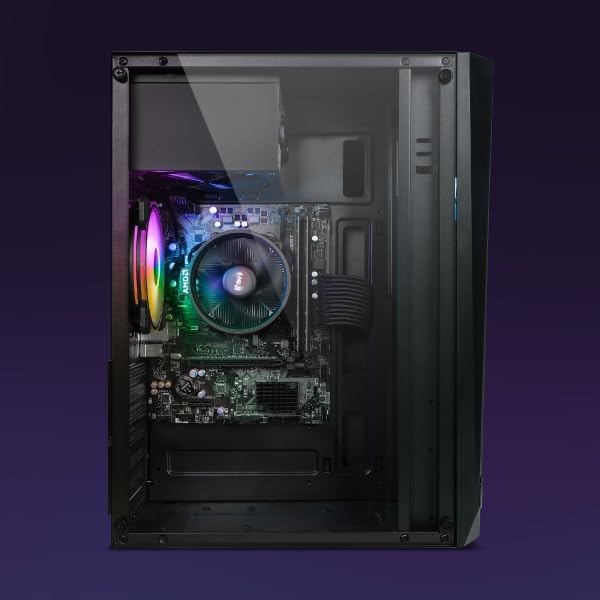
ചിത്രം 3.1: ഒരു ആന്തരിക view of the PC, illustrating the layout of components and areas where dust may accumulate.
3.2 സോഫ്റ്റ്വെയർ അപ്ഡേറ്റുകൾ
Keep your operating system and drivers updated for security and performance:
- വിൻഡോസ് അപ്ഡേറ്റുകൾ: Go to Settings > Windows Update to check for and install the latest OS updates.
- ഡ്രൈവർ അപ്ഡേറ്റുകൾ: Regularly check the AMD website for the latest graphics drivers for your Radeon Vega 8.
3.3 ഡാറ്റ ബാക്കപ്പ്
ഡാറ്റ നഷ്ടപ്പെടുന്നത് തടയാൻ പ്രധാനപ്പെട്ട ഡാറ്റ ഒരു ബാഹ്യ ഡ്രൈവിലേക്കോ ക്ലൗഡ് സ്റ്റോറേജിലേക്കോ പതിവായി ബാക്കപ്പ് ചെയ്യുക.
4. പ്രശ്നപരിഹാരം
നിങ്ങൾ നേരിട്ടേക്കാവുന്ന പൊതുവായ പ്രശ്നങ്ങളെ ഈ വിഭാഗം അഭിസംബോധന ചെയ്യുന്നു.
4.1 വൈദ്യുതിയില്ല
- പവർ കേബിളുകൾ പരിശോധിക്കുക: Ensure all power cables are securely connected to the PC, monitor, and wall outlet.
- പവർ സ്ട്രിപ്പ്: Verify that the power strip or surge protector is switched on and functioning.
4.2 മോണിറ്ററിൽ ഡിസ്പ്ലേ ഇല്ല
- വീഡിയോ കേബിൾ: Confirm the video cable is firmly connected to both the PC and the monitor.
- ഇൻപുട്ട് നിരീക്ഷിക്കുക: Check the monitor's input source settings to ensure it's set to the correct input (e.g., DVI-D, VGA).
- മോണിറ്റർ പവർ: മോണിറ്റർ ഓണാണെന്ന് ഉറപ്പാക്കുക.
4.3 മന്ദഗതിയിലുള്ള പ്രകടനം
- പശ്ചാത്തല ആപ്ലിക്കേഷനുകൾ അടയ്ക്കുക: Close unnecessary programs running in the background.
- ഡിസ്ക് സ്പേസ്: Ensure your 500GB NVMe M.2 SSD has sufficient free space.
- അപ്ഡേറ്റുകൾ: Verify that Windows and graphics drivers are up to date.
- മാൽവെയർ സ്കാൻ: Run a full system scan using reputable antivirus software.
4.4 നെറ്റ്വർക്ക് കണക്റ്റിവിറ്റി പ്രശ്നങ്ങൾ
- വൈഫൈ അഡാപ്റ്റർ: Ensure the USB WiFi adapter is properly inserted and its drivers are installed.
- റൂട്ടർ/മോഡം: നിങ്ങളുടെ റൂട്ടറും മോഡവും പുനരാരംഭിക്കുക.
- നെറ്റ്വർക്ക് ക്രമീകരണങ്ങൾ: Check Windows network settings to ensure WiFi is enabled and connected to the correct network.
5 സ്പെസിഫിക്കേഷനുകൾ
Detailed technical specifications for the Vibox I-26 PC Gaming Complete System:
| ഘടകം | സ്പെസിഫിക്കേഷൻ |
|---|---|
| പ്രോസസ്സർ | AMD Ryzen 3 3200G Quad Core (3.6 GHz base, 4.0 GHz Turbo) |
| ഗ്രാഫിക്സ് | Integrated AMD Radeon Vega 8 Graphics |
| റാം | 8GB DDR4 2400MHz Dual-Channel |
| സംഭരണം | 500GB NVMe M.2 Solid State Drive |
| ഓപ്പറേറ്റിംഗ് സിസ്റ്റം | Windows 11 Home (Pre-installed) |
| മോണിറ്റർ | 22-inch 1080p (1920x1080, 5ms response, LED backlit, 1 DVI-D, 1 VGA) |
| കണക്റ്റിവിറ്റി | WiFi (600 Mbps adapter), Ethernet, 3x USB 2.0, 3x USB 3.0, 1x HDMI (from motherboard), Audio Jacks |
| അളവുകൾ (പിസി ടവർ) | 32.6 x 19.5 x 42 സെ.മീ |
| Weight (PC Tower) | 11.75 കി.ഗ്രാം |

Image 5.1: Dimensions of the Vibox I-26 PC tower for reference.
6. വാറൻ്റിയും പിന്തുണയും
6.1 വാറൻ്റി വിവരങ്ങൾ
Your Vibox I-26 PC Gaming Complete System comes with a Vibox Lifetime Evolution Warranty. For specific terms and conditions, please refer to the warranty documentation included with your purchase or visit the official Vibox webസൈറ്റ്.
6.2 സാങ്കേതിക പിന്തുണ
If you encounter issues not covered in this manual or require further assistance, please contact Vibox customer support. Contact details can typically be found on the Vibox webസൈറ്റിലോ നിങ്ങളുടെ ഉൽപ്പന്ന പാക്കേജിംഗിലോ.
Before contacting support, please have your product model (I-26) and any relevant purchase information ready.


