1. ആമുഖം
Thank you for choosing the ORICO USB C Docking Station 9-in-1. This device is designed to expand the connectivity of your USB-C enabled laptop, tablet, or smartphone, providing a comprehensive solution for various peripheral connections, display output, network access, and power delivery. Please read this manual carefully before use to ensure proper operation and to maximize the product's capabilities.
2. ഉൽപ്പന്നം കഴിഞ്ഞുview
The ORICO USB C Docking Station 9-in-1 integrates multiple essential ports into a single compact unit. It connects to your host device via a single USB-C cable, offering a versatile expansion of your device's capabilities.

Figure 2.1: ORICO 9-in-1 USB C Docking Station with port labels.
പോർട്ട് പ്രവർത്തനങ്ങൾ:
- 1 x HDMI Port (4K@30Hz): Connect to an external monitor, TV, or projector for high-definition video output.
- 1 x VGA Port (1080P): Connect to an external monitor or projector for video output.
- 3 x USB 3.0 Ports (5Gbps): Connect USB peripherals such as keyboards, mice, flash drives, or external hard drives for high-speed data transfer.
- 1 x USB-C Power Delivery (PD) Port (Up to 100W): Charge your host laptop or device while using the docking station. Requires a compatible USB-C power adapter (not included).
- 1 x Gigabit Ethernet Port (10/100/1000Mbps): Provides a stable and fast wired network connection.
- 1 x SD കാർഡ് റീഡർ: For reading standard SD memory cards.
- 1 x Micro SD (TF) Card Reader: For reading Micro SD memory cards. SD and TF card readers can operate simultaneously.
3. അനുയോജ്യതാ ആവശ്യകതകൾ
This docking station requires your host device (laptop, tablet, or smartphone) to have a Full-featured USB Type-C port. A full-featured USB-C port supports DisplayPort Alternate Mode (DP Alt Mode) for video output, USB Power Delivery for charging, and data transfer protocols.
If your device's USB-C port only supports data transfer or charging, the video output and other related functions of this docking station will not be available.

Figure 3.1: USB-C Port Functionality Guide. Ensure your device's USB-C port supports full functionality for optimal use.
4. സജ്ജീകരണ നിർദ്ദേശങ്ങൾ
- Connect the Docking Station to Your Host Device: Plug the integrated USB-C cable of the docking station into a full-featured USB-C port on your laptop, tablet, or smartphone.
- ബാഹ്യ ഡിസ്പ്ലേ ബന്ധിപ്പിക്കുക (ഓപ്ഷണൽ): If you wish to use an external monitor, connect an HDMI cable from your monitor to the docking station's HDMI port, or a VGA cable to the VGA port.
- പവർ അഡാപ്റ്റർ ബന്ധിപ്പിക്കുക (ഓപ്ഷണൽ): For charging your host device and ensuring stable operation of high-power peripherals, connect your original USB-C power adapter to the docking station's USB-C PD port.
- പെരിഫറലുകൾ ബന്ധിപ്പിക്കുക (ഓപ്ഷണൽ): Plug in your USB devices (keyboard, mouse, flash drive, etc.) into the USB 3.0 ports. Insert SD or Micro SD cards into their respective slots. Connect an Ethernet cable to the Gigabit Ethernet port for a wired network connection.

ചിത്രം 4.1: ഉദാample setup with a laptop connected to the docking station and an external monitor.
5. പ്രവർത്തന നിർദ്ദേശങ്ങൾ
5.1 Video Output (HDMI & VGA)
The docking station supports extending or mirroring your display to external monitors via HDMI and VGA ports. Your operating system's display settings will allow you to configure these modes.
- മിറർ മോഡ്: Duplicates your host device's screen onto the external display(s).
- വിപുലീകരണ മോഡ്: Extends your desktop across multiple screens, allowing for increased workspace.
കുറിപ്പ്: When using both HDMI and VGA simultaneously, the maximum resolution may be limited, and the displays will typically mirror each other. For Windows OS in Mirror mode, the monitor resolution will be consistent with the laptop's resolution.

Figure 5.1: Illustration of Mirror Mode and Extend Mode for dual display setup.
5.2 USB 3.0 Data Transfer
Connect your USB 3.0 compatible devices to the three USB 3.0 ports for data transfer speeds up to 5Gbps. These ports are backward compatible with USB 2.0 devices.

Figure 5.2: High-speed data transfer using USB 3.0 ports.
5.3 ഗിഗാബൈറ്റ് ഇഥർനെറ്റ് കണക്ഷൻ
For a stable and reliable internet connection, plug an Ethernet cable into the Gigabit Ethernet port. This provides speeds of 10/100/1000Mbps, ideal for situations where Wi-Fi is unstable or unavailable.
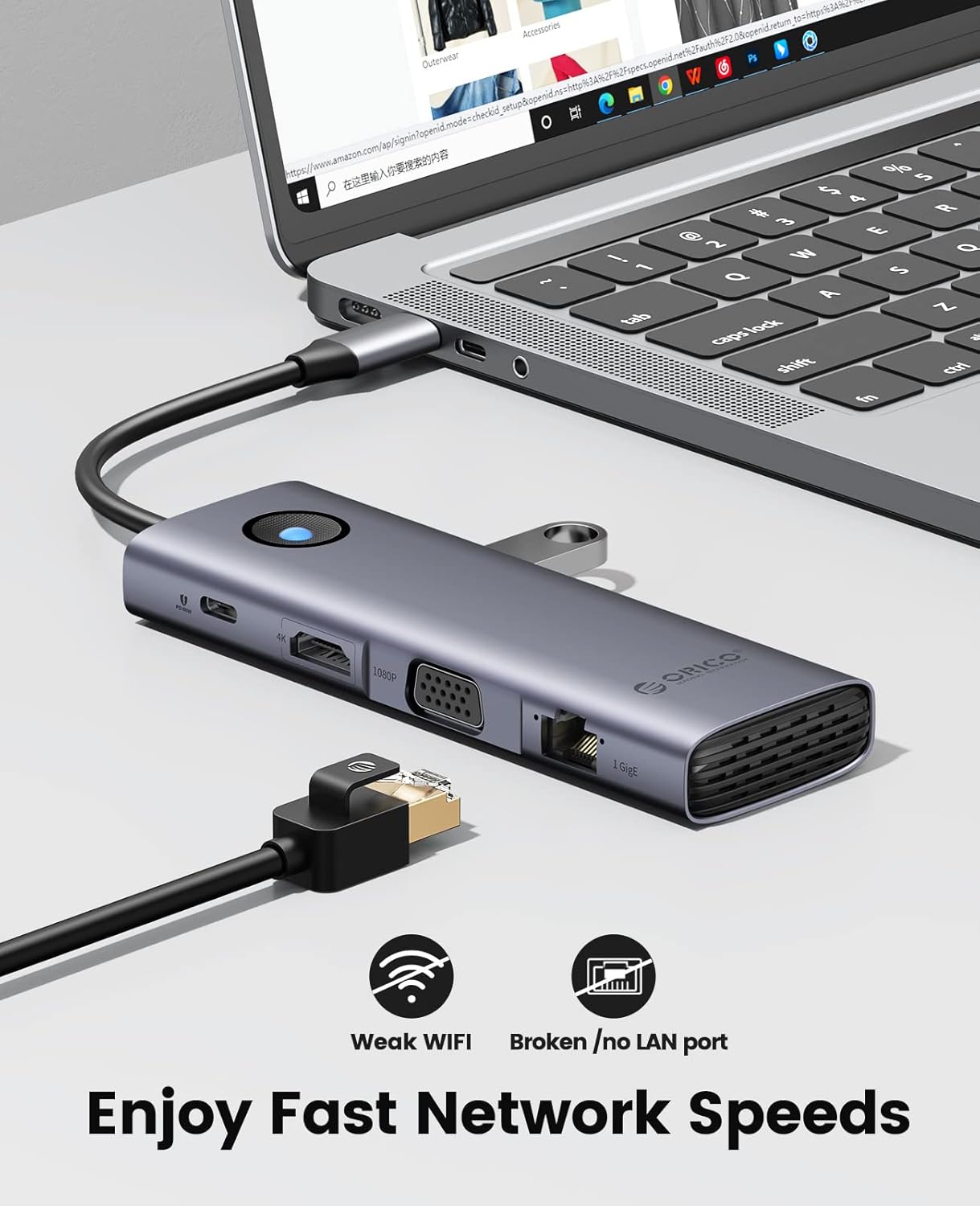
Figure 5.3: Establishing a fast wired network connection.
5.4 Power Delivery (PD 100W)
Connect your laptop's original USB-C power adapter to the docking station's USB-C PD port. This allows you to charge your host device while simultaneously using all other ports on the docking station.
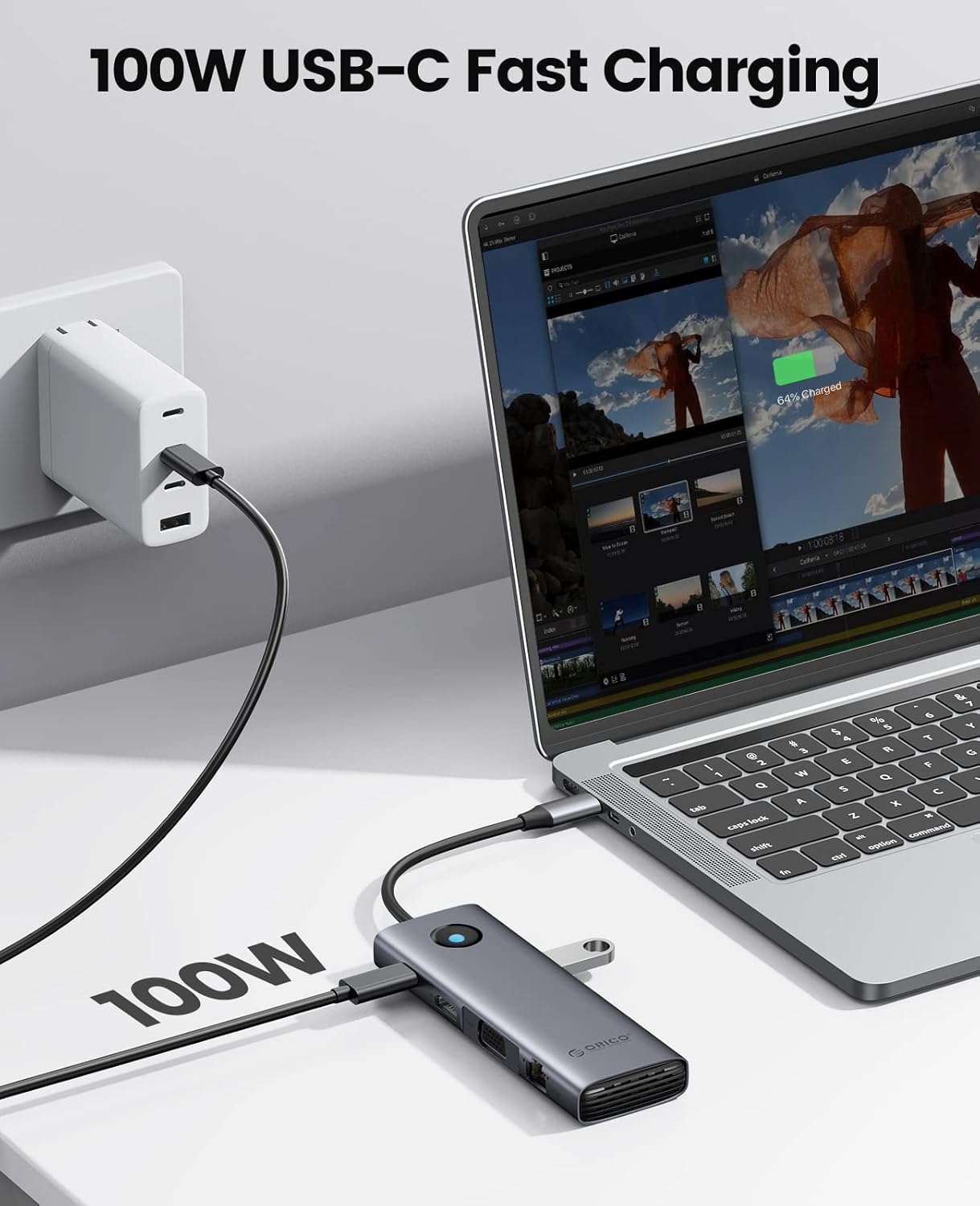
Figure 5.4: Charging a laptop through the docking station's PD port.
5.5 SD/TF കാർഡ് റീഡർ
Insert your SD or Micro SD (TF) cards into the corresponding slots to access data. Both card readers can be used simultaneously for convenient file മാനേജ്മെൻ്റ്.
6. പരിപാലനം
- ഡോക്കിംഗ് സ്റ്റേഷൻ വൃത്തിയായും പൊടി വിമുക്തമായും സൂക്ഷിക്കുക. വൃത്തിയാക്കാൻ മൃദുവായതും ഉണങ്ങിയതുമായ തുണി ഉപയോഗിക്കുക.
- Avoid exposing the device to extreme temperatures, direct sunlight, or humid environments.
- Do not disassemble or attempt to repair the device yourself. This may void the warranty and cause damage.
- Disconnect the docking station from your host device when not in use for extended periods.
7. പ്രശ്നപരിഹാരം
- ഡിസ്പ്ലേ ഔട്ട്പുട്ട് ഇല്ല:
- Ensure your host device's USB-C port supports DisplayPort Alt Mode. Refer to your device's manual.
- Check all cable connections (USB-C to host, HDMI/VGA to monitor).
- Verify the external monitor is set to the correct input source (HDMI/VGA).
- നിങ്ങളുടെ ഹോസ്റ്റ് ഉപകരണം പുനരാരംഭിക്കാൻ ശ്രമിക്കുക.
- നെറ്റ്വർക്ക് കണക്ഷൻ ഇല്ല:
- ഡോക്കിംഗ് സ്റ്റേഷനിലേക്കും നിങ്ങളുടെ റൂട്ടറിലേക്കും/മോഡത്തിലേക്കും ഇതർനെറ്റ് കേബിൾ സുരക്ഷിതമായി ബന്ധിപ്പിച്ചിട്ടുണ്ടെന്ന് ഉറപ്പാക്കുക.
- നിങ്ങളുടെ ഹോസ്റ്റ് ഉപകരണത്തിലെ നെറ്റ്വർക്ക് ക്രമീകരണങ്ങൾ പരിശോധിക്കുക.
- നിങ്ങളുടെ റൂട്ടർ/മോഡം ശരിയായി പ്രവർത്തിക്കുന്നുണ്ടെന്ന് ഉറപ്പാക്കുക.
- തിരിച്ചറിയാത്ത USB ഉപകരണങ്ങൾ:
- Ensure the docking station is properly connected to your host device.
- യുഎസ്ബി ഉപകരണം പ്രവർത്തിക്കുന്നുണ്ടോ എന്ന് ഉറപ്പാക്കാൻ അത് നിങ്ങളുടെ ഹോസ്റ്റ് ഉപകരണത്തിലേക്ക് നേരിട്ട് ബന്ധിപ്പിക്കാൻ ശ്രമിക്കുക.
- If using high-power USB devices, ensure a power adapter is connected to the docking station's PD port.
- ചാർജിംഗ് പ്രവർത്തിക്കുന്നില്ല:
- Ensure your USB-C power adapter is connected to the docking station's PD port and is capable of providing sufficient power (up to 100W).
- Verify your host device supports USB-C Power Delivery.
- SD/TF Card Not Detected:
- കാർഡ് ശരിയായ സ്ലോട്ടിൽ പൂർണ്ണമായും ചേർത്തിട്ടുണ്ടെന്ന് ഉറപ്പാക്കുക.
- Try the card in another device to confirm it is not damaged.
- Check your host device's file explorer or disk management for the card.
8 സ്പെസിഫിക്കേഷനുകൾ
| ബ്രാൻഡ് | ഒറിക്കോ |
| മോഡൽ | ORICO-PW11-9P-GY-EP-US |
| തുറമുഖങ്ങൾ | 1x HDMI, 1x VGA, 3x USB 3.0, 1x USB-C PD, 1x Gigabit Ethernet, 1x SD, 1x Micro SD |
| HDMI റെസല്യൂഷൻ | 4K@30Hz വരെ |
| വിജിഎ റെസലൂഷൻ | 1080P വരെ |
| USB 3.0 ഡാറ്റാ ട്രാൻസ്ഫർ നിരക്ക് | 5Gbps വരെ |
| ഇഥർനെറ്റ് സ്പീഡ് | 10/100/1000Mbps |
| USB-C PD പവർ | 100W വരെ |
| അനുയോജ്യമായ OS | Mac OS 9, Windows 10, Windows 7 (and newer versions) |
| മെറ്റീരിയൽ | പ്ലാസ്റ്റിക് |
| അളവുകൾ | 18.49 x 6.6 x 1.9 സെ.മീ |
| ഭാരം | 118 ഗ്രാം |
9. വാറൻ്റിയും പിന്തുണയും
ORICO products typically come with a standard manufacturer's warranty. For specific warranty details, please refer to the warranty card included with your product or visit the official ORICO website. If you encounter any issues or require technical assistance, please contact ORICO customer support through their official channels or the retailer from whom you purchased the product.