ഉൽപ്പന്നം കഴിഞ്ഞുview
കാര്യക്ഷമതയ്ക്കും ഉയർന്ന നിലവാരമുള്ള ക്യാപ്ചറിനുമായി രൂപകൽപ്പന ചെയ്തിരിക്കുന്ന ഒരു നൂതന ഡോക്യുമെന്റ് സ്കാനറാണ് VIISAN DL8. 13MP ക്യാമറ, അസമമായ ലൈറ്റിംഗ് സാങ്കേതികവിദ്യ, വിൻഡോസിനും മാകോസിനും അനുയോജ്യമായ ശക്തമായ സ്കാനിംഗ് സോഫ്റ്റ്വെയർ എന്നിവ ഇതിൽ ഉൾപ്പെടുന്നു. ഡോക്യുമെന്റുകൾ, പുസ്തകങ്ങൾ, വിദൂര പഠന പരിതസ്ഥിതികളിൽ ഉപയോഗിക്കുന്നതിന് ഈ ഉപകരണം അനുയോജ്യമാണ്.

ഡോക്യുമെന്റുകൾ ഉള്ള ഒരു സ്കാനിംഗ് മാറ്റിന് മുകളിൽ സ്ഥാപിച്ചിരിക്കുന്ന VIISAN DL8 ഡോക്യുമെന്റ് സ്കാനർ, കാണിക്കുകasing അതിന്റെ ഒതുക്കമുള്ള രൂപകൽപ്പനയും ഉപയോഗത്തിനുള്ള സന്നദ്ധതയും.
പ്രധാന സവിശേഷതകൾ
- മികച്ച സ്കാനിംഗ് നിലവാരം: വിശദമായ ക്യാപ്ചറുകൾക്കായി 13MP സൂപ്പർ ഹൈ-റെസല്യൂഷൻ ഔട്ട്പുട്ട് (4208x3156 പിക്സലുകൾ).
- ശക്തമായ സ്കാനിംഗ് സോഫ്റ്റ്വെയർ: VIISAN OfficeCam സോഫ്റ്റ്വെയർ സി യുടെ ഓട്ടോമാറ്റിക് ഫ്ലാറ്റനിംഗ് വാഗ്ദാനം ചെയ്യുന്നുurlറെസല്യൂഷൻ ചെയ്ത പേജുകൾ, വിരൽ ഇമേജ് മായ്ക്കൽ, പശ്ചാത്തല ശുദ്ധീകരണം, യാന്ത്രിക പേജ് വിഭജനം എന്നിവ.
- OCR കഴിവുകൾ: ഉൾച്ചേർത്ത OCR എഞ്ചിൻ ഉപയോഗിച്ച് സ്കാൻ ചെയ്ത പ്രമാണങ്ങളോ പുസ്തകങ്ങളോ തിരയാൻ കഴിയുന്ന PDF അല്ലെങ്കിൽ എഡിറ്റ് ചെയ്യാവുന്ന Word, Excel, Text ഫോർമാറ്റുകളിലേക്ക് പരിവർത്തനം ചെയ്യുക.
- യുണീക്ക് ടെക്സ്റ്റ് ടു സ്പീച്ച് (ടിടിഎസ്): ഏതൊരു പ്രമാണവും വാക്കുകൾ തോറും വായിക്കുന്നതിനും കേൾക്കുന്നതിനുമുള്ള സഹായകരമായ സാങ്കേതികവിദ്യ, ഡിസ്ലെക്സിയ ഉള്ള ഉപയോക്താക്കൾക്ക് അല്ലെങ്കിൽ ഭാഷാ പഠനത്തിന് പ്രയോജനകരമാണ്.
- പൂർണ്ണ ലൈറ്റിംഗ് കവറേജ്: നൂതനമായ അസമമായ എൽഇഡി ലൈറ്റിംഗ് സ്കാനിംഗ് ഏരിയയെ തുല്യമായി പ്രകാശിപ്പിക്കുന്നു, പ്രതിഫലനങ്ങൾ കുറയ്ക്കുകയും കുറഞ്ഞ വെളിച്ചത്തിൽ വ്യക്തമായ ദൃശ്യപരത ഉറപ്പാക്കുകയും ചെയ്യുന്നു.
- ഡെസ്ക് സേവിംഗ് ഡിസൈൻ: ഒതുക്കമുള്ള ഷോർട്ട്-ആം ഡിസൈനും ത്രികോണാകൃതിയിലുള്ള അടിത്തറയും വിലയേറിയ ഡെസ്ക് സ്ഥലം ലാഭിക്കുന്നു.
- വിദൂര പഠനത്തിന് തയ്യാറാണ്: UVC/UAC അനുസൃതം, സൂം, ഗൂഗിൾ മീറ്റ്, മൈക്രോസോഫ്റ്റ് ടീമുകൾ പോലുള്ള മൂന്നാം കക്ഷി വീഡിയോ കോൺഫറൻസിംഗ് സോഫ്റ്റ്വെയറുകൾ വഴി ഭൗതിക വസ്തുക്കളുടെ തത്സമയ പ്രദർശനങ്ങൾ അനുവദിക്കുന്നു.

VIISAN DL8 ന്റെ ഒതുക്കമുള്ള രൂപകൽപ്പന, അതിന്റെ ചെറിയ ക്യാമറ ആം (118mm) എടുത്തുകാണിക്കുന്നു, കൂടാതെ സ്ഥിരതയുള്ള ത്രികോണാകൃതിയിലുള്ള അടിത്തറയും, ഡെസ്ക് സ്ഥലം ലാഭിക്കുന്നതിനായി രൂപകൽപ്പന ചെയ്തിരിക്കുന്നു.
സജ്ജീകരണ ഗൈഡ്
നിങ്ങളുടെ VIISAN DL8 ഡോക്യുമെന്റ് സ്കാനർ സജ്ജീകരിക്കാൻ ഈ ഘട്ടങ്ങൾ പാലിക്കുക:
- ഉള്ളടക്കം അൺപാക്ക് ചെയ്യുക: പാക്കേജിംഗിൽ നിന്ന് DL8 ഡോക്യുമെന്റ് ക്യാമറ, USB കേബിൾ, സ്കാൻ പാഡ്, ക്വിക്ക് സ്റ്റാർട്ട് ഗൈഡ് എന്നിവ ശ്രദ്ധാപൂർവ്വം നീക്കം ചെയ്യുക.
- സ്കാനർ സ്ഥാപിക്കുക: DL8 സ്കാനർ ഒരു സ്ഥിരതയുള്ളതും പരന്നതുമായ പ്രതലത്തിൽ സ്ഥാപിക്കുക. സ്കാൻ പാഡിനും പ്രമാണങ്ങൾക്കും മതിയായ ഇടമുണ്ടെന്ന് ഉറപ്പാക്കുക.
- കമ്പ്യൂട്ടറുമായി ബന്ധിപ്പിക്കുക: DL8 സ്കാനറിന്റെ USB ടൈപ്പ്-C പോർട്ടിൽ നിന്ന് നൽകിയിരിക്കുന്ന USB കേബിൾ നിങ്ങളുടെ Windows അല്ലെങ്കിൽ macOS കമ്പ്യൂട്ടറിൽ ലഭ്യമായ ഒരു USB പോർട്ടിലേക്ക് ബന്ധിപ്പിക്കുക.
- സോഫ്റ്റ്വെയർ ഇൻസ്റ്റാൾ ചെയ്യുക: ഔദ്യോഗിക VIISAN-ൽ നിന്ന് VIISAN OfficeCam സ്കാനിംഗ് സോഫ്റ്റ്വെയർ ഡൗൺലോഡ് ചെയ്ത് ഇൻസ്റ്റാൾ ചെയ്യുക. webസൈറ്റ്. നിർദ്ദിഷ്ട ഡൗൺലോഡ് നിർദ്ദേശങ്ങൾക്ക് ക്വിക്ക് സ്റ്റാർട്ട് ഗൈഡ് പരിശോധിക്കുക.
- സ്കാൻ പാഡ് സ്ഥാപിക്കുക: ഉൾപ്പെടുത്തിയിരിക്കുന്ന സ്കാൻ പാഡ് സ്കാനറിന്റെ ക്യാമറയ്ക്ക് നേരിട്ട് കീഴിൽ വയ്ക്കുക, അത് മധ്യഭാഗത്തും പരന്നതുമാണെന്ന് ഉറപ്പാക്കുക.

ഒരു ലാപ്ടോപ്പുമായി ബന്ധിപ്പിച്ചിരിക്കുന്ന VIISAN DL8 സ്കാനർ, വിൻഡോസ്, മാകോസ് ഓപ്പറേറ്റിംഗ് സിസ്റ്റങ്ങളുമായുള്ള അതിന്റെ അനുയോജ്യത വ്യക്തമാക്കുന്നു.
പ്രവർത്തന നിർദ്ദേശങ്ങൾ
സജ്ജീകരിച്ചുകഴിഞ്ഞാൽ, വിവിധ സ്കാനിംഗ് ജോലികൾക്കായി നിങ്ങളുടെ VIISAN DL8 ഉപയോഗിക്കാൻ തുടങ്ങാം:
- സോഫ്റ്റ്വെയർ സമാരംഭിക്കുക: നിങ്ങളുടെ കമ്പ്യൂട്ടറിൽ VIISAN OfficeCam സോഫ്റ്റ്വെയർ തുറക്കുക.
- സ്ഥല രേഖ: നിങ്ങൾ സ്കാൻ ചെയ്യാൻ ആഗ്രഹിക്കുന്ന ഡോക്യുമെന്റോ പുസ്തകമോ സ്കാൻ പാഡിൽ വയ്ക്കുക, അത് ക്യാമറയ്ക്കുള്ളിലാണെന്ന് ഉറപ്പാക്കുക. view.
- ലൈറ്റിംഗ് ക്രമീകരിക്കുക: ആവശ്യമെങ്കിൽ, ബിൽറ്റ്-ഇൻ ഹൈ-ബ്രൈറ്റ്നസ് എൽഇഡി ലൈറ്റ് സജീവമാക്കുന്നതിന് സ്കാനറിലെ എൽഇഡി ടച്ച് ബട്ടൺ അമർത്തുക. ഒപ്റ്റിമൽ പ്രകാശത്തിനായി ഇത് 3-ലെവൽ ബ്രൈറ്റ്നസ് കൺട്രോൾ അവതരിപ്പിക്കുന്നു.
- സ്കാൻ ചെയ്യുക: സ്കാൻ ആരംഭിക്കാൻ സോഫ്റ്റ്വെയർ ഇന്റർഫേസ് ഉപയോഗിക്കുക. സോഫ്റ്റ്വെയർ ഇമേജ് സ്വയമേവ പ്രോസസ്സ് ചെയ്യും, സി-യ്ക്കുള്ള ഓട്ടോ-ഫ്ലാറ്റനിംഗ് പോലുള്ള സവിശേഷതകൾ ഉൾപ്പെടെ.urlഎഡ് പേജുകളും ഡെസ്ക്വിംഗും.
- OCR ഉപയോഗിക്കുക: സ്കാൻ ചെയ്ത ശേഷം, എംബഡഡ് OCR എഞ്ചിൻ ഉപയോഗിച്ച് ചിത്രം എഡിറ്റ് ചെയ്യാവുന്ന ടെക്സ്റ്റ് ഫോർമാറ്റുകളിലേക്കോ (വേഡ്, എക്സൽ, ടെക്സ്റ്റ്) തിരയാൻ കഴിയുന്ന PDF-കളിലേക്കോ പരിവർത്തനം ചെയ്യാം.
- ടെക്സ്റ്റ്-ടു-സ്പീച്ച്: സ്കാൻ ചെയ്ത പ്രമാണം ഉച്ചത്തിൽ വായിക്കാൻ സോഫ്റ്റ്വെയറിനുള്ളിലെ ടെക്സ്റ്റ്-ടു-സ്പീച്ച് സവിശേഷത സജീവമാക്കുന്നതിലൂടെ പ്രവേശനക്ഷമതയ്ക്കോ പഠനത്തിനോ കഴിയും.
- വിദൂര സഹകരണം: തത്സമയ പ്രകടനങ്ങൾക്കോ വിദൂര പഠനത്തിനോ വേണ്ടി, DL8 ന്റെ UVC/UAC പാലിക്കൽ വീഡിയോ കോൺഫറൻസിംഗ് പ്ലാറ്റ്ഫോമുകളുമായി തടസ്സമില്ലാത്ത സംയോജനം അനുവദിക്കുന്നു.

VIISAN DL8 സ്കാനർ ഒരു ലാപ്ടോപ്പുമായി ബന്ധിപ്പിച്ചിരിക്കുന്നു, സ്കാൻ ചെയ്ത പ്രമാണങ്ങളെ DOC, TXT, XLS, PDF പോലുള്ള വിവിധ എഡിറ്റ് ചെയ്യാവുന്ന ഫോർമാറ്റുകളിലേക്ക് പരിവർത്തനം ചെയ്യുന്നതിനുള്ള ശക്തമായ OCR കഴിവുകൾ ഇത് പ്രകടമാക്കുന്നു.

പഠനത്തിനും ആക്സസ്സിബിലിറ്റിക്കും സഹായകമാകുന്ന തരത്തിൽ, ഡോക്യുമെന്റുകൾ ഉച്ചത്തിൽ വായിക്കുന്ന ടെക്സ്റ്റ് ടു സ്പീച്ച് (TTS) സവിശേഷത ചിത്രീകരിച്ചുകൊണ്ട്, ലാപ്ടോപ്പിനൊപ്പം VIISAN DL8 സ്കാനർ ഉപയോഗിക്കുന്ന ഒരു ആൺകുട്ടി.

VIISAN DL8 ന്റെ വിവിധ ആപ്ലിക്കേഷനുകൾ, വിദൂര സഹകരണം, വീട്ടിൽ നിന്ന് പഠിക്കൽ, തത്സമയ പ്രദർശനങ്ങൾ, കാര്യക്ഷമമായ പുസ്തക സ്കാനിംഗ് എന്നിവ ഉൾപ്പെടെ, അതിന്റെ വൈവിധ്യത്തെ എടുത്തുകാണിക്കുന്നു.
മെയിൻ്റനൻസ്
ശരിയായ അറ്റകുറ്റപ്പണി നിങ്ങളുടെ VIISAN DL8 സ്കാനറിന്റെ ദീർഘായുസ്സും മികച്ച പ്രകടനവും ഉറപ്പാക്കുന്നു:
- വൃത്തിയാക്കൽ: മൃദുവായതും ഉണങ്ങിയതും ലിന്റ് രഹിതവുമായ തുണി ഉപയോഗിച്ച് സ്കാനറിന്റെ ബോഡിയും ക്യാമറ ലെൻസും പതിവായി തുടയ്ക്കുക. അബ്രാസീവ് ക്ലീനറുകളോ ലായകങ്ങളോ ഉപയോഗിക്കുന്നത് ഒഴിവാക്കുക.
- സോഫ്റ്റ്വെയർ അപ്ഡേറ്റുകൾ: ഇടയ്ക്കിടെ ഔദ്യോഗിക VIISAN പരിശോധിക്കുക webഏറ്റവും പുതിയ സവിശേഷതകളും പ്രകടന മെച്ചപ്പെടുത്തലുകളും ഉറപ്പാക്കാൻ സോഫ്റ്റ്വെയർ അപ്ഡേറ്റുകൾക്കായുള്ള സൈറ്റ്.
- സംഭരണം: ഉപയോഗത്തിലില്ലാത്തപ്പോൾ, നേരിട്ടുള്ള സൂര്യപ്രകാശവും കടുത്ത താപനിലയും ഏൽക്കാത്ത വൃത്തിയുള്ളതും വരണ്ടതുമായ അന്തരീക്ഷത്തിൽ സ്കാനർ സൂക്ഷിക്കുക.
ട്രബിൾഷൂട്ടിംഗ്
നിങ്ങളുടെ VIISAN DL8-ൽ പ്രശ്നങ്ങൾ നേരിടുകയാണെങ്കിൽ, ഇനിപ്പറയുന്ന പൊതുവായ പരിഹാരങ്ങൾ പരിശോധിക്കുക:
- സ്കാനർ തിരിച്ചറിഞ്ഞിട്ടില്ല:
- സ്കാനറിലേക്കും നിങ്ങളുടെ കമ്പ്യൂട്ടറിലേക്കും USB കേബിൾ സുരക്ഷിതമായി ബന്ധിപ്പിച്ചിട്ടുണ്ടെന്ന് ഉറപ്പാക്കുക.
- മറ്റൊരു USB പോർട്ടിലേക്ക് കണക്റ്റുചെയ്യാൻ ശ്രമിക്കുക.
- നിങ്ങളുടെ കമ്പ്യൂട്ടർ പുനരാരംഭിക്കുക.
- ആവശ്യമായ ഡ്രൈവറുകളും VIISAN OfficeCam സോഫ്റ്റ്വെയറും ശരിയായി ഇൻസ്റ്റാൾ ചെയ്തിട്ടുണ്ടെന്ന് ഉറപ്പാക്കുക.
- സോഫ്റ്റ്വെയർ ലോഡ് ചെയ്യുന്നില്ല/പ്രവർത്തിക്കുന്നില്ല:
- നിങ്ങളുടെ ഓപ്പറേറ്റിംഗ് സിസ്റ്റം സോഫ്റ്റ്വെയറിന്റെ ഏറ്റവും കുറഞ്ഞ ആവശ്യകതകൾ പാലിക്കുന്നുണ്ടെന്ന് ഉറപ്പാക്കുക.
- നിങ്ങളുടെ OS-നുള്ള ശരിയായ പതിപ്പ് ഡൗൺലോഡ് ചെയ്യുന്നുണ്ടെന്ന് ഉറപ്പാക്കാൻ, VIISAN OfficeCam സോഫ്റ്റ്വെയർ വീണ്ടും ഇൻസ്റ്റാൾ ചെയ്യുക.
- ഇൻസ്റ്റാളേഷൻ സമയത്ത് ആന്റിവൈറസ് അല്ലെങ്കിൽ ഫയർവാൾ സോഫ്റ്റ്വെയർ താൽക്കാലികമായി പ്രവർത്തനരഹിതമാക്കുക, തുടർന്ന് വീണ്ടും പ്രവർത്തനക്ഷമമാക്കുക.
- മോശം സ്കാൻ നിലവാരം (ഇരുണ്ട/ഓറഞ്ച് ചിത്രങ്ങൾ, സി)urlഎഡിറ്റ് പേജുകൾ):
- സ്കാൻ പാഡിൽ ഡോക്യുമെന്റ് പരന്നതായി സ്ഥാപിച്ചിട്ടുണ്ടെന്ന് ഉറപ്പാക്കുക.
- സ്കാനറിലെ ടച്ച് ബട്ടൺ ഉപയോഗിച്ച് LED ലൈറ്റിംഗിന്റെ തെളിച്ചം ക്രമീകരിക്കുക.
- അസമമായ ലൈറ്റിംഗ് പ്രമാണത്തെ ശരിയായി പ്രകാശിപ്പിക്കുന്നുണ്ടെന്നും തിളക്കം കുറയ്ക്കുന്നുണ്ടെന്നും ഉറപ്പാക്കുക.
- സോഫ്റ്റ്വെയറിന്റെ ഓട്ടോമാറ്റിക് ഫ്ലാറ്റനിംഗ്, ബാക്ക്ഗ്രൗണ്ട് പ്യൂരിഫിക്കേഷൻ സവിശേഷതകൾ പ്രയോജനപ്പെടുത്തുക.
- OCR ശരിയായി പ്രവർത്തിക്കുന്നില്ല:
- സ്കാൻ ചെയ്ത ചിത്രം വ്യക്തവും നല്ല വെളിച്ചമുള്ളതുമാണെന്ന് ഉറപ്പാക്കുക.
- ഡോക്യുമെന്റിന്റെ ഭാഷയുമായി പൊരുത്തപ്പെടുന്നതിന് OCR സോഫ്റ്റ്വെയറിലെ ഭാഷാ ക്രമീകരണങ്ങൾ പരിശോധിക്കുക.
സാങ്കേതിക സവിശേഷതകൾ
| ഫീച്ചർ | സ്പെസിഫിക്കേഷൻ |
|---|---|
| മോഡലിൻ്റെ പേര് | DL8 |
| സ്കാനർ തരം | പ്രമാണം |
| റെസലൂഷൻ | 4208 x 3156 പിക്സലുകൾ (13MP) |
| കണക്റ്റിവിറ്റി ടെക്നോളജി | USB |
| ഉൽപ്പന്ന അളവുകൾ | 4.65"D x 3.86"W x 12.01"H (11.8 x 9.8 x 30.5 സെ.മീ) |
| ഇനത്തിൻ്റെ ഭാരം | 2.2 പൗണ്ട് (1 കിലോഗ്രാം) |
| ഷീറ്റ് വലിപ്പം | 16.5 x 11.7 ഇഞ്ച് വരെ (A3) |
| വർണ്ണ ആഴം | 24 ബിറ്റുകൾ |
| വാട്ട്tage | 5 വാട്ട്സ് |
| നിർമ്മാതാവ് | VIISAN |
| മാതൃരാജ്യം | തായ്വാൻ |
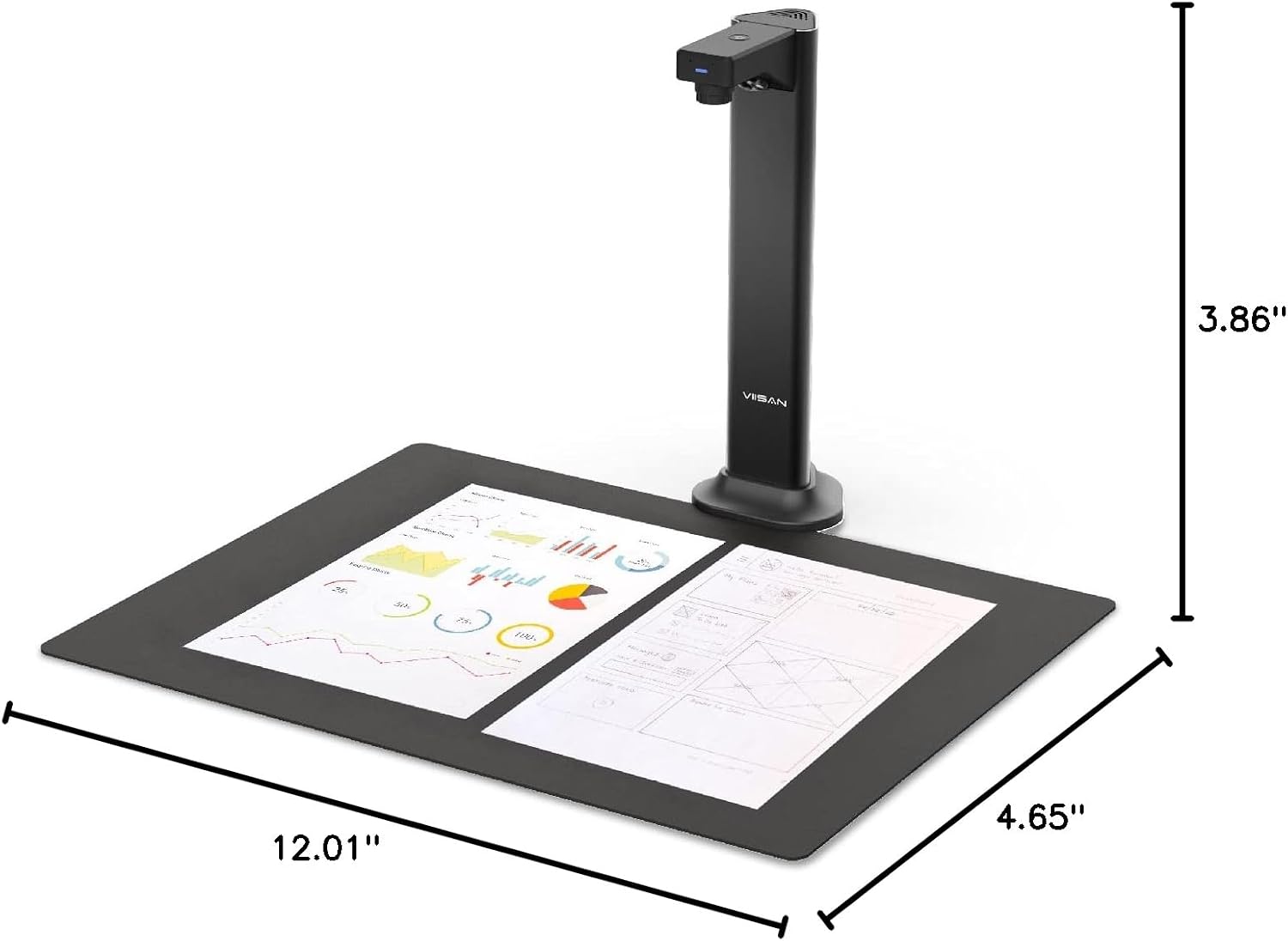
VIISAN DL8 ഡോക്യുമെന്റ് സ്കാനറിന്റെ വിശദമായ അളവുകൾ, അതിന്റെ ഒതുക്കമുള്ള കാൽപ്പാടുകൾ കാണിക്കുന്നു.
പാക്കേജ് ഉള്ളടക്കം
VIISAN DL8 പാക്കേജിൽ ഇവ ഉൾപ്പെടുന്നു:
- DL8 ഡോക്യുമെന്റ് ക്യാമറ
- USB കേബിൾ
- സ്കാൻ പാഡ്
- ദ്രുത ആരംഭ ഗൈഡ്
വാറൻ്റിയും പിന്തുണയും
മികച്ച ഉപഭോക്തൃ സേവനവും ഉൽപ്പന്ന പിന്തുണയും നൽകുന്നതിന് VIISAN പ്രതിജ്ഞാബദ്ധമാണ്:
- വാറൻ്റി: വാങ്ങിയ തീയതി മുതൽ VIISAN DL8 ന് 1 വർഷത്തെ വാറണ്ടിയുണ്ട്.
- റിട്ടേണുകൾ: ഈ ഉൽപ്പന്നത്തിന് 30 ദിവസത്തെ സൗജന്യ റിട്ടേൺ പോളിസി ലഭ്യമാണ്.
- സാങ്കേതിക സഹായം: ഏതെങ്കിലും സാങ്കേതിക സഹായത്തിനോ അന്വേഷണങ്ങൾക്കോ, ഉത്തരവാദിത്തപ്പെട്ട VIISAN സാങ്കേതിക പിന്തുണാ ടീമിനെ ബന്ധപ്പെടുക. ക്വിക്ക് സ്റ്റാർട്ട് ഗൈഡ് അല്ലെങ്കിൽ ഔദ്യോഗിക VIISAN കാണുക. webബന്ധപ്പെടാനുള്ള വിവരങ്ങൾക്കുള്ള സൈറ്റ്.


