1. ആമുഖം
The Uniarch UHO-S2E is a 2MP indoor Pan and Tilt (PT) camera designed for comprehensive home surveillance. It offers real-time two-way audio communication, high-definition night vision, and advanced detection features including motion detection, auto tracking, audio detection, and human body detection. Its flexible pan and tilt design allows for a 360° horizontal rotation range, ensuring extensive coverage of your indoor space. This camera integrates seamlessly with the Uniarch APP and EZCloud, providing convenient remote monitoring capabilities from anywhere at any time.
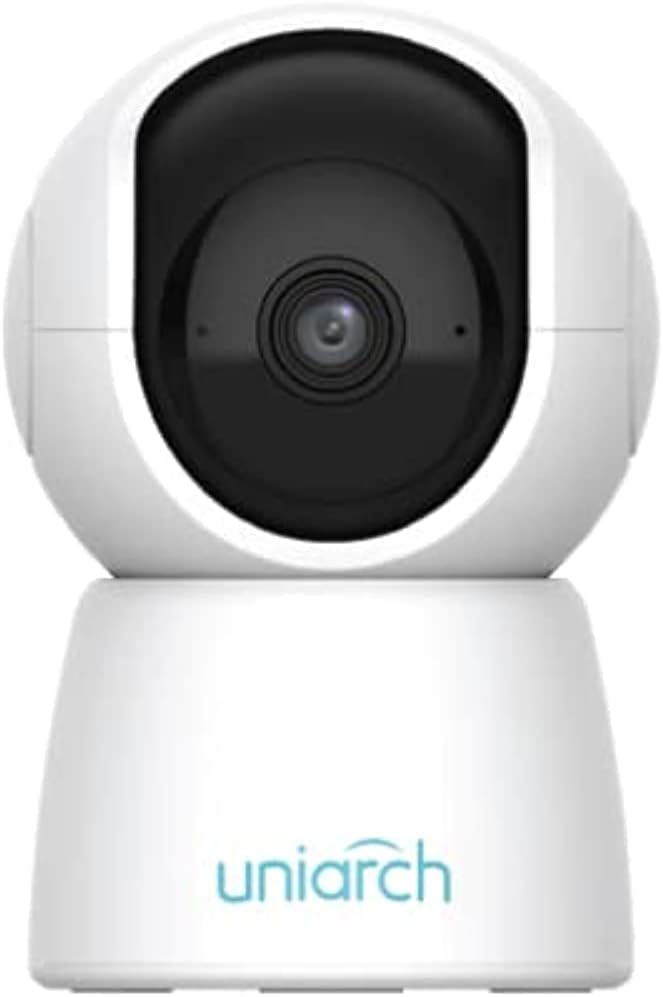
ചിത്രം 1.1: മുൻഭാഗം view of the Uniarch UHO-S2E Smart Pan and Tilt Camera, showcasing അതിന്റെ ഒതുക്കമുള്ളതും ആധുനികവുമായ രൂപകൽപ്പന.
പ്രധാന സവിശേഷതകൾ:
- 2MP Resolution & IR Night Vision: Provides clear, high-definition video day and night.
- 360° Pan Range: Offers extensive coverage with its pan and tilt capabilities for 24-hour monitoring.
- ടു-വേ ഓഡിയോ: ക്യാമറയിലൂടെ തത്സമയ ആശയവിനിമയം സാധ്യമാക്കുന്നു.
- Multiple Detection Ways: Includes motion, audio, and human body detection for enhanced security alerts.
- Easy and Convenient to Use: Designed for straightforward setup and operation via the Uniarch APP.
2 സുരക്ഷാ വിവരങ്ങൾ
Please read this manual carefully before operating the device and retain it for future reference. Observe all safety warnings and precautions to ensure proper and safe operation.
- Use only the power adapter supplied with the camera.
- Do not expose the camera to water or moisture. This device is designed for indoor use only.
- നേരിട്ടുള്ള സൂര്യപ്രകാശത്തിലോ താപ സ്രോതസ്സുകൾക്ക് സമീപമോ ക്യാമറ വയ്ക്കുന്നത് ഒഴിവാക്കുക.
- Ensure the camera is installed on a stable surface to prevent falling.
- ക്യാമറ വേർപെടുത്താനോ പരിഷ്കരിക്കാനോ ശ്രമിക്കരുത്. എല്ലാ സേവനങ്ങളും യോഗ്യതയുള്ള ഉദ്യോഗസ്ഥരെ ഏൽപ്പിക്കുക.
- ക്യാമറയും അനുബന്ധ ഉപകരണങ്ങളും കുട്ടികൾക്ക് ലഭ്യമാകാതെ സൂക്ഷിക്കുക.
3. ഭൗതിക ഘടകങ്ങളും തുറമുഖങ്ങളും
Familiarize yourself with the various components and connection ports of your Uniarch UHO-S2E camera.
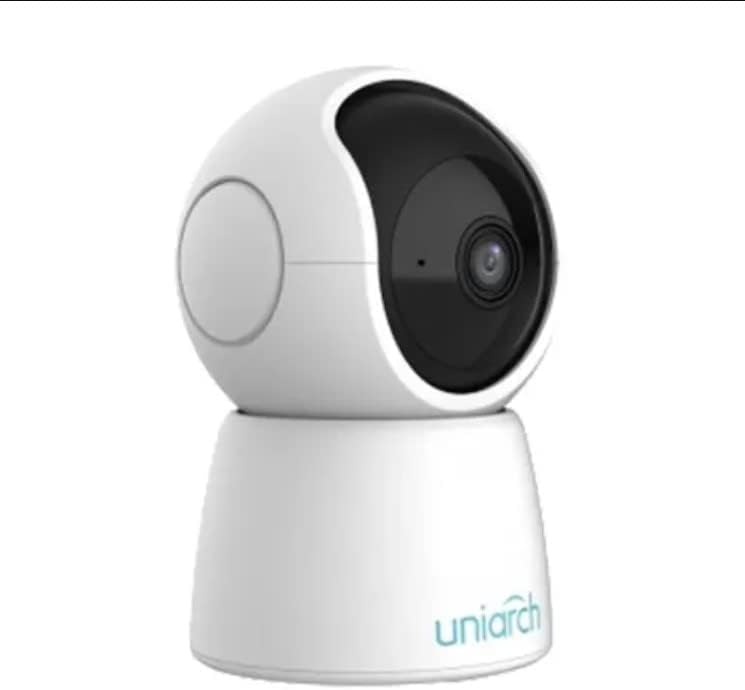
ചിത്രം 3.1: കോണാകൃതിയിലുള്ളത് view of the Uniarch UHO-S2E camera, showing its pan and tilt head and base.
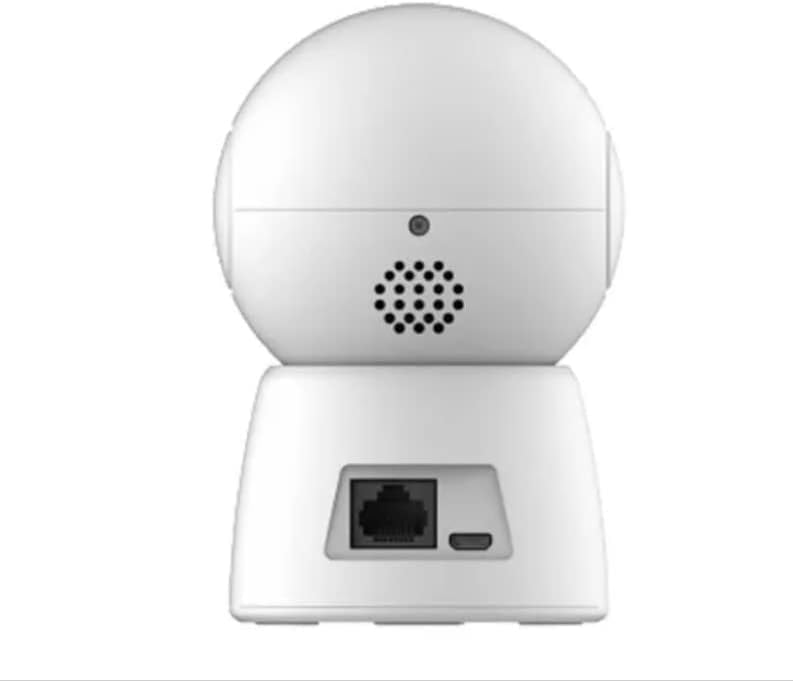
ചിത്രം 3.2: പിൻഭാഗം view of the Uniarch UHO-S2E camera, highlighting the Ethernet port and Micro USB power input.
പോർട്ട് വിവരണങ്ങൾ:
- മൈക്രോ യുഎസ്ബി പോർട്ട്: പവർ അഡാപ്റ്റർ ബന്ധിപ്പിക്കുന്നതിന്.
- ഇഥർനെറ്റ് പോർട്ട്: For wired network connection (optional, Wi-Fi is also supported).
- റീസെറ്റ് ബട്ടൺ: Typically a small pinhole button to restore factory settings.
- മൈക്രോഫോൺ: ടു-വേ ആശയവിനിമയ സമയത്ത് ഓഡിയോ ഇൻപുട്ടിനായി.
- സ്പീക്കർ: For audio output during two-way communication.
4. സജ്ജീകരണ ഗൈഡ്
Follow these steps to set up your Uniarch UHO-S2E camera.
4.1 ക്യാമറയിൽ പവർ ചെയ്യൽ
- Connect the provided power adapter to the Micro USB port on the back of the camera.
- പവർ അഡാപ്റ്റർ ഒരു സാധാരണ ഇലക്ട്രിക്കൽ ഔട്ട്ലെറ്റിലേക്ക് പ്ലഗ് ചെയ്യുക.
- The camera will power on and initiate its self-test sequence. Wait for the indicator light to show a stable status (refer to the camera's LED indicator guide for specific light patterns).
4.2 Installing the Uniarch App
The Uniarch App is essential for controlling and monitoring your camera.
- Download the "Uniarch" app from the App Store (iOS) or Google Play Store (Android). You can search for "Uniarch" or scan a QR code if provided in the camera's packaging.
- നിങ്ങളുടെ സ്മാർട്ട്ഫോണിലോ ടാബ്ലെറ്റിലോ ആപ്പ് ഇൻസ്റ്റാൾ ചെയ്യുക.
- Open the Uniarch app and register for a new account if you don't have one, or log in with your existing credentials.
4.3 ആപ്പിലേക്ക് ക്യാമറ ചേർക്കൽ
There are typically two methods to add your camera: Wi-Fi connection or wired connection.
Wi-Fi Connection (Recommended):
- In the Uniarch app, tap the "+" icon to add a new device.
- Select "Camera" or "Wireless Camera" from the device type options.
- Follow the on-screen instructions to connect the camera to your Wi-Fi network. This usually involves selecting your Wi-Fi network, entering the password, and then scanning a QR code generated by the app with the camera's lens.
- കണക്ട് ചെയ്തുകഴിഞ്ഞാൽ, നിങ്ങളുടെ ക്യാമറയ്ക്ക് പേര് നൽകി സജ്ജീകരണ പ്രക്രിയ പൂർത്തിയാക്കുക.
വയർഡ് കണക്ഷൻ (ഓപ്ഷണൽ):
- Connect an Ethernet cable from your router to the Ethernet port on the back of the camera.
- In the Uniarch app, tap the "+" icon to add a new device.
- Select "Camera" or "Wired Camera" and follow the instructions to search for and add the camera on your local network.
- Once detected, name your camera and complete the setup process.
5. പ്രവർത്തന നിർദ്ദേശങ്ങൾ
This section covers the basic operation of your Uniarch UHO-S2E camera through the Uniarch App.
5.1 തത്സമയം View കൂടാതെ പാൻ/ടിൽറ്റ് നിയന്ത്രണം
- Open the Uniarch app and select your camera from the device list to access the live view.
- തത്സമയം view screen, you will find controls for pan (horizontal rotation) and tilt (vertical rotation). Drag your finger across the screen or use the directional arrows to adjust the camera's viewing angle. The camera supports a 360° pan range.
5.2 ടു-വേ ഓഡിയോ
- ലൈവിൽ ആയിരിക്കുമ്പോൾ view, ടു-വേ ഓഡിയോ പ്രവർത്തനക്ഷമമാക്കാൻ മൈക്രോഫോൺ ഐക്കണിൽ ടാപ്പ് ചെയ്യുക.
- Press and hold the microphone button to speak through the camera's speaker. Release to listen.
5.3 മോഷൻ ഡിറ്റക്ഷനും അലേർട്ടുകളും
- Navigate to the camera settings within the Uniarch app.
- Locate the "Detection Settings" or "Alarm Settings" section.
- Enable motion detection, human body detection, and/or audio detection as desired.
- Configure sensitivity levels and detection zones if available.
- Ensure push notifications are enabled in the app and your phone's settings to receive alerts.
5.4 ഓട്ടോ ട്രാക്കിംഗ്
- In the camera settings, find the "Auto Tracking" option.
- Enable auto tracking to allow the camera to automatically follow detected motion within its field of view.
5.5 നൈറ്റ് വിഷൻ
- കുറഞ്ഞ വെളിച്ചത്തിൽ ക്യാമറ യാന്ത്രികമായി IR നൈറ്റ് വിഷനിലേക്ക് മാറുന്നു.
- You can typically configure night vision mode (Auto, On, Off) in the camera settings if manual control is desired.
6. പരിപാലനം
ശരിയായ അറ്റകുറ്റപ്പണി നിങ്ങളുടെ ക്യാമറയുടെ ദീർഘായുസ്സും മികച്ച പ്രകടനവും ഉറപ്പാക്കുന്നു.
6.1 ക്യാമറ വൃത്തിയാക്കൽ
- വൃത്തിയാക്കുന്നതിനുമുമ്പ്, പവർ സ്രോതസ്സിൽ നിന്ന് ക്യാമറ വിച്ഛേദിക്കുക.
- ക്യാമറ ബോഡി തുടയ്ക്കാൻ മൃദുവായതും ഉണങ്ങിയതുമായ ഒരു തുണി ഉപയോഗിക്കുക.
- For the lens, use a lens cleaning cloth specifically designed for optical surfaces. Do not use abrasive cleaners or solvents.
6.2 ഫേംവെയർ അപ്ഡേറ്റുകൾ
- Regularly check for firmware updates through the Uniarch app.
- ഫേംവെയർ അപ്ഡേറ്റുകൾക്ക് പ്രകടനം മെച്ചപ്പെടുത്താനും പുതിയ സവിശേഷതകൾ ചേർക്കാനും സുരക്ഷ വർദ്ധിപ്പിക്കാനും കഴിയും.
- Ensure the camera remains powered on and connected to the internet during a firmware update.
7. പ്രശ്നപരിഹാരം
This section addresses common issues you might encounter with your Uniarch UHO-S2E camera.
| പ്രശ്നം | സാധ്യമായ കാരണം | പരിഹാരം |
|---|---|---|
| Camera is offline/cannot connect. | No power, Wi-Fi signal too weak, incorrect Wi-Fi password, router issues. |
|
| മോശം വീഡിയോ നിലവാരം. | Insufficient lighting, dirty lens, weak network bandwidth. |
|
| ടു-വേ ഓഡിയോ പ്രവർത്തിക്കുന്നില്ല. | Microphone/speaker muted in app, network issues, hardware fault. |
|
| ചലന മുന്നറിയിപ്പുകൾ ലഭിച്ചില്ല. | Detection disabled, notification settings incorrect, app not running in background. |
|
8 സ്പെസിഫിക്കേഷനുകൾ
| ഫീച്ചർ | വിശദാംശങ്ങൾ |
|---|---|
| മോഡലിൻ്റെ പേര് | Uniarch UHO S2E |
| ഇനം മോഡൽ നമ്പർ | UHO-S2E |
| ബ്രാൻഡ് | ഏകാധിപത്യം |
| ഉൽപ്പന്ന അളവുകൾ | 8 x 6 x 10 സെ.മീ; 9.07 ഗ്രാം |
| ശുപാർശ ചെയ്യുന്ന ഉപയോഗങ്ങൾ | ഓഡിയോ മോണിറ്റർ |
| കണക്റ്റിവിറ്റി ടെക്നോളജി | വയർലെസ് |
| പ്രത്യേക സവിശേഷതകൾ | നൈറ്റ് വിഷൻ, മോഷൻ സെൻസർ |
| ഇൻഡോർ/ഔട്ട്ഡോർ ഉപയോഗം | ഇൻഡോർ |
| അനുയോജ്യമായ ഉപകരണങ്ങൾ | ടാബ്ലെറ്റ്, സ്മാർട്ട്ഫോൺ |
| പവർ ഉറവിടം | കോർഡഡ് ഇലക്ട്രിക് |
| കണക്റ്റിവിറ്റി പ്രോട്ടോക്കോൾ | വൈഫൈ |
| കൺട്രോളർ തരം | ആൻഡ്രോയിഡ് |
| നിർമ്മാതാവ് | ഏകീകൃത |
| ആദ്യ തീയതി ലഭ്യമാണ് | 18 ജനുവരി 2023 |
9. പിന്തുണയും വാറണ്ടിയും
For technical support, warranty information, or further assistance, please refer to the official Uniarch website or contact their customer service. Details can typically be found on the product packaging or the Uniarch official webസൈറ്റ്.
Note: Specific warranty terms and conditions may vary by region and retailer. Please retain your proof of purchase for warranty claims.


