1. ആമുഖം
This manual provides comprehensive instructions for the setup, operation, and maintenance of your Denver PFF1042LW Digital Photo Frame. This 10.1-inch HD electronic photo frame features an IPS touch screen, 16 GB of internal storage, and integrates with the Frameo app for easy photo and video sharing. Please read this manual thoroughly before using your device to ensure proper functionality and longevity.
2. പാക്കേജ് ഉള്ളടക്കം
പാക്കേജിൽ എല്ലാ ഇനങ്ങളും ഉണ്ടെന്ന് ദയവായി പരിശോധിക്കുക:
- Denver PFF1042LW Digital Photo Frame
- പവർ അഡാപ്റ്റർ
- ഫ്രെയിം സ്റ്റാൻഡ്
- ക്വിക്ക് സ്റ്റാർട്ട് ഗൈഡ് (ഉൾപ്പെടുത്തിയിട്ടുണ്ടെങ്കിൽ)
3. ഉൽപ്പന്നം കഴിഞ്ഞുview
3.1 ഫ്രണ്ട് View

ചിത്രം: The Denver PFF1042LW Digital Photo Frame, featuring a 10.1-inch HD touch screen set in a wooden frame, displaying a photo of a woman and a child. A smartphone next to it shows the Frameo app, indicating connectivity and sharing capabilities.
3.2 Rear/Side View (ജനറൽ)
While specific images of the rear/side ports are not provided, typical digital photo frames include:
- പവർ പോർട്ട്: പവർ അഡാപ്റ്റർ ബന്ധിപ്പിക്കുന്നതിന്.
- മൈക്രോ എസ്ഡി കാർഡ് സ്ലോട്ട്: For expanding storage or transferring media.
- USB Port (if available): യുഎസ്ബി ഡ്രൈവുകളോ മറ്റ് അനുബന്ധ ഉപകരണങ്ങളോ ബന്ധിപ്പിക്കുന്നതിന്.
- റീസെറ്റ് ബട്ടൺ: A small pinhole button for factory reset.
4. സജ്ജീകരണം
4.1 പവർ ചെയ്യുന്നു
- Connect the provided power adapter to the power port on the back of the frame.
- ഒരു മതിൽ ഔട്ട്ലെറ്റിലേക്ക് പവർ അഡാപ്റ്റർ പ്ലഗ് ചെയ്യുക.
- The frame will automatically power on and display the initial setup screen.
4.2 നെറ്റ്വർക്ക് കണക്ഷൻ
To enable photo sharing via the Frameo app, the frame must be connected to a Wi-Fi network.
- On the initial setup screen, select your preferred language.
- ലഭ്യമായ നെറ്റ്വർക്കുകളുടെ പട്ടികയിൽ നിന്ന് നിങ്ങളുടെ വൈഫൈ നെറ്റ്വർക്ക് തിരഞ്ഞെടുക്കുക.
- ഓൺ-സ്ക്രീൻ കീബോർഡ് ഉപയോഗിച്ച് വൈഫൈ പാസ്വേഡ് നൽകുക.
- Confirm the connection. The frame will indicate when it is successfully connected to the internet.
4.3 ഫ്രെയിമിയോ ആപ്പ് ഇൻസ്റ്റാളേഷനും ജോടിയാക്കലും
The Frameo app is essential for sending photos and videos to your digital frame.

ചിത്രം: The Frameo app on a smartphone, ready to send photos and videos to the digital photo frame, emphasizing instant sharing and a secure connection.
- Download the free Frameo app from the App Store (for iOS devices) or Google Play Store (for Android devices) on your smartphone or tablet.
- Frameo ആപ്പ് തുറന്ന് ഒരു അക്കൗണ്ട് സൃഷ്ടിക്കുക അല്ലെങ്കിൽ ലോഗിൻ ചെയ്യുക.
- On your digital photo frame, follow the on-screen instructions to generate a unique code.
- In the Frameo app, enter this code to pair your smartphone with the digital photo frame. This establishes a secure connection for sharing.
5. ഫ്രെയിം പ്രവർത്തിപ്പിക്കൽ
5.1 ഫോട്ടോകളും വീഡിയോകളും അയയ്ക്കൽ
Once paired, you can send media to your frame from anywhere in the world.

ചിത്രം: This image demonstrates the multi-user connection feature, where several individuals can send photos and videos from their smartphones to the same digital photo frame, fostering shared memories.
- നിങ്ങളുടെ സ്മാർട്ട്ഫോണിൽ ഫ്രെയിമോ ആപ്പ് തുറക്കുക.
- നിങ്ങൾ അയയ്ക്കാൻ ആഗ്രഹിക്കുന്ന ഫോട്ടോകളോ ചെറിയ വീഡിയോ ക്ലിപ്പുകളോ തിരഞ്ഞെടുക്കുക.
- Choose your connected digital photo frame as the recipient.
- The media will be transferred to the frame via Wi-Fi and appear in the slideshow.
5.2 Viewing Media and Navigation
The frame automatically displays photos and videos in a continuous slideshow. You can interact with the content using the touch screen.

ചിത്രം: A user's hand touches the digital photo frame's screen, which displays a family photo. The image also shows examples of organized albums like 'Fun in the kitchen' and 'Jayden's Birthday', indicating the ability to create and manage photo collections directly on the frame.
- സ്വൈപ്പ്: Swipe left or right on the screen to manually navigate through photos.
- ടാപ്പ് ചെയ്യുക: Tap the screen to reveal options such as pausing the slideshow, accessing settings, or viewing photo details.
- ആൽബങ്ങൾ: Organize your photos into albums directly on the frame for easier management.
5.3 Automatic Rotation
The frame features an automatic rotation function, allowing it to be placed in either landscape or portrait orientation.

ചിത്രം: This visual illustrates the frame's adaptable auto-rotation capability, showing the same digital photo frame displaying an image correctly oriented in both horizontal and vertical positions. This ensures optimal viewing regardless of how the frame is placed.
The display will automatically adjust the orientation of your photos to match the frame's position.
5.4 സ്റ്റോറേജ് മാനേജ്മെൻ്റ്
The Denver PFF1042LW comes with 16GB of built-in memory.
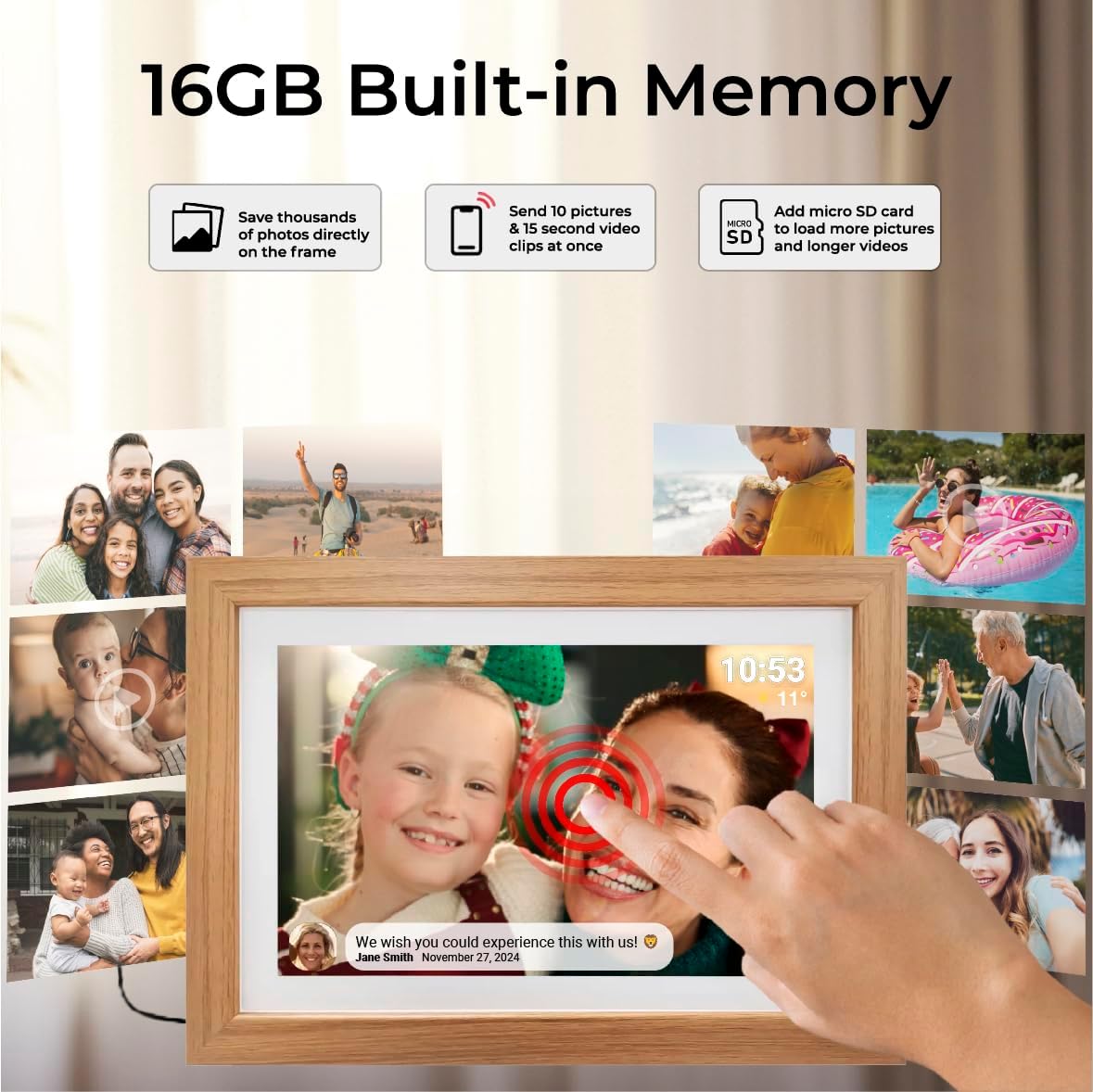
ചിത്രം: This graphic highlights the frame's 16GB built-in memory, indicating it can store thousands of photos. It also shows the capability to send 10 pictures and 15-second video clips at once, and the option to add a Micro SD card for additional storage.
- ആന്തരിക സംഭരണം: The 16GB internal memory is sufficient for thousands of photos and numerous short video clips.
- മൈക്രോ എസ്ഡി കാർഡ്: Insert a Micro SD card into the designated slot to expand storage capacity or to transfer media directly to the frame.
5.5 സ്വകാര്യതയും സുരക്ഷയും
The Frameo app and your digital photo frame are designed with privacy and security in mind.

ചിത്രം: This illustration depicts the secure and private communication pathway between a user's smartphone running the Frameo app and the digital photo frame. It highlights compliance with data protection regulations such as GDPR, CCPA, and PSTI, and features an 'Intertek Cyber Assured' badge, ensuring data privacy.
All communication between the app and the frame is encrypted and secure, adhering to privacy standards such as GDPR, CCPA, and PSTI.
6. പരിപാലനം
6.1 ഫ്രെയിം വൃത്തിയാക്കൽ
- സ്ക്രീൻ: മൃദുവായ, ലിന്റ് രഹിത തുണി ഉപയോഗിച്ച് സ്ക്രീൻ സൌമ്യമായി തുടയ്ക്കുക. കഠിനമായ പാടുകൾക്ക്, ചെറുതായി dampതുണിയിൽ വെള്ളം അല്ലെങ്കിൽ സ്ക്രീൻ ക്ലീനിംഗ് ലായനി ഉപയോഗിക്കുക. കഠിനമായ രാസവസ്തുക്കൾ ഒഴിവാക്കുക.
- ഫ്രെയിം: മരച്ചട്ട ഉണങ്ങിയതോ ചെറുതായി നനഞ്ഞതോ ആയ ഒരു തുണി ഉപയോഗിച്ച് തുടയ്ക്കുക.amp cloth. Do not use abrasive cleaners or excessive moisture.
6.2 സോഫ്റ്റ്വെയർ അപ്ഡേറ്റുകൾ
The Frameo software is continuously updated to improve features and performance. Ensure your frame is connected to Wi-Fi to receive automatic updates.

ചിത്രം: This image highlights key aspects of the Frameo ecosystem, including its top-rated software, dedicated support team, its suitability as a gift, and the commitment to continuous software updates, shown with a digital photo frame displaying a 'Downloading update...' message.
7. പ്രശ്നപരിഹാരം
7.1 പൊതുവായ പ്രശ്നങ്ങളും പരിഹാരങ്ങളും
- ഫ്രെയിം ഓണാക്കുന്നില്ല:
Ensure the power adapter is securely connected to both the frame and a working power outlet. Try a different outlet if necessary. - Wi-Fi-ലേക്ക് കണക്റ്റുചെയ്യാൻ കഴിയില്ല:
Verify your Wi-Fi password is correct. Ensure the frame is within range of your Wi-Fi router. Restart your router and the photo frame. - Photos not appearing on the frame:
Check if the frame is connected to Wi-Fi. Ensure the Frameo app on your smartphone is connected to the correct frame. Verify that photos were successfully sent from the app. - ടച്ച് സ്ക്രീൻ പ്രതികരിക്കുന്നില്ല:
Restart the frame by unplugging and re-plugging the power adapter. If the issue persists, perform a factory reset (refer to the quick start guide for instructions on locating the reset button). - Frame is slow or freezing:
Ensure the frame's software is up to date. If many photos/videos are stored, consider deleting older content or transferring them to a Micro SD card. Restarting the frame can also resolve temporary slowdowns.
8 സ്പെസിഫിക്കേഷനുകൾ
| മോഡൽ നമ്പർ | 119101040330 (PFF1042LW) |
| സ്ക്രീൻ വലിപ്പം | 10.1 ഇഞ്ച് |
| റെസലൂഷൻ | 1280x800 (HD IPS Touch Screen) |
| വീക്ഷണാനുപാതം | 16:10 |
| ആന്തരിക സംഭരണം | 16 ജിബി |
| കണക്റ്റിവിറ്റി | വൈഫൈ |
| അനുയോജ്യമായ ഉപകരണങ്ങൾ | Smartphone (via Frameo App) |
| ഹ്യൂമൻ ഇന്റർഫേസ് ഇൻപുട്ട് | ടച്ച് സ്ക്രീൻ |
| പവർ ഉറവിടം | കോർഡഡ് ഇലക്ട്രിക് |
| ഫ്രെയിം മെറ്റീരിയൽ | മരം |
| ഉൽപ്പന്ന അളവുകൾ | 2.5 x 33.2 x 2.51 സെ.മീ |
| ഇനത്തിൻ്റെ ഭാരം | 770 ഗ്രാം |
9. വാറൻ്റിയും പിന്തുണയും
For warranty information and technical support, please refer to the documentation included with your product or visit the official Denver webസൈറ്റ്. വാറന്റി ക്ലെയിമുകൾക്കായി നിങ്ങളുടെ വാങ്ങലിന്റെ തെളിവ് സൂക്ഷിക്കുക.


