1. ആമുഖം
Thank you for choosing the CUPEISI CP20 Android 15 Tablet. This manual provides essential information for setting up, operating, and maintaining your device. Please read it thoroughly to ensure optimal performance and longevity of your tablet.
2. ബോക്സിൽ എന്താണുള്ളത്?
നിങ്ങളുടെ പാക്കേജിൽ എല്ലാ ഇനങ്ങളും ഉണ്ടെന്ന് ഉറപ്പാക്കുക:
- CUPEISI CP20 Android 15 Tablet
- വയർലെസ് കീബോർഡ്
- മടക്കാവുന്ന സംരക്ഷണ കവർ
- ബ്ലൂടൂത്ത് മൗസ്
- സ്റ്റൈലസ്
- ടൈപ്പ്-സി കേബിൾ
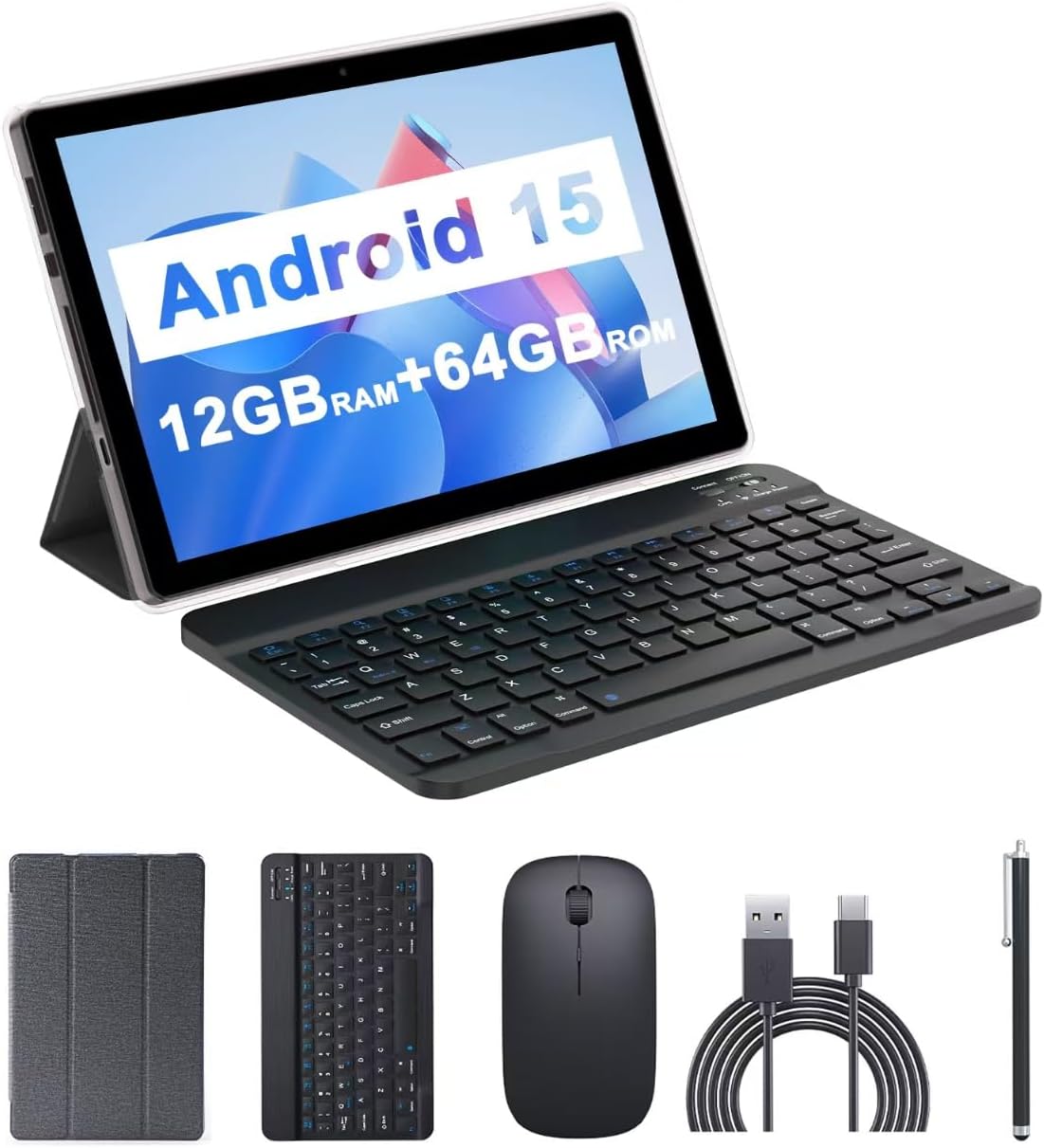
Image: The CUPEISI CP20 Tablet alongside its accessories, including the wireless keyboard, Bluetooth mouse, stylus, and foldable protective cover.
3. ഉൽപ്പന്ന സവിശേഷതകളും ഘടകങ്ങളും
The CUPEISI CP20 Tablet is designed for versatility and performance, offering a seamless user experience for both work and entertainment.
3.1 പ്രധാന സവിശേഷതകൾ
- ഓപ്പറേറ്റിംഗ് സിസ്റ്റം: Stable Android 15.0 system.
- പ്രോസസ്സർ: Built-in 1.8GHz Quad-core CPU for efficient multitasking.
- മെമ്മറിയും സംഭരണവും: 12GB RAM (4GB+8GB expansion) and 64GB ROM, expandable up to 1TB via microSD card.
- ഡിസ്പ്ലേ: Stunning 10.1-inch 1280x800 IPS HD touch screen for immersive visuals and eye protection.
- ബാറ്ററി: Powered by a 6000mAh battery, providing approximately 6 hours of regular operation and up to 12 hours of standby time. Charges via 5V2A Type-C port.
- ക്യാമറകൾ: 8MP rear camera with auto-focus and flash, and a 2MP front camera for clear video calls and photos.
- കണക്റ്റിവിറ്റി: Supports 5G WiFi 6 and Bluetooth 5.0.
- 2-ഇൻ-1 പ്രവർത്തനം: Transforms into a laptop or computer mode with the included Bluetooth keyboard, wireless mouse, and foldable protective case.

ചിത്രം: കഴിഞ്ഞുview of the tablet's core specifications and features.
3.2 ഭൗതിക ഘടകങ്ങൾ
Familiarize yourself with the tablet's physical layout:
- പവർ ബട്ടൺ: ടാബ്ലെറ്റ് ഓൺ/ഓഫ് ചെയ്യുന്നതിനോ സ്ക്രീൻ ഉണർത്തുന്നതിനോ/ഉറങ്ങുന്നതിനോ ഉപയോഗിക്കുന്ന വശത്ത് സ്ഥിതിചെയ്യുന്നു.
- വോളിയം ബട്ടണുകൾ: ഓഡിയോ ലെവലുകൾ ക്രമീകരിക്കുക.
- ടൈപ്പ്-സി പോർട്ട്: ചാർജിംഗിനും ഡാറ്റ കൈമാറ്റത്തിനും.
- ടിഎഫ്/സിം കാർഡ് സ്ലോട്ട്: വിപുലീകരിച്ച സംഭരണത്തിനായി ഒരു മൈക്രോ എസ്ഡി കാർഡ് ഇടുക.
- മുൻ ക്യാമറ: വീഡിയോ കോളുകൾക്കും സെൽഫികൾക്കും.
- Rear Camera & Flash: For high-quality photos and videos.
- സ്പീക്കറുകൾ: Two speakers for audio output.

Image: Labeled diagram of the tablet's ports and buttons.
4. സജ്ജീകരണ ഗൈഡ്
4.1 പ്രാരംഭ ചാർജിംഗ്
Before first use, fully charge your tablet. Connect the Type-C cable to the tablet's charging port and the other end to a compatible power adapter (5V2A recommended). The battery indicator will show charging status.
4.2 പവർ ഓൺ/ഓഫ്
- പവർ ഓണാക്കാൻ: സ്ക്രീൻ പ്രകാശിക്കുന്നത് വരെ പവർ ബട്ടൺ അമർത്തിപ്പിടിക്കുക.
- പവർ ഓഫ് ചെയ്യാൻ: Press and hold the Power Button, then select 'Power off' from the options that appear on the screen.
- പുനരാരംഭിക്കാൻ: Press and hold the Power Button, then select 'Restart'.
4.3 Wi-Fi-ലേക്ക് ബന്ധിപ്പിക്കുന്നു
- പോകുക ക്രമീകരണങ്ങൾ > നെറ്റ്വർക്കും ഇൻ്റർനെറ്റും > വൈഫൈ.
- Wi-Fi ഓണാക്കുക.
- ലിസ്റ്റിൽ നിന്ന് നിങ്ങൾക്ക് ആവശ്യമുള്ള വൈഫൈ നെറ്റ്വർക്ക് തിരഞ്ഞെടുക്കുക.
- ആവശ്യപ്പെടുകയാണെങ്കിൽ പാസ്വേഡ് നൽകുക, തുടർന്ന് ടാപ്പുചെയ്യുക ബന്ധിപ്പിക്കുക.
4.4 Pairing Bluetooth Accessories
To use the wireless keyboard and Bluetooth mouse, they must be paired with your tablet.
- കീബോർഡും മൗസും ചാർജ് ചെയ്തിട്ടുണ്ടെന്നും പവർ ഓൺ ചെയ്തിട്ടുണ്ടെന്നും ഉറപ്പാക്കുക.
- നിങ്ങളുടെ ടാബ്ലെറ്റിൽ, ഇതിലേക്ക് പോകുക ക്രമീകരണങ്ങൾ > ബന്ധിപ്പിച്ച ഉപകരണങ്ങൾ > ബ്ലൂടൂത്ത്.
- ബ്ലൂടൂത്ത് ഓണാക്കുക.
- The tablet will scan for available devices. Select the keyboard or mouse from the list.
- ജോടിയാക്കൽ പ്രക്രിയ പൂർത്തിയാക്കാൻ ഏതെങ്കിലും ഓൺ-സ്ക്രീൻ നിർദ്ദേശങ്ങൾ പാലിക്കുക.

Image: Instructions for connecting the wireless keyboard and mouse via Bluetooth.
4.5 ഒരു മൈക്രോ എസ്ഡി കാർഡ് ചേർക്കൽ
To expand storage, insert a microSD card (up to 1TB) into the TF/SIM card slot. Ensure the tablet is powered off before inserting or removing the card.
5. നിങ്ങളുടെ ടാബ്ലെറ്റ് പ്രവർത്തിപ്പിക്കൽ
5.1 അടിസ്ഥാന നാവിഗേഷൻ
Navigate the Android interface using touch gestures:
- ടാപ്പ് ചെയ്യുക: ഒരു ഇനം തിരഞ്ഞെടുക്കുകയോ ഒരു ആപ്പ് തുറക്കുകയോ ചെയ്യുക.
- സ്വൈപ്പ്: പേജുകളിലൂടെയോ ലിസ്റ്റുകളിലൂടെയോ സ്ക്രോൾ ചെയ്യുക.
- പിഞ്ച്-ടു-സൂം: Enlarge or shrink content.
- ദീർഘനേരം അമർത്തുക: സന്ദർഭോചിത മെനുകൾ ആക്സസ് ചെയ്യുക അല്ലെങ്കിൽ ഐക്കണുകൾ നീക്കുക.
5.2 Using Keyboard and Mouse
Once paired, the keyboard and mouse function similarly to a laptop. The keyboard allows for efficient typing, while the mouse provides precise cursor control, enhancing productivity.

Image: The tablet in laptop mode, demonstrating its use for productivity tasks.
5.3 ക്യാമറ ഉപയോഗം
Open the Camera app to capture photos and videos. Switch between the 2MP front camera and the 8MP rear camera as needed. The rear camera features auto-focus and flash for improved image quality.

Image: Demonstrating the tablet's front and rear camera functionality for video calls and photography.
5.4 App Installation and Management
Download and install applications from the Google Play Store. To manage installed apps, go to ക്രമീകരണങ്ങൾ > ആപ്പുകൾ.

Image: The tablet running Android 15 OS, showing popular applications like YouTube, Google Play, and Netflix.
6. പരിപാലനം
6.1 വൃത്തിയാക്കൽ
Use a soft, lint-free cloth to clean the screen and body of the tablet. Avoid using harsh chemicals or abrasive materials. For stubborn smudges, slightly dampഇലക്ട്രോണിക് ഉപകരണങ്ങൾക്കായി രൂപകൽപ്പന ചെയ്ത വെള്ളമുള്ള തുണി അല്ലെങ്കിൽ സ്ക്രീൻ ക്ലീനർ.
6.2 സോഫ്റ്റ്വെയർ അപ്ഡേറ്റുകൾ
നിങ്ങളുടെ ടാബ്ലെറ്റിൽ ഏറ്റവും പുതിയ സവിശേഷതകൾ, സുരക്ഷാ പാച്ചുകൾ, പ്രകടന മെച്ചപ്പെടുത്തലുകൾ എന്നിവ ഉറപ്പാക്കാൻ സോഫ്റ്റ്വെയർ അപ്ഡേറ്റുകൾ പതിവായി പരിശോധിച്ച് ഇൻസ്റ്റാൾ ചെയ്യുക. പോകുക ക്രമീകരണങ്ങൾ > സിസ്റ്റം > സിസ്റ്റം അപ്ഡേറ്റ്.
6.3 സ്റ്റോറേജ് മാനേജ്മെൻ്റ്
മികച്ച പ്രകടനം നിലനിർത്താൻ, ഇടയ്ക്കിടെ വീണ്ടുംview and manage your tablet's storage. Delete unnecessary files ഉപയോഗിക്കുക, ഉപയോഗിക്കാത്ത ആപ്പുകൾ അൺഇൻസ്റ്റാൾ ചെയ്യുക, വലിയ മീഡിയ നീക്കുക files to external storage (microSD card) if applicable. Go to ക്രമീകരണങ്ങൾ > സംഭരണം വരെ view ഉപയോഗവും സ്ഥലം ശൂന്യമാക്കലും.
7. പ്രശ്നപരിഹാരം
This section addresses common issues you might encounter with your CUPEISI CP20 Tablet.
7.1 ടാബ്ലെറ്റ് ഓണാക്കുന്നില്ല
- ടാബ്ലെറ്റ് ആവശ്യത്തിന് ചാർജ്ജ് ചെയ്തിട്ടുണ്ടെന്ന് ഉറപ്പാക്കുക. കുറഞ്ഞത് 30 മിനിറ്റെങ്കിലും ചാർജറുമായി ബന്ധിപ്പിക്കുക.
- Perform a forced restart by pressing and holding the Power Button for 10-15 seconds.
7.2 മന്ദഗതിയിലുള്ള പ്രകടനം
- പശ്ചാത്തലത്തിൽ പ്രവർത്തിക്കുന്ന ഉപയോഗിക്കാത്ത ആപ്ലിക്കേഷനുകൾ അടയ്ക്കുക.
- Clear cached data for apps (Settings > Apps > [App Name] > Storage & cache > Clear cache).
- മതിയായ സൗജന്യ സംഭരണ സ്ഥലം ഉറപ്പാക്കുക.
- ടാബ്ലെറ്റ് ഇടയ്ക്കിടെ പുനരാരംഭിക്കുക.
7.3 വൈ-ഫൈ കണക്റ്റിവിറ്റി പ്രശ്നങ്ങൾ
- ക്രമീകരണങ്ങളിൽ വൈഫൈ ഓഫും ഓണും ആക്കുക.
- നിങ്ങളുടെ വൈഫൈ റൂട്ടർ പുനരാരംഭിക്കുക.
- Forget the network and reconnect (Settings > Network & internet > Wi-Fi > [Network Name] > Forget).
7.4 ബാറ്ററി പെട്ടെന്ന് ചോർന്നൊലിക്കൽ
- സ്ക്രീൻ തെളിച്ചം കുറയ്ക്കുക.
- ഉപയോഗത്തിലില്ലാത്തപ്പോൾ വൈഫൈ, ബ്ലൂടൂത്ത്, ജിപിഎസ് എന്നിവ ഓഫാക്കുക.
- പശ്ചാത്തല ആപ്പ് പുതുക്കൽ പരിമിതപ്പെടുത്തുക.
- പവർ കൂടുതലുള്ള ആപ്പുകൾ തിരിച്ചറിയാൻ ക്രമീകരണങ്ങൾ > ബാറ്ററി എന്നതിൽ ബാറ്ററി ഉപയോഗം പരിശോധിക്കുക.
8 സ്പെസിഫിക്കേഷനുകൾ
| ഫീച്ചർ | സ്പെസിഫിക്കേഷൻ |
|---|---|
| ബ്രാൻഡ് | ക്യൂപൈസി |
| മോഡലിൻ്റെ പേര് | CP20 |
| ഓപ്പറേറ്റിംഗ് സിസ്റ്റം | ആൻഡ്രോയിഡ് 15 |
| സ്ക്രീൻ വലിപ്പം | 10 ഇഞ്ച് |
| സ്ക്രീൻ റെസല്യൂഷൻ | 1280 x 800 പിക്സലുകൾ (IPS HD) |
| പ്രോസസ്സർ | 1.8 GHz ക്വാഡ്-കോർ |
| റാം | 12 GB (4GB+8GB expansion) |
| ഫ്ലാഷ് മെമ്മറി വലുപ്പം | 64 ജിബി |
| വികസിപ്പിക്കാവുന്ന സംഭരണം | 1TB വരെ (മൈക്രോഎസ്ഡി) |
| പിൻഭാഗം Webക്യാം റെസല്യൂഷൻ | 8 എം.പി |
| ഫ്രണ്ട് ക്യാമറ റെസല്യൂഷൻ | 2 എം.പി |
| വയർലെസ് തരം | 802.11ax (5G WiFi 6) |
| ബ്ലൂടൂത്ത് | ബ്ലൂടൂത്ത് 5.0 |
| ബാറ്ററി ശേഷി | 6000mAh ലിഥിയം പോളിമർ |
| ശരാശരി ബാറ്ററി ലൈഫ് | 8 മണിക്കൂർ |
| ഇനത്തിൻ്റെ ഭാരം | 1 പൗണ്ട് |
| ഉൽപ്പന്ന അളവുകൾ | 9.7 x 6.5 x 0.3 ഇഞ്ച് |
9. വാറൻ്റിയും പിന്തുണയും
For warranty information and technical support, please refer to the documentation included with your purchase or visit the official CUPEISI webസൈറ്റ്. വാറന്റി ക്ലെയിമുകൾക്കായി നിങ്ങളുടെ വാങ്ങലിന്റെ തെളിവ് സൂക്ഷിക്കുക.
If you encounter issues not covered in this manual, please contact CUPEISI customer service for assistance.


