1. ആമുഖം
This user manual provides comprehensive instructions for the safe and efficient operation of your ZTE MU5120 5G Mobile WiFi Hotspot. Please read this manual thoroughly before using the device to ensure proper setup, usage, and maintenance. Keep this manual for future reference.
2. ഉൽപ്പന്നം കഴിഞ്ഞുview
2.1 പ്രധാന സവിശേഷതകൾ
- ഹൈ-സ്പീഡ് കണക്റ്റിവിറ്റി: Supports 5G NR and 4G LTE networks for fast and reliable internet access.
- Wi-Fi 6 (802.11ax) Support: Provides high-speed Wi-Fi with a peak rate of up to 3600Mbps for efficient data transfer.
- വലിയ ബാറ്ററി കപ്പാസിറ്റി: Equipped with a 10000mAh battery for extended usage, offering over 16 hours of battery life.
- പവർ ബാങ്ക് പ്രവർത്തനം: Features 18W reverse charging to power other devices.
- ഫാസ്റ്റ് ചാർജിംഗ്: Supports 27W fast charging, allowing a full charge in approximately 150 minutes.
- അവബോധജന്യമായ ടച്ച്സ്ക്രീൻ: A 2.4-inch touchscreen for easy device setup, monitoring, and management.
- NFC Quick Connection: Simplifies connecting devices with a single tap.
- ഒന്നിലധികം ഉപകരണ പിന്തുണ: ഒരേസമയം 32 ഉപകരണങ്ങൾ വരെ ബന്ധിപ്പിക്കുന്നു.
- Unlocked SIM Slot: Compatible with most major 5G and 4G LTE network operators globally.
2.2 പാക്കേജ് ഉള്ളടക്കം
പാക്കേജിൽ എല്ലാ ഇനങ്ങളും ഉണ്ടെന്ന് ഉറപ്പാക്കുക:
- 1 x ZTE MU5120 5G Mobile WiFi Hotspot
- 1 x ചാർജിംഗ് കേബിൾ
- 1 x ദ്രുത ആരംഭ ഗൈഡ്
2.3 ഉപകരണ ലേayട്ട്

Figure 2.3.1: Front, side, and back views of the ZTE MU5120, highlighting the power button and charging port.

Figure 2.3.2: The ZTE MU5120's 2.4-inch touchscreen interface, showing data usage, Wi-Fi status, and settings options.
3. സജ്ജീകരണം
3.1 സിം കാർഡ് ചേർക്കൽ
- ഉപകരണം ഓഫാണെന്ന് ഉറപ്പാക്കുക.
- ഉപകരണത്തിന്റെ വശത്ത് സിം കാർഡ് സ്ലോട്ട് കണ്ടെത്തുക.
- Gently insert a Nano-SIM card into the slot with the gold contacts facing down and the notched corner aligned correctly. Push until it clicks into place.
- Close the SIM card slot cover (if applicable).
3.2 പ്രാരംഭ ചാർജിംഗ്
ആദ്യ ഉപയോഗത്തിന് മുമ്പ്, ഉപകരണം പൂർണ്ണമായും ചാർജ് ചെയ്യുക.
- Connect the provided charging cable to the device's USB-C port.
- കേബിളിന്റെ മറ്റേ അറ്റം അനുയോജ്യമായ ഒരു USB പവർ അഡാപ്റ്ററുമായി (ഉൾപ്പെടുത്തിയിട്ടില്ല) അല്ലെങ്കിൽ കമ്പ്യൂട്ടറിന്റെ USB പോർട്ടുമായി ബന്ധിപ്പിക്കുക.
- The screen will indicate charging status. A full charge takes approximately 150 minutes with a 27W fast charger.
4. പ്രവർത്തന നിർദ്ദേശങ്ങൾ
4.1 പവർ ഓൺ/ഓഫ്
- പവർ ഓണാക്കാൻ: Press and hold the Power button on the side of the device until the screen lights up.
- പവർ ഓഫ് ചെയ്യാൻ: പവർ-ഓഫ് ഓപ്ഷനുകൾ സ്ക്രീനിൽ ദൃശ്യമാകുന്നതുവരെ പവർ ബട്ടൺ അമർത്തിപ്പിടിക്കുക, തുടർന്ന് 'പവർ ഓഫ്' തിരഞ്ഞെടുക്കുക.
4.2 വൈഫൈ വഴി ഉപകരണങ്ങൾ ബന്ധിപ്പിക്കൽ
The ZTE MU5120 supports Wi-Fi 6 for high-speed connections.

Figure 4.2.1: The ZTE MU5120 supports high-speed Wi-Fi 6 with peak rates up to 3600Mbps.
- Ensure the MU5120 is powered on and has an active internet connection.
- On your device (smartphone, laptop, tablet), go to Wi-Fi settings.
- Select the Wi-Fi network name (SSID) displayed on the MU5120's screen.
- Enter the Wi-Fi password (Key) shown on the MU5120's screen.
- നിങ്ങളുടെ ഉപകരണം ഇപ്പോൾ ഇന്റർനെറ്റുമായി ബന്ധിപ്പിച്ചിരിക്കണം.
4.3 Connecting Devices via NFC
For compatible Android devices, NFC provides a quick connection method.
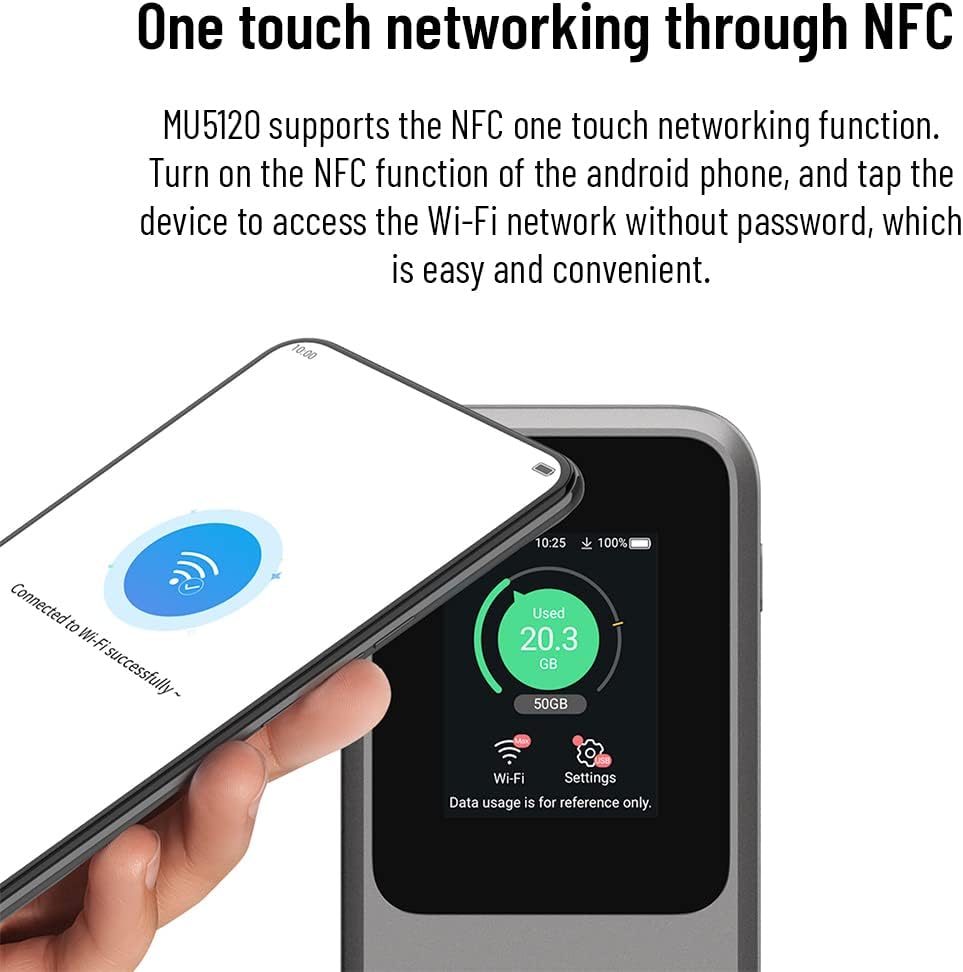
Figure 4.3.1: A smartphone being tapped against the ZTE MU5120 to establish a Wi-Fi connection via NFC.
- Ensure NFC is enabled on your Android phone and on the MU5120 (check device settings).
- Tap your Android phone against the NFC area on the MU5120.
- പാസ്വേഡ് നൽകാതെ തന്നെ നിങ്ങളുടെ ഫോൺ വൈഫൈ നെറ്റ്വർക്കിലേക്ക് യാന്ത്രികമായി കണക്റ്റ് ചെയ്യും.
4.4 പവർ ബാങ്കായി ഉപയോഗിക്കുന്നത്
The MU5120 can charge other devices using its 18W reverse charging feature.

Figure 4.4.1: The ZTE MU5120 connected via cable to a smartphone, demonstrating its power bank capability.
- Connect your device (e.g., smartphone) to the MU5120's USB-C port using a compatible charging cable.
- The MU5120 will begin charging your connected device.
4.5 Managing Settings via Touchscreen
The 2.4-inch touchscreen allows for direct management of the device.
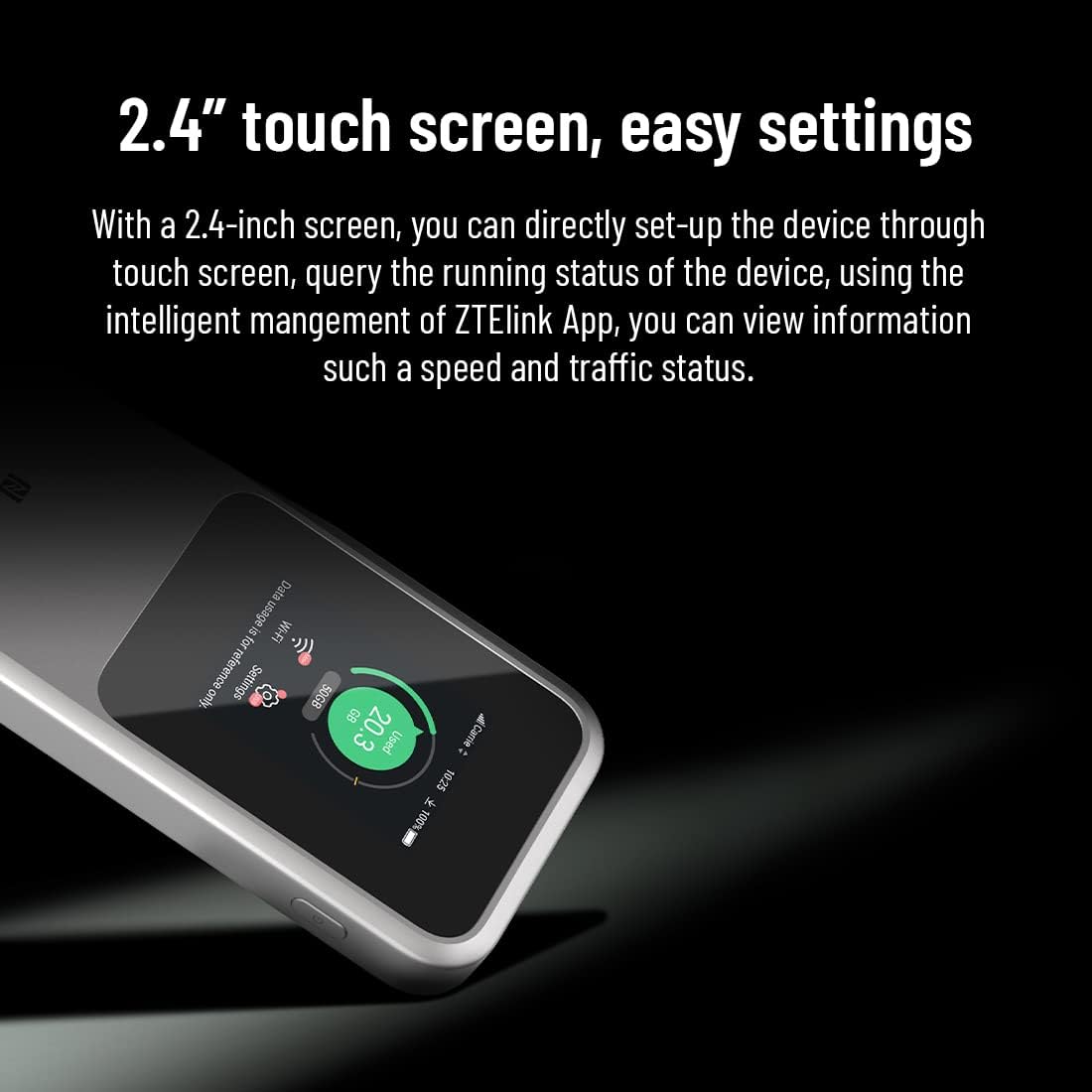
ചിത്രം 4.5.1: ഒരു ക്ലോസ്-അപ്പ് view of the 2.4-inch touchscreen, illustrating the ease of accessing settings and monitoring device status.
Navigate through the menus by swiping and tapping on the screen. You can view information such as speed, traffic status, connected devices, and adjust Wi-Fi settings directly from the device.
5. പരിപാലനം
5.1 ഉപകരണം വൃത്തിയാക്കുന്നു
- ഉപകരണത്തിൻ്റെ പുറംഭാഗം വൃത്തിയാക്കാൻ മൃദുവായതും ഉണങ്ങിയതുമായ തുണി ഉപയോഗിക്കുക.
- ലിക്വിഡ് ക്ലീനറുകളോ എയറോസോൾ സ്പ്രേകളോ ഉപയോഗിക്കരുത്.
5.2 ബാറ്ററി കെയർ
- ഉപകരണം തീവ്രമായ താപനിലയിൽ (ചൂടോ തണുപ്പോ) തുറന്നുകാട്ടുന്നത് ഒഴിവാക്കുക.
- ബാറ്ററി പഞ്ചർ ചെയ്യുകയോ ഡിസ്അസംബ്ലിംഗ് ചെയ്യുകയോ ഷോർട്ട് സർക്യൂട്ട് ചെയ്യുകയോ ചെയ്യരുത്.
- ഉപകരണം കൂടുതൽ നേരം ഉപയോഗിക്കില്ലെങ്കിൽ, സൂക്ഷിക്കുന്നതിന് മുമ്പ് ഏകദേശം 50% വരെ ചാർജ് ചെയ്യുക.
5.3 സോഫ്റ്റ്വെയർ അപ്ഡേറ്റുകൾ
Periodically check for software updates through the device's settings or the ZTE Link App to ensure optimal performance and security.
6. പ്രശ്നപരിഹാരം
6.1 പൊതുവായ പ്രശ്നങ്ങളും പരിഹാരങ്ങളും
| പ്രശ്നം | സാധ്യമായ കാരണം | പരിഹാരം |
|---|---|---|
| ഇൻ്റർനെറ്റ് കണക്ഷനില്ല | No SIM card, incorrect APN settings, no network signal, data limit reached. | Ensure SIM is inserted correctly. Check APN settings. Move to an area with better signal. Check data plan. |
| Wi-Fi-യിലേക്ക് കണക്റ്റുചെയ്യാൻ കഴിയില്ല | Incorrect Wi-Fi password, device too far, Wi-Fi disabled. | Verify password. Move closer to the hotspot. Ensure Wi-Fi is enabled on the MU5120. |
| ഇന്റർനെറ്റ് വേഗത കുറവാണ് | ദുർബലമായ സിഗ്നൽ, വളരെയധികം കണക്റ്റഡ് ഉപകരണങ്ങൾ, നെറ്റ്വർക്ക് തിരക്ക്. | Relocate the device for better signal. Disconnect unused devices. Try again during off-peak hours. |
| ഉപകരണം ചാർജ് ചെയ്യുന്നില്ല | കേബിൾ/അഡാപ്റ്റർ തകരാറാണ്, വൃത്തികെട്ട ചാർജിംഗ് പോർട്ട്. | Try a different cable and adapter. Clean the charging port gently. |
6.2 ഉപകരണം പുനഃസജ്ജമാക്കുന്നു
If issues persist, you may perform a factory reset. മുന്നറിയിപ്പ്: This will erase all custom settings and data on the device.
- Locate the reset pinhole on the device (often near the SIM slot or charging port).
- With the device powered on, use a paperclip or a SIM ejector tool to press and hold the reset button inside the pinhole for about 5-10 seconds until the device restarts.
7 സ്പെസിഫിക്കേഷനുകൾ
| ഫീച്ചർ | വിശദാംശങ്ങൾ |
|---|---|
| മോഡലിൻ്റെ പേര് | ZTE MU5120 (Internal Model: U10S PRO) |
| അളവുകൾ (L x W x H) | 13.3 x 7.3 x 1.85 സെ.മീ |
| ഭാരം | 240 ഗ്രാം |
| നിറം | കറുപ്പ് |
| ബാറ്ററി ശേഷി | 10000mAh ലിഥിയം-പോളിമർ |
| ചാർജിംഗ് | 27W Fast Charging (approx. 150 min for full charge) |
| റിവേഴ്സ് ചാർജിംഗ് | 18W |
| പ്രദർശിപ്പിക്കുക | 2.4 ഇഞ്ച് ടച്ച്സ്ക്രീൻ |
| നെറ്റ്വർക്ക് പിന്തുണ | 5G NR, 4G LTE |
| Wi-Fi മാനദണ്ഡങ്ങൾ | 802.11a/b/g/n/ac/ax (Wi-Fi 6) |
| പരമാവധി വൈ-ഫൈ വേഗത | 3600Mbps (Peak Rate) |
| പരമാവധി ബന്ധിപ്പിച്ച ഉപകരണങ്ങൾ | 32 |
| പ്രത്യേക സവിശേഷതകൾ | NFC, Power Bank Function |
| ചിപ്സെറ്റ് | Snapdragon X62/65 + WCN6856 |
| ഓപ്പറേറ്റിംഗ് സിസ്റ്റം | റൂട്ടർഒഎസ് (ഫേംവെയർ) |
| ഉൾപ്പെടുത്തിയ ഘടകങ്ങൾ | ZTE MU5120, Charging Cable, Quick Start Guide |
8. വാറൻ്റിയും പിന്തുണയും
8.1 ഉൽപ്പന്ന വാറന്റി
The ZTE MU5120 comes with a 2 വർഷത്തെ വാറൻ്റി വാങ്ങിയ തീയതി മുതൽ. സാധാരണ ഉപയോഗത്തിലുള്ള നിർമ്മാണ വൈകല്യങ്ങളും തകരാറുകളും ഈ വാറന്റി ഉൾക്കൊള്ളുന്നു. വാറന്റി ക്ലെയിമുകൾക്കായി നിങ്ങളുടെ വാങ്ങിയതിന്റെ തെളിവ് സൂക്ഷിക്കുക.
8.2 സാങ്കേതിക പിന്തുണ
For any technical assistance or inquiries, a 24/7 technical support team is available to help you. Please refer to the contact information provided in your Quick Start Guide or on the official ZTE website for support channels.


