ആമുഖം
This document provides comprehensive instructions for the SOMIC USB Dongle, specifically designed for use with the SOMIC GS510PRO Wireless Gaming Headset. It covers product overview, സജ്ജീകരണം, പ്രവർത്തനം, പരിപാലനം, ട്രബിൾഷൂട്ടിംഗ്, സാങ്കേതിക സവിശേഷതകൾ.
Note: This USB dongle is exclusively compatible with the SOMIC GS510PRO wireless gaming headset.
ഉൽപ്പന്നം കഴിഞ്ഞുview
The SOMIC USB Dongle facilitates wireless connectivity between your SOMIC GS510PRO Wireless Gaming Headset and compatible devices such as desktops and laptops.
പാക്കേജ് ഉള്ളടക്കം
- 1x USB Wireless Dongle
ഘടകം തിരിച്ചറിയൽ
The dongle features a standard USB Type-A connector for device integration, an LED indicator for status, and a small reset hole.

ചിത്രം: മുൻഭാഗം view of the SOMIC USB dongle, highlighting the central blue LED indicator.
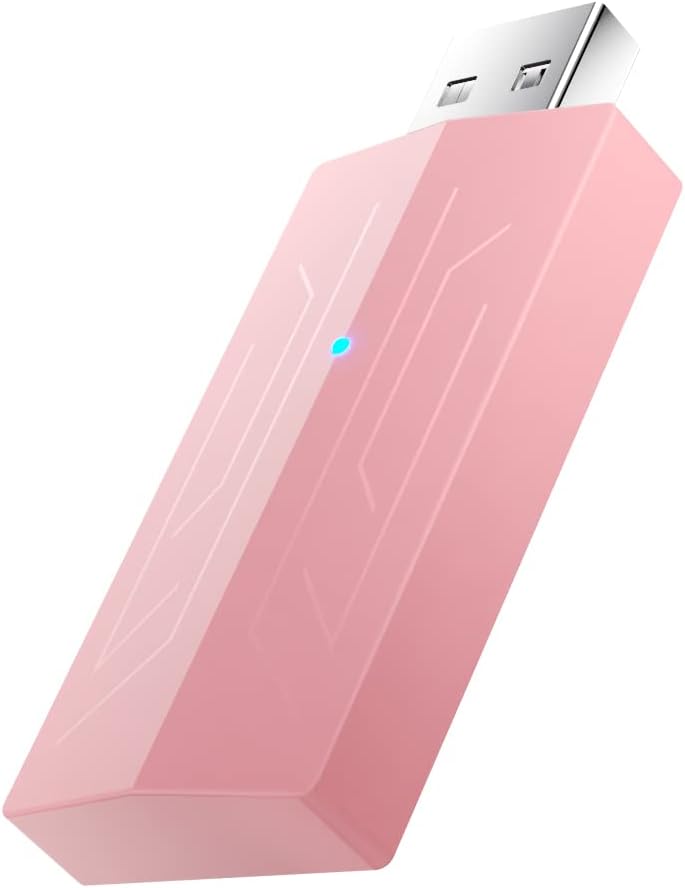
ചിത്രം: ആംഗിൾഡ് view of the SOMIC USB dongle, illustrating its compact design and the USB Type-A connector.

ചിത്രം: പിന്നിലേക്ക് view of the SOMIC USB dongle, featuring the SOMIC brand logo.
സജ്ജീകരണത്തിനും ജോടിയാക്കലിനുമുള്ള നിർദ്ദേശങ്ങൾ
Follow these steps to connect your SOMIC GS510PRO Wireless Gaming Headset to your device using the USB dongle:
- Plug the USB dongle into an available USB port on your device (e.g., desktop, laptop).
- Locate the small reset hole next to the LED indicator on the dongle. Insert a small pin (such as a paperclip) into this hole and press for at least 2 seconds until the LED rapidly blinks blue. This indicates the dongle is in pairing mode.
- Turn on your SOMIC GS510PRO headset and place it in close proximity to the USB dongle.
- The dongle's blue LED will become solid once pairing is successfully completed, indicating a stable connection.

Image: The SOMIC GS510PRO headset positioned next to a laptop with the USB dongle inserted, illustrating a typical setup.
പ്രവർത്തന നിർദ്ദേശങ്ങൾ
Once successfully paired, the SOMIC USB Dongle operates automatically. Ensure the dongle remains connected to your device and the headset is powered on for continuous wireless audio transmission.
LED ഇൻഡിക്കേറ്റർ നില
- Rapid Blue Blinking: The dongle is in pairing mode, actively searching for a headset.
- കടും നീല: The dongle is successfully paired and connected to the headset, and is ready for use.
- ഓഫ്: The dongle is either not powered, not connected to a device, or not actively communicating.
മെയിൻ്റനൻസ്
To ensure optimal performance and longevity of your SOMIC USB Dongle, observe the following maintenance guidelines:
- Keep the dongle clean and free from dust. Use a soft, dry cloth for cleaning.
- Avoid exposing the dongle to extreme temperatures, direct sunlight, or moisture.
- Store the dongle in a safe place when not in use to prevent physical damage to the connector or casing.
ട്രബിൾഷൂട്ടിംഗ്
Dongle Not Pairing with Headset
- Ensure the dongle is securely plugged into a functioning USB port on your device.
- Verify that the SOMIC GS510PRO headset is powered on and has sufficient battery charge.
- Repeat the pairing steps outlined in the "Setup and Pairing Instructions" section, ensuring the dongle's LED blinks rapidly blue during pairing mode.
- Try plugging the dongle into a different USB port on your device to rule out a port issue.
No Audio After Pairing
- Check your device's audio output settings to ensure the SOMIC GS510PRO headset is selected as the default playback device.
- Adjust the volume levels on both your device and the headset.
- Temporarily disconnect and then reconnect the dongle, then re-pair the dongle and headset if necessary.
സ്പെസിഫിക്കേഷനുകൾ
| ഫീച്ചർ | വിശദാംശങ്ങൾ |
|---|---|
| മോഡൽ | GS510Pro |
| ഉൽപ്പന്ന അളവുകൾ (L x W x H) | 1.97 x 1.38 x 0.39 ഇഞ്ച് |
| ഇനത്തിൻ്റെ ഭാരം | 0.317 ഔൺസ് |
| കണക്റ്റർ തരം | യുഎസ്ബി ടൈപ്പ്-എ |
| അനുയോജ്യമായ ഉപകരണങ്ങൾ | SOMIC GS510PRO Wireless Gaming Headset, Desktop, Laptop |
| നിർമ്മാതാവ് | SOMIC |
വാറൻ്റിയും പിന്തുണയും
For warranty information or technical assistance regarding your SOMIC USB Dongle, please contact SOMIC customer support. You can typically find contact details on their official website or through the retailer where the product was purchased. Please retain your purchase receipt as proof of purchase for any warranty claims.