1. ആമുഖം
This manual provides essential instructions for the installation, operation, and maintenance of your HIKVISION iDS-7104HQHI-M1/S 4-Channel H.265 AcuSense DVR. This Digital Video Recorder is designed for surveillance systems, offering advanced features such as H.265 Pro+/H.265 Pro/H.265 video compression, deep learning-based perimeter protection, and audio over coaxial cable support. Please read this manual thoroughly before using the device to ensure proper and safe operation.
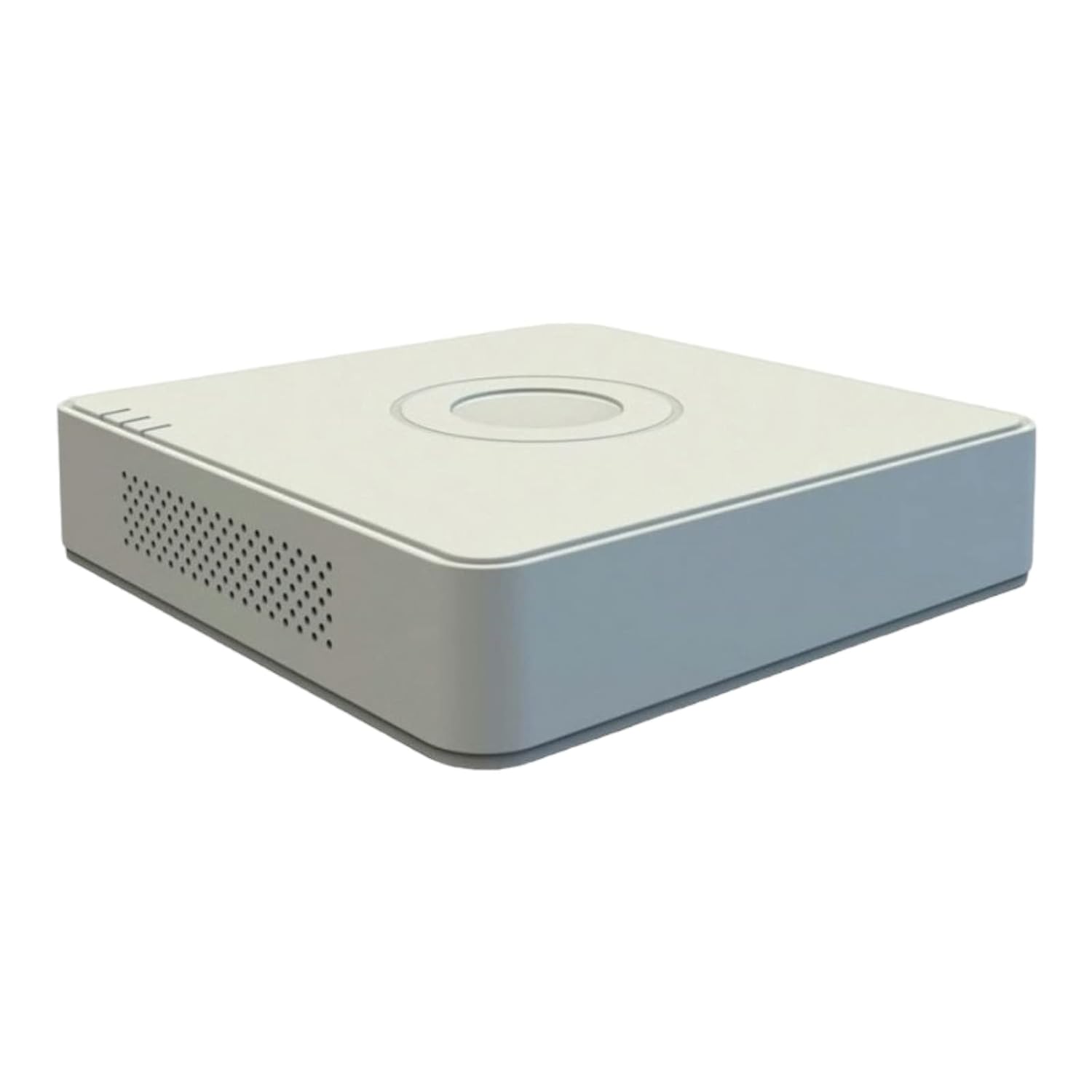
ചിത്രം 1.1: മുൻഭാഗം view of the HIKVISION iDS-7104HQHI-M1/S DVR main unit.
2. പാക്കേജ് ഉള്ളടക്കം
Verify that all items listed below are included in your package. If any items are missing or damaged, contact your supplier immediately.
- Main DVR Unit (iDS-7104HQHI-M1/S)
- പവർ അഡാപ്റ്റർ
- HDMI കേബിൾ
- മൗസ്
- HDD ഇൻസ്റ്റാളേഷനുള്ള സ്ക്രൂകൾ
- ദ്രുത ആരംഭ ഗൈഡ്

Figure 2.1: The HIKVISION DVR unit shown with its included HDMI cable and other accessories.
3. ഉൽപ്പന്നം കഴിഞ്ഞുview
3.1 ഫ്രണ്ട് പാനൽ
The front panel typically includes status indicators for power, hard drive activity, and network connection. Specific models may also feature USB ports for mouse or USB drive connection.
3.2 പിൻ പാനൽ
The rear panel houses all essential connection ports for your surveillance system.

ചിത്രം 3.1: ഓവർview of the HIKVISION DVR, highlighting the front and rear panels with various input/output ports.
- വീഡിയോ ഇൻപുട്ട് (BNC): Connect CCTV cameras. This model supports 4 channels.
- Audio Input/Output (RCA): For audio recording and playback. This DVR supports audio over coaxial cable.
- HDMI ഔട്ട്പുട്ട്: Connect to a monitor or TV for high-definition video display.
- വിജിഎ put ട്ട്പുട്ട്: Connect to a monitor for standard video display.
- LAN Port (RJ45): Connect to your network for remote access and internet connectivity.
- USB പോർട്ടുകൾ: For connecting a mouse, USB flash drive for backup, or external storage.
- Power Input (DC 12V): Connect the included power adaptor.
4. സജ്ജീകരണ നിർദ്ദേശങ്ങൾ
4.1 ഹാർഡ് ഡ്രൈവ് ഇൻസ്റ്റലേഷൻ (ഓപ്ഷണൽ)
If a hard drive is not pre-installed, follow these steps:
- DVR-ന്റെ മുകളിലെ കവർ അഴിച്ചുമാറ്റി നീക്കം ചെയ്യുക.
- Connect the SATA data cable and power cable from the DVR to the hard drive.
- Secure the hard drive to the DVR chassis using the provided screws.
- മുകളിലെ കവർ മാറ്റി സ്ക്രൂകൾ ഉപയോഗിച്ച് ഉറപ്പിക്കുക.
4.2 Connecting the DVR
- ക്യാമറകൾ ബന്ധിപ്പിക്കുക: Attach your CCTV cameras to the BNC video input ports on the rear panel. Ensure secure connections. This model supports audio transmission via coaxial cable for compatible cameras.
- മോണിറ്റർ ബന്ധിപ്പിക്കുക: Use the HDMI cable (included) or a VGA cable to connect the DVR to a monitor or TV.
- മൗസ് ബന്ധിപ്പിക്കുക: DVR-ലെ ഒരു USB പോർട്ടിലേക്ക് USB മൗസ് പ്ലഗ് ചെയ്യുക.
- നെറ്റ്വർക്ക് ബന്ധിപ്പിക്കുക (ഓപ്ഷണൽ): റിമോട്ടിന് viewing and network features, connect an Ethernet cable from the LAN port on the DVR to your router or network switch.
- പവർ ബന്ധിപ്പിക്കുക: Plug the power adaptor into the DC 12V power input on the DVR, then plug the adaptor into a power outlet. The DVR will power on automatically.
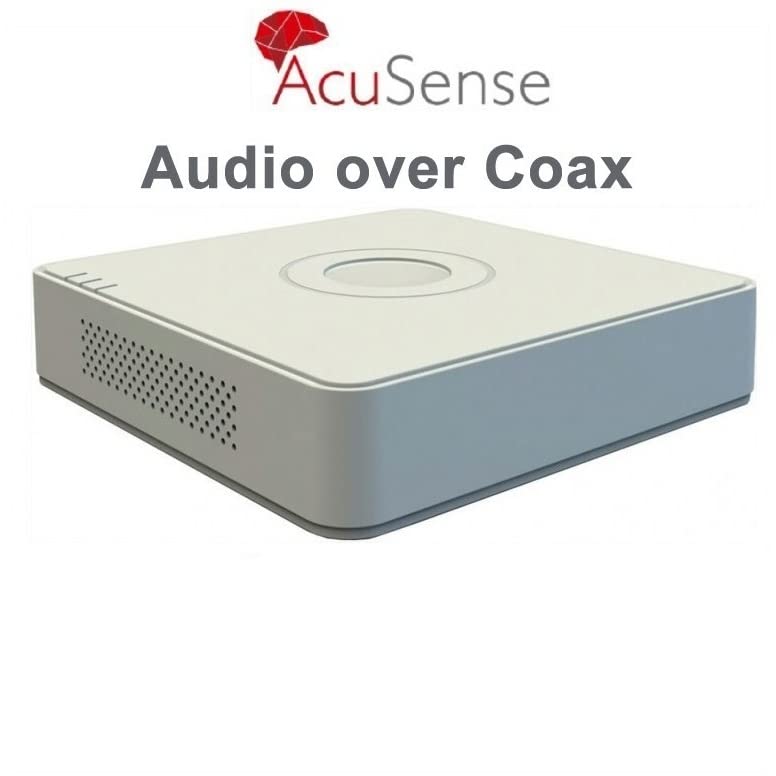
Figure 4.1: The AcuSense feature supports audio transmission directly over coaxial cables, simplifying wiring for compatible cameras.
5. പ്രവർത്തന നിർദ്ദേശങ്ങൾ
5.1 പ്രാരംഭ കോൺഫിഗറേഷൻ
Upon first power-up, the DVR will guide you through an initial setup wizard. This includes setting the language, date and time, network settings, and creating a strong administrator password. It is crucial to set a strong password for security.
5.2 തത്സമയം View
പ്രാരംഭ സജ്ജീകരണത്തിനുശേഷം, DVR തത്സമയം പ്രദർശിപ്പിക്കും view of all connected cameras on the monitor. You can switch between single-camera view മൾട്ടി-ക്യാമറ ഗ്രിഡും view using the on-screen interface controlled by the mouse.
5.3 റെക്കോർഡിംഗ്
Access the 'Record' menu to configure recording settings. You can set continuous recording, motion-detection recording, or scheduled recording for each channel. Ensure your hard drive is formatted and recognized by the DVR.
5.4 പ്ലേബാക്ക്
വീണ്ടുംview രേഖപ്പെടുത്തി footage, navigate to the 'Playback' menu. Select the desired camera channel, date, and time. You can use the timeline to navigate through recordings and export clips to a USB drive if needed.
5.5 റിമോട്ട് ആക്സസ് (ഹിക്ക്-കണക്റ്റ്)
റിമോട്ടിന് viewing on mobile devices or computers, download the Hik-Connect app from the App Store or Google Play. Register an account, add your DVR by scanning the QR code or entering its serial number, and follow the app's instructions to configure remote access. Ensure the DVR is connected to the internet.

Figure 5.1: The Hik-Connect mobile application allows remote monitoring and management of your DVR system.
6. പരിപാലനം
- വൃത്തിയാക്കൽ: Regularly clean the DVR's exterior with a soft, dry cloth. Ensure ventilation openings are free from dust to prevent overheating. Do not use liquid cleaners directly on the device.
- ഫേംവെയർ അപ്ഡേറ്റുകൾ: Periodically check the official HIKVISION website for firmware updates. Keeping your DVR's firmware updated ensures optimal performance, security, and access to new features.
- ഡാറ്റ ബാക്കപ്പ്: Regularly back up important recorded footage to an external storage device (e.g., USB drive) to prevent data loss.
- പാസ്വേഡ് മാനേജ്മെൻ്റ്: Change your administrator password periodically and ensure it is strong and unique.
7. പ്രശ്നപരിഹാരം
- വീഡിയോ സിഗ്നൽ ഇല്ല:
- Check all camera connections to the DVR.
- Verify the monitor connection (HDMI/VGA) and ensure the monitor is on the correct input source.
- Ensure cameras are powered correctly.
- റെക്കോർഡിംഗ് ഇല്ല:
- Check if a hard drive is installed and properly connected.
- Ensure the hard drive is formatted within the DVR's settings.
- Verify recording schedules and settings are correctly configured.
- നെറ്റ്വർക്ക് കണക്ഷൻ പ്രശ്നങ്ങൾ:
- Ensure the Ethernet cable is securely connected to both the DVR and the router.
- നിങ്ങളുടെ റൂട്ടറും ഇൻ്റർനെറ്റ് കണക്ഷനും പരിശോധിക്കുക.
- Verify network settings in the DVR's configuration menu.
- പാസ്വേഡ് മറന്നോ: If you forget your DVR's administrator password, contact HIKVISION technical support for assistance. Password recovery may require specific procedures or a factory reset, which could result in data loss.
8 സാങ്കേതിക സവിശേഷതകൾ
| ഫീച്ചർ | സ്പെസിഫിക്കേഷൻ |
|---|---|
| മോഡൽ നമ്പർ | iDS-7104HQHI-M1/S |
| വീഡിയോ കംപ്രഷൻ | H.265 Pro+/H.265 Pro/H.265 |
| വീഡിയോ ഇൻപുട്ട് | 4 ചാനലുകൾ |
| ഓഡിയോ ഇൻപുട്ട് | Audio via coaxial cable supported |
| വീഡിയോ ഔട്ട്പുട്ട് | എച്ച്ഡിഎംഐ, വിജിഎ |
| ചുറ്റളവ് സംരക്ഷണം | Deep learning-based AcuSense |
| അളവുകൾ (LxWxH) | 20 x 4.5 x 20 സെ.മീ |
| ഭാരം | 1 കി.ഗ്രാം |
| മാതൃരാജ്യം | ചൈന |
9. വാറൻ്റിയും പിന്തുണയും
Your HIKVISION iDS-7104HQHI-M1/S DVR comes with a standard manufacturer's warranty. Please refer to the warranty card included with your product or visit the official HIKVISION webവിശദമായ വാറന്റി നിബന്ധനകൾക്കും വ്യവസ്ഥകൾക്കും സൈറ്റ്.
For technical assistance, troubleshooting, or warranty claims, please contact HIKVISION customer support. Ensure you have your product model number and serial number ready when contacting support.
HIKVISION Support: Please visit the official HIKVISION webപ്രാദേശിക സമ്പർക്ക വിവരങ്ങൾക്കും പിന്തുണാ ഉറവിടങ്ങൾക്കുമുള്ള സൈറ്റ്.


