1. ഉൽപ്പന്നം കഴിഞ്ഞുview
The HOU Slim Bluetooth Keyboard Case is designed to enhance the functionality and protection of your iPad. It features a minimalist, ultra-thin, and lightweight design, making it ideal for portability. The case is constructed from silicon-containing tech leather, offering wear-resistant and stain-resistant properties. Its magnetic stand provides two ergonomic tilt angles for comfortable typing and viewing.

Image 1.1: HOU Slim Bluetooth Keyboard Case with iPad in open position, showcasinജി കീബോർഡും സ്ക്രീനും.
പ്രധാന സവിശേഷതകൾ:
- Ultra-Slim & Lightweight: Weighing approximately 434 grams and 0.6 cm thin, designed for easy transport.
- മോടിയുള്ള മെറ്റീരിയൽ: Made from PU (with silicon) + synthetic leather for enhanced durability and easy cleaning.
- മാഗ്നറ്റിക് സ്റ്റാൻഡ്: Offers 115° for typing and 125° for viewing, providing stable support.
- കാന്തിക വേർതിരിവ്: Keyboard and iPad can be easily separated due to dual magnetic points.
- ദീർഘകാല ബാറ്ററി: ദീർഘമായ ഉപയോഗ സമയം നൽകുന്നു.
- കൃത്യമായ ഫിറ്റ്: Specifically designed for iPad 10th and 11th Generation models.
2. ബോക്സിൽ എന്താണുള്ളത്?
നിങ്ങളുടെ പാക്കേജിന്റെ ഉള്ളടക്കം ലഭിച്ചുകഴിഞ്ഞാൽ പരിശോധിക്കുക:
- HOU Slim Bluetooth Keyboard Case
- മാഗ്നെറ്റിക് ചാർജിംഗ് കേബിൾ
- ഉപയോക്തൃ മാനുവൽ (ഈ പ്രമാണം)
3 അനുയോജ്യത
This HOU Slim Bluetooth Keyboard Case is compatible with the following iPad models:
- iPad 10th Generation 10.9 inch (2022 models: A2696/A2757/A2777/A3162)
- iPad 11th Generation 11 inch A16 (2025 models: A3354/A3355/A3356)

Image 3.1: Diagram illustrating the compatible iPad models for the HOU keyboard case.
4. സജ്ജീകരണ നിർദ്ദേശങ്ങൾ
4.1 Attaching Your iPad to the Case
- Align your compatible iPad with the backplate of the keyboard case.
- The iPad will securely attach to the case via strong magnets. No force or snapping is required.

Image 4.1: A user attaching an iPad to the HOU keyboard case using magnetic attraction.
4.2 ബ്ലൂടൂത്ത് ജോടിയാക്കൽ
- Ensure your iPad's Bluetooth is turned on.
- Turn on the HOU keyboard case. The Bluetooth indicator light on the keyboard will begin to flash.
- നിങ്ങളുടെ iPad-ൽ, പോകുക ക്രമീകരണങ്ങൾ > ബ്ലൂടൂത്ത്.
- Select the HOU keyboard from the list of available devices.
- Once paired, the indicator light will stop flashing, and your iPad will show the keyboard as connected.

Image 4.2: An iPad screen displaying the Bluetooth connection status and battery level of the connected keyboard.
4.3 കീബോർഡ് ചാർജ് ചെയ്യുന്നു
Use the provided magnetic charging cable to charge the keyboard. Connect the magnetic end to the keyboard's charging port and the other end to a USB power source. The iPad can display the keyboard's battery level in real-time.

ചിത്രം 4.3: ഒരു ക്ലോസപ്പ് view of the magnetic charging port on the HOU keyboard case.
5. പ്രവർത്തന നിർദ്ദേശങ്ങൾ
5.1 ക്രമീകരിക്കുന്നു Viewing ആംഗിൾ
The magnetic stand allows for two primary ergonomic tilt angles:
- 115° ആംഗിൾ: Suitable for typing and productivity tasks.
- 125° ആംഗിൾ: Ideal for media consumption, such as watching videos or reading.

Image 5.1: Illustration of the two adjustable viewing angles (115° and 125°) provided by the magnetic stand.
5.2 കുറുക്കുവഴി കീകൾ ഉപയോഗിക്കൽ
The keyboard features dedicated shortcut keys for quick access to various iPad functions, including:
- വോളിയം നിയന്ത്രണം
- തെളിച്ചം ക്രമീകരിക്കൽ
- തിരയൽ പ്രവർത്തനം
- ഹോം സ്ക്രീൻ ആക്സസ്
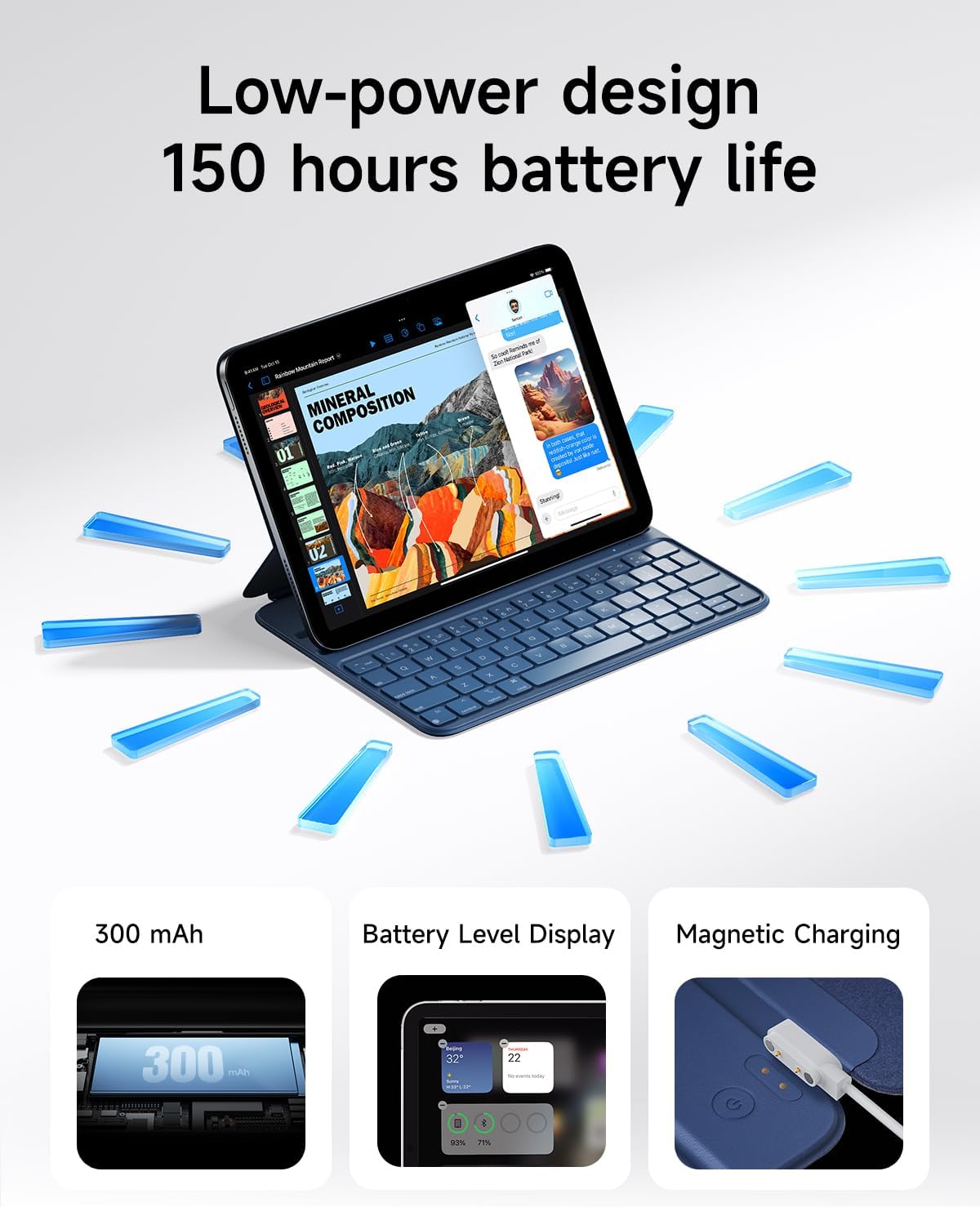
Image 5.2: A close-up of the HOU keyboard highlighting the layout and various shortcut keys.
5.3 ടൈപ്പിംഗ് അനുഭവം
The keyboard is designed with flat keycaps and a scissor-switch structure to provide smooth input, quiet operation, and responsive feedback, reducing fatigue during extended typing sessions.
Video 5.3: This video demonstrates the HOU Keyboard Case for iPad, showing its magnetic attachment, comfortable typing experience, and shortcut key functionality.
6. പരിപാലനം
6.1 കേസ് വൃത്തിയാക്കൽ
The silicon-containing tech leather material is designed to be wear-resistant and stain-resistant. To clean, gently wipe the surface with a soft, damp cloth. For stubborn stains like coffee or ink, a mild soap solution can be used, followed by wiping with a clean, damp cloth and air drying.
6.2 ബാറ്ററി കെയർ
To prolong battery life, avoid fully discharging the keyboard frequently. Charge the keyboard regularly, especially if it will be stored for an extended period.
7. പ്രശ്നപരിഹാരം
7.1 കീബോർഡ് ബ്ലൂടൂത്ത് വഴി കണക്റ്റുചെയ്യുന്നില്ല.
- പവർ പരിശോധിക്കുക: Ensure the keyboard is turned on and has sufficient battery charge.
- ഉപകരണം വീണ്ടും ജോടിയാക്കുക: On your iPad, forget the device in Bluetooth settings and attempt to pair again.
- ഉപകരണങ്ങൾ പുനരാരംഭിക്കുക: Turn off and restart both your iPad and the keyboard.
- സാമീപ്യം: Ensure the keyboard and iPad are within close range during pairing.
7.2 Typing Delay or Unresponsive Keys
- ബ്ലൂടൂത്ത് കണക്ഷൻ: Verify a stable Bluetooth connection. Disconnect and reconnect if necessary.
- ബാറ്ററി നില: A low battery can affect performance. Charge the keyboard fully.
- ഇടപെടൽ: തടസ്സം സൃഷ്ടിച്ചേക്കാവുന്ന മറ്റ് വയർലെസ് ഉപകരണങ്ങളിൽ നിന്ന് മാറുക.
8 സ്പെസിഫിക്കേഷനുകൾ
| ഫീച്ചർ | വിശദാംശങ്ങൾ |
|---|---|
| ഉൽപ്പന്ന അളവുകൾ | 9.8 x 3.3 x 0.3 ഇഞ്ച് |
| ഇനത്തിൻ്റെ ഭാരം | 1.59 പൗണ്ട് (ഏകദേശം 721 ഗ്രാം) |
| നിർമ്മാതാവ് | HOU |
| ഇനം മോഡൽ നമ്പർ | A2696/A2777/A2757 |
| ബാറ്ററികൾ | 1 ലിഥിയം പോളിമർ ബാറ്ററി (ഉൾപ്പെടുത്തിയിരിക്കുന്നു) |
| അനുയോജ്യമായ ഉപകരണങ്ങൾ | iPad 10th Generation 10.9 inch 2022 & iPad 11th Generation 11 inch A16 2025 |
| കണക്റ്റിവിറ്റി ടെക്നോളജി | ബ്ലൂടൂത്ത് |
| പ്രത്യേക സവിശേഷതകൾ | Ergonomic, Hotkeys and Media Keys, Lightweight, PU+ABS, Rechargeable |
| നിറം | നീല |
| മെറ്റീരിയൽ | അക്രിലോണിട്രൈൽ ബ്യൂട്ടാഡീൻ സ്റ്റൈറൈൻ (എബിഎസ്) |
9. വാറൻ്റിയും പിന്തുണയും
HOU provides a 12-month extended after-sales service for this product. For any inquiries or support needs, please contact HOU Store Customer Service. 24/7 online support is available.

Image 9.1: HOU Customer Service information, highlighting 24/7 online support and a 12-month extended after-sales service.
Additionally, a 30-day refund/replacement return policy is available through the retailer.


