1. ഉൽപ്പന്നം കഴിഞ്ഞുview
The Logitech Signature K650 is a full-size wireless ergonomic keyboard designed for all-day comfort with an integrated soft palm rest and quiet keys. The Logitech Lift Vertical Ergonomic Mouse promotes a more natural forearm posture with its 57-degree vertical angle, ideal for small to medium-sized hands. Both devices offer flexible connectivity options via Bluetooth Low Energy or the included Logi Bolt USB receiver.

Image: The Logitech Signature K650 wireless ergonomic keyboard and the Logitech Lift vertical ergonomic mouse.
2. ബോക്സിൽ എന്താണുള്ളത്?
- ലോജിടെക് സിഗ്നേച്ചർ K650 വയർലെസ് കീബോർഡ്
- ലോജിടെക് ലിഫ്റ്റ് വെർട്ടിക്കൽ എർഗണോമിക് മൗസ്
- ലോജി ബോൾട്ട് യുഎസ്ബി റിസീവർ
- 1 x AA battery (for mouse)
- 2 x AA batteries (for keyboard)
- ഉപയോക്തൃ ഡോക്യുമെൻ്റേഷൻ

Image: The Logitech Lift mouse, a AA battery, and the Logi Bolt USB receiver, representing typical box contents.
3. സജ്ജീകരണ ഗൈഡ്
3.1. ബാറ്ററി ഇൻസ്റ്റാളേഷൻ
- കീബോർഡ്: Open the battery compartment on the underside of the keyboard. Insert two AA batteries, ensuring correct polarity. Close the compartment.
- മൗസ്: Open the battery compartment on the underside of the mouse. Insert one AA battery, ensuring correct polarity. Close the compartment.
3.2. നിങ്ങളുടെ ഉപകരണങ്ങൾ ബന്ധിപ്പിക്കുന്നു
You can connect your keyboard and mouse using either the Logi Bolt USB receiver or Bluetooth Low Energy.
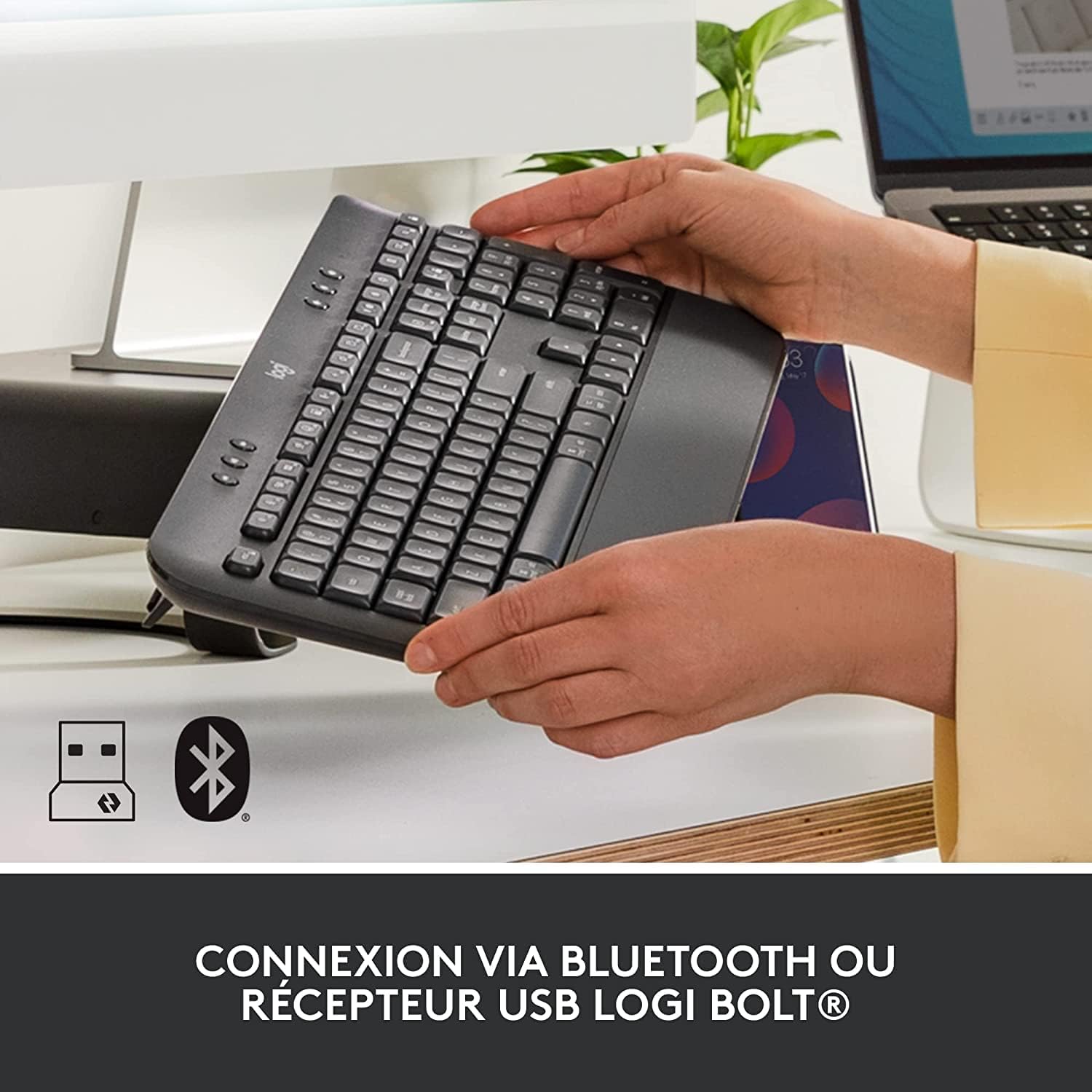
Image: The Logitech K650 keyboard with icons indicating USB and Bluetooth connectivity options.
Option A: Logi Bolt USB Receiver (Recommended for stable connection)
- നിങ്ങളുടെ കമ്പ്യൂട്ടറിൽ ലഭ്യമായ ഒരു USB പോർട്ടിലേക്ക് ലോഗി ബോൾട്ട് USB റിസീവർ പ്ലഗ് ചെയ്യുക.
- Turn on the keyboard and mouse using their respective power switches (located on the underside).
- The devices should automatically connect to the receiver. If not, press and hold the Easy-Switch button on the keyboard (F1, F2, or F3) or the channel button on the mouse (bottom) until the LED blinks rapidly, then follow on-screen prompts if any.
Option B: Bluetooth Low Energy
- കീബോർഡും മൗസും അവയുടെ പവർ സ്വിച്ചുകൾ ഉപയോഗിച്ച് ഓണാക്കുക.
- On the keyboard, press and hold one of the Easy-Switch keys (F1, F2, or F3) for 3 seconds until the LED above the key starts blinking rapidly. This indicates it's in pairing mode.
- On the mouse, press the channel button on the bottom until the LED starts blinking rapidly.
- നിങ്ങളുടെ കമ്പ്യൂട്ടറിൽ, ബ്ലൂടൂത്ത് ക്രമീകരണങ്ങൾ തുറന്ന് പുതിയ ഉപകരണങ്ങൾക്കായി തിരയുക.
- Select "Signature K650" and "Lift" from the list of available devices to pair.
- ജോടിയാക്കൽ പ്രക്രിയ പൂർത്തിയാക്കാൻ ഏതെങ്കിലും ഓൺ-സ്ക്രീൻ നിർദ്ദേശങ്ങൾ പാലിക്കുക.
For multi-device pairing, repeat the Bluetooth pairing steps for each device you wish to connect, using a different Easy-Switch key (F1, F2, F3) on the keyboard and the channel button on the mouse to switch between paired devices.
4. നിങ്ങളുടെ ഉപകരണങ്ങൾ പ്രവർത്തിപ്പിക്കൽ
4.1. Keyboard Features (Signature K650)
- ഇന്റഗ്രേറ്റഡ് പാം റെസ്റ്റ്: The soft, integrated palm rest provides comfortable support for your wrists during long typing sessions.
- നിശബ്ദ കീകൾ: Designed for a familiar and pleasant typing experience with reduced noise.
- കുറുക്കുവഴി കീകൾ: Access common functions quickly with dedicated shortcut keys for mute/unmute, screen capture, web navigation, and more.

Image: The soft-touch palm rest of the Logitech Signature K650 keyboard.

Image: A hand demonstrating the use of the dedicated shortcut keys on the Logitech K650 keyboard.
4.2. Mouse Features (Lift Vertical Ergonomic Mouse)
- എർഗണോമിക് ഡിസൈൻ: The 57-degree vertical angle promotes a natural handshake posture, reducing wrist strain and promoting a more natural forearm position.
- സ്മാർട്ട് വീൽ: Enjoy precise line-by-line scrolling or switch to super-fast free spin mode for long documents.
- ഇഷ്ടാനുസൃതമാക്കാവുന്ന ബട്ടണുകൾ: Program the side buttons and other controls using the Logi Options+ software for personalized shortcuts.
- നിശബ്ദ ക്ലിക്കുകൾ: Experience significantly reduced click noise for a quieter work environment.

Image: A hand comfortably gripping the Logitech Lift vertical ergonomic mouse, showcasing its natural 57-degree angle.
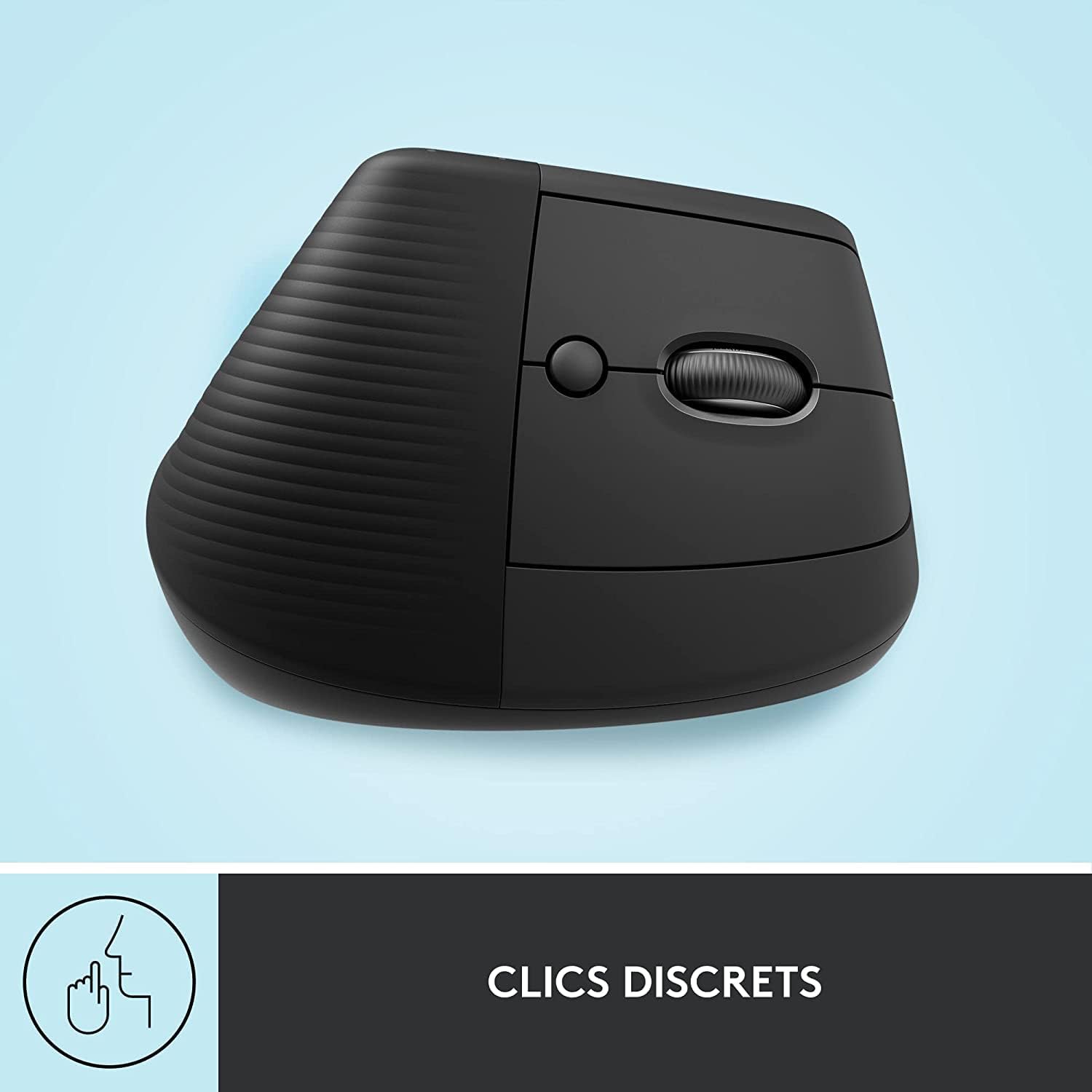
Image: The Logitech Lift mouse highlighting its quiet click feature.

Image: A detailed diagram illustrating the SmartWheel, customizable button, multi-device connectivity, and battery life of the Logitech Lift mouse.
4.3. Software (Logi Options+)
Download the Logi Options+ software from the official Logitech website to unlock the full potential of your devices. This software allows you to:
- Customize keyboard shortcut keys.
- Program mouse buttons and adjust pointer speed.
- ഒന്നിലധികം ഉപകരണ കണക്ഷനുകൾ കൈകാര്യം ചെയ്യുക.
- സോഫ്റ്റ്വെയർ അപ്ഡേറ്റുകൾ സ്വീകരിക്കുക.
4.4 അനുയോജ്യത
The Logitech Signature K650 Keyboard and Lift Mouse are compatible with multiple operating systems:
- വിൻഡോസ്
- macOS
- Chrome OS
- iPadOS

Image: The Logitech K650 keyboard demonstrating compatibility with Windows, Apple (macOS/iPadOS), and Chrome OS.
5. പരിപാലനം
5.1 ബാറ്ററി ലൈഫ്
- കീബോർഡ്: Up to 36 months (3 years) on two AA batteries.
- മൗസ്: Up to 24 months (2 years) on one AA battery.
Battery life may vary based on user and computing conditions. Replace batteries when the low battery indicator light illuminates.
5.2. വൃത്തിയാക്കൽ
നിങ്ങളുടെ കീബോർഡും മൗസും വൃത്തിയാക്കാൻ:
- മൃദുവായ തുണിയില്ലാത്ത തുണി ഉപയോഗിക്കുക.
- കഠിനമായ അഴുക്കിന്, ചെറുതായി dampതുണിയിൽ വെള്ളം അല്ലെങ്കിൽ നേരിയതും ഉരച്ചിലുകളില്ലാത്തതുമായ ഒരു ക്ലീനിംഗ് ലായനി ഉപയോഗിക്കുക.
- ഉപകരണങ്ങളിൽ നേരിട്ട് ദ്രാവകങ്ങൾ തളിക്കുന്നത് ഒഴിവാക്കുക.
- The keyboard is spill-resistant, meaning it can withstand minor liquid spills, but it is not waterproof.

Image: A hand wiping down the Logitech K650 keyboard, demonstrating its spill resistance and ease of cleaning.
6. പ്രശ്നപരിഹാരം
6.1. കണക്ഷൻ പ്രശ്നങ്ങൾ
- ബന്ധമില്ല: Ensure the devices are turned on and batteries are correctly installed and charged.
- ഇടവിട്ടുള്ള കണക്ഷൻ: Try moving the devices closer to the receiver or computer. Avoid placing them near other wireless devices that might cause interference.
- വീണ്ടും ജോടിയാക്കൽ: If connection is lost, try re-pairing the devices as described in the
അനുബന്ധ രേഖകൾ - Signature K650 Keyboard + Lift Mouse

ലോജിടെക് ലിഫ്റ്റ് വെർട്ടിക്കൽ എർഗണോമിക് മൗസ്: ഉപയോക്തൃ മാനുവലും സവിശേഷതകളും
ലോജിടെക് ലിഫ്റ്റ് വെർട്ടിക്കൽ എർഗണോമിക് മൗസിനായുള്ള സമഗ്രമായ ഉപയോക്തൃ മാനുവൽ. അതിന്റെ എർഗണോമിക് ഡിസൈൻ, കണക്റ്റിവിറ്റി ഓപ്ഷനുകൾ (ബ്ലൂടൂത്ത്, ലോജി ബോൾട്ട്), സ്മാർട്ട് വീൽ പ്രവർത്തനം, ലോജിടെക് ഓപ്ഷനുകൾ+ സോഫ്റ്റ്വെയർ, വിൻഡോസ്, മാകോസ്, ഐപാഡോസ് എന്നിവയ്ക്കായി ഇത് എങ്ങനെ സജ്ജീകരിക്കാം എന്നിവയെക്കുറിച്ച് അറിയുക. സ്റ്റാൻഡേർഡ്, ഇടത് കൈ വകഭേദങ്ങൾ ഉൾക്കൊള്ളുന്നു.
ലോജിടെക് ലിഫ്റ്റ് വെർട്ടിക്കൽ എർഗണോമിക് മൗസ് യൂസർ മാനുവൽ
ലോജിടെക് ലിഫ്റ്റ് വെർട്ടിക്കൽ എർഗണോമിക് മൗസിനായുള്ള ഉപയോക്തൃ മാനുവൽ, സജ്ജീകരണം, കണക്റ്റിവിറ്റി (ബ്ലൂടൂത്ത്, ലോജി ബോൾട്ട്), സ്മാർട്ട് വീൽ പോലുള്ള സവിശേഷതകൾ, എർഗണോമിക് ഡിസൈൻ, ലോജിടെക് ഓപ്ഷൻസ്+ സോഫ്റ്റ്വെയർ എന്നിവ ഉൾക്കൊള്ളുന്നു.
ലോജിടെക് ലിഫ്റ്റ് വെർട്ടിക്കൽ എർഗണോമിക് മൗസ് യൂസർ ഗൈഡും സജ്ജീകരണവും
ലോജിടെക് ലിഫ്റ്റ് വെർട്ടിക്കൽ എർഗണോമിക് മൗസ് സജ്ജീകരിക്കുന്നതിനും ബന്ധിപ്പിക്കുന്നതിനും ഉപയോഗിക്കുന്നതിനുമുള്ള സമഗ്രമായ ഗൈഡ്. സ്മാർട്ട് വീൽ, ഈസി-സ്വിച്ച്, ലോജിടെക് ഫ്ലോ തുടങ്ങിയ അതിന്റെ സവിശേഷതകളെക്കുറിച്ച് അറിയുക.
Logitech K650 Signature Wireless Keyboard with Wrist Rest User Guide
A comprehensive guide to setting up and using the Logitech K650 Signature Wireless Keyboard with Wrist Rest, including Bluetooth and Logi Bolt pairing, keyboard functions, and software customization.
ലോജിടെക് MX എർഗോ എസ് സജ്ജീകരണ ഗൈഡ് | എർഗണോമിക് ട്രാക്ക്ബോൾ മൗസ്
നിങ്ങളുടെ ലോജിടെക് എംഎക്സ് എർഗോ എസ് എർഗണോമിക് ട്രാക്ക്ബോൾ മൗസ് സജ്ജീകരിച്ച് ബന്ധിപ്പിക്കുക. ക്രമീകരിക്കാവുന്ന ആംഗിൾ, പ്രിസിഷൻ സ്ക്രോൾ വീൽ, എളുപ്പത്തിലുള്ള സ്വിച്ച്, തടസ്സമില്ലാത്ത മൾട്ടി-ഡിവൈസ് ഉൽപ്പാദനക്ഷമതയ്ക്കായി ലോജിടെക് ഫ്ലോ സാങ്കേതികവിദ്യ തുടങ്ങിയ സവിശേഷതകൾ കണ്ടെത്തുക. ബ്ലൂടൂത്ത്, ലോജി ബോൾട്ട് സജ്ജീകരണ നിർദ്ദേശങ്ങൾ ഉൾപ്പെടുന്നു.
ലോജിടെക് എംഎക്സ് എർഗോ എസ് ട്രാക്ക്ബോൾ സജ്ജീകരണ ഗൈഡും ഉൽപ്പന്നവും ഓവർview
നിങ്ങളുടെ ലോജിടെക് MX എർഗോ എസ് വയർലെസ് ട്രാക്ക്ബോൾ മൗസ് എങ്ങനെ സജ്ജീകരിക്കാമെന്നും ഉപയോഗിക്കാമെന്നും പഠിക്കുക. അതിന്റെ എർഗണോമിക് സവിശേഷതകൾ, കണക്റ്റിവിറ്റി ഓപ്ഷനുകൾ, ലോജിടെക് ഫ്ലോ സാങ്കേതികവിദ്യ എന്നിവ കണ്ടെത്തുക.