ഉൽപ്പന്നം കഴിഞ്ഞുview
The FUWANG Touchpad Keyboard Case is designed to enhance the functionality of your iPad Mini, transforming it into a versatile laptop-like device. It features a responsive keyboard with 7-color backlighting, a multi-touch trackpad, and a durable 360° rotatable case for multiple viewing angles. This manual provides detailed instructions for setup, operation, and maintenance.
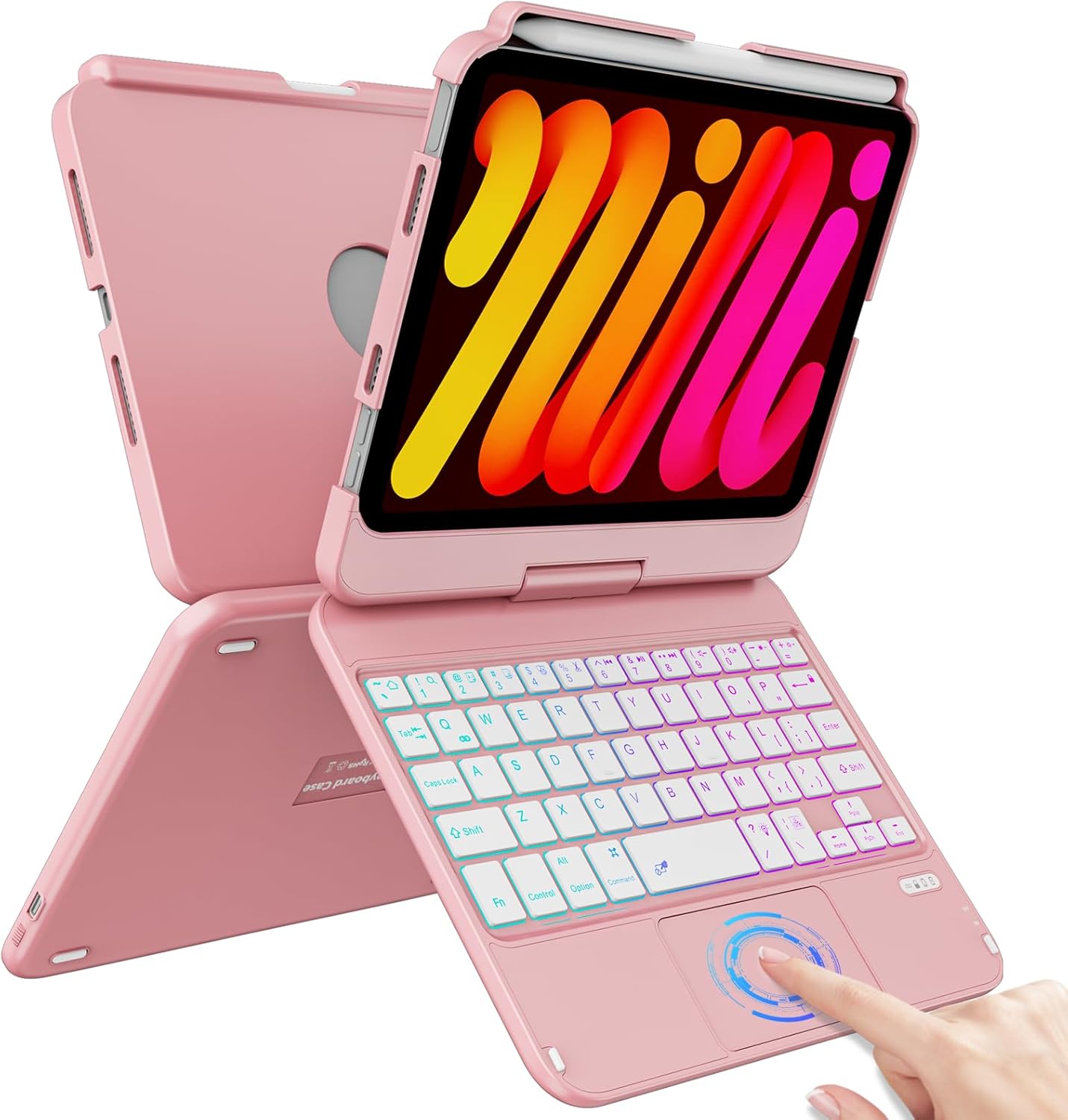
Image: The FUWANG Touchpad Keyboard Case in Rose Gold, shown with an iPad Mini inserted, highlighting its keyboard and trackpad features.
അനുയോജ്യത
This keyboard case is specifically compatible with the following iPad Mini models:
- iPad Mini 7th Generation (A17 Pro) 2024 (Models: A2993, A2995, A2996)
- iPad Mini 6th Generation 2021 (Models: A2567, A2568, A2569)
Note: This case is not compatible with iPad Mini 5th Generation, iPad Mini 4th Generation, or any other iPad models.
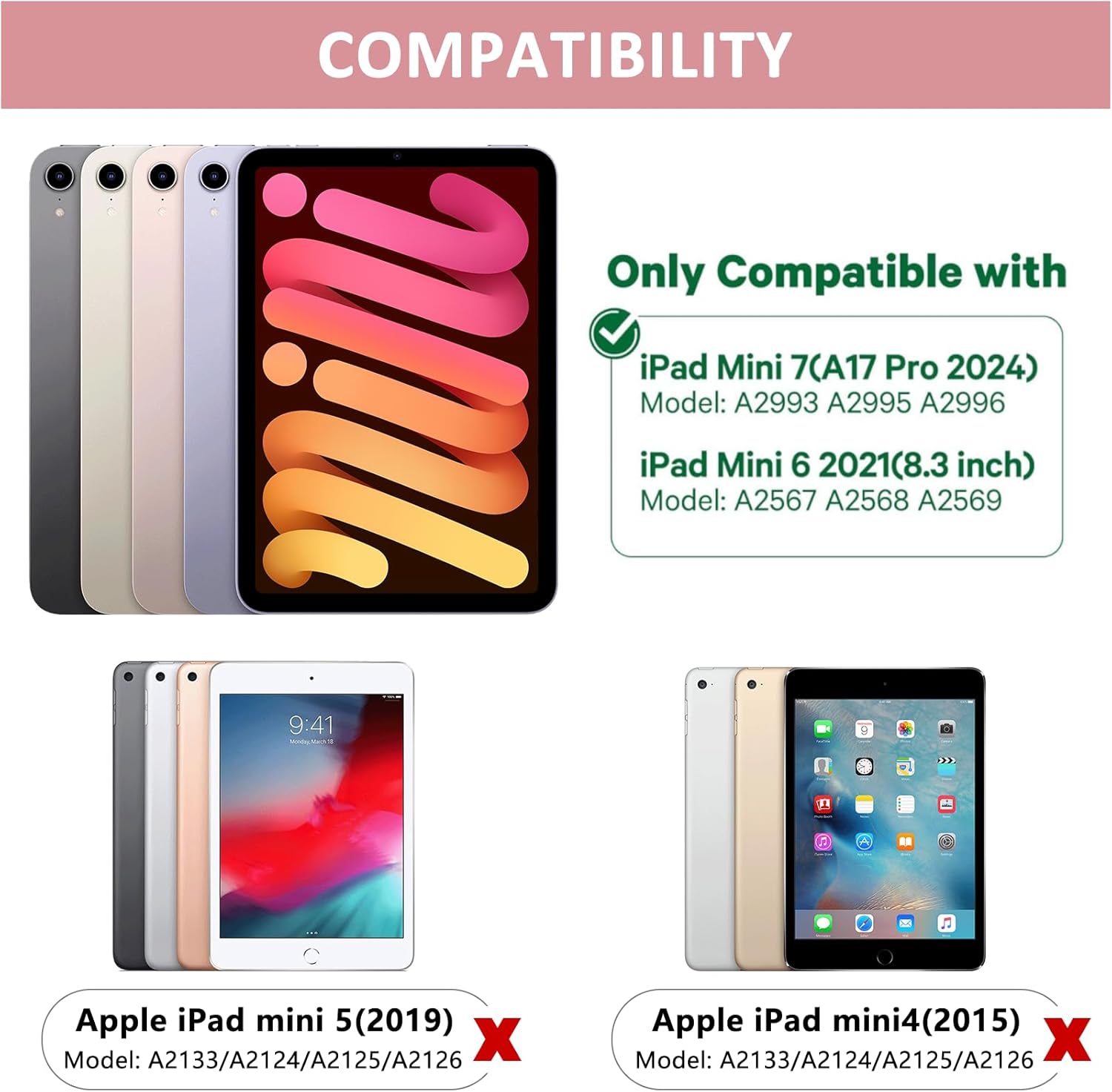
Image: A visual guide illustrating the compatible iPad Mini 7th and 6th generation models, and explicitly showing incompatibility with iPad Mini 5th and 4th generations.
പാക്കേജ് ഉള്ളടക്കം
നിങ്ങളുടെ പാക്കേജ് തുറക്കുമ്പോൾ, താഴെ പറയുന്ന എല്ലാ ഇനങ്ങളും ഉൾപ്പെടുത്തിയിട്ടുണ്ടെന്ന് ഉറപ്പാക്കുക:
- 1 x FUWANG Touchpad Keyboard Case for iPad Mini 7th/6th Generation
- 1 x Micro USB Charging Cable (Note: Power adapter not included)
- 1 x ഉപയോക്തൃ മാനുവൽ

Image: An illustration showing the protective box, the touchpad keyboard case, the USB charging cable, and the user guide included in the package.
സജ്ജീകരണ ഗൈഡ്
1. കീബോർഡ് ചാർജ് ചെയ്യുന്നു
Before first use, fully charge the keyboard. Connect the provided Micro USB charging cable to the keyboard's charging port and a USB power source (e.g., computer USB port, USB wall adapter). The charging indicator light will illuminate during charging and turn off when fully charged.
- ചാർജ് ചെയ്യുന്ന സമയം: ഏകദേശം 2-3 മണിക്കൂർ
- Usable Time: Up to 100 hours of continuous use

ചിത്രം: ഒരു ക്ലോസ്-അപ്പ് view of the keyboard case showing the Type-C fast charge port and a charging cable connected.
2. Inserting Your iPad
Carefully align your iPad Mini with the case's frame and gently press it into place until it is securely seated. Ensure all ports and buttons are accessible through the precise cutouts.

Image: A person demonstrating how to securely place the iPad Mini into the keyboard case.
3. ബ്ലൂടൂത്ത് ജോടിയാക്കൽ
- കീബോർഡിലെ പവർ സ്വിച്ച് "ഓൺ" സ്ഥാനത്തേക്ക് സ്ലൈഡ് ചെയ്യുക.
- Press the "Pair" key (often indicated by a Bluetooth symbol) for 3 seconds. The Bluetooth indicator light will flash blue, indicating it's in pairing mode.
- നിങ്ങളുടെ iPad-ൽ, പോകുക ക്രമീകരണങ്ങൾ > ബ്ലൂടൂത്ത് ഒപ്പം ബ്ലൂടൂത്ത് പ്രവർത്തനക്ഷമമാക്കുക.
- Your iPad will automatically search for nearby devices. Select "Bluetooth Keyboard" (or similar name) from the list to connect.
- കണക്റ്റ് ചെയ്തുകഴിഞ്ഞാൽ, കീബോർഡിലെ ബ്ലൂടൂത്ത് ഇൻഡിക്കേറ്റർ ലൈറ്റ് ഓഫാകും.

Image: A diagram illustrating the steps to connect the keyboard to an iPad via Bluetooth, including turning on the keyboard, pressing the pair key, and selecting the device on the iPad.
പ്രവർത്തന നിർദ്ദേശങ്ങൾ
Keyboard Backlight Control
The keyboard features 7-color backlighting for enhanced visibility in various lighting conditions.
- Adjusting Monochrome Backlight: അമർത്തുക Fn + Lightbulb key to cycle through different single colors.
- ബാക്ക്ലൈറ്റ് തെളിച്ചം ക്രമീകരിക്കുന്നു: അമർത്തുക Fn + PgUp (increase brightness) or Fn + PgDn (തെളിച്ചം കുറയ്ക്കുക).
- Switching Keyboard Backlight Color: അമർത്തുക Fn + RGB key ബാക്ക്ലൈറ്റിൻ്റെ നിറം മാറ്റാൻ.

Image: The keyboard displaying its 7-color backlit keys, illustrating the various color options available.
ട്രാക്ക്പാഡ് പ്രവർത്തനങ്ങൾ
The integrated multi-touch trackpad provides precise control and navigation, similar to a laptop.
- Enable/Disable Trackpad: അമർത്തുക എഫ്എൻ + സ്പെയ്സ്ബാർ to toggle the trackpad on or off.
- മൾട്ടി-ടച്ച് ആംഗ്യങ്ങൾ: Supports standard iPadOS gestures such as slide up/down, zoom in/out, and switching apps.
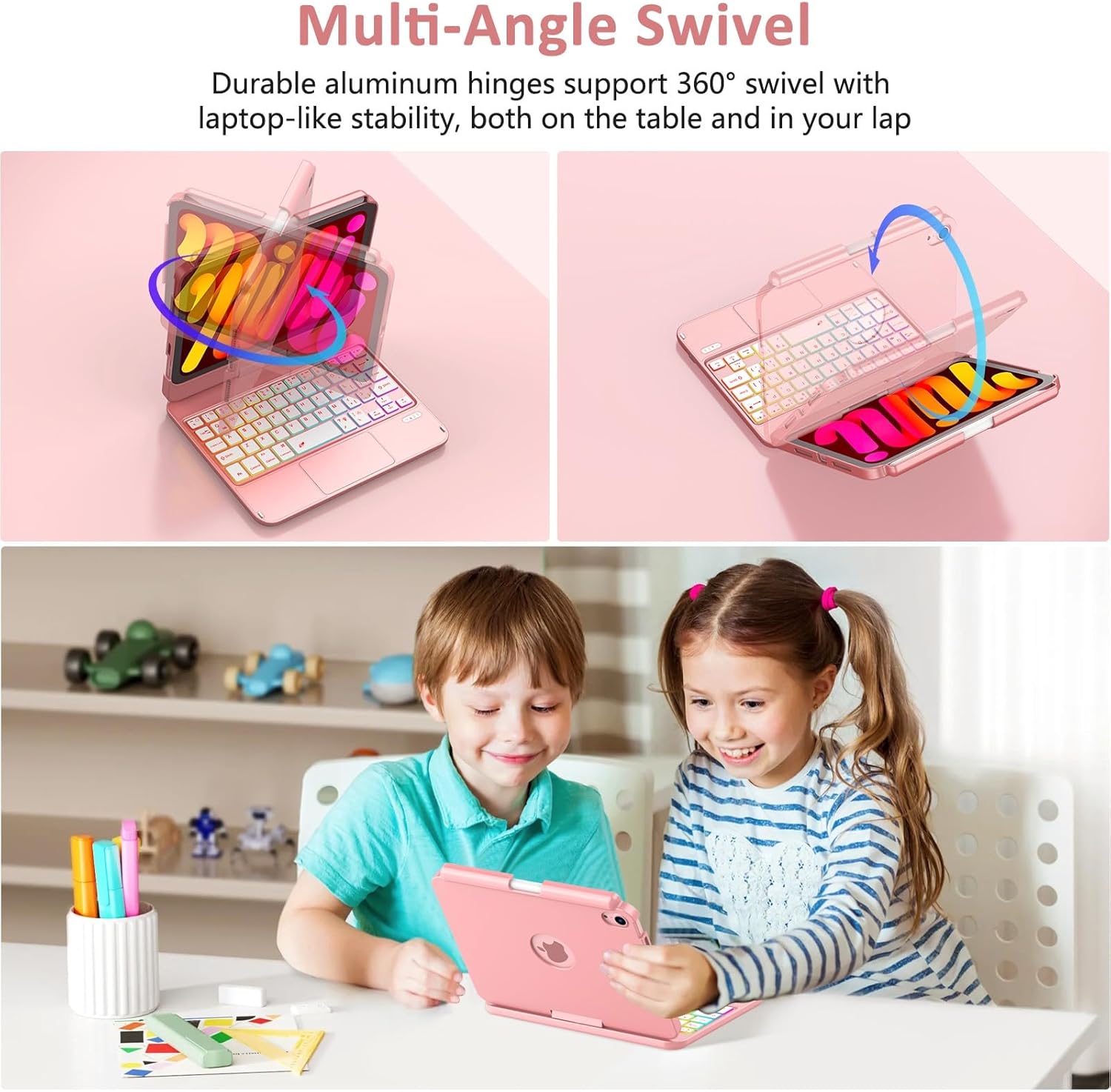
Image: A close-up of the multi-touch trackpad with visual cues for common gestures like slide up/down, zoom in/out, switching apps, and clicking.
360° Rotation and Multi-Angle Use
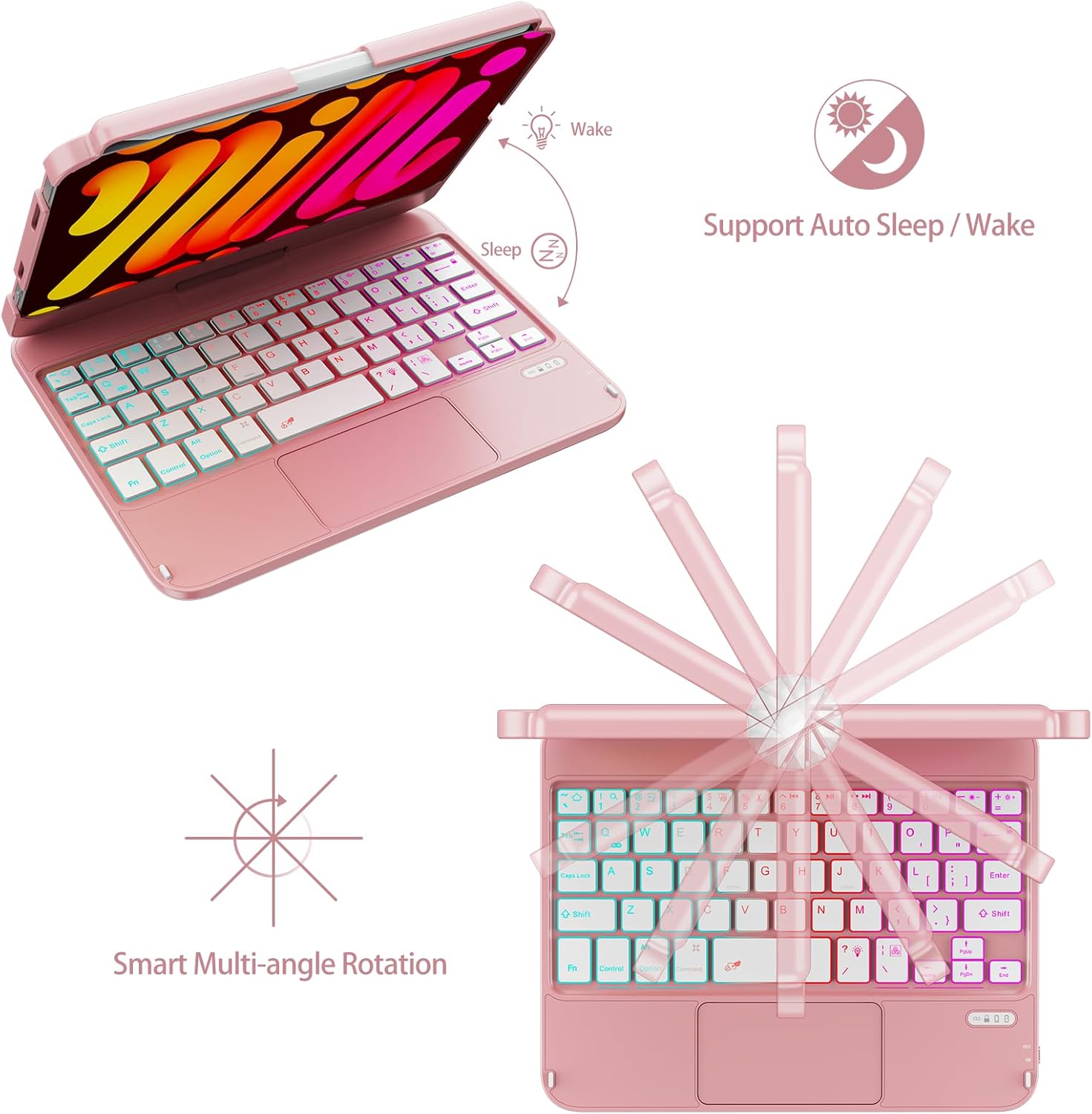
The case features a 360° high-precision adjustable shaft, allowing you to rotate and position your iPad at various angles for optimal viewing and typing comfort. It can be used in laptop mode, tablet mode, or tent mode.
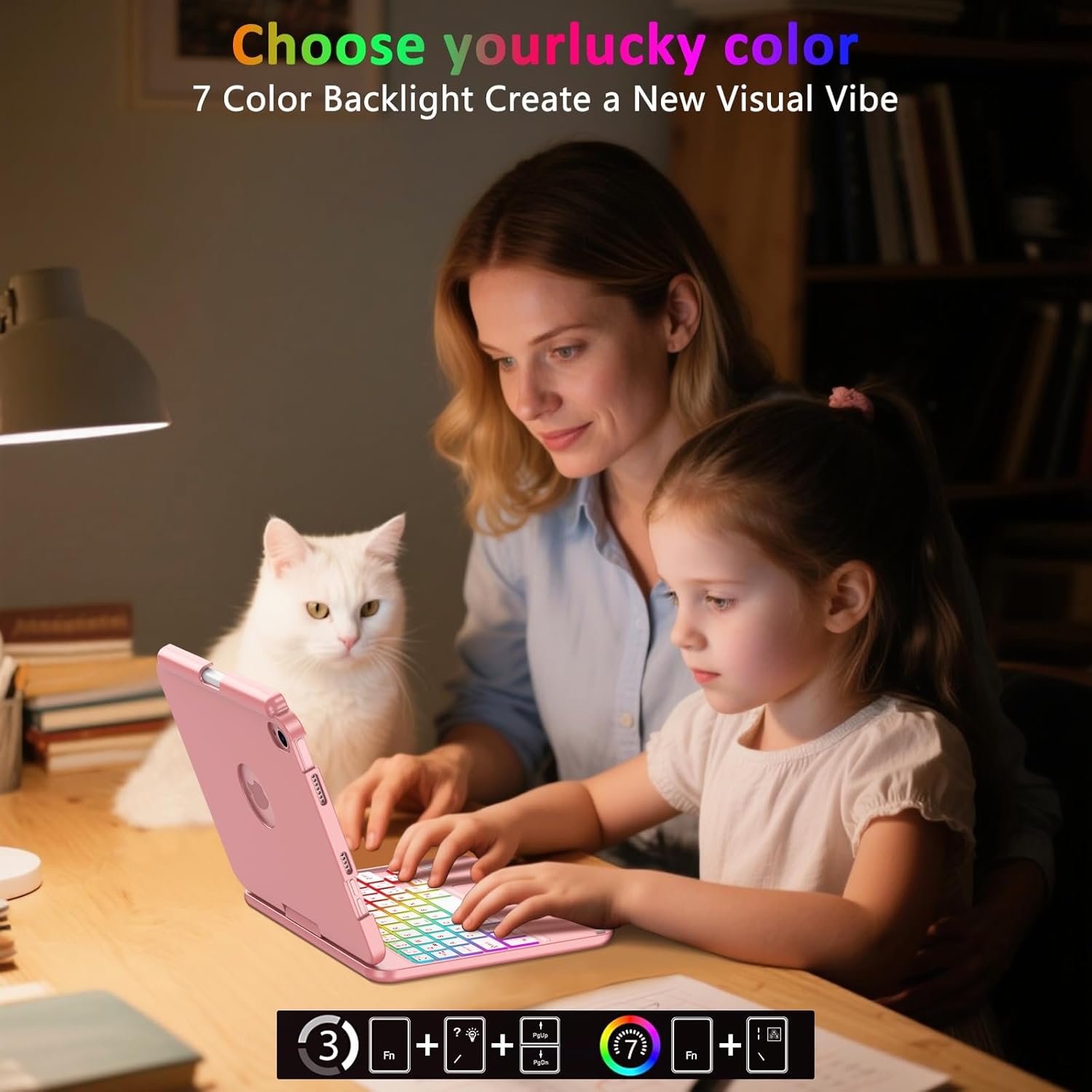
Image: Illustrations showing the keyboard case rotating 360 degrees and flipping 180 degrees, demonstrating its versatility for different viewing angles and modes.
Auto Sleep/Wake Feature
The keyboard cover includes an auto sleep/wake feature. Opening the case will automatically wake your iPad, and closing it will put your iPad to sleep, conserving battery life.

Image: A diagram illustrating the auto sleep/wake function, showing the iPad screen turning on when the case is opened and turning off when closed.
പെൻസിൽ ഹോൾഡർ
The case includes a dedicated pencil holder that supports magnetic attachment and wireless charging for your Apple Pencil (Pencil not included).
ചിത്രം: വിശദമായ ഒരു ചിത്രം view of the integrated pencil holder on the keyboard case, designed to securely hold and charge the Apple Pencil.
മെയിൻ്റനൻസ്
To ensure the longevity and optimal performance of your FUWANG Touchpad Keyboard Case, follow these maintenance guidelines:
- വൃത്തിയാക്കൽ: മൃദുവായ, ലിൻ്റ് രഹിത തുണി ഉപയോഗിക്കുകampened with water to clean the exterior of the case and keyboard. Avoid harsh chemicals or abrasive cleaners.
- സംഭരണം: When not in use for extended periods, store the case in a cool, dry place. Ensure the keyboard is turned off to conserve battery.
- സംരക്ഷണം: While the case offers robust protection, avoid dropping it or exposing it to extreme temperatures or direct sunlight.
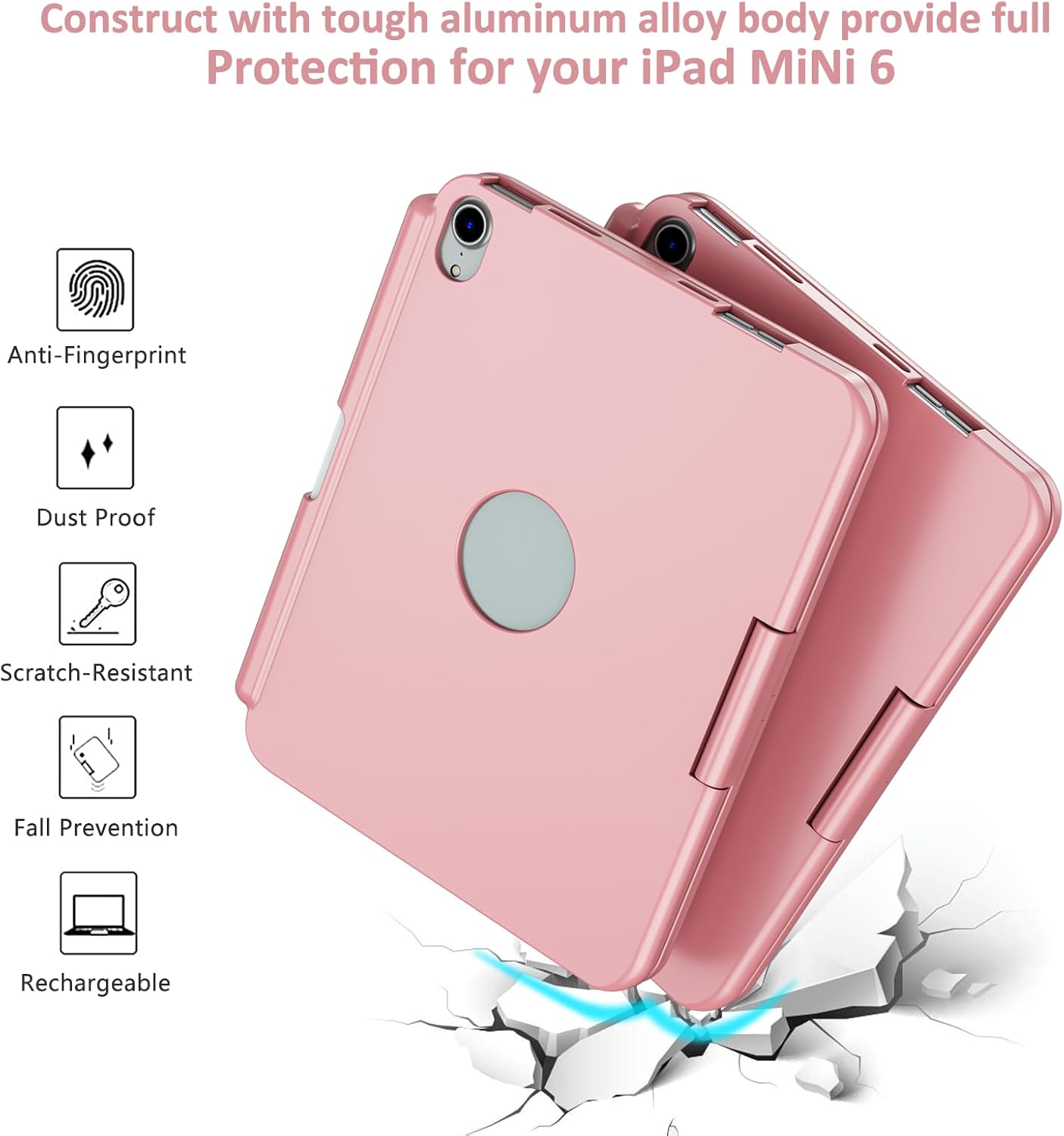
Image: A visual representation of the case's durable construction, highlighting features like anti-fingerprint, dust-proof, scratch-resistant, and fall prevention.
ട്രബിൾഷൂട്ടിംഗ്
| പ്രശ്നം | സാധ്യമായ കാരണം | പരിഹാരം |
|---|---|---|
| കീബോർഡ് ബ്ലൂടൂത്ത് വഴി ബന്ധിപ്പിക്കുന്നില്ല | Keyboard is off or low battery; Bluetooth not enabled on iPad; incorrect pairing procedure. | Ensure keyboard is charged and turned on. Enable Bluetooth on iPad. Re-attempt pairing by pressing the "Pair" button. Forget and re-pair the device on iPad. |
| കീകൾ പ്രതികരിക്കുന്നില്ല | Low battery; connection issue; keyboard malfunction. | Charge the keyboard. Reconnect Bluetooth. Restart both iPad and keyboard. |
| ട്രാക്ക്പാഡ് പ്രവർത്തിക്കുന്നില്ല | Trackpad disabled; software glitch. | അമർത്തുക എഫ്എൻ + സ്പെയ്സ്ബാർ to ensure trackpad is enabled. Restart iPad and keyboard. |
| Backlight not working or changing colors | Low battery; incorrect key combination. | Charge the keyboard. Ensure correct Fn key combinations are used for backlight control. |
സ്പെസിഫിക്കേഷനുകൾ
- ഉൽപ്പന്ന അളവുകൾ: 8.94 x 6.7 x 0.98 ഇഞ്ച്
- ഇനത്തിൻ്റെ ഭാരം: 0.65 ഔൺസ്
- മോഡൽ നമ്പർ: A2567/A2568/A2569
- ബാറ്ററികൾ: 1 ലിഥിയം അയോൺ ബാറ്ററി (ഉൾപ്പെടുത്തിയിരിക്കുന്നു)
- OS അനുയോജ്യത: iPadOS
- കണക്റ്റിവിറ്റി: ബ്ലൂടൂത്ത്
- പ്രത്യേക സവിശേഷതകൾ: 360° Rotate/180° Flip, Backlit Keyboard, Integrated Stand, Smart Trackpad
- നിറം: റോസ് ഗോൾഡ്
- നിർമ്മാതാവ്: ഫുവാങ്
- കീകളുടെ എണ്ണം: 78
- കീബോർഡ് ബാക്ക്ലൈറ്റിംഗ്: RGB (7 നിറങ്ങൾ)
വാറൻ്റിയും പിന്തുണയും
FUWANG products are designed for durability and performance. For any issues or inquiries regarding your keyboard case, please refer to the following:
- ഉപയോക്തൃ ഗൈഡ് (PDF): ഈ മാനുവലിന്റെ ഡിജിറ്റൽ പതിപ്പ് ഡൗൺലോഡ് ചെയ്യാൻ ലഭ്യമാണ്: PDF ഉപയോക്തൃ ഗൈഡ് ഡൗൺലോഡ് ചെയ്യുക
- നിർമ്മാതാവിൻ്റെ പിന്തുണ: For direct support, please contact FUWANG customer service through the retailer's platform or visit the official FUWANG store page on Amazon: FUWANG Store
- വാറൻ്റി വിവരങ്ങൾ: Specific warranty details may vary by region and retailer. Please retain your purchase receipt for warranty claims.


