1. ഉൽപ്പന്നം കഴിഞ്ഞുview
The CUPEISI Android 15 Tablet YQ10S MAX is a versatile 10-inch device designed for both productivity and entertainment. Running on the latest Android 15.0 system with Google GMS certification, it offers a smooth and secure user experience. This 2-in-1 tablet comes equipped with a powerful quad-core processor, ample memory, and a high-definition IPS screen, making it ideal for various tasks from gaming and multimedia consumption to work and study.

Figure 1.1: CUPEISI Android 15 Tablet with included accessories.
പ്രധാന സവിശേഷതകൾ:
- ഓപ്പറേറ്റിംഗ് സിസ്റ്റം: Android 15.0 with Google GMS certification for enhanced security and performance.
- മെമ്മറിയും സംഭരണവും: 18GB RAM (6GB + 12GB expansion) and 128GB ROM, expandable up to 2TB via microSD card (not included).
- പ്രോസസ്സർ: New generation ultra-high performance and low power consumption 2.0GHz Quad-core CPU.
- ഡിസ്പ്ലേ: 10.1-inch IPS HD screen with 1280x800 resolution, featuring a sensitive touchscreen and a comfortable "reading mode".
- ക്യാമറകൾ: 8MP rear camera and 2MP front camera for capturing moments and video calls.
- കണക്റ്റിവിറ്റി: Supports 2.4G/5G Wi-Fi 6.0 and Bluetooth 5.0 for stable and fast wireless connections.
- ബാറ്ററി: 6000mAh battery providing up to 10 hours of usage on a single charge.
- 2-ഇൻ-1 പ്രവർത്തനം: Transforms into a laptop-style device with the included Bluetooth keyboard, wireless mouse, and stylus.
2. ബോക്സിൽ എന്താണുള്ളത്?
എല്ലാ ഇനങ്ങളും ഉണ്ടെന്ന് ഉറപ്പാക്കാൻ നിങ്ങളുടെ പാക്കേജിന്റെ ഉള്ളടക്കങ്ങൾ പരിശോധിക്കുക:
- CUPEISI Android 15 Tablet (YQ10S MAX)
- വയർലെസ് കീബോർഡ്
- ബ്ലൂടൂത്ത് മൗസ്
- Foldable Protective Cover
- സ്റ്റൈലസ്
- ടൈപ്പ്-സി കേബിൾ

ചിത്രം 2.1: പാക്കേജിൽ ഉൾപ്പെടുത്തിയിരിക്കുന്ന എല്ലാ ഘടകങ്ങളും.
3. സജ്ജീകരണ ഗൈഡ്
3.1 പ്രാരംഭ ചാർജിംഗ്
- Connect the provided Type-C cable to the tablet's charging port.
- Connect the other end of the cable to a compatible USB power adapter (not included) and plug it into a power outlet.
- Allow the tablet to charge fully before first use. The battery indicator on the screen will show charging status.
3.2 പവർ ഓൺ/ഓഫ്
- പവർ ഓണാക്കാൻ: Press and hold the Power button on the side of the tablet until the screen lights up.
- പവർ ഓഫ് ചെയ്യാൻ: Press and hold the Power button until a power-off menu appears. Select "Power off" to shut down the device.
- പുനരാരംഭിക്കാൻ: പവർ-ഓഫ് മെനുവിൽ നിന്ന്, "പുനരാരംഭിക്കുക" തിരഞ്ഞെടുക്കുക.
3.3 കണക്റ്റിംഗ് ആക്സസറികൾ
The tablet comes with a Bluetooth keyboard, wireless mouse, and stylus for enhanced usability.

Figure 3.1: Tablet used with various accessories.
Connecting the Bluetooth Keyboard:
- Turn on the keyboard using its power switch.
- Press the "Connect" button on the keyboard to enter pairing mode (indicator light will blink).
- നിങ്ങളുടെ ടാബ്ലെറ്റിൽ, ഇതിലേക്ക് പോകുക ക്രമീകരണങ്ങൾ > ബന്ധിപ്പിച്ച ഉപകരണങ്ങൾ > ബ്ലൂടൂത്ത്.
- Ensure Bluetooth is enabled. The tablet will search for available devices.
- Select the keyboard from the list (e.g., "Bluetooth Keyboard") and follow any on-screen prompts to complete pairing.
Connecting the Wireless Mouse:
- Insert the necessary batteries into the wireless mouse (refer to mouse instructions for battery type and insertion).
- Locate the USB receiver for the mouse, usually found in a compartment on the mouse itself.
- Plug the USB receiver into the tablet's USB-C port using an appropriate adapter if necessary (adapter not included).
- The tablet should automatically detect and connect to the mouse.
സ്റ്റൈലസ് ഉപയോഗിക്കുന്നത്:
The stylus does not require pairing. Simply use it to navigate the touchscreen, draw, or write as you would with your finger.
4. പ്രവർത്തന നിർദ്ദേശങ്ങൾ
4.1 അടിസ്ഥാന നാവിഗേഷൻ
- സ്പർശിക്കുക: ഒരു ആപ്പ് തുറക്കാൻ ഒരു ഐറ്റം തിരഞ്ഞെടുക്കാനോ ഐക്കണിൽ ടാപ്പ് ചെയ്യാനോ.
- സ്വൈപ്പ്: Drag your finger across the screen to scroll through pages or content.
- പിഞ്ച്-ടു-സൂം: Place two fingers on the screen and spread them apart to zoom in, or pinch them together to zoom out.
- ഹോം സ്ക്രീൻ: Tap the Home button (usually a circle or house icon) to return to the main screen.
- തിരികെ: Tap the Back button (usually a triangle or arrow icon) to return to the previous screen.
- സമീപകാല ആപ്പുകൾ: സമീപകാല ആപ്പുകൾ ബട്ടൺ (സാധാരണയായി ഒരു ചതുര ഐക്കൺ) ടാപ്പ് ചെയ്യുക, view കൂടാതെ അടുത്തിടെ ഉപയോഗിച്ച ആപ്ലിക്കേഷനുകൾക്കിടയിൽ മാറുക.
4.2 വൈ-ഫൈ കണക്റ്റിവിറ്റി
The tablet supports both 2.4GHz and 5GHz Wi-Fi 6 for fast and stable internet access.

Figure 4.1: Tablet showing Wi-Fi connection capabilities.
- പോകുക ക്രമീകരണങ്ങൾ > നെറ്റ്വർക്കും ഇൻ്റർനെറ്റും > വൈഫൈ.
- Toggle the Wi-Fi switch to the "On" position.
- ലഭ്യമായ നെറ്റ്വർക്കുകളുടെ പട്ടികയിൽ നിന്ന് നിങ്ങൾക്ക് ആവശ്യമുള്ള വൈഫൈ നെറ്റ്വർക്ക് തിരഞ്ഞെടുക്കുക.
- ആവശ്യപ്പെടുകയാണെങ്കിൽ, നെറ്റ്വർക്ക് പാസ്വേഡ് നൽകി "കണക്റ്റ് ചെയ്യുക" ടാപ്പ് ചെയ്യുക.
4.3 മൾട്ടിമീഡിയ പ്ലേബാക്ക്
Enjoy high-definition multimedia content with Widevine L1 support, ensuring a premium viewing experience for streaming services like Netflix and YouTube.
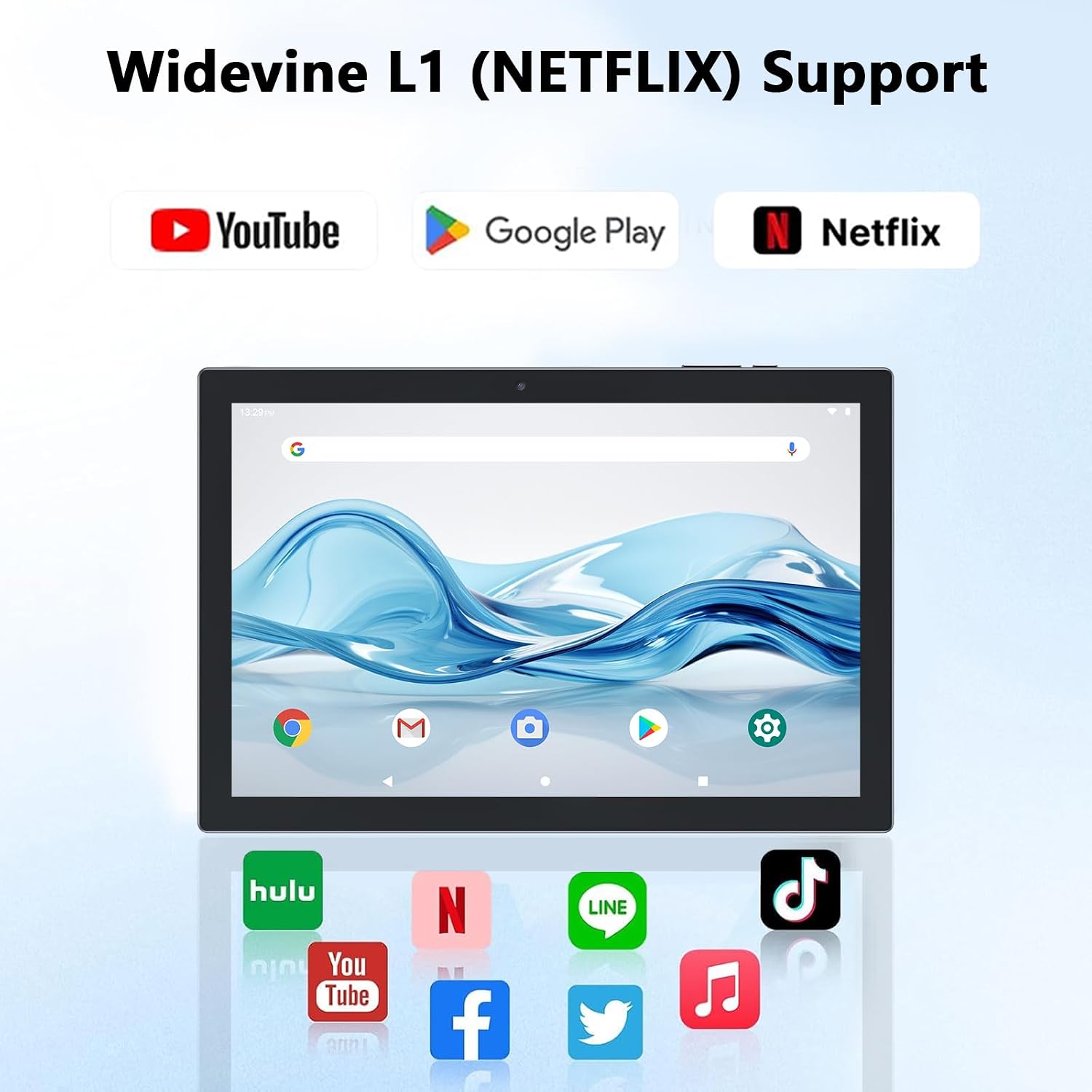
Figure 4.2: Widevine L1 support for popular streaming platforms.
The tablet's IPS HD screen provides vibrant colors and advanced visual effects. Utilize the pre-installed media players or download your preferred streaming apps from the Google Play Store.
വീഡിയോ 4.1: ഒരു ഓവർview of the YQ10SMAX Android 15 tablet's features and performance, demonstrating its capabilities for daily use and entertainment.
4.4 ക്യാമറകൾ ഉപയോഗിക്കുന്നത്
The tablet features an 8MP rear camera and a 2MP front camera.

Figure 4.3: Dual cameras for photos and video calls.
- Open the "Camera" application from the home screen or app drawer.
- മുൻ ക്യാമറയും പിൻ ക്യാമറയും തമ്മിൽ മാറാൻ ക്യാമറ ഐക്കണിൽ ടാപ്പ് ചെയ്യുക.
- ഒരു ഫോട്ടോ എടുക്കാൻ ഷട്ടർ ബട്ടൺ ടാപ്പ് ചെയ്യുക അല്ലെങ്കിൽ വീഡിയോ റെക്കോർഡിംഗ് ആരംഭിക്കുക/നിർത്തുക.
4.5 Storage and Expansion
The tablet comes with 128GB of internal storage and supports up to 2TB expansion via a microSD card.

Figure 4.4: Mass storage and easy expansion options.
- To insert a microSD card, locate the card slot on the side of the tablet and gently push the card in until it clicks.
- സംഭരണം മാനേജ് ചെയ്യാൻ, ഇതിലേക്ക് പോകുക ക്രമീകരണങ്ങൾ > സംഭരണം.
5. പരിപാലനം
5.1 നിങ്ങളുടെ ടാബ്ലെറ്റ് വൃത്തിയാക്കൽ
- ടാബ്ലെറ്റിന്റെ സ്ക്രീനും ബോഡിയും വൃത്തിയാക്കാൻ മൃദുവായ, ലിന്റ് രഹിത തുണി ഉപയോഗിക്കുക.
- കഠിനമായ പാടുകൾക്ക്, ചെറുതായി dampവെള്ളം അല്ലെങ്കിൽ സ്ക്രീൻ-സേഫ് ക്ലീനിംഗ് ലായനി ഉപയോഗിച്ച് തുണിയിൽ തടവുക.
- കഠിനമായ രാസവസ്തുക്കൾ, ഉരച്ചിലുകൾ ഉള്ള വസ്തുക്കൾ, അല്ലെങ്കിൽ അമിതമായ ഈർപ്പം എന്നിവ ഉപയോഗിക്കുന്നത് ഒഴിവാക്കുക.
5.2 ബാറ്ററി കെയർ
The tablet is equipped with a 6000mAh battery for long-lasting performance.

Figure 5.1: Large-capacity battery with long-lasting battery life.
- Charge the tablet regularly, but avoid leaving it plugged in for extended periods after it's fully charged.
- ചാർജ് ചെയ്യുന്നതിന് നൽകിയിരിക്കുന്ന ടൈപ്പ്-സി കേബിൾ മാത്രം ഉപയോഗിക്കുക.
- Avoid exposing the tablet to extreme temperatures, as this can affect battery life.
5.3 സോഫ്റ്റ്വെയർ അപ്ഡേറ്റുകൾ
ഒപ്റ്റിമൽ പ്രകടനവും സുരക്ഷയും ഉറപ്പാക്കാൻ ഇടയ്ക്കിടെ സിസ്റ്റം അപ്ഡേറ്റുകൾ പരിശോധിക്കുക.
- പോകുക ക്രമീകരണങ്ങൾ > സിസ്റ്റം > സിസ്റ്റം അപ്ഡേറ്റ്.
- ലഭ്യമായ എല്ലാ അപ്ഡേറ്റുകളും ഡൗൺലോഡ് ചെയ്ത് ഇൻസ്റ്റാൾ ചെയ്യാൻ ഓൺ-സ്ക്രീൻ നിർദ്ദേശങ്ങൾ പാലിക്കുക.
6. പ്രശ്നപരിഹാരം
If you encounter any issues with your tablet, please refer to the following common problems and solutions:
| പ്രശ്നം | സാധ്യമായ കാരണം | പരിഹാരം |
|---|---|---|
| ടാബ്ലെറ്റ് ഓണാകുന്നില്ല | ബാറ്ററി ചാർജ് കുറവാണ്; സിസ്റ്റം ക്രാഷ് ആയി | Charge the tablet for at least 30 minutes. Press and hold the Power button for 10-15 seconds to force restart. |
| Wi-Fi കണക്ഷൻ പ്രശ്നങ്ങൾ | Incorrect password; Router issue; Out of range | Verify Wi-Fi password. Restart your router. Move closer to the Wi-Fi router. |
| മന്ദഗതിയിലുള്ള പ്രകടനം | വളരെയധികം ആപ്പുകൾ പ്രവർത്തിക്കുന്നു; സംഭരണശേഷി കുറവാണ്; കാലഹരണപ്പെട്ട സോഫ്റ്റ്വെയർ | Close unnecessary apps. Clear cache/uninstall unused apps. Check for system updates. |
| Accessories not connecting | Bluetooth off; Incorrect pairing; Low battery in accessory | Ensure Bluetooth is on. Re-pair the accessory. Check accessory batteries. |
| സ്ക്രീൻ പ്രതികരിക്കുന്നില്ല | താൽക്കാലിക സോഫ്റ്റ്വെയർ തകരാർ | Force restart the tablet by holding the Power button. |
7 സ്പെസിഫിക്കേഷനുകൾ
| ഫീച്ചർ | വിശദാംശങ്ങൾ |
|---|---|
| ബ്രാൻഡ് | ക്യൂപൈസി |
| മോഡലിൻ്റെ പേര് | YQ10S MAX |
| ഓപ്പറേറ്റിംഗ് സിസ്റ്റം | ആൻഡ്രോയിഡ് 15 |
| സ്ക്രീൻ വലിപ്പം | 10.1 ഇഞ്ച് |
| സ്ക്രീൻ റെസല്യൂഷൻ | 1280 x 800 pixels (IPS HD) |
| പ്രോസസ്സർ | 2.0 GHz ക്വാഡ്-കോർ |
| റാം | 18GB (6GB + 12GB expansion) |
| ആന്തരിക സംഭരണം | 128 ജിബി |
| വികസിപ്പിക്കാവുന്ന സംഭരണം | Up to 2TB (microSD card not included) |
| പിൻ ക്യാമറ | 8 എം.പി |
| മുൻ ക്യാമറ | 2 എം.പി |
| വയർലെസ് തരം | 802.11ax (Wi-Fi 6), 2.4G/5G Dual-band |
| ബ്ലൂടൂത്ത് | ബ്ലൂടൂത്ത് 5.0 |
| ബാറ്ററി ശേഷി | 6000 mAh ലിഥിയം പോളിമർ |
| ശരാശരി ബാറ്ററി ലൈഫ് | 10 മണിക്കൂർ വരെ |
| ഇനത്തിൻ്റെ ഭാരം | 2.75 പൗണ്ട് (ഏകദേശം 1.25 കിലോഗ്രാം) |
| ഉൽപ്പന്ന അളവുകൾ | 9.45 x 5.91 x 0.39 ഇഞ്ച് (ഏകദേശം 24 x 15 x 1 സെ.മീ) |
8. വാറൻ്റിയും പിന്തുണയും
CUPEISI products are manufactured to the highest quality standards. This product is covered by a standard manufacturer's warranty against defects in materials and workmanship from the date of purchase. Please retain your proof of purchase for warranty claims.
For technical support, warranty inquiries, or any questions regarding your CUPEISI Android 15 Tablet, please contact our customer service team through the retailer's platform or visit the official CUPEISI webബന്ധപ്പെടാനുള്ള വിവരങ്ങൾക്കുള്ള സൈറ്റ്.
Please note that the warranty does not cover damage caused by misuse, accidents, unauthorized repairs, or normal wear and tear.


