ആമുഖം
Thank you for choosing the Baseus K01B Tri-Mode Wireless Multi-Device Keyboard. This ultra-slim keyboard is designed for seamless connectivity across various devices and operating systems, offering a comfortable and efficient typing experience. Please read this manual carefully to ensure proper use and maintenance of your new keyboard.
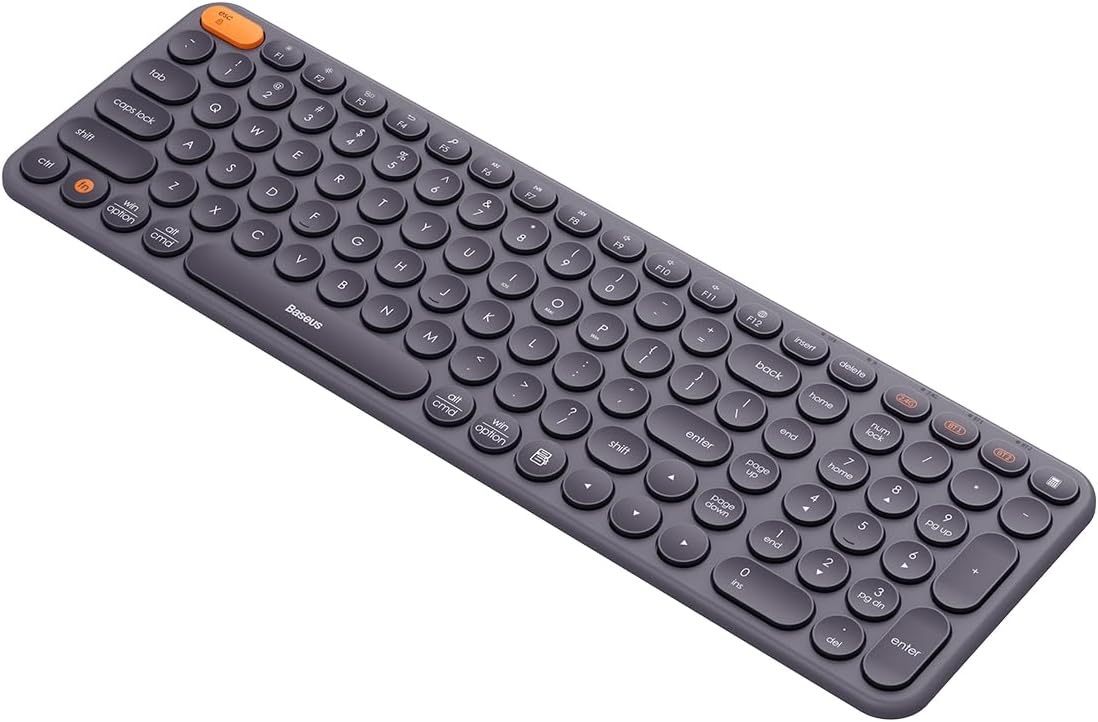
Image: The Baseus K01B Tri-Mode Wireless Keyboard, showcasing its compact design and round keycaps.
ഉൽപ്പന്ന സവിശേഷതകൾ
- ട്രൈ-മോഡ് കണക്ഷൻ: Supports Bluetooth 3.0, Bluetooth 5.0, and 2.4GHz wireless modes for versatile connectivity.
- മൾട്ടി-ഡിവൈസ് ജോടിയാക്കൽ: Connects to up to 3 devices simultaneously, allowing for convenient switching.
- വിശാലമായ അനുയോജ്യത: Compatible with Windows, iOS, Linux, Harmony OS, and Android operating systems.
- Functional Keys: Includes 12 function keys for quick access to volume, screen brightness, and other controls, along with a numeric keypad.
- Smart Auto-Sleep: Enters standby mode after 30 minutes of inactivity to conserve power.
- എർഗണോമിക് ഡിസൈൻ: Engineered for comfortable typing, reducing wrist strain.
- Durable Key Markings: Key legends are resistant to wear and fading.

Image: Diagram highlighting the multi-connection capabilities and high portability of the Baseus K01B keyboard.
സജ്ജീകരണ ഗൈഡ്
1. ബാറ്ററി ഇൻസ്റ്റാളേഷൻ
The Baseus K01B keyboard is powered by two AAA batteries.
- കീബോർഡിന്റെ അടിഭാഗത്ത് ബാറ്ററി കമ്പാർട്ട്മെന്റ് കണ്ടെത്തുക.
- ബാറ്ററി കമ്പാർട്ട്മെൻ്റ് കവർ തുറക്കുക.
- ശരിയായ പോളാരിറ്റി (+/-) ഉറപ്പാക്കിക്കൊണ്ട് രണ്ട് AAA ബാറ്ററികൾ ഇടുക.
- ബാറ്ററി കമ്പാർട്ട്മെൻ്റ് കവർ സുരക്ഷിതമായി അടയ്ക്കുക.
കുറിപ്പ്: If the indicator light flashes red, it means the battery is low and needs to be replaced.
2. നിങ്ങളുടെ കീബോർഡ് ബന്ധിപ്പിക്കുന്നു
The keyboard supports three connection modes: 2.4GHz wireless, Bluetooth 3.0, and Bluetooth 5.0. You can connect up to three devices simultaneously.

Image: Illustration showing the Baseus K01B keyboard connecting simultaneously to a laptop, smartphone, and tablet.
2.1. 2.4GHz വയർലെസ് കണക്ഷൻ
- Locate the 2.4G USB receiver, usually stored in the battery compartment or a dedicated slot on the keyboard.
- നിങ്ങളുടെ കമ്പ്യൂട്ടറിലോ ഉപകരണത്തിലോ ലഭ്യമായ ഒരു USB പോർട്ടിലേക്ക് USB റിസീവർ പ്ലഗ് ചെയ്യുക.
- Turn on the keyboard using the power switch (usually on the side or back).
- അമർത്തുക 2.4G key on the keyboard. The indicator light will confirm the connection.
- Your keyboard should now be connected and ready to use.
2.2. ബ്ലൂടൂത്ത് കണക്ഷൻ (BT1 / BT2)
- പവർ സ്വിച്ച് ഉപയോഗിച്ച് കീബോർഡ് ഓണാക്കുക.
- ഒന്നുകിൽ അമർത്തിപ്പിടിക്കുക BT1 or BT2 key for 3-5 seconds until the indicator light starts flashing, indicating pairing mode.
- നിങ്ങളുടെ ഉപകരണത്തിൽ (കമ്പ്യൂട്ടർ, ടാബ്ലെറ്റ്, സ്മാർട്ട്ഫോൺ), ബ്ലൂടൂത്ത് ക്രമീകരണങ്ങളിലേക്ക് പോകുക.
- ഇതിനായി തിരയുക new devices and select "Baseus K01B" (or similar name) from the list.
- Follow any on-screen prompts to complete the pairing process. The indicator light on the keyboard will stop flashing once connected.
- Repeat the process with the other Bluetooth key (BT1 or BT2) to connect a second Bluetooth device.
പ്രവർത്തന നിർദ്ദേശങ്ങൾ
1. ബന്ധിപ്പിച്ച ഉപകരണങ്ങൾക്കിടയിൽ മാറൽ
To switch between your connected devices, simply press the corresponding connection key:
- അമർത്തുക 2.4G to switch to the device connected via the USB receiver.
- അമർത്തുക BT1 to switch to the first Bluetooth-connected device.
- അമർത്തുക BT2 to switch to the second Bluetooth-connected device.
2. Switching Between Operating Systems
The keyboard is designed to work seamlessly across different operating systems. Use the following key combinations to optimize keyboard layout and functions for your specific OS:
- വിൻഡോസിനായി: അമർത്തുക Fn+Win
- For iOS/macOS: Press Fn + Mac
- For Android/Harmony OS: Press എഫ്എൻ + ആൻഡ്രോയിഡ്

Image: Close-up of the Baseus K01B keyboard highlighting the Fn key and mode switch keys for iOS, Mac OS, and Windows.
3. ഫംഗ്ഷൻ കീകൾ (F1-F12) ഉപയോഗിക്കുന്നത്
The keyboard features 12 multimedia function keys. By default, these keys perform their multimedia functions (e.g., volume control, media playback). To use them as standard F-keys (F1-F12), press Fn + Esc മോഡുകൾക്കിടയിൽ ടോഗിൾ ചെയ്യാൻ.
Common multimedia functions include:
- F1-F3: Brightness adjustment
- F4-F6: Media controls (Previous, Play/Pause, Next)
- F7-F9: വോളിയം നിയന്ത്രണങ്ങൾ (മ്യൂട്ട് ചെയ്യുക, വോളിയം കുറയ്ക്കുക, വോളിയം കൂട്ടുക)
- F10-F12: Other system functions
4. Smart Auto-Sleep Mode
To conserve battery life, the keyboard will automatically enter standby mode after 30 minutes of inactivity. To wake the keyboard, simply press any key. The keyboard will reconnect to the last active device.

Image: Visual representation of the keyboard's smart auto-sleep mode, showing it in a vertical, inactive state.
മെയിൻ്റനൻസ്
ശരിയായ അറ്റകുറ്റപ്പണി നിങ്ങളുടെ കീബോർഡിന്റെ ദീർഘായുസ്സും മികച്ച പ്രകടനവും ഉറപ്പാക്കുന്നു.
1. വൃത്തിയാക്കൽ
- വൃത്തിയാക്കുന്നതിന് മുമ്പ് കീബോർഡ് ഓഫ് ചെയ്യുക.
- മൃദുവായ, ലിൻ്റ് രഹിത തുണി ഉപയോഗിക്കുകampഉപരിതലം തുടയ്ക്കാൻ വെള്ളമോ നേരിയ ക്ലീനിംഗ് ലായനിയോ ഉപയോഗിച്ച് നനയ്ക്കുക.
- താക്കോലുകൾക്കിടയിലുള്ള പൊടിയും അവശിഷ്ടങ്ങളും ഒഴിവാക്കാൻ, കംപ്രസ് ചെയ്ത വായു ഉപയോഗിക്കുക.
- കഠിനമായ രാസവസ്തുക്കൾ, അബ്രസീവ് ക്ലീനറുകൾ, അല്ലെങ്കിൽ അമിതമായ ഈർപ്പം എന്നിവ ഉപയോഗിക്കുന്നത് ഒഴിവാക്കുക.
2. ബാറ്ററി മാറ്റിസ്ഥാപിക്കൽ
When the battery indicator flashes red, replace the two AAA batteries as described in the "Battery Installation" section of the Setup Guide.
ട്രബിൾഷൂട്ടിംഗ്
| പ്രശ്നം | സാധ്യമായ കാരണം | പരിഹാരം |
|---|---|---|
| Keyboard not connecting/responding. |
|
|
| Keys are not responding or typing is not smooth. |
|
|
| Cmd and Option keys are switched (macOS). |
|
|
| Keyboard enters sleep mode too quickly. |
|
|
സ്പെസിഫിക്കേഷനുകൾ
| ഫീച്ചർ | വിശദാംശങ്ങൾ |
|---|---|
| ബ്രാൻഡ് | ബേസിയസ് |
| മോഡൽ | K01B (Item model number: B00955504833-00) |
| കണക്റ്റിവിറ്റി | 2.4GHz Wireless, Bluetooth 3.0, Bluetooth 5.0 |
| അനുയോജ്യത | Windows, iOS, Linux, Harmony OS, Android |
| പവർ ഉറവിടം | 2 x AAA ബാറ്ററികൾ |
| ഉൽപ്പന്ന അളവുകൾ | 10 x 5 x 1.27 സെ.മീ |
| ഭാരം | 650 ഗ്രാം |
| മാതൃരാജ്യം | ചൈന |
| ഭാഷ | ഇംഗ്ലീഷ് |

Image: The retail packaging for the Baseus K01B Wireless Tri-Mode Keyboard.
വാറൻ്റിയും പിന്തുണയും
Baseus products are manufactured to the highest quality standards. For warranty information and customer support, please refer to the warranty card included with your product or visit the official Baseus webസൈറ്റ്. ഏതെങ്കിലും വാറന്റി ക്ലെയിമുകൾക്ക് വാങ്ങിയതിന്റെ തെളിവായി നിങ്ങളുടെ വാങ്ങൽ രസീത് സൂക്ഷിക്കുക.
For technical assistance or further inquiries, please contact Baseus customer service.


