1. ആമുഖം
Thank you for choosing the Dragon Touch Notepad-102 Android 12 Tablet. This manual provides essential information for setting up, operating, maintaining, and troubleshooting your device. Please read it thoroughly to ensure optimal performance and longevity of your tablet.
2. ഉൽപ്പന്നം കഴിഞ്ഞുview
The Dragon Touch Notepad-102 is a 10.1-inch Android 12 tablet designed for versatile use, from entertainment to productivity. It features an 8-core CPU, 8GB RAM, 128GB internal storage, and a vibrant IPS display.

ചിത്രം 2.1: മുന്നിലും പിന്നിലും view of the Dragon Touch Notepad-102 tablet. The front displays 'Android 12' and '8GB+128GB', while the back shows a silver finish and the rear camera module.
2.1. ഘടകങ്ങളും പോർട്ടുകളും
Familiarize yourself with the tablet's physical features:
- ഡിസ്പ്ലേ: 10.1-inch IPS screen.
- മുൻ ക്യാമറ: 8MP, typically located at the top center when held vertically.
- പിൻ ക്യാമറ: 13MP, located on the back panel.
- പവർ ബട്ടൺ: ടാബ്ലെറ്റ് ഓൺ/ഓഫ് ചെയ്യാനോ നിദ്രയിലാക്കാനോ ഉപയോഗിക്കുന്നു.
- വോളിയം ബട്ടണുകൾ: ഓഡിയോ ലെവലുകൾ ക്രമീകരിക്കുക.
- യുഎസ്ബി ടൈപ്പ്-സി പോർട്ട്: ചാർജിംഗിനും ഡാറ്റ കൈമാറ്റത്തിനും.
- 3.5 എംഎം ഹെഡ്ഫോൺ ജാക്ക്: ഓഡിയോ ഔട്ട്പുട്ടിനായി.
- മൈക്രോ എസ്ഡി കാർഡ് സ്ലോട്ട്: For storage expansion (up to 128GB).
- സ്പീക്കറുകൾ: Dual stereo speakers for audio output.

ചിത്രം 2.2: വശം view of the tablet highlighting the various ports and buttons, including the USB Type-C port and volume controls.
3. സജ്ജീകരണം
3.1. പ്രാരംഭ പവർ ഓൺ
- അമർത്തിപ്പിടിക്കുക പവർ ബട്ടൺ സ്ക്രീൻ കത്തിക്കുന്നതുവരെ.
- Follow the on-screen prompts to select your language, region, and accept the terms and conditions.
3.2. വൈഫൈ കണക്ഷൻ
- During initial setup or later, navigate to ക്രമീകരണങ്ങൾ > നെറ്റ്വർക്കും ഇൻ്റർനെറ്റും > വൈഫൈ.
- വൈഫൈ ടോഗിൾ ചെയ്യുക On.
- ലിസ്റ്റിൽ നിന്ന് നിങ്ങൾക്ക് ആവശ്യമുള്ള വൈഫൈ നെറ്റ്വർക്ക് തിരഞ്ഞെടുക്കുക.
- ആവശ്യപ്പെടുകയാണെങ്കിൽ നെറ്റ്വർക്ക് പാസ്വേഡ് നൽകുക, തുടർന്ന് ടാപ്പുചെയ്യുക ബന്ധിപ്പിക്കുക.
3.3. Google Account Setup
Sign in with your Google account to access the Google Play Store, Gmail, and other Google services. If you don't have an account, you can create one during this step.
4. അടിസ്ഥാന പ്രവർത്തനം
4.1. Navigating Android 12
The tablet runs on Android 12, offering an intuitive user interface. Common gestures include:
- ടാപ്പ് ചെയ്യുക: ഒരു ഇനം തിരഞ്ഞെടുക്കുകയോ ഒരു ആപ്പ് തുറക്കുകയോ ചെയ്യുക.
- സ്വൈപ്പ്: Scroll through pages or menus.
- പിഞ്ച്-ടു-സൂം: Enlarge or shrink content on the screen.
- ലോംഗ് പ്രസ്സ്: സന്ദർഭോചിത മെനുകൾ ആക്സസ് ചെയ്യുക അല്ലെങ്കിൽ ഐക്കണുകൾ നീക്കുക.
4.2. ആപ്പ് ഇൻസ്റ്റാളേഷൻ
Download and install applications from the Google Play Store. Ensure you have a stable internet connection.

ചിത്രം 4.1: The tablet screen showing a collection of application icons and photo thumbnails, demonstrating its multimedia capabilities and storage capacity.
5. വിപുലമായ സവിശേഷതകൾ
5.1. ക്യാമറകൾ
The tablet is equipped with an 8MP front camera and a 13MP rear camera. Open the Camera app to capture photos and videos. The front camera is ideal for video calls and selfies.

ചിത്രം 5.1: The tablet displaying a video call, showcasing the clarity of the front-facing camera for communication.
5.2. വയർലെസ് പ്രൊജക്ഷൻ
The tablet supports wireless projection, allowing you to mirror its screen to a compatible large display, such as a TV. This feature is useful for presentations or sharing media.
5.3. Docking Keyboard Support
Enhance your productivity by connecting a compatible docking keyboard (sold separately). This transforms your tablet into a laptop-like device, suitable for typing and work tasks.
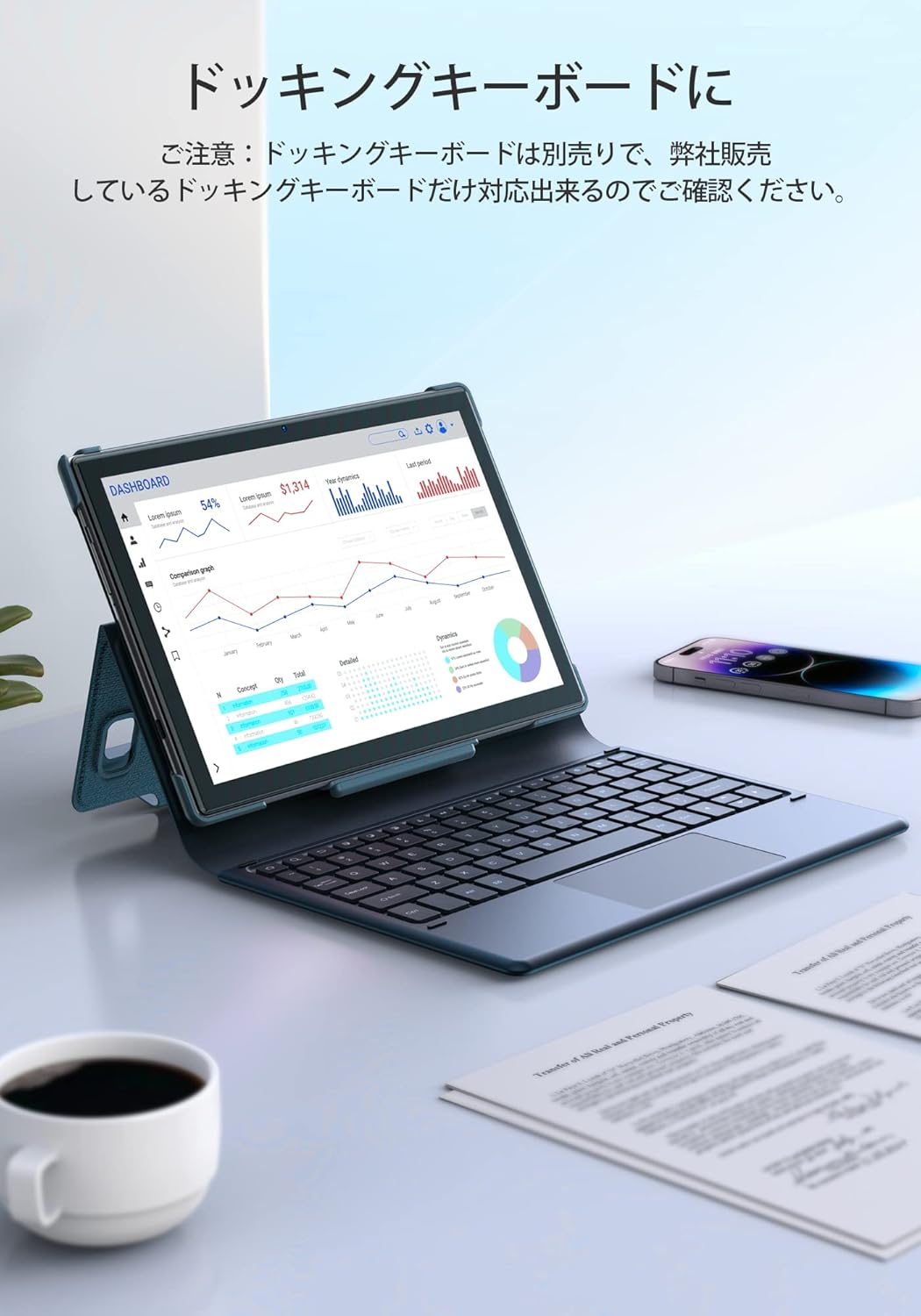
ചിത്രം 5.2: The tablet docked with a keyboard accessory, displaying a dashboard with charts, illustrating its use for productivity.
6. കണക്റ്റിവിറ്റി
6.1 വൈഫൈ
The tablet supports dual-band Wi-Fi (2.4GHz and 5GHz) with 802.11ac technology for stable and high-speed internet access. To manage Wi-Fi settings, go to ക്രമീകരണങ്ങൾ > നെറ്റ്വർക്കും ഇൻ്റർനെറ്റും > വൈഫൈ.
6.2. ബ്ലൂടൂത്ത്
Connect wireless headphones, speakers, or other Bluetooth-enabled devices. Access Bluetooth settings via ക്രമീകരണങ്ങൾ > ബന്ധിപ്പിച്ച ഉപകരണങ്ങൾ > ബ്ലൂടൂത്ത്.
7. ബാറ്ററി മാനേജ്മെന്റ്
The Notepad-102 is equipped with a 6000mAh battery. To charge, connect the included Type-C cable to the tablet's Type-C port and a compatible 5V/2A power adapter.
7.1. Battery Life Tips
- സ്ക്രീൻ തെളിച്ചം കുറയ്ക്കുക.
- ഉപയോഗത്തിലില്ലാത്തപ്പോൾ വൈ-ഫൈ, ബ്ലൂടൂത്ത് എന്നിവ ഓഫാക്കുക.
- പശ്ചാത്തല ആപ്ലിക്കേഷനുകൾ അടയ്ക്കുക.
- Enable battery saver mode.
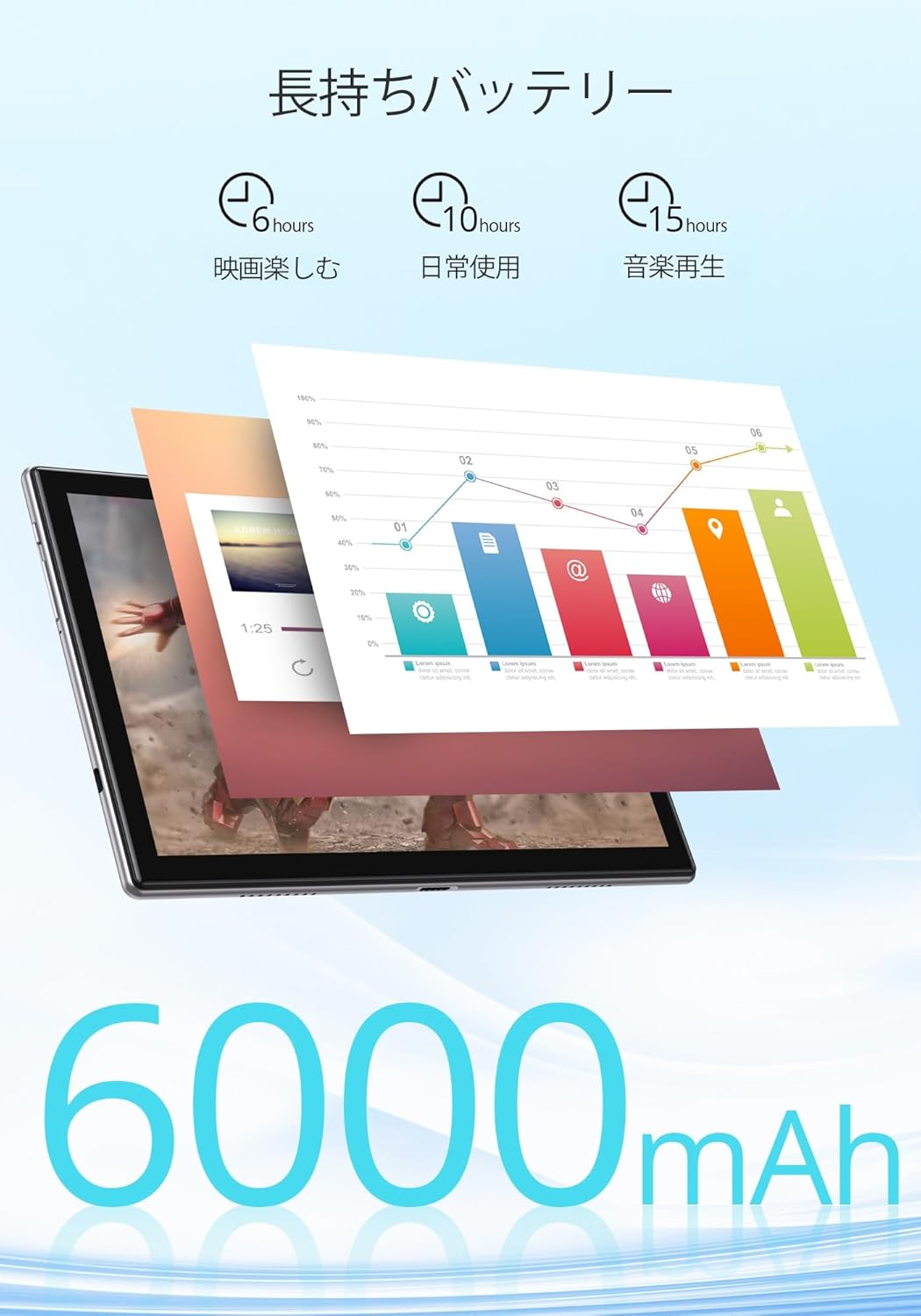
ചിത്രം 7.1: An infographic showing estimated battery life for various activities: 6 hours for movies, 10 hours for daily use, and 15 hours for music playback, powered by the 6000mAh battery.
8. പരിപാലനവും പരിചരണവും
- Keep the tablet away from extreme temperatures and direct sunlight.
- ടാബ്ലെറ്റ് താഴെയിടുകയോ ശക്തമായ ആഘാതങ്ങൾക്ക് വിധേയമാക്കുകയോ ചെയ്യുന്നത് ഒഴിവാക്കുക.
- Clean the screen with a soft, lint-free cloth. Do not use harsh chemicals.
- ചാർജിംഗ് പോർട്ട് പൊടിയും അവശിഷ്ടങ്ങളും ഇല്ലാത്തതാണെന്ന് ഉറപ്പാക്കുക.
9. പ്രശ്നപരിഹാരം
9.1. ടാബ്ലെറ്റ് ഓണാക്കുന്നില്ല
- ടാബ്ലെറ്റ് ആവശ്യത്തിന് ചാർജ്ജ് ചെയ്തിട്ടുണ്ടെന്ന് ഉറപ്പാക്കുക. കുറഞ്ഞത് 30 മിനിറ്റെങ്കിലും ഒരു പവർ സ്രോതസ്സുമായി ബന്ധിപ്പിക്കുക.
- നിർബന്ധിതമായി റീബൂട്ട് ചെയ്യാൻ പവർ ബട്ടൺ 10-15 സെക്കൻഡ് അമർത്തിപ്പിടിക്കുക.
9.2. വൈഫൈ കണക്റ്റിവിറ്റി പ്രശ്നങ്ങൾ
- നിങ്ങളുടെ വൈഫൈ റൂട്ടറും ടാബ്ലെറ്റും പുനരാരംഭിക്കുക.
- നിങ്ങൾ വൈഫൈ സിഗ്നലിന്റെ പരിധിയിലാണെന്ന് ഉറപ്പാക്കുക.
- വൈഫൈ ക്രമീകരണങ്ങളിൽ നെറ്റ്വർക്ക് മറന്ന് വീണ്ടും കണക്റ്റുചെയ്യുക.
- മറ്റ് ഉപകരണങ്ങൾക്ക് ഒരേ വൈഫൈ നെറ്റ്വർക്കിലേക്ക് കണക്റ്റ് ചെയ്യാൻ കഴിയുമോ എന്ന് പരിശോധിക്കുക.
9.3. ആപ്പുകൾ ക്രാഷാകുകയോ മരവിപ്പിക്കുകയോ ചെയ്യുന്നു
- ആപ്പ് അടച്ച് വീണ്ടും തുറക്കുക.
- ആപ്പിന്റെ കാഷെയും ഡാറ്റയും മായ്ക്കുക ക്രമീകരണങ്ങൾ > ആപ്പുകൾ > [ആപ്പ് നാമം] > സംഭരണവും കാഷെയും.
- ആപ്പ് അതിന്റെ ഏറ്റവും പുതിയ പതിപ്പിലേക്ക് അപ്ഡേറ്റ് ചെയ്തിട്ടുണ്ടെന്ന് ഉറപ്പാക്കുക.
10 സ്പെസിഫിക്കേഷനുകൾ
| ഫീച്ചർ | സ്പെസിഫിക്കേഷൻ |
|---|---|
| ബ്രാൻഡ് | ഡ്രാഗൺ ടച്ച് |
| മോഡൽ | Notepad-102 |
| ഓപ്പറേറ്റിംഗ് സിസ്റ്റം | Android 12 (GMS സാക്ഷ്യപ്പെടുത്തിയത്) |
| ഡിസ്പ്ലേ വലിപ്പം | 10.1 ഇഞ്ച് |
| ഡിസ്പ്ലേ റെസല്യൂഷൻ | 1280 x 800 പിക്സലുകൾ (IPS) |
| പ്രോസസ്സർ | 8-core CPU (2.0GHz) |
| റാം | 8 ജിബി |
| ആന്തരിക സംഭരണം | 128 ജിബി |
| വികസിപ്പിക്കാവുന്ന സംഭരണം | 128 ജിബി വരെ മൈക്രോ എസ്ഡി |
| വൈഫൈ | 2.4Ghz/5Ghz Dual-band (802.11ac) |
| ബ്ലൂടൂത്ത് | അതെ |
| മുൻ ക്യാമറ | 8എംപി |
| പിൻ ക്യാമറ | 13എംപി |
| ബാറ്ററി ശേഷി | 6000mAh |
| ചാർജിംഗ് പോർട്ട് | ടൈപ്പ്-സി |
| അളവുകൾ | 27.1 x 20 x 4.9 സെ.മീ |
| ഭാരം | 940 ഗ്രാം |
11. വാറൻ്റിയും പിന്തുണയും
The Dragon Touch Notepad-102 tablet comes with a one-year warranty. For any inquiries or support needs, please contact customer service through your Amazon purchase history, providing your order number. Our support team is dedicated to assisting you.
കുറിപ്പ്: Please use the provided charging cable and a 5V/2A power adapter for optimal charging.


