1. ആമുഖം
Thank you for choosing the GMKtec M3 Mini PC. This compact yet powerful desktop computer is designed for a wide range of applications, from daily office tasks and multimedia consumption to light gaming and professional work. Equipped with an Intel Core i5-12450H processor, ample memory, and high-speed storage, it offers exceptional performance in a small form factor. This manual provides detailed instructions for setting up, operating, maintaining, and troubleshooting your new Mini PC.
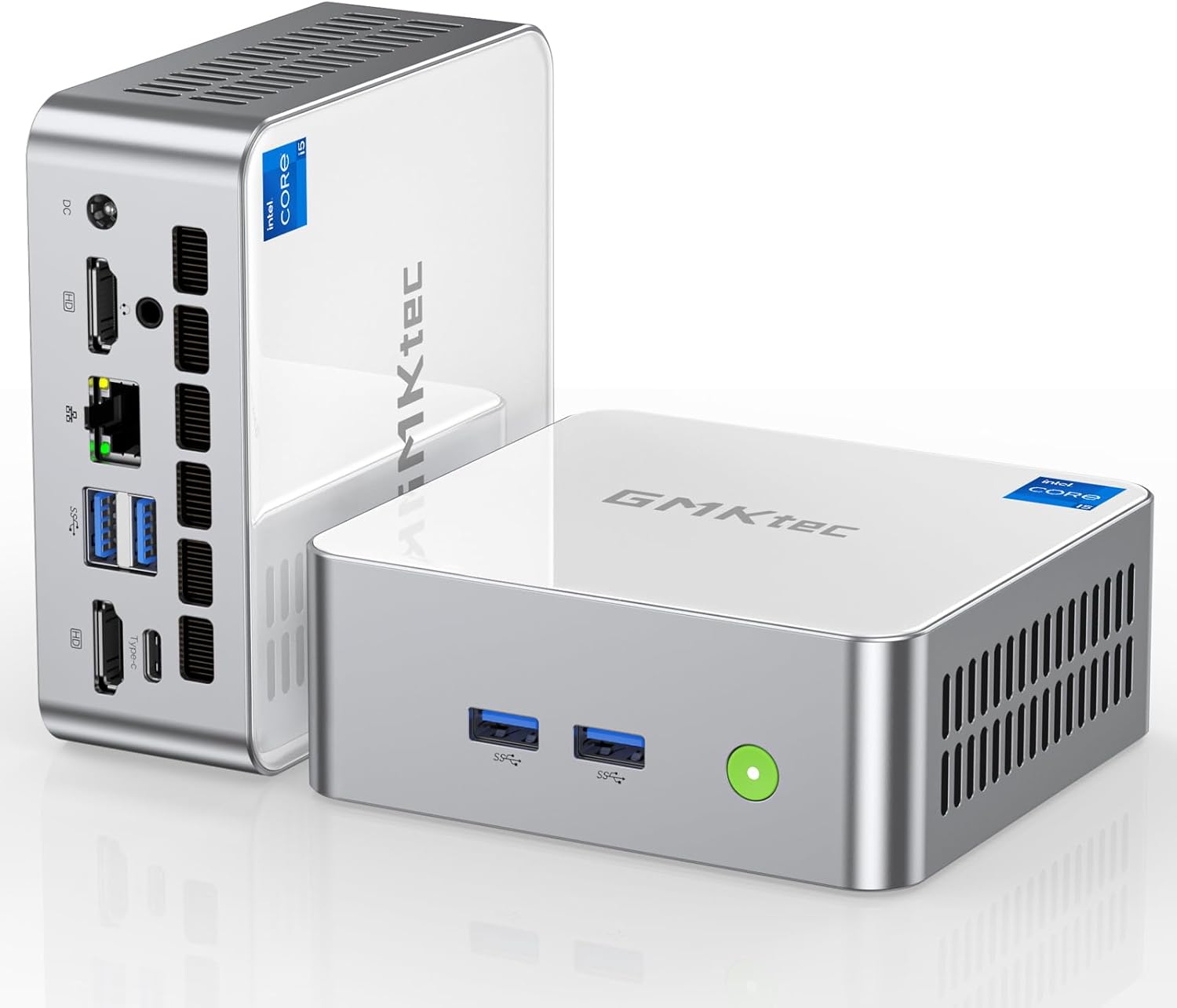
Image: The GMKtec M3 Mini PC, showcasing its compact design and various ports on the front and rear panels.
2. പാക്കേജ് ഉള്ളടക്കം
Please verify that all items listed below are included in your package. If any items are missing or damaged, please contact GMKtec support.
- 1 x GMKtec Nucbox M3 Intel Core i5-12450H Mini PC Computer
- 1 x പവർ അഡാപ്റ്റർ
- സ്ക്രൂകളുള്ള 1 x VESA മൗണ്ട്
- 1 x HDMI കേബിൾ
- 1 x ഉപയോക്തൃ മാനുവൽ

Image: All components included in the GMKtec M3 Mini PC retail package, including the Mini PC, power adapter, HDMI cable, VESA mount, and user manual.
3. സജ്ജീകരണ ഗൈഡ്
3.1 പെരിഫറലുകൾ ബന്ധിപ്പിക്കുന്നു
- ഡിസ്പ്ലേ ബന്ധിപ്പിക്കുക: Use the provided HDMI cable to connect your monitor(s) to the HDMI ports on the rear of the Mini PC. For triple display setup, utilize both HDMI ports and the USB Type-C port (with a compatible adapter/cable).
- കീബോർഡും മൗസും ബന്ധിപ്പിക്കുക: Plug your USB keyboard and mouse into any available USB 3.2 ports on the front or rear of the Mini PC.
- നെറ്റ്വർക്ക് ബന്ധിപ്പിക്കുക (ഓപ്ഷണൽ): For a wired connection, connect an Ethernet cable from your router/modem to the 2.5G RJ45 port on the rear. For wireless, the Mini PC supports Wi-Fi 6.
- പവർ ബന്ധിപ്പിക്കുക: Plug the power adapter into the DC IN port on the rear of the Mini PC, then plug the adapter into a power outlet.

ചിത്രം: വിശദമായ ഒരു ചിത്രം view of the GMKtec M3 Mini PC's front and rear interfaces, highlighting USB 3.2, USB 2.0, Type-C (DP/DATA), HDMI, RJ45 (2.5G), DC port, and audio jack.
3.2 പ്രാരംഭ പവർ ഓണും വിൻഡോസ് സജ്ജീകരണവും
After connecting all peripherals and power, press the power button located on the front of the Mini PC. The system will boot up. Follow the on-screen instructions to complete the initial Windows 11 Pro setup, including language, region, network connection, and user account creation.
3.3 VESA മൗണ്ട് ഇൻസ്റ്റലേഷൻ
The included VESA mount allows you to attach the Mini PC to the back of a compatible monitor or to a wall, saving desk space. Secure the VESA mount to your monitor's VESA holes using the provided screws, then slide the Mini PC onto the mount until it clicks into place.
4. പ്രവർത്തന നിർദ്ദേശങ്ങൾ
4.1 പൊതു പ്രവർത്തനം
The GMKtec M3 Mini PC runs on Windows 11 Pro, providing a familiar and intuitive user experience. You can use it for various tasks such as web browsing, document editing, media playback, and running demanding applications thanks to its Intel Core i5-12450H processor and 32GB DDR4 RAM.

Image: An infographic detailing the Intel 12th Gen Core i5-12450H processor, rich interface options, Wi-Fi 6, Bluetooth 5.2, and efficient heat dissipation of the GMKtec M3 Mini PC.
4.2 Triple Display Setup
The Mini PC supports up to three independent 4K displays simultaneously. Connect two monitors via the HDMI 2.0 ports and a third via the USB Type-C port (which supports DisplayPort 1.4). This setup is ideal for multitasking, professional design, or immersive entertainment.

Image: The GMKtec M3 Mini PC powering a triple monitor setup, demonstrating its capability for extended display configurations.
4.3 നെറ്റ്വർക്കും ബ്ലൂടൂത്ത് കണക്റ്റിവിറ്റിയും
The Mini PC features dual-band Wi-Fi 6 (802.11ax) for fast and stable wireless internet access, and Bluetooth 5.2 for connecting wireless peripherals like headphones, speakers, or game controllers. The 2.5Gbps LAN port provides ultra-fast wired network speeds, significantly improving data transfer rates for demanding applications.

Image: An illustration highlighting the Super Speed Wi-Fi 6 and Bluetooth 5.2 capabilities of the GMKtec M3 Mini PC, showing faster speeds and wider coverage compared to older standards.
5. പരിപാലനം
5.1 വൃത്തിയാക്കൽ
To ensure optimal performance and longevity, regularly clean the exterior of the Mini PC with a soft, dry cloth. Avoid using liquid cleaners or abrasive materials. Ensure the cooling vents are free from dust accumulation to maintain proper airflow.
5.2 സോഫ്റ്റ്വെയർ അപ്ഡേറ്റുകൾ
Keep your Windows operating system and drivers updated to the latest versions. This ensures system stability, security, and optimal performance. Windows Update can be accessed via the Settings menu.
5.3 സംഭരണ, RAM അപ്ഗ്രേഡുകൾ
The GMKtec M3 Mini PC allows for easy upgrades of its storage and RAM. It comes with a 1TB M.2 2280 NVMe SSD (PCIe 3.0) and supports expansion with an additional M.2 2242 SATA SSD up to 2TB. The 32GB DDR4 RAM (16GB*2) can also be upgraded to a maximum of 64GB (SO-DIMM*2).

ചിത്രം: പൊട്ടിത്തെറിച്ച ഒരു view of the GMKtec M3 Mini PC, illustrating the cooling fan, DDR4 RAM slots, and M.2 SSD slots, highlighting the ease of upgrading components.
6. പ്രശ്നപരിഹാരം
If you encounter issues with your GMKtec M3 Mini PC, please refer to the following common troubleshooting steps:
- ശക്തിയില്ല: Ensure the power adapter is securely connected to both the Mini PC and a working power outlet. Try a different outlet.
- ഡിസ്പ്ലേ ഇല്ല: Check that the HDMI/Type-C cables are firmly connected to both the Mini PC and the monitor. Ensure the monitor is powered on and set to the correct input source.
- ഇൻ്റർനെറ്റ് കണക്ഷൻ ഇല്ല: For wired connections, check the Ethernet cable and router. For Wi-Fi, ensure Wi-Fi is enabled in Windows settings and you are connected to the correct network with the correct password.
- മന്ദഗതിയിലുള്ള പ്രകടനം: Close unnecessary applications. Check for background processes. Ensure sufficient free storage space. Consider updating drivers or performing a system scan for malware.
- അമിതമായ ഫാൻ ശബ്ദം: Ensure the Mini PC's vents are not obstructed. Dust accumulation can cause fans to work harder; refer to the cleaning section.
If the problem persists after attempting these steps, please contact GMKtec customer support for further assistance.
7 സ്പെസിഫിക്കേഷനുകൾ
| ഫീച്ചർ | സ്പെസിഫിക്കേഷൻ |
|---|---|
| പ്രോസസ്സർ | Intel Core i5-12450H (up to 4.4 GHz, 8 Cores, 12 Threads) |
| റാം | 32GB DDR4 (16GB*2), Dual Channel, 3200MHz (Max 64GB) |
| സംഭരണം | 1TB M.2 2280 NVMe SSD (PCIe 3.0), Expandable with M.2 2242 SATA (up to 2TB) |
| ഗ്രാഫിക്സ് | Intel Iris Xe Graphics G7 96EU GPU |
| വീഡിയോ ഔട്ട്പുട്ട് | 2 x HDMI (4K@60Hz), 1 x USB Type-C (4K@60Hz, DisplayPort 1.4) - Triple Display Support |
| നെറ്റ്വർക്ക് | 2.5Gbps RJ45 LAN, Wi-Fi 6 (Dual Band 2.4G+5G), Bluetooth 5.2 |
| USB പോർട്ടുകൾ | 4 x USB 3.2, 1 x USB 2.0, 1 x USB Type-C (DP/DATA) |
| ഓഡിയോ | 3.5mm CTIA Audio Jack |
| ഓപ്പറേറ്റിംഗ് സിസ്റ്റം | Windows 11 Pro (Compatible with Ubuntu, Linux) |
| അളവുകൾ | 4.48 x 4.17 x 1.67 ഇഞ്ച് |
| ഭാരം | 2.88 പൗണ്ട് |
8. വാറൻ്റിയും പിന്തുണയും
GMKtec provides a One-Year limited warranty and lifetime professional support for the GMKtec M3 Mini PC. For any pre-sale or after-sale inquiries, please do not hesitate to contact us.
8.1 പിന്തുണയുമായി ബന്ധപ്പെടുന്നു
- ആമസോൺ പിന്തുണ: For purchases made on Amazon, you can contact support through your Amazon account. Navigate to "Your Orders," find the product, and select "Ask Product Question."
- Direct After-Sales Support: You can also send an email to the GMKtec After-Sales Team at support@gmktec.com for 24/7 customer support.

Image: Information regarding GMKtec's warranty and support channels, including Amazon contact and direct email support.


