1. ആമുഖം
നിങ്ങളുടെ AVer CAM570 വീഡിയോ കോൺഫറൻസിംഗ് ക്യാമറയുടെ സജ്ജീകരണം, പ്രവർത്തനം, അറ്റകുറ്റപ്പണി, ട്രബിൾഷൂട്ടിംഗ് എന്നിവയ്ക്കുള്ള വിശദമായ നിർദ്ദേശങ്ങൾ ഈ മാനുവൽ നൽകുന്നു. ശരിയായ പ്രവർത്തനം ഉറപ്പാക്കുന്നതിനും കേടുപാടുകൾ തടയുന്നതിനും ഉപകരണം ഉപയോഗിക്കുന്നതിന് മുമ്പ് ദയവായി ഈ മാനുവൽ നന്നായി വായിക്കുക.
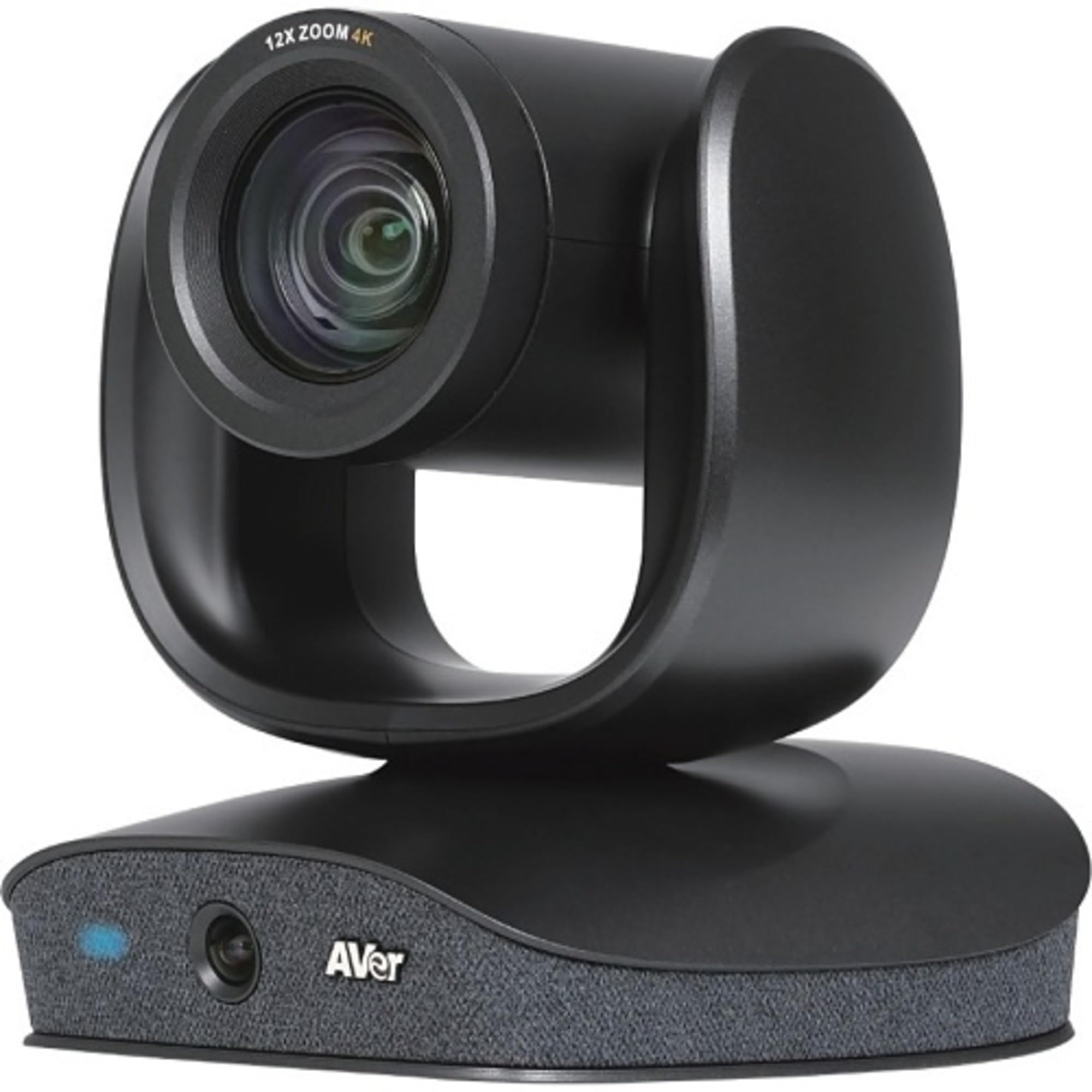
ചിത്രം: AVer CAM570 വീഡിയോ കോൺഫറൻസിങ് ക്യാമറ, മുകളിൽ PTZ ക്യാമറയുള്ള ഡ്യുവൽ-ലെൻസ് ഡിസൈൻ, ബേസിൽ സംയോജിപ്പിച്ചിരിക്കുന്ന AI ലെൻസ് എന്നിവ ഇതിൽ ഉൾപ്പെടുന്നു, ഇതിൽ മൈക്രോഫോൺ അറേയും AVer ബ്രാൻഡിംഗും ഉൾപ്പെടുന്നു.
2 പ്രധാന സവിശേഷതകൾ
- 4K ഡ്യുവൽ-ലെൻസ് ക്യാമറ: 36X ടോട്ടൽ സൂമുള്ള ഒരു PTZ ക്യാമറയും 95-ഡിഗ്രി ഫീൽഡ് ഉള്ള ഒരു AI ലെൻസും ഇതിൽ ഉൾപ്പെടുന്നു. View (FOV).
- ഓഡിയോ ട്രാക്കിംഗ്: ബീംഫോമിംഗ് സാങ്കേതികവിദ്യയുള്ള മൂന്ന് ബിൽറ്റ്-ഇൻ വോയ്സ് സെൻസറുകൾ 10 മീറ്റർ അകലെ വരെ സ്പീക്കറുകൾ ട്രാക്ക് ചെയ്യുന്നു.
- AI സ്മാർട്ട് ഫ്രെയിം: മീറ്റിംഗിൽ പങ്കെടുക്കുന്ന എല്ലാവരെയും പകർത്താൻ ക്യാമറ ആംഗിളും സൂമും യാന്ത്രികമായി ക്രമീകരിക്കുന്നു.
- സ്മാർട്ട് ഗാലറി: ക്ലോസ്-അപ്പുകളും പനോരമിക്സും ലയിപ്പിക്കുന്നു viewയോഗങ്ങളിൽ തുല്യ പ്രാതിനിധ്യത്തിനായി.
- ചിത്രം-ഇൻ-പിക്ചർ (പിഐപി): ഒരേസമയം സ്പീക്കറും വൈഡ് ആംഗിളും വാഗ്ദാനം ചെയ്യുന്നു views.
- കണക്റ്റിവിറ്റി: USB 3.1 (ജനറൽ 1) ടൈപ്പ് B, RS232, വിസ്ക ഓവർ IP.
- അനുയോജ്യത: സൂം സർട്ടിഫൈഡ്, ഗൂഗിൾ മീറ്റ്, മൈക്രോസോഫ്റ്റ് ടീമുകൾ, മറ്റ് വീഡിയോ കോൺഫറൻസിംഗ് പ്ലാറ്റ്ഫോമുകൾ എന്നിവയിൽ പ്രവർത്തിക്കുന്നു.
3. ബോക്സിൽ എന്താണുള്ളത്?
നിങ്ങളുടെ AVer CAM570 അൺപാക്ക് ചെയ്യുമ്പോൾ, എല്ലാ ഘടകങ്ങളും നിലവിലുണ്ടെന്ന് ദയവായി പരിശോധിക്കുക:
- AVer CAM570 വീഡിയോ കോൺഫറൻസിംഗ് ക്യാമറ
- USB കേബിൾ
- ഉപയോക്തൃ മാനുവൽ (ഈ പ്രമാണം)
4. സജ്ജീകരണ നിർദ്ദേശങ്ങൾ
4.1 ഫിസിക്കൽ പ്ലേസ്മെന്റ്
കോൺഫറൻസ് ടേബിൾ അല്ലെങ്കിൽ ഒരു പ്രത്യേക ക്യാമറ സ്റ്റാൻഡ് പോലുള്ള സ്ഥിരതയുള്ളതും പരന്നതുമായ ഒരു പ്രതലത്തിൽ CAM570 സ്ഥാപിക്കുക. ക്യാമറയ്ക്ക് തടസ്സമില്ലാത്ത ഒരു കവചം ഉണ്ടെന്ന് ഉറപ്പാക്കുക. view മീറ്റിംഗ് ഏരിയയുടെ.
4.2 ക്യാമറ കണക്ട് ചെയ്യുന്നു
- നൽകിയിരിക്കുന്ന USB കേബിൾ CAM570-ലെ USB 3.1 ടൈപ്പ് B പോർട്ടിലേക്ക് ബന്ധിപ്പിക്കുക.
- നിങ്ങളുടെ കമ്പ്യൂട്ടറിലോ കോൺഫറൻസിംഗ് ഹബ്ബിലോ ലഭ്യമായ ഒരു USB 3.1 (അല്ലെങ്കിൽ ഉയർന്നത്) പോർട്ടിലേക്ക് USB കേബിളിന്റെ മറ്റേ അറ്റം ബന്ധിപ്പിക്കുക.
- (ഓപ്ഷണൽ) വിപുലമായ നിയന്ത്രണത്തിനായി, ക്യാമറയിലെ ബന്ധപ്പെട്ട പോർട്ടുകളിലേക്ക് IP വഴി വിസ്കയ്ക്കായി ഒരു RS232 അല്ലെങ്കിൽ ഇതർനെറ്റ് കേബിൾ ബന്ധിപ്പിക്കുക.
- പവർ അഡാപ്റ്റർ ക്യാമറയിലേക്കും തുടർന്ന് ഒരു പവർ ഔട്ട്ലെറ്റിലേക്കും ബന്ധിപ്പിക്കുക. ക്യാമറ യാന്ത്രികമായി ഓണാകും.
4.3 ഡ്രൈവർ ഇൻസ്റ്റലേഷൻ (വിൻഡോസ്/മാക്ഒഎസ്)
AVer CAM570 ഒരു പ്ലഗ്-ആൻഡ്-പ്ലേ ഉപകരണമാണ്. മിക്ക ഓപ്പറേറ്റിംഗ് സിസ്റ്റങ്ങളും (Windows 10/11, macOS) കണക്ഷൻ ലഭിക്കുമ്പോൾ ആവശ്യമായ ഡ്രൈവറുകൾ സ്വയമേവ കണ്ടെത്തി ഇൻസ്റ്റാൾ ചെയ്യും. ആവശ്യപ്പെടുകയാണെങ്കിൽ, ഡ്രൈവർ ഇൻസ്റ്റാളേഷൻ പൂർത്തിയാക്കാൻ സിസ്റ്റത്തെ അനുവദിക്കുക.
മികച്ച പ്രകടനത്തിനും നൂതന സവിശേഷതകളിലേക്കുള്ള ആക്സസിനും, ഔദ്യോഗിക AVer-ൽ നിന്ന് ഏറ്റവും പുതിയ PTZApp2 സോഫ്റ്റ്വെയർ ഡൗൺലോഡ് ചെയ്ത് ഇൻസ്റ്റാൾ ചെയ്യുക. webസൈറ്റ്: www.aver.com/download-center - ഡൗൺലോഡ് സെന്റർ.
5. ക്യാമറ പ്രവർത്തിപ്പിക്കുക
5.1 അടിസ്ഥാന പ്രവർത്തനം
- പവർ ഓൺ/ഓഫ്: പവറുമായി ബന്ധിപ്പിക്കുമ്പോൾ ക്യാമറ ഓണാകും. ഓഫാക്കാൻ പവർ വിച്ഛേദിക്കുക.
- സ്റ്റാറ്റസ് ഇൻഡിക്കേറ്റർ: ബേസിന്റെ മുൻവശത്തുള്ള ഒരു നീല എൽഇഡി ക്യാമറ സജീവമാണെന്ന് സൂചിപ്പിക്കുന്നു.
- വീഡിയോ ഉറവിടമായി തിരഞ്ഞെടുക്കുന്നു: നിങ്ങളുടെ വീഡിയോ കോൺഫറൻസിംഗ് ആപ്ലിക്കേഷനിൽ (ഉദാ: സൂം, മൈക്രോസോഫ്റ്റ് ടീമുകൾ, ഗൂഗിൾ മീറ്റ്), നിങ്ങളുടെ ക്യാമറയുടെയും മൈക്രോഫോണിന്റെയും ഉറവിടമായി "AVer CAM570" തിരഞ്ഞെടുക്കുക.
5.2 PTZApp2 സോഫ്റ്റ്വെയർ ഉപയോഗിക്കുന്നത്
PTZApp2 സോഫ്റ്റ്വെയർ CAM570 ന്റെ സവിശേഷതകളിൽ സമഗ്രമായ നിയന്ത്രണം നൽകുന്നു:
- പാൻ, ടിൽറ്റ്, സൂം (PTZ) നിയന്ത്രണം: PTZ ക്യാമറയുടെ സ്ഥാനവും സൂം ലെവലും സ്വമേധയാ ക്രമീകരിക്കുക.
- പ്രീസെറ്റ് മാനേജ്മെന്റ്: പെട്ടെന്നുള്ള പരിവർത്തനങ്ങൾക്കായി 10 ക്യാമറ പൊസിഷനുകൾ വരെ സംരക്ഷിച്ച് തിരിച്ചുവിളിക്കുക.
- AI സവിശേഷതകൾ: AI സ്മാർട്ട് ഫ്രെയിം, സ്മാർട്ട് ഗാലറി, ഓഡിയോ ട്രാക്കിംഗ് എന്നിവ പ്രാപ്തമാക്കുക/പ്രവർത്തനരഹിതമാക്കുക, കോൺഫിഗർ ചെയ്യുക.
- ചിത്ര ക്രമീകരണങ്ങൾ: തെളിച്ചം, ദൃശ്യതീവ്രത, സാച്ചുറേഷൻ, വൈറ്റ് ബാലൻസ്, മറ്റ് ഇമേജ് പാരാമീറ്ററുകൾ എന്നിവ ക്രമീകരിക്കുക.
- ഫേംവെയർ അപ്ഡേറ്റുകൾ: മികച്ച പ്രകടനത്തിനും പുതിയ സവിശേഷതകൾക്കുമായി നിങ്ങളുടെ ക്യാമറയുടെ ഫേംവെയർ കാലികമായി നിലനിർത്തുക.
5.3 ഓഡിയോ ട്രാക്കിംഗും സ്മാർട്ട് ഫ്രെയിമും
CAM570 യാന്ത്രികമായി സജീവ സ്പീക്കറുകളിൽ ശ്രദ്ധ കേന്ദ്രീകരിക്കുകയും അതിന്റെ AI കഴിവുകൾ ഉപയോഗിച്ച് പങ്കെടുക്കുന്നവരെ ഫ്രെയിം ചെയ്യുകയും ചെയ്യുന്നു. മികച്ച ഫലങ്ങൾക്കായി PTZApp2-ൽ ഈ സവിശേഷതകൾ പ്രവർത്തനക്ഷമമാക്കിയിട്ടുണ്ടെന്ന് ഉറപ്പാക്കുക.
- ഓഡിയോ ട്രാക്കിംഗ്: സംസാരിക്കുന്ന വ്യക്തിയെ PTZ ക്യാമറ യാന്ത്രികമായി പിന്തുടരും.
- AI സ്മാർട്ട് ഫ്രെയിം: ക്യാമറ അതിന്റെ view മുറിയിൽ എല്ലാ പങ്കാളികളെയും ഉൾപ്പെടുത്താൻ.
- സ്മാർട്ട് ഗാലറി: പനോരമിക് ദൃശ്യങ്ങൾക്കൊപ്പം വ്യക്തിഗത ക്ലോസ്-അപ്പുകൾ നൽകുന്നു view, PTZApp2 വഴി കോൺഫിഗർ ചെയ്യാവുന്നതാണ്.
6. പരിപാലനം
6.1 വൃത്തിയാക്കൽ
- ഒപ്റ്റിക്കൽ പ്രതലങ്ങൾക്കായി പ്രത്യേകം രൂപകൽപ്പന ചെയ്ത മൃദുവായ, ലിന്റ് രഹിത തുണി ഉപയോഗിച്ച് ക്യാമറ ലെൻസ് സൌമ്യമായി തുടയ്ക്കുക. അബ്രാസീവ് ക്ലീനറുകളോ ലായകങ്ങളോ ഉപയോഗിക്കരുത്.
- ഉണങ്ങിയതോ ചെറുതായി ഡി-പ്ലാസ്റ്റർ ഉപയോഗിച്ചോ ക്യാമറ ബോഡി വൃത്തിയാക്കുക.amp മൃദുവായ തുണി.
- വൃത്തിയാക്കുന്നതിനുമുമ്പ് ക്യാമറ ഓഫ് ചെയ്തിട്ടുണ്ടെന്നും എല്ലാ കേബിളുകളിൽ നിന്നും വിച്ഛേദിച്ചിട്ടുണ്ടെന്നും ഉറപ്പാക്കുക.
6.2 ഫേംവെയർ അപ്ഡേറ്റുകൾ
AVer PTZApp2 സോഫ്റ്റ്വെയർ വഴി ഫേംവെയർ അപ്ഡേറ്റുകൾ പതിവായി പരിശോധിച്ച് ഇൻസ്റ്റാൾ ചെയ്യുക. ഫേംവെയർ അപ്ഡേറ്റുകൾക്ക് പ്രകടനം മെച്ചപ്പെടുത്താനും പുതിയ സവിശേഷതകൾ ചേർക്കാനും സാധ്യതയുള്ള പ്രശ്നങ്ങൾ പരിഹരിക്കാനും കഴിയും.
7. പ്രശ്നപരിഹാരം
| പ്രശ്നം | സാധ്യമായ കാരണം | പരിഹാരം |
|---|---|---|
| വീഡിയോ ഔട്ട്പുട്ട് ഇല്ല |
|
|
| ഓഡിയോ ഇൻപുട്ട് ഇല്ല |
|
|
| AI സവിശേഷതകൾ പ്രവർത്തിക്കുന്നില്ല |
|
|
| കമ്പ്യൂട്ടർ ക്യാമറ തിരിച്ചറിഞ്ഞില്ല. |
|
|
8 സ്പെസിഫിക്കേഷനുകൾ
| ഫീച്ചർ | വിശദാംശങ്ങൾ |
|---|---|
| മോഡൽ | CAM570 |
| പരമാവധി സ്ക്രീൻ റെസല്യൂഷൻ | UHD (അൾട്രാ ഹൈ ഡെഫനിഷൻ) |
| പിൻഭാഗം Webക്യാം റെസല്യൂഷൻ | 8 എം.പി |
| ഫ്രെയിം റേറ്റ് | 60 fps |
| സൂം ചെയ്യുക | 36X ടോട്ടൽ സൂം (12x ഒപ്റ്റിക്കൽ + 3x ഡിജിറ്റൽ) |
| AI ലെൻസ് FOV | 95 ഡിഗ്രി |
| കണക്റ്റിവിറ്റി | USB 3.1 (ജനറൽ 1) ടൈപ്പ് B, RS232, വിസ്ക ഓവർ IP |
| മൈക്രോഫോൺ | ബീംഫോമിംഗ് സാങ്കേതികവിദ്യയുമായി സംയോജിപ്പിച്ചിരിക്കുന്നു |
| അളവുകൾ (LxWxH) | 10.7 x 10.2 x 9.9 ഇഞ്ച് |
| ഭാരം | 10.03 പൗണ്ട് |
| നിറം | കറുപ്പ് |
| ഹാർഡ്വെയർ പ്ലാറ്റ്ഫോം | PC |
9. വാറൻ്റിയും പിന്തുണയും
9.1 വാറൻ്റി വിവരങ്ങൾ
വിശദമായ വാറന്റി വിവരങ്ങൾക്ക്, ദയവായി നിങ്ങളുടെ ഉൽപ്പന്നത്തിനൊപ്പം ഉൾപ്പെടുത്തിയിരിക്കുന്ന വാറന്റി കാർഡ് പരിശോധിക്കുക അല്ലെങ്കിൽ ഔദ്യോഗിക AVer സന്ദർശിക്കുക. webസൈറ്റ്. വാറന്റി നിബന്ധനകളും വ്യവസ്ഥകളും പ്രദേശത്തിനനുസരിച്ച് വ്യത്യാസപ്പെടാം.
9.2 സാങ്കേതിക പിന്തുണ
ട്രബിൾഷൂട്ടിംഗ് വിഭാഗത്തിൽ ഉൾപ്പെടുത്തിയിട്ടില്ലാത്ത എന്തെങ്കിലും പ്രശ്നങ്ങൾ നിങ്ങൾ നേരിടുകയാണെങ്കിൽ, അല്ലെങ്കിൽ കൂടുതൽ സഹായം ആവശ്യമുണ്ടെങ്കിൽ, ദയവായി AVer സാങ്കേതിക പിന്തുണയുമായി ബന്ധപ്പെടുക:
- AVer പിന്തുണ Webസൈറ്റ്: www.aver.com/support (പിന്തുണ)
- ബന്ധപ്പെടാനുള്ള വിവരങ്ങൾ: AVer-ന്റെ പിന്തുണ വിഭാഗം കാണുക. webപ്രാദേശിക കോൺടാക്റ്റ് നമ്പറുകൾക്കും ഇമെയിൽ വിലാസങ്ങൾക്കുമുള്ള സൈറ്റ്.
പിന്തുണയുമായി ബന്ധപ്പെടുമ്പോൾ, ദയവായി നിങ്ങളുടെ ഉൽപ്പന്ന മോഡലും (CAM570) സീരിയൽ നമ്പറും തയ്യാറായി വയ്ക്കുക.