1. ആമുഖം
This manual provides detailed instructions for the safe and efficient operation of your MARKLIFE P50 Portable Bluetooth Thermal Label Maker Machine. Please read this manual thoroughly before using the device and retain it for future reference. The P50 is designed for creating various labels using thermal printing technology, connecting wirelessly via Bluetooth to mobile devices or via USB to Windows PCs.
2. പാക്കേജ് ഉള്ളടക്കം
താഴെ ലിസ്റ്റ് ചെയ്തിരിക്കുന്ന എല്ലാ ഇനങ്ങളും നിങ്ങളുടെ പാക്കേജിൽ ഉൾപ്പെടുത്തിയിട്ടുണ്ടെന്ന് ഉറപ്പാക്കുക. ഏതെങ്കിലും ഇനങ്ങൾ നഷ്ടപ്പെട്ടിട്ടുണ്ടെങ്കിലോ കേടായിട്ടുണ്ടെങ്കിലോ, ദയവായി ഉപഭോക്തൃ പിന്തുണയുമായി ബന്ധപ്പെടുക.
- മാർക്ലൈഫ് P50 ലേബൽ മേക്കർ മെഷീൻ
- 3 Label Tapes (2 rolls of 1.57" x 1.18" white gap labels, 1 roll of 2" x 2" circle gap labels)
- USB-C ചാർജിംഗ് കേബിൾ
- ഉപയോക്തൃ മാനുവൽ (ഈ പ്രമാണം)
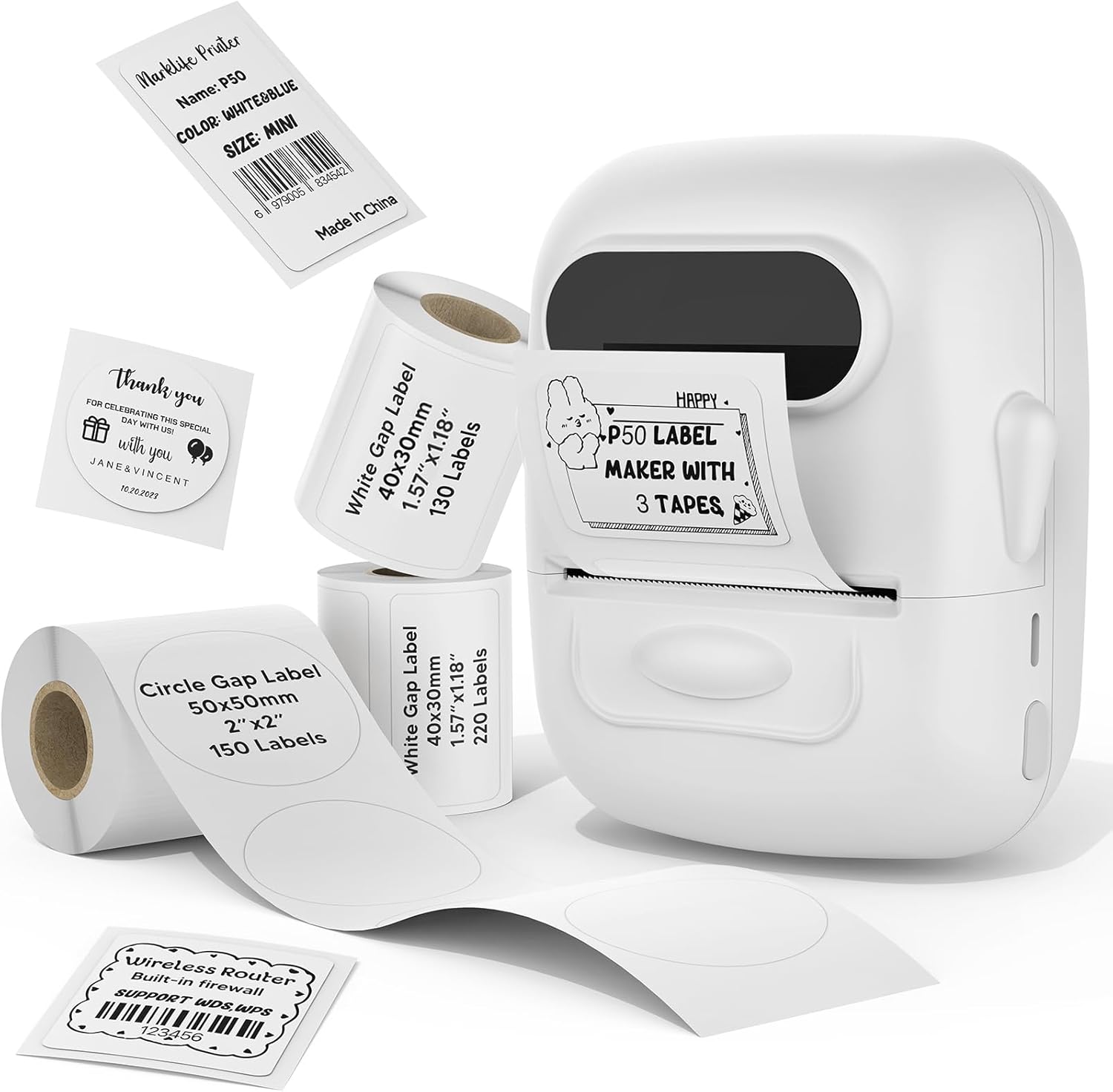
Image: The MARKLIFE P50 label maker machine shown with various label rolls and printed labels, including a barcode label (example: 6979005834542) and a "Thank You" label. This illustrates the device and its primary function of printing labels.
3. ഉൽപ്പന്നം കഴിഞ്ഞുview
The MARKLIFE P50 is a compact and portable thermal label printer designed for various labeling needs. It connects wirelessly via Bluetooth to your smartphone or tablet, and also supports USB connection to Windows PCs. The device utilizes thermal printing technology, meaning it does not require ink cartridges, only thermal label paper.
പ്രധാന സവിശേഷതകൾ:
- തെർമൽ പ്രിന്റിംഗ്: No ink required, prints in black and white.
- വയർലെസ് കണക്റ്റിവിറ്റി: Bluetooth 4.0 for mobile devices (Android & iOS).
- പിസി അനുയോജ്യത: USB connection and online software for Windows PCs.
- വൈഡ് ലേബൽ അനുയോജ്യത: Supports label widths from 0.59 inches to 2.24 inches.
- പോർട്ടബിൾ ഡിസൈൻ: Lightweight and equipped with a built-in 1200mAh rechargeable battery for on-the-go use.
- Smart App Functions: Features voice and image recognition, barcode scanning, PDF batch printing, and photo printing on labels.

Image: A hand placing the compact MARKLIFE P50 label maker into a small handbag, emphasizing its portable design. Icons indicate its portability, built-in 1200mAh battery, and Type-C charging capability.
4. സജ്ജീകരണം
4.1 ഉപകരണം ചാർജ് ചെയ്യുന്നു
Before initial use, fully charge the P50 label maker. Connect the provided USB-C cable to the charging port on the device and the other end to a compatible USB power adapter (not included) or a computer USB port. The charging indicator light will provide status feedback.
4.2 Loading Label Rolls
- ലേബൽ കമ്പാർട്ട്മെന്റ് കവർ തുറക്കുക.
- Insert the label roll with the printing surface facing upwards, ensuring it is aligned correctly within the guides.
- Pull a small portion of the label paper out past the printing slot.
- Close the label compartment cover firmly.
- Press the power button twice quickly to initiate automatic label calibration. The printer will feed a small amount of label paper to detect the label size.

Image: A visual guide demonstrating the process of loading label rolls into the P50 label maker. It also illustrates the compatible label widths, ranging from 0.59 inches to 2.24 inches, and contrasts it with fixed-size label makers.
4.3 ആപ്പ് ഇൻസ്റ്റാളേഷനും ബ്ലൂടൂത്ത് പെയറിംഗും
- ആപ്പ് ഡൗൺലോഡ് ചെയ്യുക: ഇതിനായി തിരയുക "MARKLIFE" in your mobile device's app store (iOS App Store or Google Play Store) and install the official application.
- പവർ ഓൺ: Press and hold the power button on the P50 label maker until the indicator light turns on.
- ബ്ലൂടൂത്ത് പ്രവർത്തനക്ഷമമാക്കുക: നിങ്ങളുടെ മൊബൈൽ ഉപകരണത്തിൽ ബ്ലൂടൂത്ത് പ്രവർത്തനക്ഷമമാക്കിയിട്ടുണ്ടെന്ന് ഉറപ്പാക്കുക.
- ജോടിയാക്കൽ: Open the MARKLIFE app. The app should automatically detect the P50 printer. Follow the on-screen prompts to connect. No Wi-Fi connection is required for mobile pairing.
5. പ്രവർത്തന നിർദ്ദേശങ്ങൾ
5.1 Basic Label Creation and Printing (Mobile App)
- Ensure the P50 is powered on and connected to the MARKLIFE app via Bluetooth.
- Within the app, select a template or create a new label design. The app offers various templates for clothing labels, price labels, cable labels, jewelry labels, address labels, and ingredient labels.
- Customize your label with text, images, barcodes, or QR codes.
- Adjust print density and photo quality settings as needed.
- പ്രീview the label to ensure accuracy.
- Tap the "Print" button in the app to send the design to the P50 label maker.

Image: The P50 label printer positioned next to a laptop and a smartphone, demonstrating its connectivity with both mobile and PC devices. The laptop screen displays label design software, and the smartphone shows the MARKLIFE app interface.
5.2 Advanced App Features
- Voice and Image Recognition: Convert spoken words or images into editable text for your labels.
- ബാർകോഡ് സ്കാനിംഗ്: Scan existing barcodes (e.g., 0123456789005) to generate new ones or integrate them into your designs.
- PDF Batch Printing: Print multiple labels from a PDF document.
- Photo Printing: Insert and print photos directly onto labels.
- OCR Scanner: Use your phone's camera as an OCR scanner within the app to extract text from documents for labeling.
- ക്ലൗഡ് സംഭരണം: Save your label designs to the cloud for easy access and reprinting.
5.3 PC Connection (Windows)
For Windows PC users, connect the P50 label maker via the USB-C cable. Download and install the dedicated software from the official MARKLIFE website. This software allows for label design and printing directly from your computer.
5.4 ബാച്ച് പ്രിന്റിംഗ്
The P50 supports batch printing, allowing you to print multiple copies of the same label or a series of different labels efficiently. This feature is managed through the MARKLIFE app or PC software.

Image: The P50 label maker actively printing a continuous roll of labels, demonstrating its batch printing capability. The labels shown are price tags with barcodes (example: 123456), indicating efficient production for business use.
6. പരിപാലനം
- പ്രിൻ്റ് ഹെഡ് വൃത്തിയാക്കുന്നു: Regularly clean the thermal print head with a soft, lint-free cloth lightly dampened with isopropyl alcohol. Ensure the device is powered off and cool before cleaning.
- ബാഹ്യ ശുചീകരണം: Wipe the exterior of the device with a soft, dry cloth. Avoid using abrasive cleaners or solvents.
- സംഭരണം: Store the label maker in a cool, dry place away from direct sunlight and extreme temperatures.
- ബാറ്ററി കെയർ: ബാറ്ററി ലൈഫ് വർദ്ധിപ്പിക്കാൻ, ബാറ്ററി ഇടയ്ക്കിടെ പൂർണ്ണമായും ഡിസ്ചാർജ് ചെയ്യുന്നത് ഒഴിവാക്കുക. ദീർഘനേരം ഉപയോഗത്തിലില്ലെങ്കിൽ പോലും ഉപകരണം പതിവായി ചാർജ് ചെയ്യുക.
- ലേബൽ സംഭരണം: Store thermal labels in a cool, dark place to prevent premature fading or degradation.
7. പ്രശ്നപരിഹാരം
7.1 പൊതുവായ പ്രശ്നങ്ങളും പരിഹാരങ്ങളും
| പ്രശ്നം | സാധ്യമായ കാരണം | പരിഹാരം |
|---|---|---|
| പ്രിന്റർ ഓണാക്കുന്നില്ല | ബാറ്ററി കുറവോ പവർ പ്രശ്നമോ. | Charge the device using the provided USB-C cable. Ensure the charging cable and adapter are functioning correctly. |
| ബ്ലൂടൂത്ത് വഴി കണക്റ്റ് ചെയ്യാനാവുന്നില്ല | Bluetooth is off, device is out of range, or app issue. |
|
| Poor print quality or blank labels | Incorrect label loading, dirty print head, or low-quality labels. |
|
| Labels not feeding correctly or jamming | Improper label loading or foreign objects in the paper path. |
|
8 സ്പെസിഫിക്കേഷനുകൾ
| ഫീച്ചർ | വിശദാംശങ്ങൾ |
|---|---|
| മോഡലിൻ്റെ പേര് | P50 LABEL PRINTER |
| ബ്രാൻഡ് | മാർക്ക് ലൈഫ് |
| പ്രിൻ്റിംഗ് ടെക്നോളജി | തെർമൽ |
| പ്രിൻ്റർ ഔട്ട്പുട്ട് | മോണോക്രോം (കറുപ്പും വെളുപ്പും) |
| കണക്റ്റിവിറ്റി ടെക്നോളജി | ബ്ലൂടൂത്ത്, യുഎസ്ബി |
| അനുയോജ്യമായ ഉപകരണങ്ങൾ | Android, iOS mobile devices, Windows PC |
| നിയന്ത്രണ രീതി | ആപ്പ് |
| പരമാവധി മീഡിയ വലുപ്പം | 2.24 ഇഞ്ച് (57 മിമി) |
| Supported Label Widths | 0.59 inches - 2.24 inches (15mm - 57mm) |
| ബാറ്ററി | ബിൽറ്റ്-ഇൻ 1200mAh റീചാർജ് ചെയ്യാവുന്ന ബാറ്ററി |
| ചാർജിംഗ് പോർട്ട് | യുഎസ്ബി ടൈപ്പ്-സി |
| ഉൽപ്പന്ന അളവുകൾ | 4 x 3 x 2 ഇഞ്ച് (ഏകദേശം) |
| ഇനത്തിൻ്റെ ഭാരം | 6 ഔൺസ് (ഏകദേശം) |
9. വാറൻ്റിയും പിന്തുണയും
9.1 ലിമിറ്റഡ് വാറൻ്റി
The MARKLIFE P50 Label Maker Machine comes with a limited warranty. Please refer to the warranty card included in your package or contact MARKLIFE customer support for specific terms and conditions. This warranty typically covers manufacturing defects under normal use.
9.2 ഉപഭോക്തൃ പിന്തുണ
For technical assistance, troubleshooting, or warranty claims, please contact MARKLIFE customer support through the official website or the contact information provided in your product packaging. Please have your model number (P50) and purchase details ready when contacting support.


