1. ആമുഖം
Thank you for choosing the ABASK Dash Cam J05 PRO-2. This manual provides detailed instructions for the installation, operation, and maintenance of your dash cam. Please read this manual thoroughly before use to ensure proper functionality and to maximize your device's performance. Keep this manual for future reference.
2. ഉൽപ്പന്നം കഴിഞ്ഞുview
2.1 പാക്കേജ് ഉള്ളടക്കം
- ABASK Dash Cam J05 PRO-2
- Car Mount (Suction Cup)
- കാർ ചാർജർ
- USB കേബിൾ
- 32 ജിബി മൈക്രോ എസ്ഡി കാർഡ്
- ഉപയോക്തൃ മാനുവൽ
2.2 ഉപകരണ ലേayട്ട്
The ABASK J05 PRO-2 dash cam features a compact design with a front-facing camera and an interior-facing camera, a 1.45-inch display, and intuitive controls.

ചിത്രം 2.2.1: കഴിഞ്ഞുview of the ABASK J05 PRO-2 Dash Cam and its accessories.

ചിത്രം 2.2.2: വിശദമായത് view of the dash cam's front and interior cameras.
3. സജ്ജീകരണം
3.1 മൈക്രോ എസ്ഡി കാർഡ് ചേർക്കുന്നു
Before first use, insert the provided 32GB Micro SD card (or another compatible card up to 128GB, Class 10 or higher) into the designated slot on the dash cam. Ensure the card is inserted correctly until it clicks into place.

Image 3.1.1: Dash cam with a 32GB Micro SD card, illustrating where to insert the card.
3.2 ഡാഷ് കാം മൌണ്ട് ചെയ്യുന്നു
- ഡാഷ് ക്യാം സ്ഥാപിക്കാൻ ഉദ്ദേശിക്കുന്ന വിൻഡ്ഷീൽഡ് ഭാഗം വൃത്തിയാക്കുക.
- സുരക്ഷിതമായ പിടി ഉറപ്പാക്കാൻ, സക്ഷൻ കപ്പ് മൗണ്ട് വിൻഡ്ഷീൽഡിൽ ഘടിപ്പിക്കുക.
- Slide the dash cam onto the mount until it locks into position.
- വ്യക്തമായ ദൃശ്യങ്ങൾ ഉറപ്പാക്കാൻ ക്യാമറ ആംഗിൾ ക്രമീകരിക്കുക. view of the road ahead and the vehicle interior.
3.3 പവർ കണക്ഷൻ
- ഡാഷ് കാമിന്റെ പവർ ഇൻപുട്ട് പോർട്ടിലേക്ക് കാർ ചാർജർ ബന്ധിപ്പിക്കുക.
- കാർ ചാർജറിന്റെ മറ്റേ അറ്റം നിങ്ങളുടെ വാഹനത്തിന്റെ 12V പവർ ഔട്ട്ലെറ്റിലേക്ക് (സിഗരറ്റ് ലൈറ്റർ സോക്കറ്റ്) പ്ലഗ് ചെയ്യുക.
- നിങ്ങളുടെ വൈദ്യുതി കേബിൾ തടസ്സപ്പെടാതിരിക്കാൻ വൃത്തിയായി റൂട്ട് ചെയ്യുക view or interfering with driving controls.
4. പ്രവർത്തന നിർദ്ദേശങ്ങൾ
4.1 പവർ ഓൺ/ഓഫ്
- സ്വയമേവ: The dash cam will automatically power on and begin recording when your vehicle's engine starts and power is supplied.
- മാനുവൽ: ഉപകരണം സ്വമേധയാ ഓണാക്കാനോ ഓഫാക്കാനോ പവർ ബട്ടൺ അമർത്തിപ്പിടിക്കുക.
4.2 അടിസ്ഥാന റെക്കോർഡിംഗ്
Once powered on, the dash cam will typically start recording automatically. A red indicator light or on-screen icon will confirm recording is active. To stop recording, press the OK button. Press it again to resume.
4.3 മെനു നാവിഗേഷൻ
Use the 'Menu' button to access settings. Navigate through options using the Up/Down arrow buttons and confirm selections with the 'OK' button. Press 'Menu' again to exit the menu.
4.4 തീയതിയും സമയവും ക്രമീകരണം
It is important to set the correct date and time for accurate timestamps on your recordings. Access the 'Date/Time' setting in the menu and adjust accordingly.
5. സവിശേഷതകൾ വിശദീകരിച്ചു
5.1 4K Front and 1080P Interior Video Recording
The J05 PRO-2 captures high-resolution video, with the front camera recording in 4K (Ultra HD) and the interior camera recording in 1080P (Full HD). This dual-camera system provides comprehensive coverage of both the road and the vehicle's cabin.

Image 5.1.1: Illustration of 4K front and 1080P interior video capture.
5.2 വൈ-ഫൈ കണക്റ്റിവിറ്റിയും ആപ്പ് നിയന്ത്രണവും
Connect your dash cam to your smartphone via Wi-Fi using the dedicated app. This allows you to:
- View തത്സമയംtagഡാഷ് ക്യാമറയിൽ നിന്ന് ഇ.
- Adjust dash cam settings directly from your phone.
- റെക്കോർഡ് ചെയ്ത വീഡിയോകൾ നിങ്ങളുടെ ഫോണിലേക്ക് ഡൗൺലോഡ് ചെയ്യുക.
- Share videos easily.
Image 5.2.1: Demonstrating Wi-Fi app control for the dash cam.
5.3 സൂപ്പർ നൈറ്റ് വിഷൻ
Equipped with an F1.8 aperture, 4 infrared (IR) lights, and Wide Dynamic Range (WDR) technology, the dash cam enhances video clarity in low-light conditions, ensuring usable footage പൂർണ്ണ ഇരുട്ടിൽ പോലും.

Image 5.3.1: Visual representation of Super Night Vision capabilities.
5.4 G-Sensor and Emergency Lock
The built-in G-Sensor detects sudden impacts or collisions. When triggered, it automatically locks the current video footage, preventing it from being overwritten by loop recording. This ensures critical incident evidence is preserved.
5.5 ലൂപ്പ് റെക്കോർഡിംഗ്
Loop recording ensures continuous recording by overwriting the oldest unlocked footage with new video once the memory card reaches its capacity. This eliminates the need for manual memory card management.

Image 5.5.1: Explanation of G-Sensor, Emergency Lock, and Loop Recording functions.
5.6 24 Hours Motion Activated Parking Mode
When enabled, this mode allows the dash cam to monitor your vehicle for motion or impact even when parked. If motion or an impact is detected, the dash cam will automatically start recording. A Mini USB hardwire kit (not included) is required for this function to provide continuous power.
5.7 Wide-Angle Field of View
The dash cam offers a total 310° wide-angle field of view, with 170° for the front camera and 140° for the interior camera, providing extensive coverage of your surroundings and cabin.
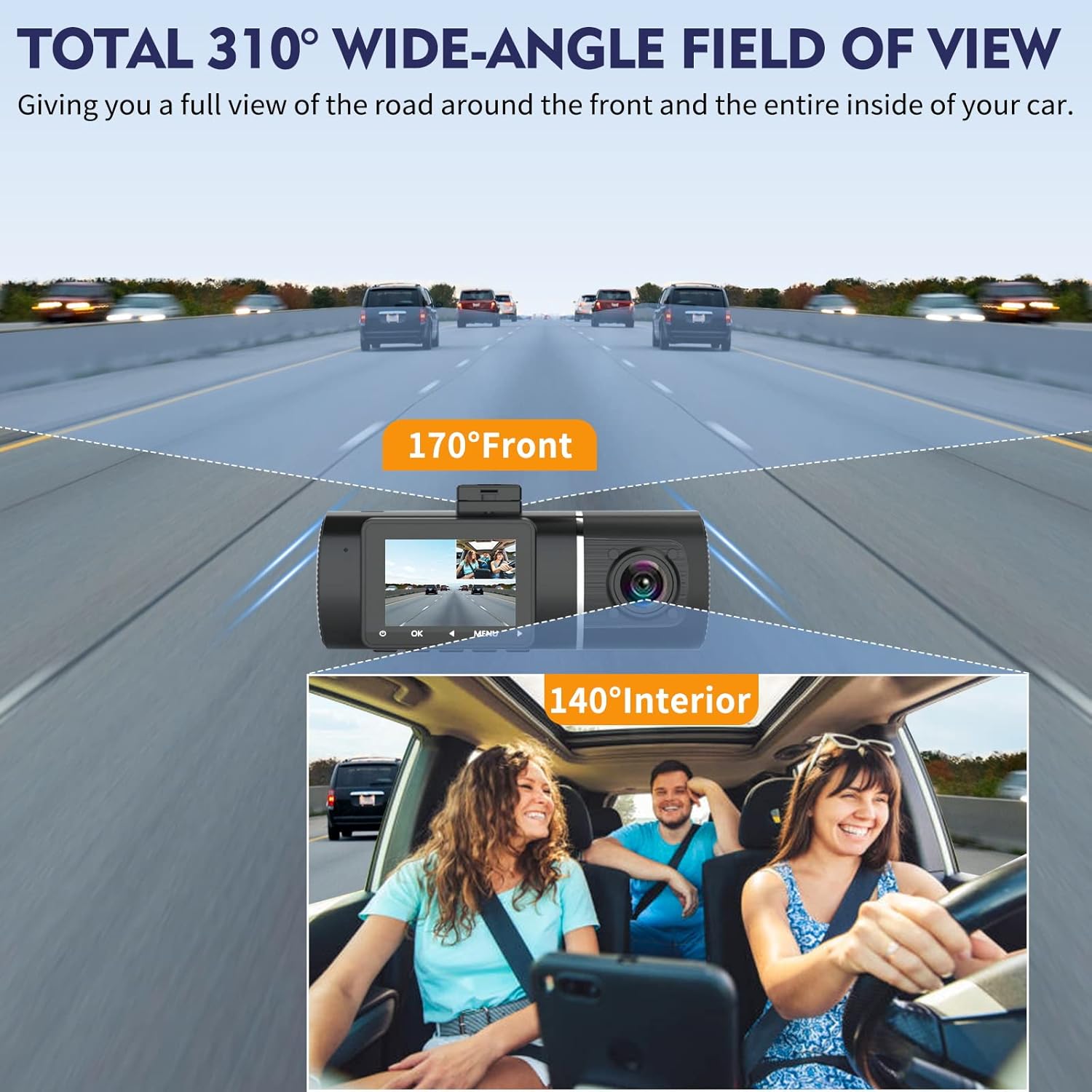
Image 5.7.1: Visualizing the 24-hour parking mode and wide-angle field of view.
6. പരിപാലനം
- മെമ്മറി കാർഡ് ഫോർമാറ്റിംഗ്: It is recommended to format the Micro SD card regularly (e.g., once a month) to maintain optimal recording performance and prevent data corruption. This can usually be done through the dash cam's menu settings.
- ലെൻസ് ക്ലീനിംഗ്: Gently clean the camera lenses with a soft, lint-free cloth to ensure clear video quality. Avoid abrasive materials or harsh chemicals.
- ഫേംവെയർ അപ്ഡേറ്റുകൾ: നിർമ്മാതാവ് പരിശോധിക്കുക website periodically for any available firmware updates. Updates can improve performance and add new features.
7. പ്രശ്നപരിഹാരം
| പ്രശ്നം | സാധ്യമായ കാരണം | പരിഹാരം |
|---|---|---|
| ഡാഷ് ക്യാം പവർ ഓൺ ചെയ്യുന്നില്ല. | വൈദ്യുതി ഇല്ല; കാർ ചാർജർ തകരാറിലായി; കണക്ഷൻ നഷ്ടപ്പെട്ടു. | Check car charger connection; test car charger in another port; ensure vehicle's 12V outlet is functional. |
| Dash cam does not record automatically or stops recording. | Memory card full or corrupted; loop recording off; power interruption. | Format the Micro SD card; ensure loop recording is enabled in settings; check power connection stability. If the camera turns off after engine start, manually press the power button to restart recording. |
| വീഡിയോ footage മങ്ങിയതോ അവ്യക്തമോ ആണ്. | Protective film on lens; dirty lens; incorrect focus. | Remove any protective film from the lens; clean the lens with a soft cloth. |
| വൈഫൈ കണക്ഷൻ പ്രശ്നങ്ങൾ. | Incorrect app; Wi-Fi not enabled on dash cam; signal interference. | Ensure you have the correct ABASK dash cam app; enable Wi-Fi in the dash cam settings; try connecting in a different location. |
| Loop recording does not seem to work. | Memory card issues; G-Sensor sensitivity too high. | Format the memory card. Reduce G-Sensor sensitivity to prevent too many files from being locked, which can fill the card. |
8 സ്പെസിഫിക്കേഷനുകൾ
| ഫീച്ചർ | വിശദാംശങ്ങൾ |
|---|---|
| ബ്രാൻഡ് | ABASK |
| മോഡൽ | J05 PRO-2 |
| വീഡിയോ ക്യാപ്ചർ റെസല്യൂഷൻ | Front: 4K, Interior: 1080P |
| സ്ക്രീൻ വലിപ്പം | 1.45 ഇഞ്ച് |
| യഥാർത്ഥം Viewing ആംഗിൾ | Front: 170 Degrees, Interior: 140 Degrees |
| കണക്റ്റിവിറ്റി ടെക്നോളജി | വൈഫൈ |
| ഉൾപ്പെടുത്തിയ മെമ്മറി കാർഡ് വലുപ്പം | 32 GB (Supports up to 128 GB) |
| മൌണ്ടിംഗ് ഹാർഡ്വെയർ | Car Mount (Suction Cup) |
| ഉൽപ്പന്ന അളവുകൾ | 4.5 x 11 x 5 സെ.മീ; 380 ഗ്രാം |
| നിയന്ത്രണ രീതി | ആപ്പ്, ബട്ടണുകൾ |
| പ്രത്യേക സവിശേഷതകൾ | G-Sensor, Loop Recording, Super Night Vision, 24H Parking Monitor (requires hardwire kit) |
9. വാറൻ്റിയും പിന്തുണയും
For warranty information and technical support, please refer to the documentation included with your purchase or visit the official ABASK website. If you encounter any issues not covered in this manual, please contact ABASK customer service for assistance.


