Maxfree S2 Triple Laptop Screen Extender User Manual
മോഡൽ: S2
1. ആമുഖം
The Maxfree S2 Triple Laptop Screen Extender is designed to significantly enhance your productivity by providing a multi-screen setup for your laptop. This portable dual monitor supports extended, mirror, single second screen, and pre-mode configurations, allowing for efficient multitasking and screen sharing. It features a 14-inch 1080P Full HD IPS panel, delivering vibrant visuals with 16.7 million colors, 300 nits brightness, and a 1000:1 contrast ratio. Integrated blue light protection technology helps reduce eye strain during prolonged use.
2. ബോക്സിൽ എന്താണുള്ളത്?
നിങ്ങളുടെ പാക്കേജിൽ എല്ലാ ഘടകങ്ങളും ഉണ്ടെന്ന് ദയവായി പരിശോധിക്കുക:
- Maxfree S2 Dual Monitor Unit [x1]
- Type-C to Type-C Cable [x2]
- Type-A to Type-C Cable [x2]
- HDMI to Type-C Cable [x1]
- Storage Bag [x1]
- User's Guide [x2]

3. സജ്ജീകരണ നിർദ്ദേശങ്ങൾ
3.1 Attaching the Extender to Your Laptop
- Gently pull open the extender and clamp it securely to the top edge of your laptop screen. Ensure it is centered and stable. This extender is compatible with 13.3-17 inch laptops.
- Adjust the built-in kickstand on the back of the extender to provide stable support. The kickstand allows for a maximum 45-degree adjustable angle for optimal viewing.
- ക്രമീകരിക്കുക viewing angle of the side screens as desired. The screens can rotate up to 180 degrees for flexible positioning.

3.2 നിങ്ങളുടെ ലാപ്ടോപ്പിലേക്ക് കണക്റ്റുചെയ്യുന്നു
The Maxfree S2 offers versatile connectivity options. No driver installation is required; simply plug and play.
- For Laptops with Two Full-Featured Type-C Ports: Connect the two Type-C to Type-C cables from your laptop's Type-C ports to the Type-C ports on the S2 display screen. Ensure these are full-featured Type-C ports (supporting video and power). Do not plug into the HDMI port.
- For Laptops with One Full-Featured Type-C Port: Connect one screen using a Type-C to Type-C cable. For the second screen, use an HDMI to Type-C cable (connecting HDMI from laptop to the S2's HDMI port) and a Type-A to Type-C cable (for power, connecting USB-A from laptop to the S2's Type-C port).
- For Laptops with Only HDMI Port: If your laptop only has an HDMI port and no full-featured Type-C ports, you will need to purchase an MST (Multi-Stream Transport) enabled hub. This allows you to connect using two HDMI data cables and two USB-A data cables to power and transmit video to both screens.

3.3 ബാഹ്യ വൈദ്യുതി വിതരണം
If your laptop's power output is insufficient (does not reach 5V/2A) to drive the S2 screens, or if your laptop lacks sufficient USB-A ports for power, you may need to use an external power supply. Connect a Type-C cable from an external power adapter (not included) to one of the S2's Type-C ports to provide additional power.

4. Operating Modes and Compatibility
The Maxfree S2 supports various display modes to suit your workflow and is compatible with a wide range of devices and operating systems.
4.1 ഡിസ്പ്ലേ മോഡുകൾ
- വിപുലീകരിച്ച മോഡ്: Each screen displays independent content, allowing you to expand your desktop workspace across three displays. This is ideal for multitasking with multiple applications open simultaneously.
- മിറർ മോഡ്: All three screens display the same content, useful for presentations or sharing your screen with others.
- Single 2nd Screen Mode: Use only one of the extender screens in addition to your laptop's primary display.


4.2 Device and System Compatibility
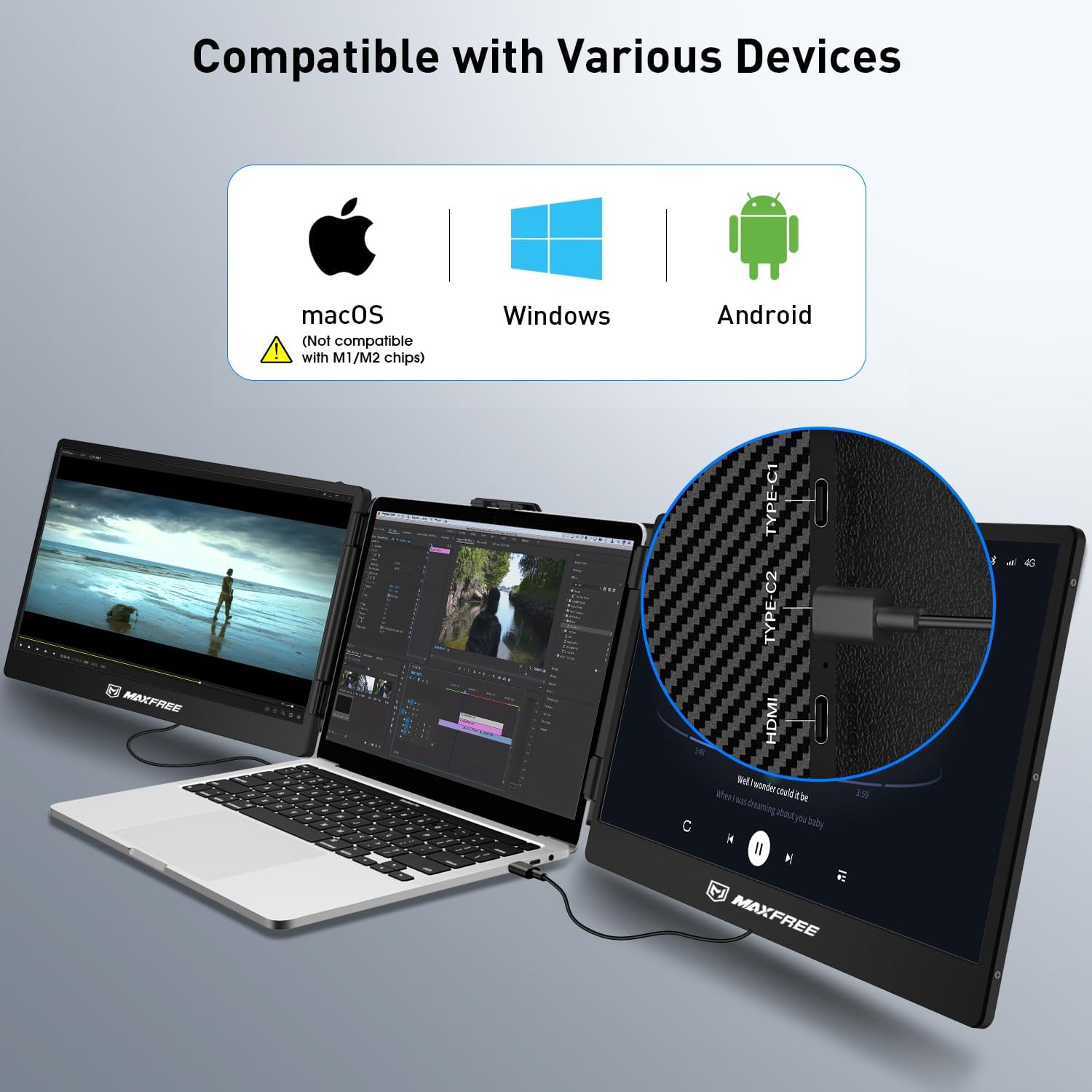
The Maxfree S2 is compatible with a variety of devices and operating systems, including:
- വിൻഡോസ് ലാപ്ടോപ്പുകൾ
- Mac laptops (Note: Not compatible with M1/M2 chips without specific adapters/drivers)
- Android devices (with DeX mode support)
- പിഎസ്5 (പ്ലേസ്റ്റേഷൻ 5)
- നിൻ്റെൻഡോ സ്വിച്ച്

5. പരിപാലനം
To ensure the longevity and optimal performance of your Maxfree S2 Triple Laptop Screen Extender, follow these maintenance guidelines:
- വൃത്തിയാക്കൽ: Use a soft, lint-free cloth to gently wipe the screen surfaces. For stubborn smudges, slightly dampതുണിയിൽ വെള്ളം അല്ലെങ്കിൽ സ്ക്രീൻ-സേഫ് ക്ലീനിംഗ് ലായനി ഉപയോഗിക്കുക. കഠിനമായ രാസവസ്തുക്കളോ ഉരച്ചിലുകളോ ഉള്ള വസ്തുക്കൾ ഒഴിവാക്കുക.
- സംഭരണം: When not in use, store the extender in the provided storage bag to protect it from dust and scratches. Avoid placing heavy objects on top of the unit.
- കൈകാര്യം ചെയ്യൽ: Handle the extender with care. Avoid dropping it or subjecting it to strong impacts, which can damage internal components or the screens.
- കേബിൾ മാനേജുമെന്റ്: Ensure cables are not kinked or bent sharply, which can lead to damage over time.
6. പ്രശ്നപരിഹാരം
If you encounter issues with your Maxfree S2, refer to the common problems and solutions below:
Q: Why is one of my screens not working after connecting to my laptop?
A: There could be three possible reasons:
- Your laptop is a MacBook Air with M1/M2/M3 chip, which is currently not compatible with Maxfree S2 without specific adapters or drivers.
- There might be some errors in your cable connections, such as connecting the HDMI cable to the Type-C port on S2, or using a Type-C to Type-C cable on S2's HDMI port. Please double-check for any connection errors.
- Your laptop's Type-C port does not have a Thunderbolt interface, which means it cannot transmit data.
Q: Why does one of my screens show "No Signal" after connecting?
A: There are two possible reasons:
- Your laptop's Type-C port does not have a Thunderbolt interface, so it can only transmit power and not data. This can result in having power but no signal.
- There might be an error in your connection method. For example, if you are using an HDMI cable and a USB-A cable to connect, make sure you connect the HDMI cable to S2's HDMI port, not the Type-C port.

7 സ്പെസിഫിക്കേഷനുകൾ
| ഫീച്ചർ | സ്പെസിഫിക്കേഷൻ |
|---|---|
| ഉൽപ്പന്ന അളവുകൾ | 8.14 x 18.89 x 1.52 ഇഞ്ച് |
| ഇനത്തിൻ്റെ ഭാരം | 3.5 പൗണ്ട് |
| സ്ക്രീൻ വലിപ്പം | 14 ഇഞ്ച് (ഓരോന്നും) |
| റെസലൂഷൻ | 1920 x 1080 (FHD 1080p) |
| വീക്ഷണാനുപാതം | 16:9 |
| ചിത്രത്തിന്റെ തെളിച്ചം | 300 നിറ്റ് |
| പുതുക്കിയ നിരക്ക് | 60Hz |
| കോൺട്രാസ്റ്റ് റേഷ്യോ | 1000:1 |
| സ്ക്രീൻ ഉപരിതല വിവരണം | തിളങ്ങുന്ന |
| നിർമ്മാതാവ് | Shenzhen Baijiayoupu Technology CO., Ltd. |
| മോഡൽ നമ്പർ | S2 |

8. വാറൻ്റിയും പിന്തുണയും
Your Maxfree S2 Triple Laptop Screen Extender comes with a ഒരു വർഷത്തെ വാറൻ്റി from the date of purchase. Additionally, we offer a 30-day hassle-free return policy. For any technical assistance, product inquiries, or warranty claims, please contact our customer support team. We are committed to providing timely and effective technical support to ensure your satisfaction.
If your laptop does not have a fully functional Type-C port, or if it displays "No Signal" after connection, please contact us, and we will send you a dedicated H5-T cable for free to resolve connectivity issues.


