ആമുഖം
Thank you for choosing the Keychron M3 Wireless Gaming Optical Mouse. This manual provides detailed instructions for setting up, operating, and maintaining your new mouse. The Keychron M3 is designed for versatility, offering tri-mode connectivity (2.4 GHz wireless, Bluetooth 5.1, and wired USB-C) and a high-precision sensor for optimal performance in both gaming and productivity tasks. Its lightweight and ergonomic design ensures comfort during extended use.

Figure 1: Keychron M3 Wireless Gaming Optical Mouse (White) with included USB-C and USB-A dongles.
ബോക്സിൽ എന്താണുള്ളത്
സജ്ജീകരണവുമായി മുന്നോട്ടുപോകുന്നതിനുമുമ്പ് എല്ലാ ഇനങ്ങളും ഉണ്ടെന്ന് ഉറപ്പാക്കുക:
- Keychron M3 Wireless Gaming Optical Mouse
- Detachable Type-C to Type-C Cable
- ടൈപ്പ്-എ മുതൽ ടൈപ്പ്-സി വരെയുള്ള അഡാപ്റ്റർ
- USB-C 2.4 GHz Receiver
- USB-A 2.4 GHz Receiver

Figure 2: The Keychron M3 mouse alongside its USB-C and USB-A wireless receivers.
സജ്ജമാക്കുക
The Keychron M3 offers three connection modes: 2.4 GHz Wireless, Bluetooth 5.1, and Wired USB-C.
2.4 GHz വയർലെസ് കണക്ഷൻ
- Locate the 2.4 GHz receiver (either Type-C or Type-A) from the packaging.
- Plug the receiver into an available USB port on your computer (Windows or Mac).
- Turn on the mouse using the switch on the bottom. Ensure it is set to the 2.4G mode.
- മൗസ് സ്വയമേവ റിസീവറുമായി ബന്ധിപ്പിക്കണം.
ബ്ലൂടൂത്ത് 5.1 കണക്ഷൻ
- Turn on the mouse and set the switch on the bottom to the Bluetooth mode.
- On your computer (Windows or Mac), open Bluetooth settings.
- ഇതിനായി തിരയുക new devices. The mouse should appear as "Keychron M3".
- Select "Keychron M3" to pair.
വയർഡ് USB-C കണക്ഷൻ
- Connect one end of the provided Type-C to Type-C cable to the mouse.
- Connect the other end to a USB-C port on your computer. If your computer only has USB-A ports, use the included Type-A to Type-C adapter.
- ഈ മൗസ് ഒരു വയർഡ് മൗസായി പ്രവർത്തിക്കുകയും ഒരേസമയം ചാർജ് ചെയ്യുകയും ചെയ്യും.
പ്രവർത്തന നിർദ്ദേശങ്ങൾ
The Keychron M3 is designed for intuitive use with advanced customization options.
DPI ക്രമീകരണം
The mouse features a PixArt PAW 3395 sensor with up to 26,000 DPI. You can adjust the DPI sensitivity on-the-fly using the dedicated DPI button, typically located near the scroll wheel. Pressing this button cycles through preset DPI levels.

Figure 3: The top of the Keychron M3 mouse, highlighting the scroll wheel and the DPI adjustment button.
Programmable Buttons and RGB Lighting
The Keychron M3 includes programmable macro buttons and customizable RGB lighting effects. To personalize these features, download and install the Keychron Engine software from the official Keychron webസൈറ്റ്.
- Keychron Engine Software: This software allows you to:
- Modify key assignments and set shortcuts.
- RGB ലൈറ്റിംഗ് ഇഫക്റ്റുകളും നിറങ്ങളും ഇഷ്ടാനുസൃതമാക്കുക.
- Create and assign dedicated macros.
- Adjust professional settings such as Lift-Off Distance (LOD), polling rate (up to 1000 Hz), and DPI.
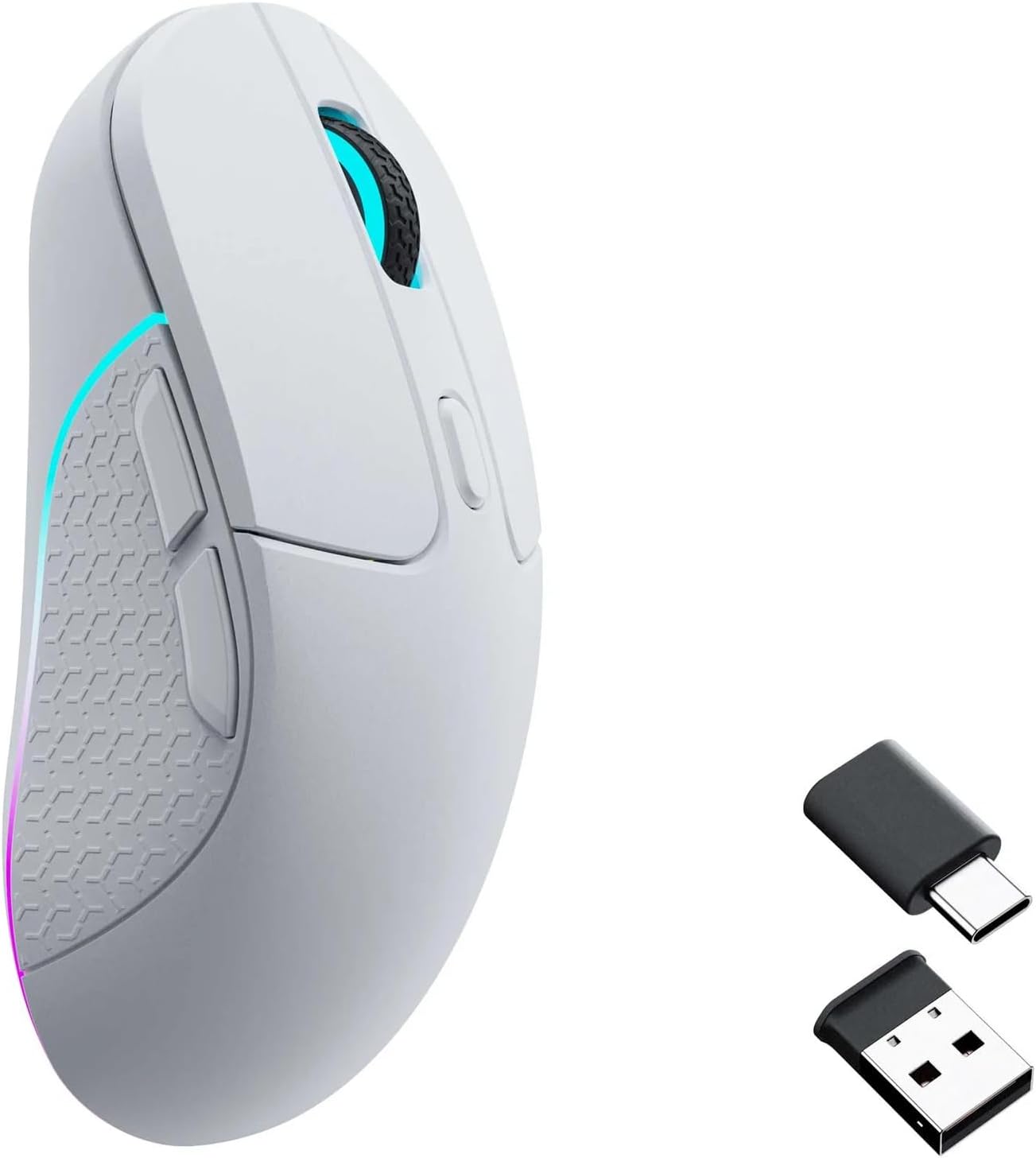
Figure 4: Screenshot of the Keychron Engine software, demonstrating the interface for customizing mouse settings and RGB lighting.

Figure 5: The Keychron M3 mouse displaying its customizable RGB lighting effects.
മെയിൻ്റനൻസ്
To ensure the longevity and optimal performance of your Keychron M3 mouse, follow these maintenance guidelines:
- വൃത്തിയാക്കൽ: മൗസിന്റെ പ്രതലം തുടയ്ക്കാൻ മൃദുവായതും ഉണങ്ങിയതുമായ ഒരു തുണി ഉപയോഗിക്കുക. കഠിനമായ അഴുക്കിന്, ചെറുതായി dampവെള്ളം അല്ലെങ്കിൽ നേരിയതും ഉരച്ചിലുകൾ ഇല്ലാത്തതുമായ ഒരു ക്ലീനർ ഉപയോഗിച്ച് തുണി തുടയ്ക്കുക. അമിതമായ ഈർപ്പം ഒഴിവാക്കുക.
- സെൻസർ പരിചരണം: മൗസിന്റെ അടിയിലുള്ള ഒപ്റ്റിക്കൽ സെൻസർ വൃത്തിയായും പൊടിയോ അവശിഷ്ടങ്ങളോ ഇല്ലാതെയും സൂക്ഷിക്കുക. ആവശ്യമെങ്കിൽ ഒരു കോട്ടൺ സ്വാബ് അല്ലെങ്കിൽ കംപ്രസ് ചെയ്ത വായു ഉപയോഗിക്കുക.
- സംഭരണം: ദീർഘനേരം ഉപയോഗിക്കാത്തപ്പോൾ, നേരിട്ടുള്ള സൂര്യപ്രകാശവും കടുത്ത താപനിലയും ഏൽക്കാത്ത തണുത്തതും വരണ്ടതുമായ സ്ഥലത്ത് മൗസ് സൂക്ഷിക്കുക.
- ബാറ്ററി ലൈഫ്: The mouse is powered by a nonstandard battery. Charge the mouse using the provided USB-C cable when the battery indicator shows low power.
ട്രബിൾഷൂട്ടിംഗ്
| പ്രശ്നം | സാധ്യമായ കാരണം | പരിഹാരം |
|---|---|---|
| Mouse not responding (2.4 GHz Wireless) | Receiver not properly connected; mouse not in 2.4G mode; low battery. | Ensure receiver is fully inserted. Check mouse switch is set to 2.4G. Charge the mouse. |
| Mouse not connecting (Bluetooth) | Mouse not in Bluetooth pairing mode; Bluetooth disabled on computer; interference. | Ensure mouse switch is set to Bluetooth. Enable Bluetooth on your computer. Try re-pairing. Move closer to the computer. |
| കൃത്യമല്ലാത്ത ട്രാക്കിംഗ് അല്ലെങ്കിൽ കഴ്സർ കാലതാമസം | Dirty optical sensor; unsuitable surface; low battery; wireless interference. | Clean the optical sensor. Use a mouse pad or a clean, non-reflective surface. Charge the mouse. Reduce wireless interference by moving other devices. |
| ബട്ടണുകളോ സ്ക്രോൾ വീലോ പ്രവർത്തിക്കുന്നില്ല | സോഫ്റ്റ്വെയർ തകരാർ; ശാരീരിക തടസ്സം. | Restart your computer. Check for debris around buttons/scroll wheel. Reinstall Keychron Engine software if applicable. |
സ്പെസിഫിക്കേഷനുകൾ
- മോഡൽ: M3
- സെൻസർ: PixArt PAW 3395
- DPI: 26,000 DPI വരെ
- IPS: 650 ഐപിഎസ് വരെ
- പോളിംഗ് നിരക്ക്: 1000 Hz വരെ
- കണക്റ്റിവിറ്റി: Tri-Mode (2.4 GHz Wireless, Bluetooth 5.1, Wired USB-C)
- ഭാരം: ഏകദേശം 79 ഗ്രാം (2.79 ഔൺസ്)
- അളവുകൾ: 125.2 mm (നീളം) x 66.4 mm (വീതി) x 40.6 mm (ഉയരം)
- ബാറ്ററി: 1 Nonstandard Battery (Rechargeable)
- അനുയോജ്യമായ ഉപകരണങ്ങൾ: വിൻഡോസ് പിസി, മാക്
- ഉൾപ്പെടുത്തിയ ഘടകങ്ങൾ: Detachable Type-C to Type-C Cable, Type-A to Type-C Adapter, USB-C 2.4 GHz Receiver, USB-A 2.4 GHz Receiver

Figure 6: Detailed dimensions of the Keychron M3 mouse.
വാറൻ്റിയും പിന്തുണയും
വാറന്റി വിവരങ്ങൾക്കും സാങ്കേതിക പിന്തുണയ്ക്കും, ദയവായി ഔദ്യോഗിക കീക്രോൺ പരിശോധിക്കുക. website or contact Keychron customer service directly. Keep your purchase receipt as proof of purchase for warranty claims.
നിർമ്മാതാവ്: കീക്രോൺ
ഉദ്യോഗസ്ഥൻ Webസൈറ്റ്: www.keychron.com


