1. ആമുഖവും അവസാനവുംview
The vretti HP2 Portable Bluetooth Label Maker Machine is a compact and intelligent device designed for creating custom labels wirelessly. This thermal label printer offers high-quality, inkless printing for various organizational needs in home, office, and retail environments. Its portable design allows for convenient use anytime, anywhere.
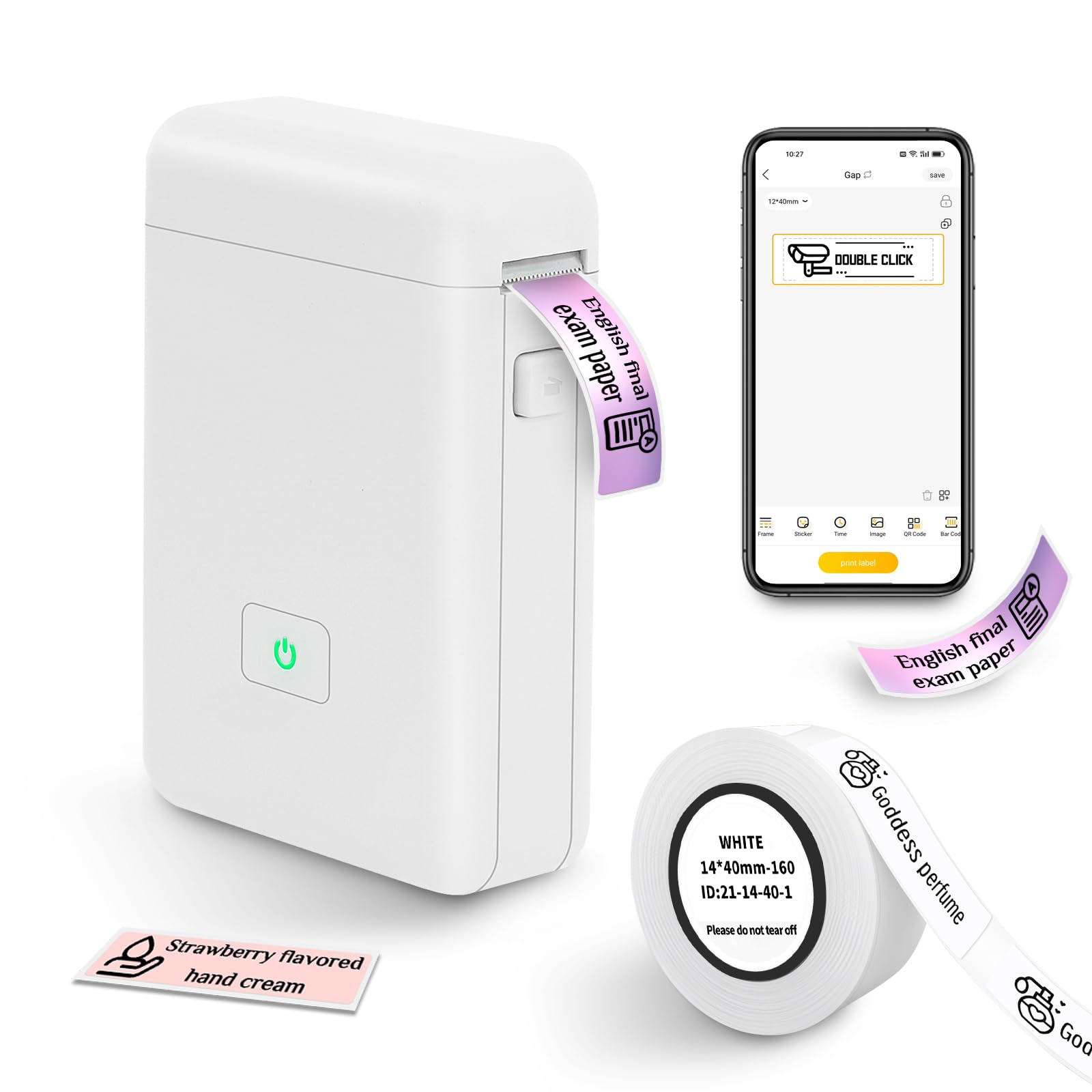
Figure 1: The vretti HP2 Portable Bluetooth Label Maker Machine, a compact white device with a power button, shown on a countertop.
2. ബോക്സിൽ എന്താണുള്ളത്?
Upon unboxing your vretti HP2 Label Maker Machine, you should find the following components:
- 1 x vretti HP2 Label Maker Machine
- 1 x Roll of 14x40mm White Label Paper
- 1 x USB ചാർജിംഗ് കേബിൾ
- 1 x Product Usage Guide (Instruction Manual)
3. സജ്ജീകരണം
Follow these steps to set up your vretti HP2 Label Maker Machine:
- ഉപകരണം ചാർജ് ചെയ്യുക: Connect the label maker to a power source using the provided USB charging cable. The power indicator light will show charging status. Ensure the device is fully charged before first use.
- ലേബൽ റോൾ ഇൻസ്റ്റാൾ ചെയ്യുക: Open the cover of the label maker by pressing the designated button. Insert the label paper roll into the machine, ensuring the labels feed correctly. Close the cover securely.
- ആപ്പ് ഡൗൺലോഡ് ചെയ്യുക: The vretti HP2 operates via Bluetooth connectivity with a smartphone app. Download the "XeasyLabel" app from your device's app store (iOS or Android). This label maker does not work with computers.
- ബ്ലൂടൂത്ത് വഴി ബന്ധിപ്പിക്കുക: Turn on the label maker by pressing and holding the power button until the indicator light turns green. Open the "XeasyLabel" app on your smartphone and follow the in-app instructions to connect to the HP2 device via Bluetooth.

Figure 2: Visual guide for connecting the vretti HP2 label maker via Bluetooth and downloading the XeasyLabel app from app stores.
4. പ്രവർത്തന നിർദ്ദേശങ്ങൾ
Once your vretti HP2 is set up and connected to the "XeasyLabel" app, you can begin creating and printing labels:
- Create a New Label: In the "XeasyLabel" app, select the option to "Create a New Tag" or choose from "Label Templates."
- Customize Your Label: The app offers extensive customization options, including over 60 fonts, 12+ languages, and 400+ borders. You can add text, tables, symbols, logos, barcodes, QR codes, images, time, or import data from Excel.
- ക്രമീകരണങ്ങൾ ക്രമീകരിക്കുക: Before printing, you can adjust print density and the number of copies within the app.
- ലേബൽ പ്രിൻ്റ് ചെയ്യുക: Tap the "Print" button in the app. The label maker will quickly print your customized label. Labels are of fixed length (e.g., 14x40mm) and do not support continuous label tape.
- Tear Off Label: Once printed, gently tear off the label using the serrated edge on the device.

Figure 3: A step-by-step visual of the XeasyLabel app interface, demonstrating device connection, new label creation, and print preview.

ചിത്രം 4: ഒരു ഓവർview of the XeasyLabel app's rich customization options, including various templates, patterns, and fonts for label design.
5. ആപ്പ് സവിശേഷതകൾ
The "XeasyLabel" app is a versatile tool that enhances the functionality of your vretti HP2 label maker. Key features include:
- വിപുലമായ ഇഷ്ടാനുസൃതമാക്കൽ: Access to over 60 fonts, 12+ languages, and 400+ borders to personalize your labels.
- Template Variety: Utilize templates for text, tables, symbols, logos, barcodes, QR codes, images, time, and Excel data insertion.
- Image Printing: Upload and print images directly from your phone (note: prints in monochrome).
- Barcode & QR Code Generation: Easily create and print barcodes and QR codes for inventory or product management.
- Print Density Control: Adjust the darkness of your print for optimal readability.
Video 1: Official product video from vretti-us demonstrating the HP2 Label Maker Machine with Tape, showcasing അതിന്റെ സവിശേഷതകളും ഉപയോഗ എളുപ്പവും.
6. പരിപാലനം
To ensure the longevity and optimal performance of your vretti HP2 Label Maker Machine, follow these maintenance guidelines:
- വൃത്തിയാക്കൽ: Regularly clean the print head with a soft, lint-free cloth to prevent dust and debris buildup. Do not use harsh chemicals or abrasive materials.
- സംഭരണം: ലേബൽ മേക്കർ നേരിട്ട് സൂര്യപ്രകാശം ഏൽക്കാത്തതും തീവ്രമായ താപനില ഏൽക്കാത്തതുമായ ഒരു തണുത്ത വരണ്ട സ്ഥലത്ത് സൂക്ഷിക്കുക.
- ബാറ്ററി കെയർ: To maintain battery health, avoid fully discharging the device frequently. Charge it regularly, even if not in constant use.
- പേപ്പർ കൈകാര്യം ചെയ്യൽ: Use only vretti-approved thermal label paper. Ensure the paper is loaded correctly to prevent jams and damage to the print head.
7. പ്രശ്നപരിഹാരം
If you encounter issues with your vretti HP2 Label Maker Machine, refer to the following common troubleshooting tips:
- ഉപകരണം കണക്റ്റുചെയ്യുന്നില്ല: Ensure Bluetooth is enabled on your smartphone and the label maker is powered on. Restart both the device and the app, then attempt to reconnect.
- മോശം പ്രിന്റ് നിലവാരം: Check if the label paper is loaded correctly and is not running out. Clean the print head as described in the Maintenance section. Adjust print density settings in the app.
- പേപ്പർ ജാമുകൾ: Open the cover and carefully remove any jammed paper. Ensure the new roll is inserted properly and the cover is closed.
- ഉപകരണം പവർ ചെയ്യുന്നില്ല: Ensure the device is fully charged. If the issue persists, try using a different USB charging port or cable.
- ആപ്പ് പ്രശ്നങ്ങൾ: If the app is unresponsive, close it completely and reopen. Ensure your app is updated to the latest version.
- അനുയോജ്യത: Note that this label maker is designed for use with smartphones (iOS & Android) and does not work with computers.
8 സ്പെസിഫിക്കേഷനുകൾ
| ഫീച്ചർ | സ്പെസിഫിക്കേഷൻ |
|---|---|
| ഉൽപ്പന്ന അളവുകൾ | 3"D x 2"W x 1.5"H |
| ഇനത്തിൻ്റെ ഭാരം | 7 ഔൺസ് (0.2 കിലോഗ്രാം) |
| കണക്റ്റിവിറ്റി ടെക്നോളജി | ബ്ലൂടൂത്ത് |
| പ്രിൻ്റിംഗ് ടെക്നോളജി | തെർമൽ |
| പരമാവധി പ്രിന്റ് റെസലൂഷൻ | 203 ഡിപിഐ |
| പരമാവധി മീഡിയ വലുപ്പം | 3 x 4 ഇഞ്ച് |
| പിന്തുണയ്ക്കുന്ന മീഡിയ വലുപ്പങ്ങൾ | 14x40 Millimeters, 50 x 30 millimeters |
| ബാറ്ററി | 2000 MAH Lithium Ion (1 required) |
| നിയന്ത്രണ രീതി | App (XeasyLabel) |
| അനുയോജ്യമായ ഉപകരണങ്ങൾ | സ്മാർട്ട്ഫോണുകൾ (iOS & Android) |
| മോഡലിൻ്റെ പേര് | HP2 |
9. വാറൻ്റിയും പിന്തുണയും
The vretti HP2 Portable Bluetooth Label Maker Machine comes with a 1 വർഷത്തെ വാറൻ്റി വാങ്ങിയ തീയതി മുതൽ.
For technical support, warranty claims, or further assistance, please contact vretti customer service through the official vretti webസൈറ്റ് അല്ലെങ്കിൽ നിങ്ങളുടെ ഉൽപ്പന്ന പാക്കേജിംഗിൽ നൽകിയിരിക്കുന്ന ബന്ധപ്പെടാനുള്ള വിവരങ്ങൾ.


