1. ആമുഖം
Thank you for choosing the Cleyver ODHCAM 360° Webcam. This device is designed to enhance your video conferencing experience with its panoramic view, intelligent features, and high-quality audio-visual capabilities. Please read this manual carefully to ensure proper setup and operation.
2. ഉൽപ്പന്നം കഴിഞ്ഞുview
The Cleyver ODHCAM 360° Webcam integrates a 5 MP Full HD CMOS sensor, omnidirectional microphones, and a 3W HD speaker into a single, compact unit. It offers a 360° field of view and intelligent features like voice tracking and automatic framing to keep participants engaged.
2.1 പാക്കേജ് ഉള്ളടക്കം
- Cleyver ODHCAM 360° Webക്യാമറ
- USB കേബിൾ
- (Potentially) Driver/Software CD
- (Potentially) Lens Cap
2.2 ഉപകരണ ഘടകങ്ങൾ
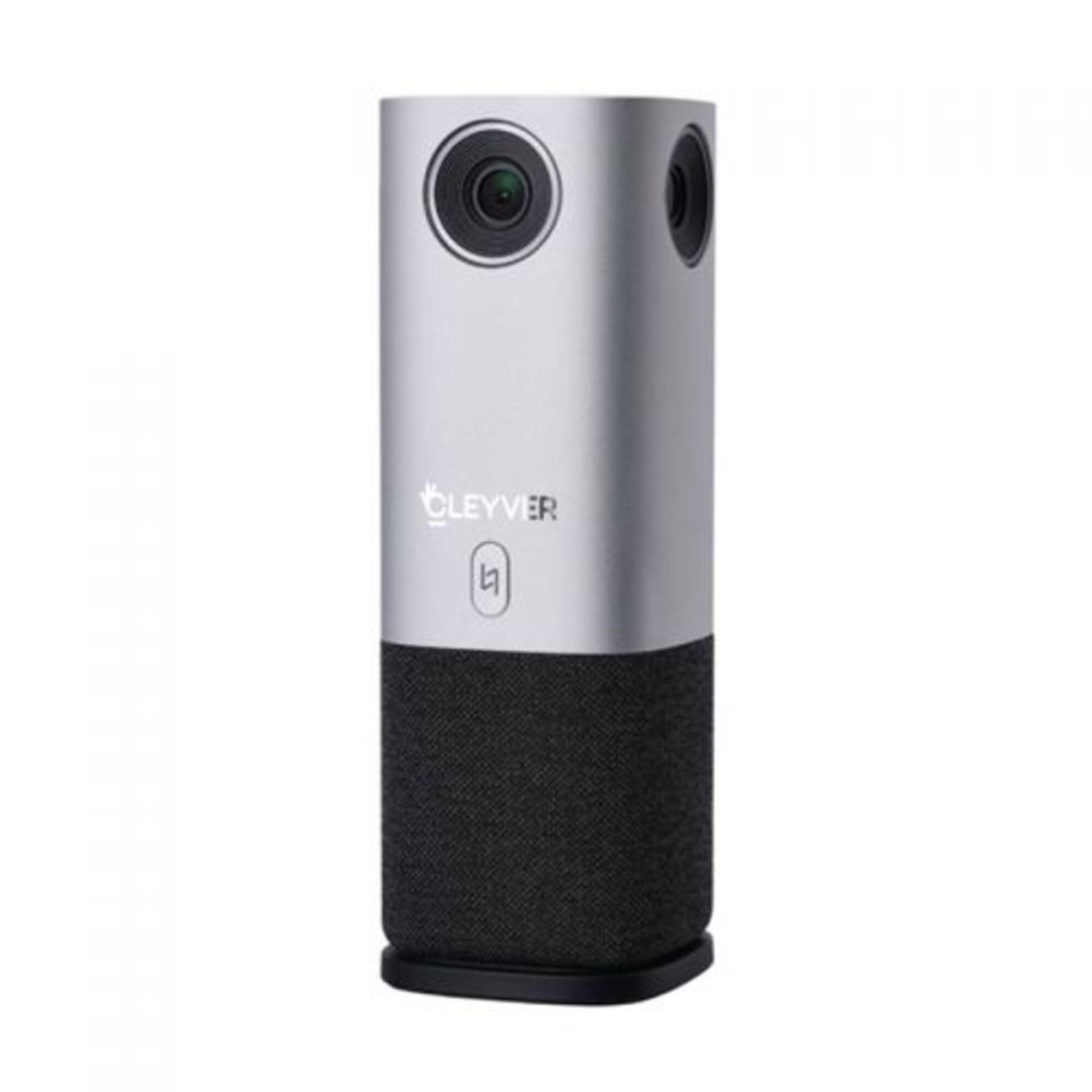
ചിത്രം 1: മുൻഭാഗം view of the Cleyver ODHCAM 360° Webcam. Shows the main camera lens, Cleyver logo, and a button.

ചിത്രം 2: പിൻഭാഗം view of the Cleyver ODHCAM 360° Webcam, highlighting the USB and power ports.

Figure 3: A hand pressing the mode selection button on the Cleyver ODHCAM 360° Webക്യാം
3. സജ്ജീകരണം
The Cleyver ODHCAM 360° Webcam is designed for Plug & Play operation, requiring minimal setup.
3.1 ഉപകരണം ബന്ധിപ്പിക്കുന്നു
- സ്ഥാപിക്കുക webcam on a stable surface in the center of your meeting area.
- Connect the provided USB cable to the USB port on the webക്യാം
- നിങ്ങളുടെ കമ്പ്യൂട്ടറിൽ ലഭ്യമായ USB പോർട്ടിലേക്ക് USB കേബിളിൻ്റെ മറ്റേ അറ്റം ബന്ധിപ്പിക്കുക.
- പവർ അഡാപ്റ്റർ കണക്റ്റുചെയ്യുക webcam's power input and then to a wall outlet. The device requires external power for full functionality.
- Your computer should automatically detect and install the necessary drivers. If not, refer to the (potentially) included driver CD or download drivers from the official Cleyver webസൈറ്റ്.

Figure 4: USB and power cables connected to the Cleyver ODHCAM 360° Webക്യാം
4. പ്രവർത്തന നിർദ്ദേശങ്ങൾ
ഒരിക്കൽ ബന്ധിപ്പിച്ചാൽ, ദി webcam is ready for use with your preferred video conferencing software.
4.1 Selecting a Presentation Mode
The Cleyver ODHCAM 360° offers 6 distinct presentation modes to suit various meeting scenarios. Press the mode selection button on the device to cycle through the available modes.
- Full Screen 360°: Displays a complete panoramic view മുറിയുടെ.
- ചുറ്റും View: Presents a split view with a panoramic top section and individual speaker views താഴെ.
- Host Mode: Focuses on the primary speaker while showing a panoramic view.
- Dual Host Mode: Highlights two main speakers simultaneously.
- സിംഗിൾ View 90°: Provides a standard 90-degree field of view, focusing on a specific area.
- വൈഡ് ആംഗിൾ View 120°: Offers a broader 120-degree field of view.
The device uses AI voice tracking and automatic framing to dynamically adjust the view based on who is speaking, ensuring optimal visibility for all participants.
4.2 ഓഡിയോ സവിശേഷതകൾ
- Omnidirectional Microphones: The integrated microphones capture clear audio from all directions.
- 3W HD Speaker: Provides clear sound output for incoming audio.
- നിശബ്ദ പ്രവർത്തനം: A dedicated button on the device allows you to quickly mute/unmute the microphones. An indicator light will show the mute status (e.g., red for muted, green for active).
4.3 അനുയോജ്യത
The Cleyver ODHCAM 360° Webcam is compatible with most popular video conferencing platforms and operating systems, including Windows and macOS. It is designed to work seamlessly with applications such as Zoom, Microsoft Teams, Skype, Google Meet, and others.
Video 1: Demonstration of the Nuroum C50 Webcam (similar to Cleyver ODHCAM 360°) features, including panoramic view and voice tracking. This video illustrates how the camera automatically focuses on the active speaker during a meeting.
Video 2: Unboxing and initial setup of a CZUR Halo webcam (similar to Cleyver ODHCAM 360°). This video demonstrates the physical components and how to connect the device.
വീഡിയോ 3: കഴിഞ്ഞുview of the j5create 360-degree meeting webcam (similar to Cleyver ODHCAM 360°), showcasing its various display modes and omnidirectional microphone capabilities.
Video 4: Promotional video for Nuroum C20 (similar to Cleyver ODHCAM 360°), highlighting its all-in-one conference camera features, AI noise cancellation, and effective voice capture.
Video 5: Instructions on how to use the CZUR Halo webcam (similar to Cleyver ODHCAM 360°) with Zoom, demonstrating camera selection within the application.
5. പരിപാലനവും പരിചരണവും
- മൃദുവായതും ഉണങ്ങിയതുമായ തുണി ഉപയോഗിച്ച് തുടച്ച് ഉപകരണം വൃത്തിയായി സൂക്ഷിക്കുക.
- കഠിനമായ രാസവസ്തുക്കളോ ഉരച്ചിലുകളുള്ള ക്ലീനറുകളോ ഉപയോഗിക്കുന്നത് ഒഴിവാക്കുക.
- Ensure the lens is free from dust and smudges for optimal image quality.
- സംഭരിക്കുക webcam in a cool, dry place when not in use.
- തീവ്രമായ താപനിലയിലോ ഈർപ്പത്തിലോ ഉപകരണം തുറന്നുകാട്ടരുത്.
6. പ്രശ്നപരിഹാരം
| പ്രശ്നം | സാധ്യമായ കാരണം | പരിഹാരം |
|---|---|---|
| ഇമേജ്/വീഡിയോ ഔട്ട്പുട്ട് ഇല്ല. |
|
|
| ഓഡിയോ ഇൻപുട്ട്/ഔട്ട്പുട്ട് ഇല്ല. |
|
|
| മോശം ചിത്ര നിലവാരം |
|
|
7 സ്പെസിഫിക്കേഷനുകൾ
| ഫീച്ചർ | വിശദാംശങ്ങൾ |
|---|---|
| ബ്രാൻഡ് | Cleyver |
| മോഡൽ | ODHCAM360 |
| നിറം | വെള്ളി |
| പ്രത്യേക സവിശേഷതകൾ | 360° Video Conferencing, Voice Tracking, Automatic Framing |
| സെൻസർ ടെക്നോളജി | CMOS |
| ഫലപ്രദമായ സ്റ്റിൽ റെസല്യൂഷൻ | 5 മെഗാപിക്സലുകൾ |
| വീഡിയോ റെസല്യൂഷൻ | 1080p |
| കണക്റ്റിവിറ്റി ടെക്നോളജി | USB |
| മൈക്രോഫോണുകൾ | ഓമ്നിഡയറക്ഷണൽ |
| സ്പീക്കർ | 3W HD Speaker |
| അളവുകൾ (L x W x H) | 6.76 x 6.75 x 18.2 സെ.മീ |
| അനുയോജ്യമായ ഉപകരണങ്ങൾ | Laptop, Personal Computer, (potentially) Tablet, (potentially) Smartphone |
| ഫോക്കസ് തരം | ഓട്ടോ ഫോക്കസ്, മാനുവൽ ഫോക്കസ് |
| ജല പ്രതിരോധ നില | വാട്ടർപ്രൂഫ് അല്ല |
8. വാറൻ്റിയും പിന്തുണയും
For warranty information and technical support, please refer to the documentation included with your product or visit the official Cleyver webവാറന്റി ക്ലെയിമുകൾക്കുള്ള വാങ്ങലിന്റെ തെളിവായി നിങ്ങളുടെ വാങ്ങൽ രസീത് സൂക്ഷിക്കുക.
