1. ആമുഖം
CZE തിരഞ്ഞെടുത്തതിന് നന്ദി.view ZY-D4 Indoor Surveillance Camera. This manual provides comprehensive instructions to help you set up, operate, and maintain your camera for optimal performance and security. Please read this manual carefully before use and retain it for future reference.
2. ഉൽപ്പന്നം കഴിഞ്ഞുview
സി.ഇ.ഇ.view ZY-D4 is a high-definition indoor surveillance camera designed to provide clear and reliable monitoring of your home or office. It features advanced capabilities such as dual-band Wi-Fi connectivity, motion tracking, two-way audio, and enhanced night vision.
2.1 പാക്കേജ് ഉള്ളടക്കം
- CZEview ZY-D4 Indoor Surveillance Camera
- പവർ അഡാപ്റ്റർ
- യുഎസ്ബി പവർ കേബിൾ
- മൌണ്ടിംഗ് ബ്രാക്കറ്റ്
- മൗണ്ടിംഗ് സ്ക്രൂകൾ
- ഉപയോക്തൃ മാനുവൽ (ഈ പ്രമാണം)
2.2 ക്യാമറ ഘടകങ്ങൾ

ചിത്രം 2.2.1: CZEview ZY-D4 Indoor Surveillance Camera. This image shows the camera unit alongside a smartphone screen, illustrating its connectivity and monitoring capabilities.

Figure 2.2.2: Internal Components of the Camera. This diagram illustrates the sophisticated internal design and lens system that contribute to the camera's high performance.
- ലെൻസ്: വീഡിയോ foo ക്യാപ്ചർ ചെയ്യുന്നുtage.
- മൈക്രോഫോൺ: ഓഡിയോ ഇൻപുട്ടിനും ടു-വേ ആശയവിനിമയത്തിനും.
- സ്പീക്കർ: ഓഡിയോ ഔട്ട്പുട്ടിനും ടു-വേ ആശയവിനിമയത്തിനും.
- സ്റ്റാറ്റസ് ഇൻഡിക്കേറ്റർ ലൈറ്റ്: Indicates camera status (e.g., connected, recording).
- പവർ പോർട്ട്: പവർ അഡാപ്റ്ററുമായി ബന്ധിപ്പിക്കുന്നു.
- റീസെറ്റ് ബട്ടൺ: Used to reset the camera to factory settings. (Located by tilting the camera lens upwards)
- മൈക്രോ എസ്ഡി കാർഡ് സ്ലോട്ട്: For local storage of recordings (supports up to 128GB, not included). (Located by tilting the camera lens upwards)
3. സജ്ജീകരണം
3.1 പവർ ചെയ്യുന്നു
- Connect the USB power cable to the camera's power port.
- പവർ അഡാപ്റ്റർ ഒരു സാധാരണ ഇലക്ട്രിക്കൽ ഔട്ട്ലെറ്റിലേക്ക് പ്ലഗ് ചെയ്യുക.
- The camera will power on, and the status indicator light will illuminate.
3.2 ആപ്പ് ഇൻസ്റ്റാളേഷനും അക്കൗണ്ട് സൃഷ്ടിയും
- ഔദ്യോഗിക CZE ഡൗൺലോഡ് ചെയ്യുകview application from your mobile device's app store (iOS App Store or Google Play Store).
- ആപ്പ് തുറന്ന് സ്ക്രീനിലെ നിർദ്ദേശങ്ങൾ പാലിച്ച് പുതിയൊരു അക്കൗണ്ട് സൃഷ്ടിക്കുക അല്ലെങ്കിൽ നിങ്ങൾക്ക് ഇതിനകം അക്കൗണ്ട് ഉണ്ടെങ്കിൽ ലോഗിൻ ചെയ്യുക.
3.3 Wi-Fi-ലേക്ക് ബന്ധിപ്പിക്കുന്നു
സി.ഇ.ഇ.view ZY-D4 supports both 2.4 GHz and 5 GHz Wi-Fi networks for flexible connectivity.

Figure 3.3.1: Dual-Band Wi-Fi Connectivity. This image highlights the camera's compatibility with both 2.4 GHz and 5 GHz Wi-Fi networks, ensuring a stable and smooth connection.
- In the CZEview app, tap on "Add Device" or the "+" icon.
- ലിസ്റ്റിൽ നിന്ന് നിങ്ങളുടെ ക്യാമറ മോഡൽ തിരഞ്ഞെടുക്കുക.
- Follow the app's instructions to connect the camera to your Wi-Fi network. This typically involves scanning a QR code displayed on your phone with the camera's lens or entering your Wi-Fi password.
- Ensure your Wi-Fi password is correct to avoid connection issues.
- Once connected, the status indicator light will change, and the app will confirm successful pairing.
3.4 ക്യാമറ മൗണ്ടിംഗ്
The camera can be placed on a flat surface or mounted to a ceiling using the provided bracket and screws.
- For Ceiling Mount:
- Choose a suitable location on the ceiling.
- Attach the mounting bracket to the ceiling using the provided screws.
- Secure the camera to the mounting bracket by twisting it into place until it clicks.
- For Flat Surface Placement:
- Place the camera on a stable, flat surface with a clear view നിങ്ങൾ നിരീക്ഷിക്കാൻ ആഗ്രഹിക്കുന്ന പ്രദേശത്തിന്റെ.
4. ക്യാമറ പ്രവർത്തിപ്പിക്കുക
4.1 തത്സമയം View കൂടാതെ പാൻ/ടിൽറ്റ് നിയന്ത്രണം
Access the live video feed and control the camera's movement through the CZEview അപ്ലിക്കേഷൻ.

Figure 4.1.1: Ultra Clarity and Zoom. This image demonstrates the camera's 3K 5MP resolution and 4X zoom capability, providing clear and detailed visuals.
- CZE തുറക്കുകview app and select your camera from the device list.
- The live video feed will appear.
- Use the on-screen controls to pan (355° horizontal) and tilt (100° vertical) the camera to adjust the viewing ആംഗിൾ.
- You can switch between SD, HD, 5MP, and AUTO resolution modes in the live view ക്രമീകരണങ്ങൾ.
4.2 ടു-വേ ഓഡിയോ
ടു-വേ ഓഡിയോ സവിശേഷത ഉപയോഗിച്ച് ക്യാമറയ്ക്ക് സമീപമുള്ള വ്യക്തികളുമായി ആശയവിനിമയം നടത്തുക.

Figure 4.2.1: Two-Way Talk Functionality. This image humorously depicts the camera's ability to enable two-way communication, allowing users to speak through the camera.
- ലൈവിൽ ആയിരിക്കുമ്പോൾ view, ക്യാമറയുടെ സ്പീക്കറിലൂടെ സംസാരിക്കാൻ മൈക്രോഫോൺ ഐക്കണിൽ ടാപ്പ് ചെയ്യുക.
- Tap the speaker icon to listen to audio from the camera's microphone.
4.3 ചലനവും ശബ്ദ ഡിറ്റക്ഷനും
Receive instant alerts on your phone when motion or sound is detected.

Figure 4.3.1: AI-Driven Tracking and Alerts. This image illustrates the camera's intelligent motion and sound detection, providing real-time alerts for activity in monitored areas.
- Enable motion detection and sound detection in the camera settings within the app.
- Configure alert sensitivity and notification preferences.
- The camera will automatically track detected movements.
4.4 നൈറ്റ് വിഷൻ
The camera automatically switches to night vision mode in low-light conditions, providing clear video footage.

Figure 4.4.1: Clear Night Vision. This image demonstrates the camera's ability to capture clear video in low-light environments, ensuring continuous monitoring day and night.
- Night vision is automatically activated when ambient light is insufficient.
4.5 സ്വകാര്യത മോഡ്
Activate privacy mode to temporarily disable live streaming and recording for enhanced privacy.
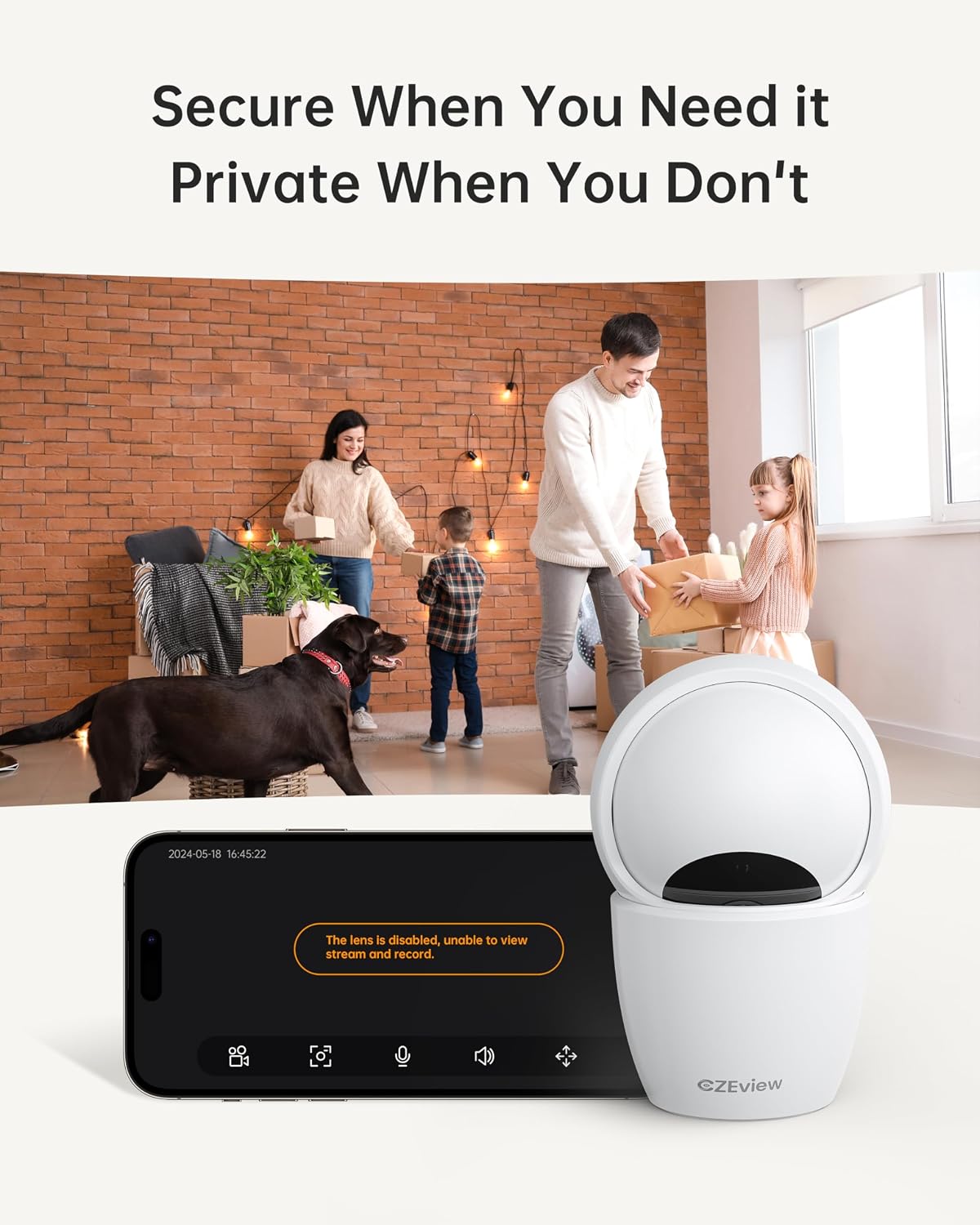
Figure 4.5.1: Privacy Mode Activation. This image illustrates the camera's privacy feature, allowing users to disable the lens for temporary suspension of streaming and recording.
- In the app, locate the privacy mode setting.
- Tap to activate or deactivate privacy mode. When active, the camera lens may physically retract or turn away.
4.6 സംഭരണ ഓപ്ഷനുകൾ
The camera supports local storage via a Micro SD card and optional cloud storage.
- മൈക്രോ എസ്ഡി കാർഡ്: Insert a Micro SD card (up to 128GB, not included) into the designated slot. Ensure the camera is powered off before inserting or removing the card. The slot is located by tilting the camera lens upwards.
- ക്ലൗഡ് സംഭരണം: Refer to the CZEview app for details on available cloud storage plans and subscription options.
5. പരിപാലനം
5.1 ക്യാമറ വൃത്തിയാക്കൽ
- വൃത്തിയാക്കുന്നതിനുമുമ്പ് ക്യാമറ ഓഫ് ചെയ്തിട്ടുണ്ടെന്ന് ഉറപ്പാക്കുക.
- ക്യാമറ ബോഡി തുടയ്ക്കാൻ മൃദുവായതും ഉണങ്ങിയതുമായ ഒരു തുണി ഉപയോഗിക്കുക.
- For the lens, use a lens cleaning cloth specifically designed for optics to avoid scratches.
- ലിക്വിഡ് ക്ലീനറുകളോ ഉരച്ചിലുകളുള്ള വസ്തുക്കളോ ഉപയോഗിക്കരുത്.
5.2 ഫേംവെയർ അപ്ഡേറ്റുകൾ
- Periodically check the CZEview app for available firmware updates.
- Follow the app's instructions to update the camera's firmware to ensure optimal performance and access to new features.
6. പ്രശ്നപരിഹാരം
| പ്രശ്നം | സാധ്യമായ കാരണം | പരിഹാരം |
|---|---|---|
| ക്യാമറ വൈഫൈയിലേക്ക് കണക്റ്റ് ചെയ്യുന്നില്ല | Incorrect Wi-Fi password; Camera too far from router; Router issues; Incorrect Wi-Fi band (2.4GHz vs 5GHz) | Double-check Wi-Fi password. Move camera closer to router. Restart router. Ensure you are connecting to the correct Wi-Fi band (camera supports both). |
| തത്സമയ വീഡിയോ ഫീഡ് ഇല്ല | Camera offline; Network issue; Privacy mode active | Check camera's power and Wi-Fi connection. Verify internet connectivity. Disable privacy mode in the app. |
| മോശം വീഡിയോ നിലവാരം | Low bandwidth; App resolution setting; Dirty lens | Ensure stable Wi-Fi connection. Change video quality setting to HD or 5MP in the app. Clean the camera lens. |
| മോഷൻ ഡിറ്റക്ഷൻ പ്രവർത്തിക്കുന്നില്ല | Detection sensitivity too low; Feature disabled in app; Obstruction in view | Adjust motion detection sensitivity in app settings. Ensure motion detection is enabled. Clear any obstructions from the camera's view. |
| Cannot insert Micro SD card | Incorrect orientation; Lens not tilted up | Ensure the card is oriented correctly. Tilt the camera lens upwards to reveal the SD card slot. |
If you encounter issues not listed here, please refer to the CZEview app's help section or contact customer support.
7 സ്പെസിഫിക്കേഷനുകൾ
| ഫീച്ചർ | വിശദാംശങ്ങൾ |
|---|---|
| മോഡൽ | ZY-D4 |
| ബ്രാൻഡ് | CZEview |
| റെസലൂഷൻ | 5 എംപി (3കെ) |
| കണക്റ്റിവിറ്റി | വൈഫൈ (2.4 GHz & 5 GHz) |
| പാൻ/ടിൽറ്റ് ശ്രേണി | തിരശ്ചീനം 355°, ലംബം 100° |
| സംഭരണം | Micro SD Card (up to 128GB, not included), Cloud Storage (optional) |
| ശക്തി | 3 വാട്ട്സ് |
| അളവുകൾ (L x W x H) | 7.62 x 7.62 x 12.7 സെ.മീ |
| ഭാരം | 322 ഗ്രാം |
| മെറ്റീരിയൽ | ലോഹം |
| മൗണ്ടിംഗ് തരം | സീലിംഗ് മൌണ്ട് |
| നിറം | എക്രു |
8. വാറൻ്റിയും പിന്തുണയും
For warranty information and technical support, please refer to the CZEview ഉദ്യോഗസ്ഥൻ website or contact their customer service directly. Details can typically be found within the CZEview application or on the product packaging.


