1. ആമുഖം
Welcome to the user manual for your new SGIN E10P 10-inch Kids Tablet. This guide provides essential information on setting up, operating, maintaining, and troubleshooting your device. Please read this manual thoroughly to ensure proper use and to maximize your tablet's features.
ബോക്സിൽ എന്താണുള്ളത്
അൺപാക്ക് ചെയ്യുമ്പോൾ, താഴെ ലിസ്റ്റ് ചെയ്തിരിക്കുന്ന എല്ലാ ഇനങ്ങളും അവിടെയുണ്ടെന്ന് ദയവായി ഉറപ്പാക്കുക:
- SGIN E10P Kids Tablet (with protective case)
- ഉപയോക്തൃ മാനുവൽ
- യുഎസ്ബി ടൈപ്പ്-സി കേബിൾ
- പവർ അഡാപ്റ്റർ (ചാർജർ)
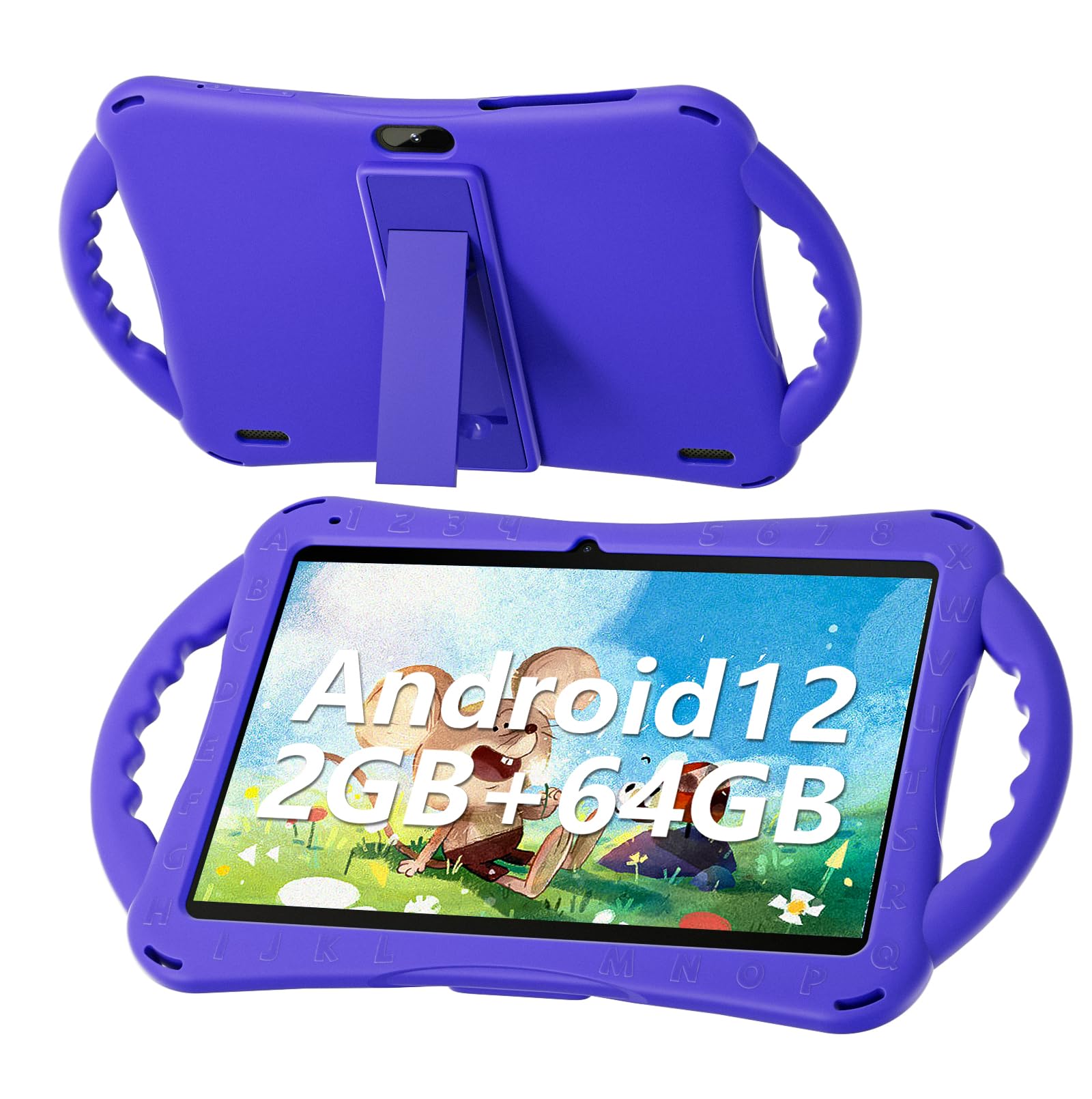
Figure 1: SGIN E10P Kids Tablet with its protective case.
2. ഉൽപ്പന്നം കഴിഞ്ഞുview
Familiarize yourself with the physical components of your SGIN E10P Kids Tablet.

Figure 2: Labeled diagram of the SGIN E10P Kids Tablet components.
- മുൻ ക്യാമറ: വീഡിയോ കോളുകൾക്കും സെൽഫികൾക്കും.
- പിൻ ക്യാമറ: ഫോട്ടോകളും വീഡിയോകളും എടുക്കുന്നതിന്.
- സ്പീക്കറുകൾ: ഓഡിയോ ഔട്ട്പുട്ട്.
- ടൈപ്പ്-സി പോർട്ട്: ചാർജിംഗിനും ഡാറ്റ കൈമാറ്റത്തിനും.
- ടിഎഫ് കാർഡ് സ്ലോട്ട്: For expanding storage with a microSD card.
- ഹെഡ്ഫോൺ ജാക്ക്: വയർഡ് ഹെഡ്ഫോണുകൾ ബന്ധിപ്പിക്കുന്നതിന്.
- വോളിയം വർദ്ധിപ്പിക്കുക: Button to raise the audio level.
- വോളിയം കുറയ്ക്കുക: Button to lower the audio level.
- Bracket (Kickstand): ഹാൻഡ്സ്-ഫ്രീയ്ക്കുള്ള സംയോജിത സ്റ്റാൻഡ് viewing.
- Armrest (Handle): Ergonomic handles on the protective case for easy gripping.
3. സജ്ജീകരണം
3.1 ടാബ്ലെറ്റ് ചാർജ് ചെയ്യുന്നു
Before first use, fully charge the tablet. Connect the USB Type-C cable to the tablet's Type-C port and the other end to the power adapter. Plug the power adapter into a wall outlet. The battery indicator on the screen will show charging status. A full charge typically takes several hours.
3.2 പവർ ഓൺ/ഓഫ്
- പവർ ഓണാക്കാൻ: Press and hold the Power button (usually located on the side or top edge) until the SGIN logo appears on the screen.
- പവർ ഓഫ് ചെയ്യാൻ: Press and hold the Power button until a menu appears. Select "Power off" from the options.
- പുനരാരംഭിക്കാൻ: Press and hold the Power button until a menu appears. Select "Restart" from the options.
3.3 പ്രാരംഭ സജ്ജീകരണം
The first time you power on the tablet, you will be guided through an initial setup process:
- ഭാഷ തിരഞ്ഞെടുക്കൽ: നിങ്ങൾ തിരഞ്ഞെടുത്ത ഭാഷ തിരഞ്ഞെടുക്കുക.
- Wi-Fi കണക്ഷൻ: നിങ്ങളുടെ വൈഫൈ നെറ്റ്വർക്ക് തിരഞ്ഞെടുത്ത് ഇന്റർനെറ്റിലേക്ക് കണക്റ്റുചെയ്യാൻ പാസ്വേഡ് നൽകുക.
- Google അക്കൗണ്ട്: Sign in with an existing Google account or create a new one. This is necessary for downloading apps from the Google Play Store.
- തീയതിയും സമയവും: ശരിയായ തീയതിയും സമയവും സജ്ജമാക്കുക, അല്ലെങ്കിൽ നെറ്റ്വർക്കിന് അത് യാന്ത്രികമായി സജ്ജമാക്കാൻ അനുവദിക്കുക.
- രക്ഷാകർതൃ നിയന്ത്രണങ്ങൾ: Configure Google Kids Space or other parental control features to manage content and screen time for children.
4. ടാബ്ലെറ്റ് പ്രവർത്തിപ്പിക്കൽ
4.1 അടിസ്ഥാന നാവിഗേഷൻ
The SGIN E10P tablet uses a touch-sensitive screen for navigation:
- ടാപ്പ് ചെയ്യുക: ഒരു ആപ്പ് തുറക്കാൻ, ഒരു ഇനം തിരഞ്ഞെടുക്കാൻ, അല്ലെങ്കിൽ ഒരു ബട്ടൺ അമർത്താൻ സ്ക്രീനിൽ ഒരിക്കൽ സ്പർശിക്കുക.
- സ്പർശിച്ച് പിടിക്കുക: അധിക ഓപ്ഷനുകൾ ആക്സസ് ചെയ്യുന്നതിനോ നീക്കുന്നതിനോ ഒരു ഇനം അമർത്തിപ്പിടിക്കുക.
- സ്വൈപ്പ്: പേജുകളിലൂടെയോ ലിസ്റ്റുകളിലൂടെയോ സ്ക്രോൾ ചെയ്യാൻ സ്ക്രീനിലുടനീളം നിങ്ങളുടെ വിരൽ വലിച്ചിടുക.
- പിഞ്ച്-ടു-സൂം: സ്ക്രീനിൽ രണ്ട് വിരലുകൾ വയ്ക്കുക, സൂം ഇൻ ചെയ്യുന്നതിന് അവയെ വേർപെടുത്തുക, അല്ലെങ്കിൽ സൂം ഔട്ട് ചെയ്യുന്നതിന് ഒരുമിച്ച് നീക്കുക.
4.2 വൈ-ഫൈ കണക്റ്റിവിറ്റി
To connect or manage Wi-Fi networks:
- പോകുക ക്രമീകരണങ്ങൾ > നെറ്റ്വർക്കും ഇൻ്റർനെറ്റും > വൈഫൈ.
- വൈഫൈ ടോഗിൾ ചെയ്യുക On.
- ലിസ്റ്റിൽ നിന്ന് നിങ്ങൾക്ക് ആവശ്യമുള്ള നെറ്റ്വർക്ക് തിരഞ്ഞെടുത്ത് ആവശ്യപ്പെടുകയാണെങ്കിൽ പാസ്വേഡ് നൽകുക.

Figure 3: The tablet supports both 2.4GHz and 5GHz Wi-Fi for stable connections.
4.3 Applications and Content
The tablet runs on Android 12 and comes with access to the Google Play Store, allowing you to download a wide range of applications. It is pre-configured for children's use, supporting apps like YouTube Kids, educational games, and other child-friendly content.

Figure 4: The Android 12 interface with various pre-installed and downloadable kids' apps.
4.4 രക്ഷാകർതൃ നിയന്ത്രണങ്ങൾ
Utilize the built-in parental control features to manage your child's tablet experience. This includes setting screen time limits, filtering content, and approving app downloads. Access these settings through the Google Family Link app or directly in the tablet's settings under "Digital Wellbeing & parental controls."
5. പരിപാലനം
5.1 വൃത്തിയാക്കൽ
- സ്ക്രീൻ: Use a soft, lint-free cloth specifically designed for electronics. For stubborn smudges, slightly dampവെള്ളം അല്ലെങ്കിൽ സ്ക്രീൻ ക്ലീനർ ലായനി ഉപയോഗിച്ച് തുണിയിൽ തടവുക (സ്ക്രീനിൽ നേരിട്ട് തളിക്കരുത്).
- കേസ്: The silicone protective case can be wiped with a damp cloth and mild soap if necessary. Ensure it is completely dry before reattaching it to the tablet.
- തുറമുഖങ്ങൾ: Keep all ports (USB-C, headphone jack, TF card slot) free of dust and debris. Use a soft brush or compressed air if needed.
5.2 ബാറ്ററി കെയർ
The tablet is equipped with a 5000mAh battery, providing extended usage time.

Figure 5: The tablet features a 5000mAh battery for prolonged use.
- ബാറ്ററിയുടെ ആയുസ്സ് കുറയ്ക്കുമെന്നതിനാൽ തീവ്രമായ താപനില ഒഴിവാക്കുക.
- കേടുപാടുകൾ ഒഴിവാക്കാൻ നൽകിയിരിക്കുന്ന ചാർജറും കേബിളും മാത്രം ഉപയോഗിക്കുക.
- ബാറ്ററിയുടെ ഒപ്റ്റിമൽ ആയുസ്സ് ഉറപ്പാക്കാൻ, ഇടയ്ക്കിടെ ബാറ്ററി പൂർണ്ണമായും കളയുന്നത് ഒഴിവാക്കുകയോ ദീർഘനേരം 100% ചാർജിൽ സൂക്ഷിക്കുകയോ ചെയ്യുക.
5.3 സംഭരണം
Store the tablet in a cool, dry place away from direct sunlight and moisture when not in use.
6. പ്രശ്നപരിഹാരം
This section addresses common issues you might encounter with your SGIN E10P tablet.
6.1 ടാബ്ലെറ്റ് ഓണാക്കുന്നില്ല
- Ensure the tablet is sufficiently charged. Connect it to the charger for at least 30 minutes before attempting to power it on again.
- നിർബന്ധിതമായി റീബൂട്ട് ചെയ്യാൻ പവർ ബട്ടൺ 10-15 സെക്കൻഡ് അമർത്തിപ്പിടിക്കുക.
6.2 വൈഫൈ കണക്ഷൻ പ്രശ്നങ്ങൾ
- Check if Wi-Fi is enabled in the tablet's settings.
- Verify that your Wi-Fi router is working correctly and other devices can connect.
- Forget the network in the tablet's Wi-Fi settings and reconnect.
- Restart both the tablet and your Wi-Fi router.
6.3 ആപ്പുകൾ ക്രാഷാകുകയോ മരവിപ്പിക്കുകയോ ചെയ്യുന്നു
- ആപ്പ് അടച്ച് വീണ്ടും തുറക്കുക.
- ആപ്പിന്റെ കാഷെയും ഡാറ്റയും മായ്ക്കുക ക്രമീകരണങ്ങൾ > ആപ്പുകൾ > [ആപ്പ് നാമം] > സംഭരണവും കാഷെയും.
- Ensure the app is updated to its latest version via the Google Play Store.
- ടാബ്ലെറ്റ് പുനരാരംഭിക്കുക.
6.4 മന്ദഗതിയിലുള്ള പ്രകടനം
- ആവശ്യമില്ലാത്ത പശ്ചാത്തല ആപ്ലിക്കേഷനുകൾ അടയ്ക്കുക.
- Clear cached data from apps and the system.
- Ensure there is sufficient storage space available. Delete unused apps or files.
- Consider performing a factory reset as a last resort (കുറിപ്പ്: This will erase all data on the tablet. Back up important fileആദ്യം).
7 സ്പെസിഫിക്കേഷനുകൾ
Key technical specifications for the SGIN E10P Kids Tablet:
| ഫീച്ചർ | സ്പെസിഫിക്കേഷൻ |
|---|---|
| ബ്രാൻഡ് | SGIN |
| മോഡൽ നമ്പർ | E10P |
| സ്ക്രീൻ വലിപ്പം | 10 ഇഞ്ച് |
| സ്ക്രീൻ റെസല്യൂഷൻ | 1280 x 800 |
| പ്രോസസ്സർ | 1.5 GHz Allwinner Quad-core A133 |
| റാം | 2 ജിബി |
| സംഭരണം (ROM) | 64 ജിബി |
| വികസിപ്പിക്കാവുന്ന സംഭരണം | TF Card Slot (for additional expansion) |
| ഓപ്പറേറ്റിംഗ് സിസ്റ്റം | ആൻഡ്രോയിഡ് 12 |
| പിൻഭാഗം Webക്യാം റെസല്യൂഷൻ | 5 എം.പി |
| മുൻ ക്യാമറ | 2 എം.പി |
| ബാറ്ററി ശേഷി | 5000 mAh |
| കണക്റ്റിവിറ്റി | 2.4G/5G WiFi, Bluetooth 4.2 |
| അളവുകൾ (LxWxH) | 10.1 x 6 x 0.4 ഇഞ്ച് |
| ഇനത്തിൻ്റെ ഭാരം | 2.27 പൗണ്ട് |
8. വാറൻ്റിയും പിന്തുണയും
SGIN provides a 1-year maintenance period from the date of purchase for this product. If you encounter any issues or require assistance, please contact SGIN customer support.
For further support, please refer to the contact information provided with your purchase documentation or visit the official SGIN webസൈറ്റ്.


