1. ആമുഖം
The Xoopar Multi Cable USB 3-in-1 Connector is designed for versatile charging and data transfer across a wide range of devices. This cable features multiple connector types to ensure compatibility with various smartphones, tablets, and computers, providing a convenient solution for your connectivity needs.

This image displays the Xoopar Multi Cable, a versatile 3-in-1 charging and data transfer cable. It features a USB-A input, a USB-C output, and a Lightning output, all integrated into a single red cable with a compact housing.
2. സജ്ജീകരണവും കണക്ഷനും
To begin using your Xoopar Multi Cable, identify the appropriate connectors for your devices. The cable includes a USB-A input, a USB-C output, and a Lightning output.
2.1 കണക്ടറുകളെ തിരിച്ചറിയൽ
- USB-A ഇൻപുട്ട്: Standard rectangular USB connector, typically used for power adapters, computers, or power banks.
- USB-C ഔട്ട്പുട്ട്: Reversible oval-shaped connector, compatible with modern Android devices, laptops, and other USB-C enabled electronics.
- മിന്നൽ ഔട്ട്പുട്ട്: Proprietary Apple connector, compatible with iPhones, iPads, and other Apple devices.
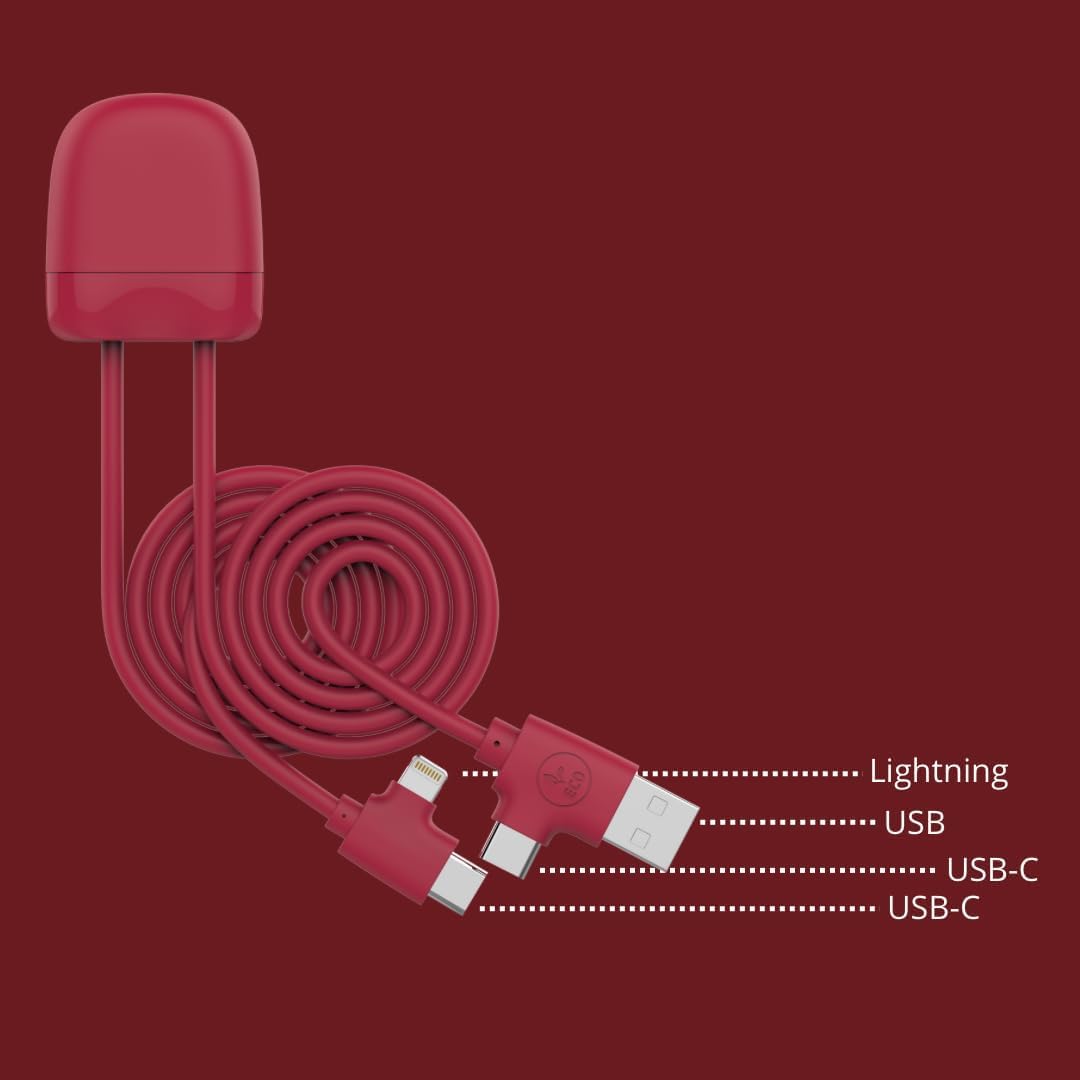
എ വിശദമായി view of the Xoopar Multi Cable's connector ends, clearly indicating the Lightning, USB-A, and USB-C ports for various device connections.
2.2 നിങ്ങളുടെ ഉപകരണങ്ങൾ ബന്ധിപ്പിക്കുന്നു
- ബന്ധിപ്പിക്കുക USB-A ഇൻപുട്ട് of the Xoopar Multi Cable to a power source (e.g., wall adapter, computer USB port, power bank).
- Select the appropriate output connector (USB-C or മിന്നൽ) for your device.
- Insert the selected output connector into your smartphone, tablet, or other compatible device.
- Ensure all connections are secure for optimal performance.
3. പ്രവർത്തന നിർദ്ദേശങ്ങൾ
The Xoopar Multi Cable supports both charging and data transfer functionalities.
3.1 ചാർജിംഗ് ഉപകരണങ്ങൾ
Once connected to a power source and your device, the cable will initiate charging automatically. The cable is designed to support fast charging for compatible devices, provided the power source also supports fast charging protocols.

A smartphone is depicted charging from a laptop, highlighting the cable's function for power delivery. The image also indicates the cable's 1-meter length, providing ampലെ എത്താൻ.
3.2 ഡാറ്റ കൈമാറ്റം
To transfer data, connect the USB-A input to a computer's USB port and the appropriate output (USB-C or Lightning) to your device. Your computer should recognize the connected device, allowing you to transfer files, sync data, or perform backups.

The Xoopar Multi Cable is shown in use, connecting a laptop to a smartphone, illustrating its capability for both charging and data synchronization between devices.
3.3 CarPlay Functionality
For devices supporting CarPlay, connect your iPhone to a compatible car infotainment system using the Lightning connector. This enables integrated access to navigation, music, messages, and other apps directly from your car's display.

This image demonstrates the cable's compatibility with in-car systems, showing a smartphone connected and utilizing the CarPlay feature for integrated navigation and media.
4. പരിപാലനം
Proper care extends the life of your Xoopar Multi Cable.
- സംഭരണം: Store the cable in a clean, dry place away from extreme temperatures. Avoid tightly coiling or bending the cable at sharp angles, especially near the connectors, to prevent internal damage.
- വൃത്തിയാക്കൽ: Use a soft, dry cloth to gently wipe the cable and connectors. Do not use harsh chemicals or abrasive materials. Ensure connectors are free of dust and debris before use.
- കൈകാര്യം ചെയ്യൽ: കേബിൾ പ്ലഗ് ചെയ്യുമ്പോഴോ അൺപ്ലഗ് ചെയ്യുമ്പോഴോ, കേബിൾ തന്നെ വലിക്കുന്നതിനുപകരം, എല്ലായ്പ്പോഴും കണക്റ്റർ ഹെഡ് പിടിക്കുക.
5. പ്രശ്നപരിഹാരം
If you encounter issues with your Xoopar Multi Cable, consider the following:
- ഉപകരണം ചാർജ് ചെയ്യുന്നില്ല:
- Ensure the power source is active and functioning correctly.
- Verify that the cable is securely connected to both the power source and your device.
- കേബിളിനോ കണക്ടറുകൾക്കോ ദൃശ്യമായ എന്തെങ്കിലും കേടുപാടുകൾ ഉണ്ടോയെന്ന് പരിശോധിക്കുക.
- മറ്റൊരു പവർ അഡാപ്റ്ററോ യുഎസ്ബി പോർട്ടോ ഉപയോഗിക്കാൻ ശ്രമിക്കുക.
- സ്ലോ ചാർജിംഗ്:
- Ensure your power adapter provides sufficient output for fast charging, if applicable.
- Close unnecessary applications on your device that may consume significant power.
- Data Transfer Failure:
- Confirm the cable is connected to a computer's data-enabled USB port, not just a charging port.
- Ensure your device is unlocked and set to allow data transfer (e.g., 'File Transfer' mode on Android).
- Restart both your computer and your device.
6 സ്പെസിഫിക്കേഷനുകൾ
| മോഡൽ നമ്പർ | XP61137 |
| ബ്രാൻഡ് | സൂപർ |
| കേബിൾ നീളം | 1 Meter (approximately 3.3 feet) |
| കണക്റ്റർ തരങ്ങൾ | USB-A (Input), USB-C (Output), Lightning (Output) |
| അനുയോജ്യമായ ഉപകരണങ്ങൾ | Smartphones, Tablets, Power Banks, Smart Watches, Computers with USB, USB-C, or Lightning ports |
| പ്രത്യേക സവിശേഷതകൾ | Data Transfer, Fast Charging, High Speed, Lightweight, CarPlay Functionality |
| മെറ്റീരിയലുകൾ | 14% recycled ABS plastic, 41% recycled RPET |
| ഉൽപ്പന്ന അളവുകൾ | 5.91 x 1.26 x 0.47 ഇഞ്ച് |
| ഇനത്തിൻ്റെ ഭാരം | 1.41 ഔൺസ് |
7. വാറൻ്റിയും പിന്തുണയും
Xoopar products are manufactured with quality and reliability in mind. For specific warranty information regarding your Xoopar Multi Cable, please refer to the warranty card included with your purchase or visit the official Xoopar webസൈറ്റ്.
If you require technical assistance or have questions not covered in this manual, please contact Xoopar customer support through their official channels. Contact information can typically be found on the product packaging or the Xoopar webസൈറ്റ്.


