1. ആമുഖം
This manual provides comprehensive instructions for the installation, operation, and maintenance of your Vivotek ND9426P Network Video Recorder (NVR). The ND9426P is a 16-channel, 2-bay embedded NVR with Power over Ethernet (PoE) capabilities and integrated Artificial Intelligence (AI) features, designed for robust surveillance applications. Please read this manual thoroughly before using the device to ensure proper setup and functionality.
2 സുരക്ഷാ വിവരങ്ങൾ
- Ensure the NVR is installed in a well-ventilated area to prevent overheating.
- ഉപകരണത്തിനൊപ്പം നൽകിയിട്ടുള്ള പവർ അഡാപ്റ്റർ മാത്രം ഉപയോഗിക്കുക.
- Do not expose the NVR to water, moisture, or extreme temperatures.
- Avoid placing heavy objects on top of the NVR.
- ഏതെങ്കിലും അറ്റകുറ്റപ്പണികൾ അല്ലെങ്കിൽ ഇൻസ്റ്റാളേഷൻ നടപടിക്രമങ്ങൾ നടത്തുന്നതിന് മുമ്പ് വൈദ്യുതി വിച്ഛേദിക്കുക.
- എല്ലാ സേവനങ്ങളും യോഗ്യതയുള്ള ഉദ്യോഗസ്ഥർക്ക് റഫർ ചെയ്യുക.
3. പാക്കേജ് ഉള്ളടക്കം
Verify that all items listed below are included in your package. If any items are missing or damaged, contact your vendor immediately.
- Vivotek ND9426P NVR Unit
- പവർ അഡാപ്റ്റർ
- യുഎസ്ബി മൗസ്
- ദ്രുത ഇൻസ്റ്റലേഷൻ ഗൈഡ്
- HDD Mounting Screws
4. ഫിസിക്കൽ ഓവർview
Familiarize yourself with the front and rear panels of the Vivotek ND9426P NVR.
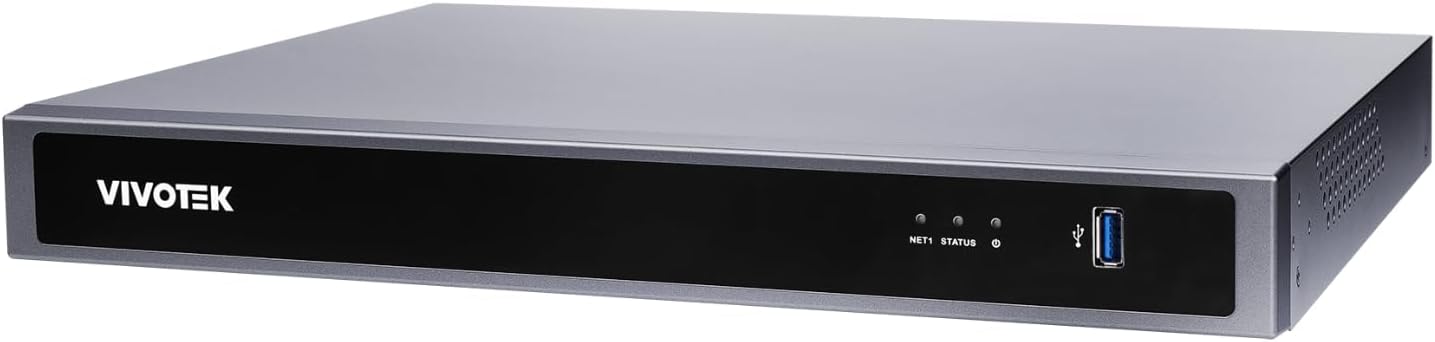
Figure 1: Front Panel of Vivotek ND9426P NVR. This image displays the front of the NVR unit, featuring the VIVOTEK brand logo on the left, two small indicator LEDs labeled "NET1" and "STATUS" in the center, and a blue USB 3.0 port on the right. The overall casing is a dark gray metallic finish.
4.1 ഫ്രണ്ട് പാനൽ
- VIVOTEK Logo: ബ്രാൻഡിനെ സൂചിപ്പിക്കുന്നു.
- NET1 LED: Network activity indicator for LAN port 1.
- സ്റ്റാറ്റസ് LED: സിസ്റ്റം സ്റ്റാറ്റസ് ഇൻഡിക്കേറ്റർ.
- യുഎസ്ബി 3.0 പോർട്ട്: For connecting a USB mouse, keyboard, or external storage devices.
4.2 Rear Panel (Typical Configuration)
While not pictured, the rear panel typically includes the following ports:
- PoE Ports (x16): RJ-45 ports for connecting IP cameras and providing power.
- LAN പോർട്ട്: RJ-45 port for connecting the NVR to your local network.
- HDMI ഔട്ട്പുട്ട്: ഒരു മോണിറ്ററിലേക്കോ ഡിസ്പ്ലേയിലേക്കോ ബന്ധിപ്പിക്കുന്നതിന്.
- വിജിഎ put ട്ട്പുട്ട്: ഒരു മോണിറ്ററിലേക്കോ ഡിസ്പ്ലേയിലേക്കോ ബന്ധിപ്പിക്കുന്നതിന്.
- ഓഡിയോ ഇൻ/ഔട്ട്: ബാഹ്യ ഓഡിയോ ഉപകരണങ്ങൾ ബന്ധിപ്പിക്കുന്നതിന്.
- USB 2.0 പോർട്ടുകൾ: പെരിഫറലുകൾക്കായി അധിക യുഎസ്ബി പോർട്ടുകൾ.
- പവർ ഇൻപുട്ട്: പവർ അഡാപ്റ്റർ ബന്ധിപ്പിക്കുന്നതിന്.
- ഗ്രൗണ്ടിംഗ് ടെർമിനൽ: സുരക്ഷാ ഗ്രൗണ്ടിംഗിനായി.
5. സജ്ജീകരണം
5.1 ഹാർഡ്വെയർ ഇൻസ്റ്റലേഷൻ
- ഹാർഡ് ഡ്രൈവ് ഇൻസ്റ്റാളേഷൻ:
NVR c അഴിച്ചുമാറ്റുകasing to access the internal bays. Mount up to two 3.5-inch SATA hard drives using the provided screws. Reattach the casinഗ്രാം സുരക്ഷിതമായി.
- Connect IP Cameras:
Connect your PoE-enabled IP cameras to the NVR's PoE ports using Ethernet cables. The NVR will provide power and data connectivity.
- Connect Display and Mouse:
Connect a monitor to the NVR's HDMI or VGA output port. Connect the USB mouse to one of the NVR's USB ports.
- നെറ്റ്വർക്ക് കണക്ഷൻ:
NVR-ന്റെ LAN പോർട്ട് നിങ്ങളുടെ നെറ്റ്വർക്ക് റൂട്ടറുമായി ബന്ധിപ്പിക്കുക അല്ലെങ്കിൽ ഒരു ഇതർനെറ്റ് കേബിൾ ഉപയോഗിച്ച് സ്വിച്ച് ചെയ്യുക.
- പവർ ഓൺ:
Connect the power adapter to the NVR's power input and then plug it into a power outlet. The NVR will power on automatically.
5.2 പ്രാരംഭ കോൺഫിഗറേഷൻ
- Upon first boot, the NVR will guide you through a setup wizard. Follow the on-screen instructions.
- Set a strong password for the administrator account. This is crucial for security.
- നെറ്റ്വർക്ക് ക്രമീകരണങ്ങൾ കോൺഫിഗർ ചെയ്യുക (DHCP അല്ലെങ്കിൽ സ്റ്റാറ്റിക് IP).
- Scan for and add connected IP cameras.
- തീയതി, സമയം, സമയ മേഖല എന്നിവ സജ്ജമാക്കുക.
6. NVR പ്രവർത്തിപ്പിക്കൽ
6.1 യൂസർ ഇന്റർഫേസ് നാവിഗേഷൻ
- തത്സമയം View: Access real-time video feeds from all connected cameras. Use the mouse to select camera views and layouts.
- പ്ലേബാക്ക്: Review രേഖപ്പെടുത്തി footage. Navigate through timelines, search by date/time, and export video clips.
- റെക്കോർഡിംഗ് ക്രമീകരണങ്ങൾ: Configure recording schedules (continuous, motion-triggered, event-based) and video quality for each camera.
- ഇവന്റ് മാനേജ്മെന്റ്: Set up alerts for motion detection, tampering, or AI-triggered events. Configure notification methods (e.g., email, push notifications).
- സിസ്റ്റം ക്രമീകരണങ്ങൾ: Manage user accounts, network configurations, storage, and system logs.
6.2 AI സവിശേഷതകൾ
The Vivotek ND9426P integrates advanced AI capabilities to enhance surveillance efficiency. These features may include:
- സ്മാർട്ട് മോഷൻ ഡിറ്റക്ഷൻ: Differentiates between human/vehicle movement and environmental factors to reduce false alarms.
- നുഴഞ്ഞുകയറ്റം കണ്ടെത്തൽ: Defines specific areas for monitoring and triggers alerts upon unauthorized entry.
- Line Crossing Detection: Detects when an object crosses a predefined virtual line.
- Refer to the NVR's on-screen interface or the detailed software manual for specific AI feature configuration.
7. പരിപാലനം
- ഫേംവെയർ അപ്ഡേറ്റുകൾ: Regularly check the VIVOTEK website for firmware updates to ensure optimal performance and security. Follow the provided instructions carefully for updating.
- ഡാറ്റ ബാക്കപ്പ്: Periodically back up important recorded footage to external storage devices (e.g., USB drive, network storage) to prevent data loss.
- സിസ്റ്റം ലോഗുകൾ: Review system logs regularly for any error messages or unusual activity that may indicate a problem.
- വൃത്തിയാക്കൽ: Keep the NVR unit clean and free from dust. Use a soft, dry cloth. Do not use liquid cleaners or aerosols. Ensure ventilation openings are not obstructed.
8. പ്രശ്നപരിഹാരം
| പ്രശ്നം | സാധ്യമായ കാരണം | പരിഹാരം |
|---|---|---|
| മോണിറ്ററിൽ വീഡിയോ ഔട്ട്പുട്ട് ഇല്ല. | Loose cable connection, incorrect input source on monitor, NVR not powered on. | Check HDMI/VGA cable connections. Ensure monitor is set to correct input. Verify NVR power. |
| ക്യാമറകൾ പ്രദർശിപ്പിക്കുന്നില്ല | Camera not powered, network issue, incorrect camera settings. | Check camera power and Ethernet cables. Verify network connectivity. Ensure cameras are added and configured correctly in NVR settings. |
| Cannot access NVR over network | Network cable disconnected, incorrect IP address, firewall blocking access. | Check LAN cable. Verify NVR's IP address and network settings. Adjust firewall rules if necessary. |
| റെക്കോർഡിംഗ് പ്രവർത്തിക്കുന്നില്ല | Hard drive not installed/initialized, recording schedule not set, insufficient storage. | Ensure HDD is installed and formatted. Check recording schedules. Verify available storage space. |
9 സ്പെസിഫിക്കേഷനുകൾ
| മോഡൽ | ND9426P |
| ബ്രാൻഡ് | വിവോടെക് |
| ചാനലുകളുടെ എണ്ണം | 16 |
| HDD ബേകൾ | 2 (3.5" SATA) |
| PoE പോർട്ടുകൾ | 16 |
| കണക്റ്റിവിറ്റി ടെക്നോളജി | ഇഥർനെറ്റ്, യുഎസ്ബി |
| ഇനത്തിൻ്റെ ഭാരം | 1 കിലോഗ്രാം (2.2 പൗണ്ട്) |
| പാക്കേജ് അളവുകൾ | 0.39 x 0.39 x 0.39 ഇഞ്ച് (L x W x H) |
Note: Specifications are subject to change without notice. For the most current information, please refer to the official VIVOTEK product page.
10. വാറൻ്റിയും പിന്തുണയും
VIVOTEK products are covered by a limited warranty. For detailed warranty terms and conditions, please refer to the warranty card included with your product or visit the official VIVOTEK webസൈറ്റ്.
For technical support, product inquiries, or service requests, please contact your local VIVOTEK dealer or visit the VIVOTEK support portal online. Have your product model and serial number ready when contacting support.
- VIVOTEK Official Webസൈറ്റ്: www.vivotek.com
- പിന്തുണ പോർട്ടൽ: റഫർ ചെയ്യുക webപ്രാദേശിക പിന്തുണാ കോൺടാക്റ്റുകൾക്കായുള്ള സൈറ്റ്.