1. ഉൽപ്പന്നം കഴിഞ്ഞുview
The Inkbird ISV-101W is a WiFi-enabled sous vide immersion circulator designed for precise temperature control during cooking. It features 1000 watts of heating power and 3D water circulation for even heat distribution. Control and monitoring are available via a dedicated mobile application.

Figure 1: Inkbird ISV-101W Sous Vide Machine. This image shows the main unit of the sous vide circulator.
2 സുരക്ഷാ വിവരങ്ങൾ
- Always ensure the water level is between the MIN and MAX marks on the device.
- Do not immerse the top part of the device (control panel) in water.
- Use a heat-resistant container for cooking.
- കുട്ടികൾക്ക് ലഭ്യമാകാതെ സൂക്ഷിക്കുക.
- Unplug the device before cleaning or when not in use.
- പവർ കോർഡിനോ പ്ലഗ്ഗിനോ കേടുപാടുകൾ സംഭവിച്ചാൽ പ്രവർത്തിക്കരുത്.
3. ഉൽപ്പന്ന ഘടകങ്ങൾ
The Inkbird ISV-101W consists of the following main parts:
- നിയന്ത്രണ പാനൽ: Digital display for temperature, time, and settings.
- Adjustment Knob/Buttons: For setting temperature and time manually.
- ഇമ്മേഴ്ഷൻ ട്യൂബ്: Contains the heating element and circulator.
- Water Level Markings (MIN/MAX): Indicates safe operating water levels.
- ക്രമീകരിക്കാവുന്ന Clamp: Secures the device to the side of a cooking container.

Figure 2: Key components of the Inkbird ISV-101W, including the gold-plated panel, dazzling knob, non-slip clamp, and hollow-carved design for water circulation.
4. Setup and Wi-Fi Connection
4.1 പ്രാരംഭ സജ്ജീകരണം
- കണ്ടെയ്നറിലേക്ക് അറ്റാച്ചുചെയ്യുക: Securely attach the sous vide machine to the side of a heat-resistant pot or container using the adjustable clamp.
- വെള്ളം നിറയ്ക്കുക: Fill the container with water, ensuring the water level is between the MIN and MAX marks on the immersion tube.
- പവർ ഓൺ: Plug the device into a power outlet. The display will light up.

Figure 3: The Inkbird ISV-101W securely clamped to a container with water, illustrating the 360° water circulation heating.
4.2 Wi-Fi Connection (Inkbird App)
The ISV-101W connects to your home 2.4GHz Wi-Fi network via the Inkbird Smart app for remote control and monitoring.
- അപ്ലിക്കേഷൻ ഡൗൺലോഡുചെയ്യുക: Download the "Inkbird Smart" app from your smartphone's app store.
- രജിസ്റ്റർ ചെയ്യുക/ലോഗിൻ ചെയ്യുക: ഒരു അക്കൗണ്ട് സൃഷ്ടിക്കുക അല്ലെങ്കിൽ ആപ്പിൽ ലോഗിൻ ചെയ്യുക.
- ഉപകരണം ചേർക്കുക: In the app, tap the "+" icon to add a new device. Select the ISV-101W from the list.
- വൈഫൈ വിശദാംശങ്ങൾ നൽകുക: Follow the on-screen instructions to connect the device to your 2.4GHz Wi-Fi network. Ensure your phone is also connected to the 2.4GHz network during setup.
- ജോടിയാക്കൽ: The device will enter pairing mode (indicated by a flashing light or specific display icon). Confirm pairing in the app.

Figure 4: Step-by-step guide for connecting the Inkbird ISV-101W to the Inkbird Smart app via 2.4GHz Wi-Fi.

Figure 5: The Inkbird Smart app interface showing recipe selection, cooking time booking, and remote monitoring capabilities for the sous vide machine.
5. പ്രവർത്തന നിർദ്ദേശങ്ങൾ
5.1 മാനുവൽ പ്രവർത്തനം
- താപനില സജ്ജമാക്കുക: Use the control knob or buttons on the device to set your desired cooking temperature.
- സമയം സജ്ജമാക്കുക: Adjust the cooking time using the control knob or buttons.
- പാചകം ആരംഭിക്കുക: Press the start button. The device will begin heating the water to the set temperature.
- ഭക്ഷണം ചേർക്കുക: Once the target temperature is reached, place your vacuum-sealed food into the water bath.

Figure 6: The informative TFT display showing Wi-Fi connection state, current temperature, target temperature, cooking state, and cooking time. It also displays quick-cook and menu settings.
5.2 ആപ്പ് നിയന്ത്രണ പ്രവർത്തനം
- പാചകക്കുറിപ്പ് തിരഞ്ഞെടുക്കുക: Open the Inkbird Smart app. Choose from preset recipes or create custom settings.
- ക്രമീകരണങ്ങൾ ക്രമീകരിക്കുക: Set the desired temperature, cooking time, and other preferences within the app.
- Schedule Cooking: Utilize the scheduling feature to start cooking at a specific time.
- പുരോഗതി നിരീക്ഷിക്കുക: Monitor the cooking progress and receive notifications on your smartphone.

Figure 7: The Inkbird Smart app displaying various food categories (Beef, Poultry, Mutton, Pork, Seafood, Egg, Vegetable) and options for custom cooking or managing custom recipes.
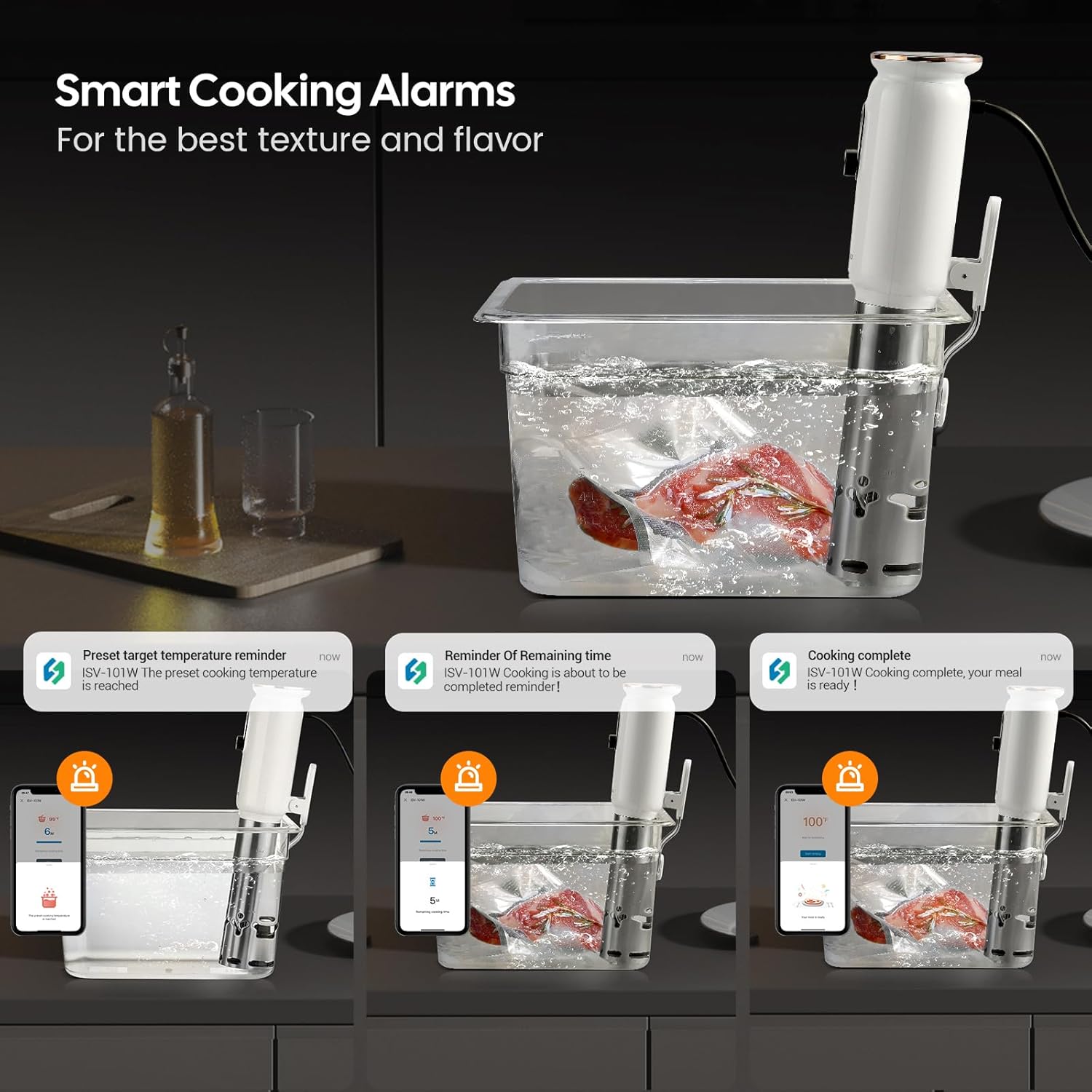
Figure 8: The Inkbird Smart app providing smart cooking alarms for target temperature reached, remaining time reminders, and cooking completion notifications.

Figure 9: The Inkbird Smart app interface demonstrating how to schedule cooking starts and set pre-reminders for cooking completion.
6. പരിപാലനവും പരിചരണവും
- വൃത്തിയാക്കൽ: After each use, unplug the device and allow it to cool. Wipe the exterior with a damp cloth. The stainless steel immersion tube can be cleaned with a mild detergent and water. Ensure no water enters the top electrical components.
- നിരസിക്കൽ: If mineral deposits build up on the heating element, fill a pot with water and add white vinegar (equal parts water and vinegar). Immerse the stainless steel part of the circulator (below the MAX line) and run the device at 60°C (140°F) for 30 minutes. Rinse thoroughly afterward.
- സംഭരണം: Store the sous vide machine in a dry, cool place.

Figure 10: The Inkbird ISV-101W features an IPX7 waterproof rating, making it worry-free to use and easy to clean.
7. പ്രശ്നപരിഹാരം
| പ്രശ്നം | സാധ്യമായ കാരണം | പരിഹാരം |
|---|---|---|
| ഉപകരണം ഓണാക്കുന്നില്ല. | പ്ലഗ് ഇൻ ചെയ്തിട്ടില്ല; പവർ ഔട്ട്ലെറ്റ് പ്രശ്നം. | Ensure the device is securely plugged into a working power outlet. Check the circuit breaker. |
| Water not heating or "pre-heating" stuck. | Water level too low/high; heating element issue; large volume of cold water. | Verify water level is between MIN and MAX. For large volumes, allow more time or start with warmer water. Contact support if the issue persists. |
| വൈഫൈ കണക്ഷൻ പരാജയം. | Incorrect Wi-Fi password; 5GHz network; device too far from router. | Ensure you are connecting to a 2.4GHz Wi-Fi network. Double-check the password. Move the device closer to the router. Reset the device and try pairing again. |
| കൃത്യമല്ലാത്ത താപനില വായന. | Sensor calibration needed. | The app allows for temperature calibration. Refer to the app settings for calibration options. |
8 സ്പെസിഫിക്കേഷനുകൾ
- മോഡൽ നമ്പർ: ISV-101W
- വാട്ട്tage: 1000 വാട്ട്സ്
- വാല്യംtage: 240 വോൾട്ട്
- താപനില പരിധി: 0-90°C (32-194°F)
- പ്രദർശന കൃത്യത: 0.1°C (0.3°F)
- സമയ ക്രമീകരണം: Max. 99 hours and 59 minutes
- ഉൽപ്പന്ന അളവുകൾ: 2.37 x 2.37 x 16.12 ഇഞ്ച്
- ഇനത്തിൻ്റെ ഭാരം: 3.08 പൗണ്ട്
- നിയന്ത്രണ രീതി: App / Manual

ചിത്രം 11: ഓവർview of the Inkbird ISV-101W's accurate temperature control (0-90°C / 32-194°F) and timer settings (up to 99 hours 59 minutes), along with display accuracy and various doneness levels for meat.
9. വാറൻ്റിയും പിന്തുണയും
For warranty information, technical support, or service inquiries, please refer to the official Inkbird webസൈറ്റിൽ ബന്ധപ്പെടുക അല്ലെങ്കിൽ അവരുടെ ഉപഭോക്തൃ സേവനവുമായി നേരിട്ട് ബന്ധപ്പെടുക. വാറന്റി ക്ലെയിമുകൾക്കായി നിങ്ങളുടെ വാങ്ങൽ രസീത് സൂക്ഷിക്കുക.
ബന്ധപ്പെടാനുള്ള വിവരങ്ങൾ: ദയവായി സന്ദർശിക്കുക the Inkbird Store on Amazon for further details or to find contact information.
10. ഉൽപ്പന്ന വീഡിയോകൾ
Cooking with Inkbird Sous Vide
വീഡിയോ 1: ഒരു ചെറിയ പ്രീview video demonstrating the Inkbird Sous Vide machine in use, showing the device in a water bath with food. This video is a preview from the seller.
Sous Vide Cooking Process
Video 2: This video shows the sous vide machine cooking a roast, demonstrating the temperature stability over time. This video is a preview from the seller.
App Control and Cooking Workflow
Video 3: This video illustrates the full cooking process using the Inkbird app, from setting parameters to receiving completion reminders, and finishing the steak. This video is a preview from the seller.