1. ആമുഖം
Thank you for choosing the Geek Smart L7 Robot Vacuum and Mop. This device is designed to provide efficient and thorough cleaning for your home, combining powerful vacuuming with intelligent mopping capabilities. Featuring advanced LDS navigation, Wi-Fi connectivity, and smart app control, the L7 ensures a customized cleaning experience for various floor types, including carpets and hard floors.
This manual provides essential information for the safe operation, setup, maintenance, and troubleshooting of your robot vacuum. Please read it carefully before use and retain it for future reference.
2. സുരക്ഷാ നിർദ്ദേശങ്ങൾ
To reduce the risk of injury or damage, read and follow all safety precautions when setting up, using, and maintaining your robot vacuum.
- 8 വയസ്സും അതിനുമുകളിലും പ്രായമുള്ള കുട്ടികൾക്കും ശാരീരികമോ ഇന്ദ്രിയപരമോ മാനസികമോ ആയ കഴിവുകൾ കുറഞ്ഞവർക്കും അനുഭവപരിചയവും അറിവും ഇല്ലാത്തവർക്കും സുരക്ഷിതമായ രീതിയിൽ ഉപകരണം ഉപയോഗിക്കുന്നതുമായി ബന്ധപ്പെട്ട മേൽനോട്ടമോ നിർദ്ദേശമോ നൽകുകയും അപകടസാധ്യതകൾ മനസ്സിലാക്കുകയും ചെയ്തിട്ടുണ്ടെങ്കിൽ ഈ ഉപകരണം ഉപയോഗിക്കാൻ കഴിയും. .
- കുട്ടികൾ ഉപകരണം ഉപയോഗിച്ച് കളിക്കുന്നില്ലെന്ന് ഉറപ്പാക്കാൻ മേൽനോട്ടം വഹിക്കണം.
- മേൽനോട്ടമില്ലാതെ കുട്ടികൾ വൃത്തിയാക്കലും ഉപയോക്തൃ പരിപാലനവും നടത്തരുത്.
- Use only the original power adapter provided by the manufacturer.
- Do not use the robot in environments with open flames or flammable materials.
- മുടി, അയഞ്ഞ വസ്ത്രങ്ങൾ, വിരലുകൾ, ശരീരത്തിൻ്റെ എല്ലാ ഭാഗങ്ങളും തുറസ്സുകളിൽ നിന്നും ചലിക്കുന്ന ഭാഗങ്ങളിൽ നിന്നും അകറ്റി നിർത്തുക.
- ശിശുവോ കുട്ടിയോ ഉറങ്ങുന്ന മുറികളിൽ റോബോട്ട് പ്രവർത്തിപ്പിക്കരുത്.
- Do not use the robot to pick up large debris, liquids, or burning objects.
- Ensure the robot is placed on a stable surface and cannot fall from high places.
- Turn off the robot and unplug the charging dock before cleaning or maintenance.
3. പാക്കേജ് ഉള്ളടക്കം
അൺപാക്ക് ചെയ്യുമ്പോൾ എല്ലാ ഘടകങ്ങളും ഉണ്ടെന്നും നല്ല നിലയിലാണെന്നും ഉറപ്പാക്കുക.
- Geek Smart L7 Robot Vacuum and Mop
- ചാർജിംഗ് ഡോക്ക്
- പവർ അഡാപ്റ്റർ
- സൈഡ് ബ്രഷുകൾ (2 ജോഡി)
- പ്രധാന ബ്രഷ്
- Dust Bin (680ML)
- 2-in-1 Water Tank & Dust Bin (350ML water tank & 260ML dust bin)
- മോപ്പ് തുണികൾ (2)
- High-Efficiency Filter (pre-installed in dust bin)
- ക്ലീനിംഗ് ടൂൾ
- ഉപയോക്തൃ മാനുവൽ
4. ഉൽപ്പന്നം കഴിഞ്ഞുview
Robot Vacuum Components

Image: The Geek Smart L7 Robot Vacuum, showcasing its top view with control buttons, LDS sensor, and accompanying accessories like the charging dock and replacement filters.
- LDS Navigation Sensor: Located on top, for precise mapping and navigation.
- നിയന്ത്രണ ബട്ടണുകൾ: Power/Clean, Home/Recharge.
- ഫ്രണ്ട് ബമ്പർ: Detects obstacles.
- സൈഡ് ബ്രഷുകൾ: പ്രധാന കുറ്റിക്കാടുകളുടെ പാതയിലേക്ക് അവശിഷ്ടങ്ങൾ തൂത്തുവാരുക.
- പ്രധാന ബ്രഷ്: അഴുക്കും അവശിഷ്ടങ്ങളും ശേഖരിക്കുന്നു.
- ഡ്രൈവിംഗ് വീലുകൾ: വ്യത്യസ്ത പ്രതലങ്ങളിലൂടെ ചലനം അനുവദിക്കുക.
- ചാർജിംഗ് കോൺടാക്റ്റുകൾ: Connect with the charging dock.
- Dust Bin / Water Tank: Removable compartments for dust collection and water for mopping.
ചാർജിംഗ് ഡോക്ക്
The charging dock provides power to recharge the robot's battery. It should be placed in an open area with sufficient clearance.
5. സജ്ജീകരണം
5.1 ചാർജിംഗ് ഡോക്ക് പ്ലേസ്മെന്റ്
- Place the charging dock against a wall in an open area.
- Ensure there is at least 0.5 meters (1.6 feet) of clear space on both sides of the dock and 1.5 meters (4.9 feet) in front.
- പവർ അഡാപ്റ്റർ ചാർജിംഗ് ഡോക്കിലേക്ക് ബന്ധിപ്പിച്ച് ഒരു വാൾ ഔട്ട്ലെറ്റിൽ പ്ലഗ് ചെയ്യുക.
- Ensure the power indicator on the charging dock illuminates.
5.2 പ്രാരംഭ ചാർജിംഗ്
- Place the robot onto the charging dock, ensuring the charging contacts align.
- The robot will automatically begin charging. Allow it to fully charge before its first use (approximately 4-5 hours).
5.3 App Connection and Mapping

Image: The Geek Smart L7 Robot Vacuum actively scanning its environment using LDS navigation to create a detailed map, with digital map representations floating above it.
- Download the Geek Smart app from your mobile device's app store (available for iOS and Android).
- ഒരു അക്കൗണ്ട് രജിസ്റ്റർ ചെയ്ത് ലോഗിൻ ചെയ്യുക.
- Follow the in-app instructions to add your L7 robot vacuum. This typically involves connecting to the robot's Wi-Fi hotspot and then connecting the robot to your home Wi-Fi network.
- Once connected, initiate a full cleaning cycle. The robot will use its LDS navigation to create an accurate map of your home. This map will be saved in the app for future use, allowing for features like selective room cleaning and setting no-go zones. The robot can save up to 5 different maps.
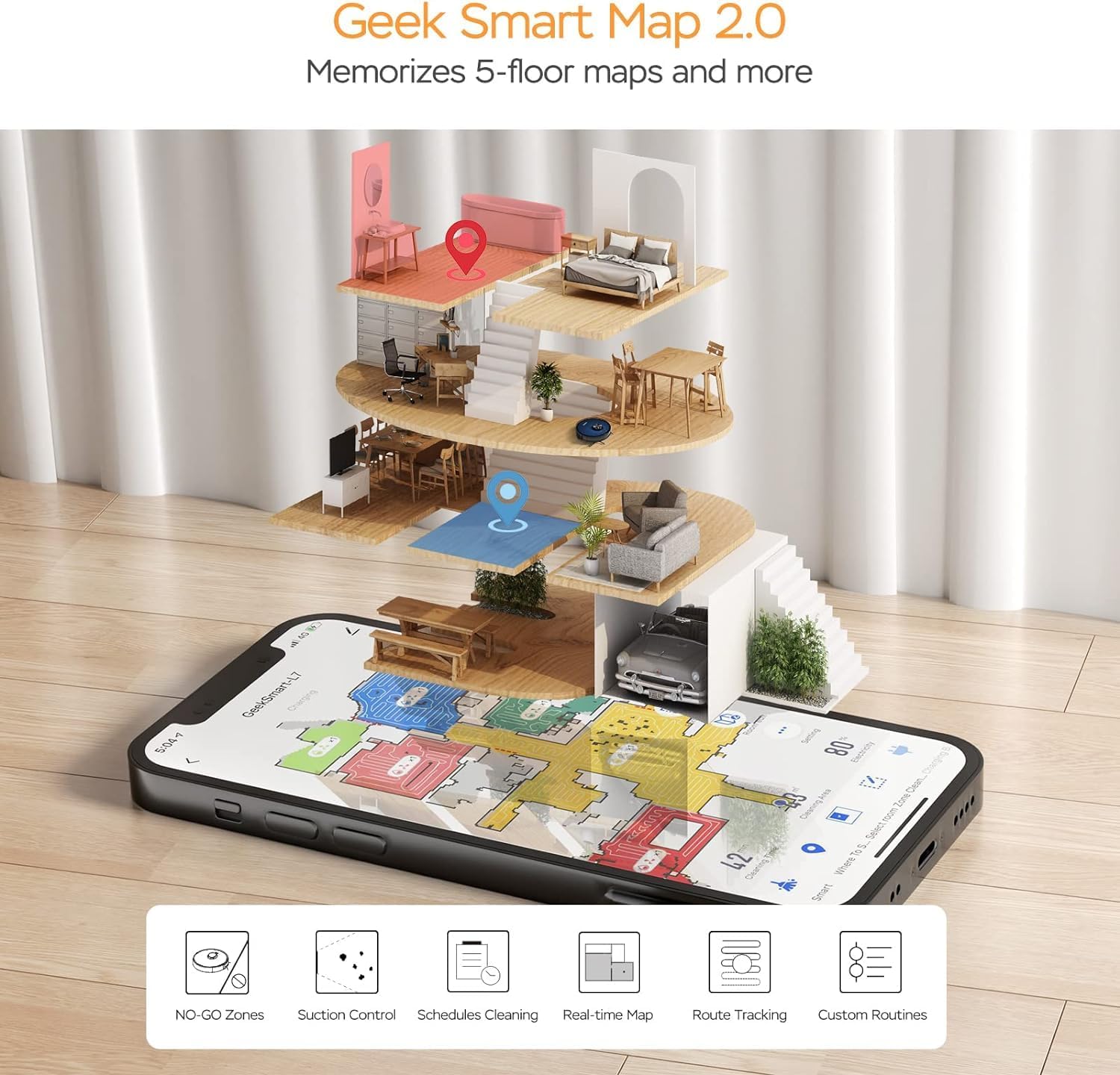
Image: A smartphone screen displaying the Geek Smart app interface, showing a color-coded floor plan map with various cleaning zones and controls.
6. പ്രവർത്തന നിർദ്ദേശങ്ങൾ
6.1 ആരംഭിക്കലും നിർത്തലും വൃത്തിയാക്കൽ
- വൃത്തിയാക്കൽ ആരംഭിക്കുക: Press the Power/Clean button on the robot or tap "Start Cleaning" in the app. The robot will begin a full cleaning cycle.
- താൽക്കാലികമായി വൃത്തിയാക്കൽ: Press the Power/Clean button during operation or tap "Pause" in the app.
- റെസ്യൂമെ ക്ലീനിംഗ്: Press the Power/Clean button again or tap "Resume" in the app.
- ഡോക്കിലേക്ക് മടങ്ങുക: Press the Home/Recharge button on the robot or tap "Recharge" in the app. The robot will return to its charging dock.
6.2 ക്ലീനിംഗ് മോഡുകൾ
The L7 offers various cleaning modes to suit different needs.

Image: The Geek Smart L7 Robot Vacuum demonstrating its 2-in-1 sweeping and mopping capabilities on a hard floor, with debris being swept and a damp mop trail visible.
- ഓട്ടോ ക്ലീനിംഗ്: The robot intelligently plans its cleaning path using LDS navigation.
- വാക്വമിംഗ്: Utilizes up to 2700Pa suction power to clean dirt and debris from various surfaces.
- മോപ്പിംഗ്: Attach the mop cloth and fill the 2-in-1 water tank. The electronic water tank allows for adjustable water output.
- വാക്വം & മോപ്പ് (ഒരേസമയം): The robot can vacuum and mop simultaneously when the 2-in-1 tank is installed.
- Carpet Boost Mode: The robot automatically increases suction power when it detects carpeted areas for deeper cleaning.

Image: The Geek Smart L7 Robot Vacuum actively cleaning a hard floor, with a visual representation of its powerful 2700Pa suction lifting debris.

Image: The Geek Smart L7 Robot Vacuum transitioning from a hard floor to a carpet, illustrating its Carpet Boost Mode with enhanced suction indicated by glowing lines.

Image: The Geek Smart L7 Robot Vacuum positioned on a floor split between marble and wood, illustrating its integrated mopping system and adjustable water output for different surfaces.
6.3 ആപ്പ് നിയന്ത്രണ സവിശേഷതകൾ
The Geek Smart app unlocks advanced cleaning customization.
- Selective Room Cleaning: Choose specific rooms or areas on the map for cleaning.
- No-Go Zones / No-Mop Zones: Draw virtual boundaries on the map to prevent the robot from entering certain areas or mopping carpets.
- Invisible Walls: Create virtual walls to restrict the robot's movement.
- ഷെഡ്യൂളിംഗ്: Set cleaning schedules for automatic operation at desired times.
- സക്ഷൻ പവർ അഡ്ജസ്റ്റ്മെൻ്റ്: Manually adjust the suction level.
- Water Output Adjustment: Control the water flow for mopping.

Image: The Geek Smart L7 Robot Vacuum operating quietly (65dB) in a living room, demonstrating its low noise level suitable for homes with sleeping individuals or pets.
7. പരിപാലനം
Regular maintenance ensures optimal performance and extends the lifespan of your robot vacuum. Always turn off the robot and unplug the charging dock before performing any maintenance.
7.1 ഡസ്റ്റ് ബിൻ ശൂന്യമാക്കൽ
- Press the dust bin release button and pull out the dust bin.
- Open the dust bin cover and empty the contents into a trash can.
- Clean the filter and dust bin with the provided cleaning tool or a soft brush.
- ഡസ്റ്റ് ബിൻ വീണ്ടും ഇൻസ്റ്റാൾ ചെയ്യുക.
7.2 Cleaning the 2-in-1 Water Tank & Dust Bin
- Remove the 2-in-1 tank from the robot.
- Empty any remaining water from the water tank compartment.
- പൊടി കമ്പാർട്ട്മെന്റ് ശൂന്യമാക്കി ഫിൽട്ടർ വൃത്തിയാക്കുക.
- Rinse the water tank compartment with clean water. Do not immerse the entire tank in water, especially the electronic components.
- Allow all parts to air dry completely before reassembling and reinstalling.
7.3 പ്രധാന ബ്രഷ് വൃത്തിയാക്കൽ
- Flip the robot over and press the release tabs to remove the main brush cover.
- പ്രധാന ബ്രഷ് ഉയർത്തുക.
- ബ്രഷിലും അതിന്റെ ബെയറിംഗുകളിലും കുടുങ്ങിക്കിടക്കുന്ന രോമങ്ങളും അവശിഷ്ടങ്ങളും നീക്കം ചെയ്യാൻ ക്ലീനിംഗ് ടൂൾ ഉപയോഗിക്കുക.
- പ്രധാന ബ്രഷും കവറും വീണ്ടും ഇൻസ്റ്റാൾ ചെയ്യുക.
7.4 ക്ലീനിംഗ് സൈഡ് ബ്രഷുകൾ
- Gently pull the side brushes upwards to remove them.
- Remove any hair or debris. If brushes are bent, soak them in warm water for a few minutes to reshape.
- Press the brushes back into place until they click.
7.5 സെൻസറുകളും ചാർജിംഗ് കോൺടാക്റ്റുകളും വൃത്തിയാക്കൽ
- Use a clean, dry cloth to wipe the cliff sensors (located on the bottom of the robot), wall sensors (on the side), and the charging contacts on both the robot and the charging dock.
- Ensure the LDS sensor on top is also clean and free of obstructions.
8. പ്രശ്നപരിഹാരം
If you encounter issues with your robot vacuum, refer to the following table for common problems and solutions.
| പ്രശ്നം | സാധ്യമായ കാരണം | പരിഹാരം |
|---|---|---|
| റോബോട്ട് ഓണാക്കുന്നില്ല | ബാറ്ററി കുറവാണ്; പവർ സ്വിച്ച് ഓഫ് | Place robot on charging dock; Ensure power switch is on. |
| റോബോട്ടിന് ചാർജ് ചെയ്യാൻ കഴിയില്ല | Charging contacts dirty; Charging dock not powered | റോബോട്ടിലെയും ഡോക്കിലെയും ചാർജിംഗ് കോൺടാക്റ്റുകൾ വൃത്തിയാക്കുക; ഡോക്ക് പ്ലഗിൻ ചെയ്തിട്ടുണ്ടെന്ന് ഉറപ്പാക്കുക. |
| റോബോട്ട് ഇടയ്ക്കിടെ കുടുങ്ങുന്നു | Obstacles on floor; Cliff sensors dirty | Clear cables and small objects; Clean cliff sensors. |
| മോശം ക്ലീനിംഗ് പ്രകടനം | Dust bin full; Brushes tangled; Filter clogged | Empty dust bin; Clean main and side brushes; Clean or replace filter. |
| Mopping function not working | Water tank empty; Mop cloth dry; Water outlet clogged | Fill water tank; Moisten mop cloth; Clean water outlet. |
| ആപ്പ് കണക്ഷൻ പ്രശ്നങ്ങൾ | തെറ്റായ വൈഫൈ പാസ്വേഡ്; റൂട്ടർ വളരെ അകലെയാണ്; റോബോട്ട് ഓഫ്ലൈൻ | Verify Wi-Fi credentials; Move robot closer to router; Restart robot and router. |
9 സ്പെസിഫിക്കേഷനുകൾ
| ഫീച്ചർ | സ്പെസിഫിക്കേഷൻ |
|---|---|
| ബ്രാൻഡ് | ഗീക്ക് സ്മാർട്ട് |
| മോഡലിൻ്റെ പേര് | L7 |
| നാവിഗേഷൻ തരം | 360° LiDAR |
| പരമാവധി സക്ഷൻ പവർ | 2700 Pa |
| ബാറ്ററി ശേഷി | 2600 mAh |
| പരമാവധി പ്രവർത്തനസമയം | 130 മിനിറ്റ് |
| ഡസ്റ്റ് ബിൻ കപ്പാസിറ്റി | 680 എം.എൽ |
| Water Tank Capacity (2-in-1) | 350 എം.എൽ |
| ശബ്ദ നില | Sub-65 dB |
| ഉൽപ്പന്ന അളവുകൾ | 12.59"L x 12.59"W x 3.74"H |
| ഇനത്തിൻ്റെ ഭാരം | 13.39 പൗണ്ട് |
| അനുയോജ്യമായ ഉപകരണങ്ങൾ | ആമസോൺ എക്കോ |
| യു.പി.സി | 764773837187 |
10. വാറൻ്റിയും പിന്തുണയും
Geek Smart products are manufactured to the highest quality standards. For warranty information, technical support, or customer service inquiries, please refer to the contact information provided on the product packaging or visit the official Geek Smart webസൈറ്റ്.
വാറൻ്റി ക്ലെയിമുകൾക്കായി നിങ്ങളുടെ വാങ്ങിയതിൻ്റെ തെളിവ് സൂക്ഷിക്കുക.


