1. ഉൽപ്പന്നം കഴിഞ്ഞുview
The SENGBIRCH Wireless Bluetooth Keyboard Case is designed to enhance the functionality and protection of your Lenovo Tab M10 Plus (3rd Gen) 10.6" 2022 tablet. It features a removable magnetic keyboard with an Italian layout, a durable synthetic leather case, and precise cutouts for all ports and buttons.
പാക്കേജ് ഉള്ളടക്കം:
- 1 x Keyboard Case (Synthetic Leather and TPU material)
- 1 x Italian Layout Keyboard
- 1 x USB ചാർജിംഗ് കേബിൾ
- 1 x ഉപയോക്തൃ മാനുവൽ
2 അനുയോജ്യത
This keyboard case is specifically designed for the Lenovo Tab M10 Plus 10.6" 2022 3rd Generation tablet. Compatible models include: TB-125FU, TB-128FU, TB-128XU. Please verify your tablet model before use to ensure compatibility.
പ്രധാനപ്പെട്ടത്: ഈ ഉൽപ്പന്നം അല്ല compatible with other Lenovo Tab models such as Lenovo Tab K10 10.3" 2021 (TB-X6C6F/X6C6X), Lenovo Tab M10 FHD Plus 10.3" (2nd Gen) 2020 (TB-X606F/X606X), or Lenovo Tab M10 HD/Smart Tab M10 HD 10.1" (2nd Gen) 2020 (TB-X306F/X306X).
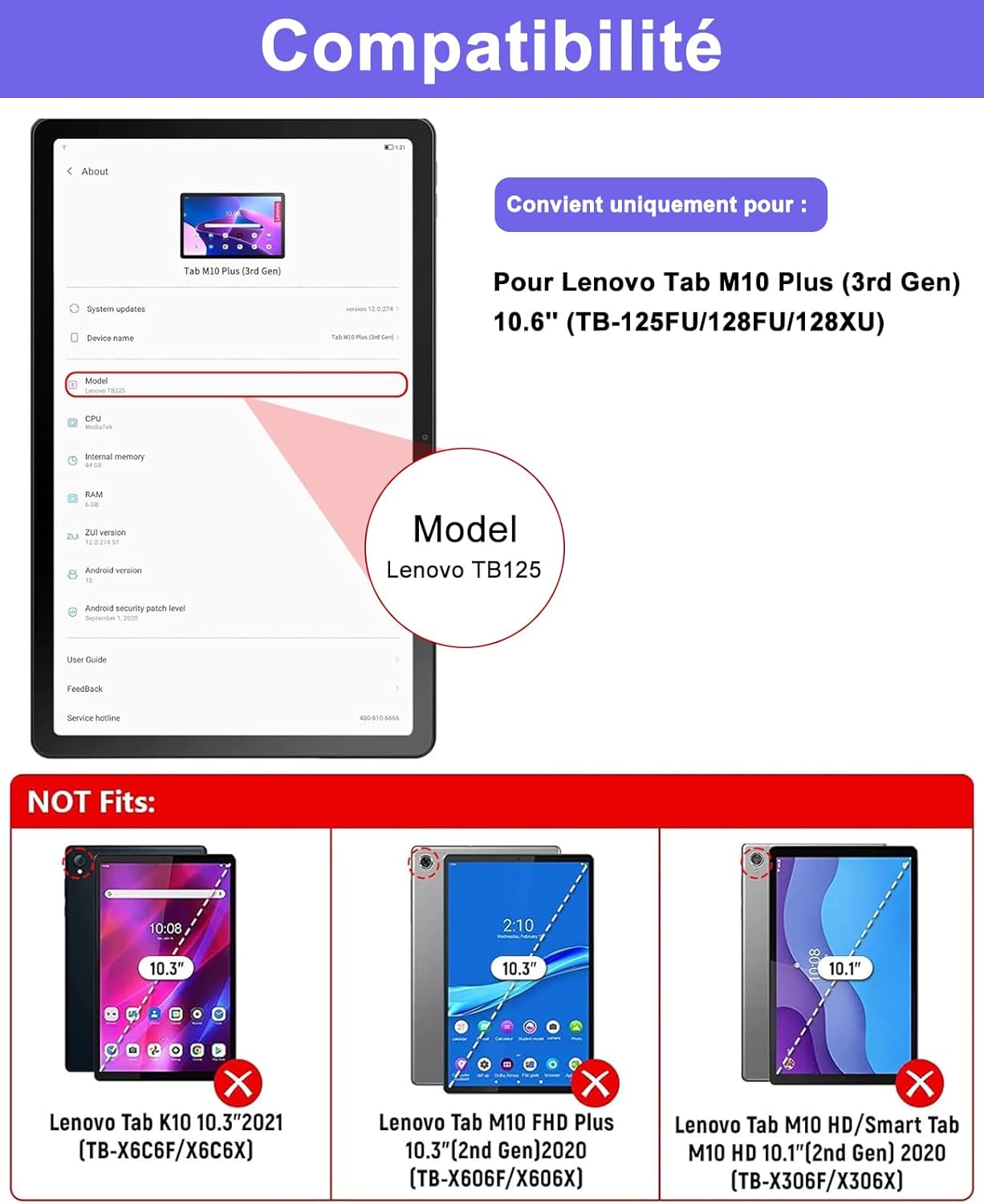
Image: Compatibility chart indicating the correct Lenovo Tab M10 Plus (3rd Gen) 10.6" 2022 models (TB-125FU/128FU/128XU) and showing other incompatible models.
3. സജ്ജീകരണവും ഇൻസ്റ്റാളേഷനും
3.1 Installing the Tablet into the Case
- Align your Lenovo Tab M10 Plus (3rd Gen) tablet with the TPU inner shell of the case.
- Gently press the tablet into the case, ensuring all corners and edges are securely fitted.
- Verify that all ports, buttons, and camera cutouts are correctly aligned and accessible.
Video: Demonstrates how to install the tablet into the case and attach the magnetic keyboard. This video is provided by Leleyo Store (Seller).
3.2 Connecting the Bluetooth Keyboard
- Ensure the keyboard is fully charged. Connect the provided USB charging cable to the keyboard's Type-C port and a power source. The charging indicator will light up.
- Slide the power switch on the keyboard to the "ON" position. The Bluetooth indicator light will flash.
- On your Lenovo Tab M10 Plus, go to ക്രമീകരണങ്ങൾ > ബന്ധിപ്പിച്ച ഉപകരണങ്ങൾ > ബ്ലൂടൂത്ത്.
- Turn on Bluetooth on your tablet.
- അമർത്തുക "ബന്ധിപ്പിക്കുക" button on the keyboard. The Bluetooth indicator will start blinking rapidly, indicating it's in pairing mode.
- On your tablet, select "Bluetooth 3.0 Keyboard" or a similar device name from the list of available devices.
- Follow any on-screen prompts to complete the pairing process. Once connected, the Bluetooth indicator on the keyboard will stop flashing.
Video: Shows the process of connecting the keyboard to the tablet via Bluetooth. This video is provided by Leleyo Store (Seller).

Image: Detachable wireless Bluetooth keyboard, highlighting its multi-system compatibility (iOS, Android, Windows) and magnetic adsorption feature.
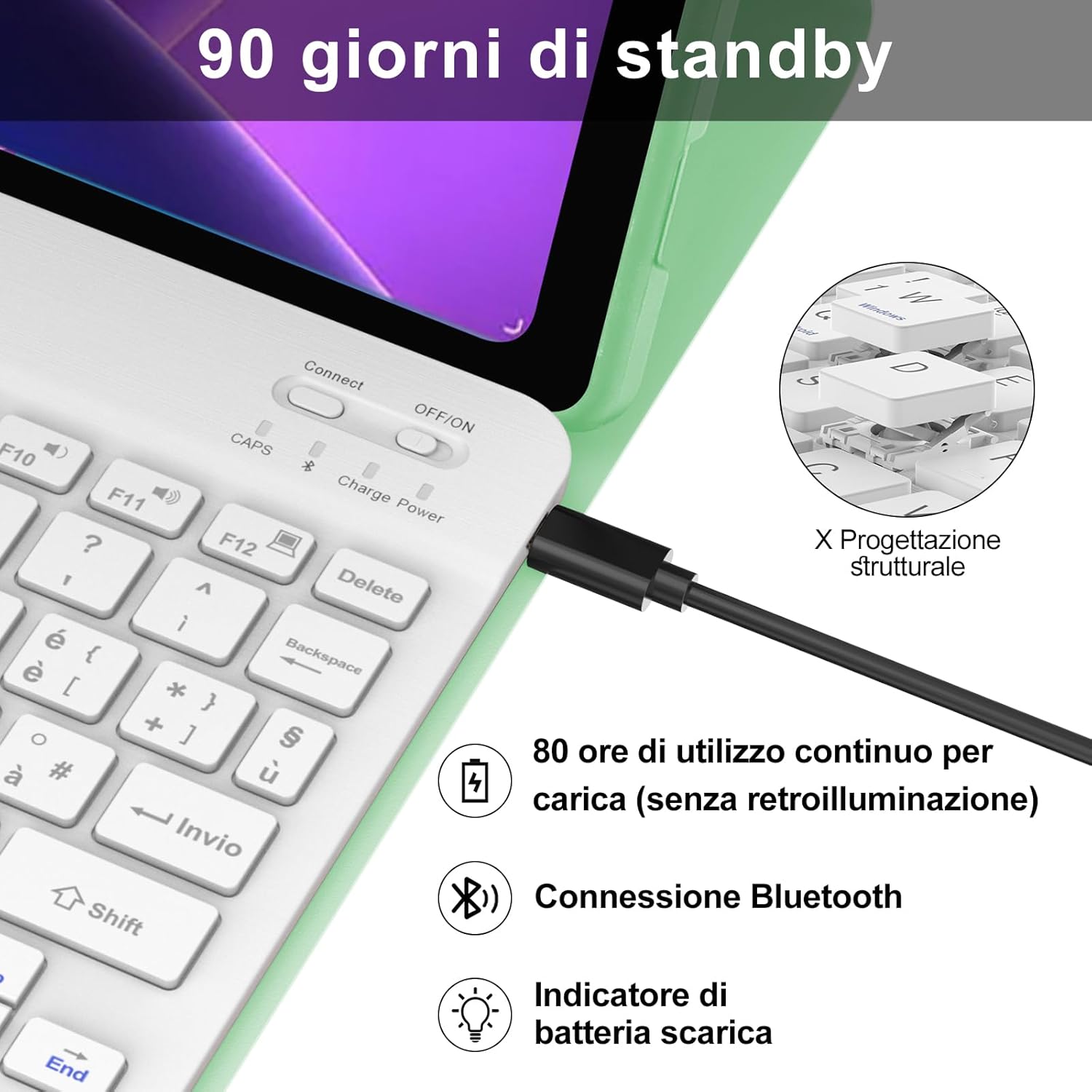
Image: Close-up of the keyboard showing the Type-C charging port, power switch, Bluetooth connection button, and indicators for charge and low battery. Text indicates 80 hours of continuous use per charge (without backlight) and 90 days of standby.
4. പ്രവർത്തന നിർദ്ദേശങ്ങൾ
4.1 കീബോർഡ് പ്രവർത്തനങ്ങൾ
The keyboard features a mechanical scissor-key structure for responsive and fluid typing. It includes an Italian layout for comfortable use.
- പ്രവർത്തന കീകൾ: ഉപയോഗിക്കുക Fn key in combination with other keys for special functions (e.g., media control, volume, brightness).
- സിസ്റ്റം അനുയോജ്യത: The keyboard is compatible with iOS, Android, and Windows systems. Ensure your tablet's system is set correctly for optimal key mapping.
- Special Characters: For Android systems, use CMD + Alt Gr + @ for '@' and CMD + Alt Gr + E for '€'.
Video: Demonstrates various keyboard functions, including connecting to Android, typing special characters, and adjusting screen brightness and volume. This video is provided by APHION (Seller).
4.2 Case Features
- Smart Stand: The case can be folded into a stand, allowing you to position your tablet like a laptop. It offers three adjustable viewസുഖപ്രദമായ ഉപയോഗത്തിനായി കോണുകൾ.
- ഓട്ടോമാറ്റിക് ഉണർവ്/ഉറക്കം: Opening or closing the Smart Cover will automatically wake or put your tablet to sleep, helping to extend battery life.
- കാന്തിക അറ്റാച്ച്മെൻ്റ്: The keyboard attaches magnetically to the case, allowing for easy removal when not needed.

Image: The keyboard case in stand mode, illustrating multiple adjustable viewing angles and anti-slip grooves for stability. Also shows automatic wake/sleep functionality.

ചിത്രം: ക്ലോസ്-അപ്പ് view of the case highlighting precise cutouts for the camera, speaker, charging port, and volume buttons, ensuring full functionality.
5. ചാർജിംഗും ബാറ്ററി ലൈഫും
The keyboard features a long-lasting battery. A full charge takes approximately 2-3 hours via the Type-C charging port. It provides up to 72 hours of continuous working time and a standby time of 3 months.
- ചാർജിംഗ്: Connect the provided USB Type-C cable to the keyboard and a power adapter (not included). The charging indicator will illuminate.
- ബാറ്ററി സൂചകം: A low battery indicator will alert you when charging is needed.
6. പരിപാലനവും പരിചരണവും
- വൃത്തിയാക്കൽ: Wipe the case and keyboard with a soft, damp തുണി. കഠിനമായ രാസവസ്തുക്കളോ ഉരച്ചിലുകളോ ഉള്ള വസ്തുക്കൾ ഒഴിവാക്കുക.
- സംഭരണം: When not in use, keep the keyboard and case in a dry, cool place.
- സംരക്ഷണം: The synthetic leather and TPU material are designed to be shock-resistant, oil-resistant, and stain-resistant. However, avoid excessive force or sharp objects.
7. പ്രശ്നപരിഹാരം
7.1 കീബോർഡ് കണക്റ്റുചെയ്യുന്നില്ല
- പവർ പരിശോധിക്കുക: Ensure the keyboard is turned on and has sufficient battery charge.
- വീണ്ടും ജോടി: Delete the keyboard from your tablet's Bluetooth device list and repeat the pairing process (Section 3.2).
- Tablet Bluetooth: Ensure Bluetooth is enabled on your tablet and is discoverable.
- ഉപകരണങ്ങൾ പുനരാരംഭിക്കുക: Try restarting both your tablet and the keyboard.
7.2 കീകൾ പ്രതികരിക്കുന്നില്ല
- ബാറ്ററി നില: Check if the keyboard battery is low and needs charging.
- ബ്ലൂടൂത്ത് കണക്ഷൻ: Verify that the keyboard is still connected via Bluetooth. Reconnect if necessary.
- ക്ലീൻ കീകൾ: താക്കോലുകൾക്കടിയിൽ അവശിഷ്ടങ്ങൾ അടിഞ്ഞുകൂടുന്നില്ലെന്ന് ഉറപ്പാക്കുക.
8 സ്പെസിഫിക്കേഷനുകൾ
| ഫീച്ചർ | വിശദാംശങ്ങൾ |
|---|---|
| ബ്രാൻഡ് | സെൻജിർച്ച് |
| അനുയോജ്യമായ ഉപകരണങ്ങൾ | Lenovo Tab M10 Plus (3rd Gen) 10.6" 2022 (TB-125FU/128FU/128XU) |
| കണക്റ്റിവിറ്റി ടെക്നോളജി | ബ്ലൂടൂത്ത് |
| കീബോർഡ് ലേഔട്ട് | ഇറ്റാലിയൻ |
| മെറ്റീരിയൽ | Synthetic Leather, TPU |
| ബാറ്ററി തരം | Lithium Polymer (1 cell, 1 Watt-hour) |
| ചാർജിംഗ് സമയം | 2-3 മണിക്കൂർ |
| തുടർച്ചയായ ജോലി സമയം | 72 മണിക്കൂർ വരെ |
| സ്റ്റാൻഡ്ബൈ സമയം | 3 മാസം |
| അളവുകൾ (പാക്കേജ്) | 28.1 x 19.2 x 3.1 സെ.മീ |
| ഇനത്തിൻ്റെ ഭാരം | 690 ഗ്രാം |
9. വാറൻ്റിയും പിന്തുണയും
This product comes with a two-year warranty. If you encounter any issues or have questions, please contact SENGBIRCH customer support for assistance. We are committed to providing satisfactory service.
For support, please refer to the contact information provided with your purchase or visit the official SENGBIRCH webസൈറ്റ്.


