ഉൽപ്പന്നം കഴിഞ്ഞുview
The Realme 11X 5G RMX3785 is a powerful smartphone designed for seamless communication and entertainment. This manual provides essential information to help you get started and make the most of your device.
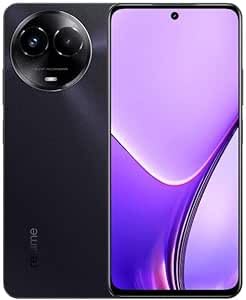
Figure 1: Realme 11X 5G RMX3785 smartphone. This image displays the front of the device, highlighting its display and sleek design.
1. സജ്ജീകരണ ഗൈഡ്
1.1 അൺബോക്സിംഗും പാക്കേജ് ഉള്ളടക്കങ്ങളും
Upon opening your Realme 11X 5G package, ensure all components are present:
- Realme 11X 5G RMX3785 Smartphone
- യുഎസ്ബി ടൈപ്പ്-സി കേബിൾ
- പവർ അഡാപ്റ്റർ
- സിം എജക്ടർ ഉപകരണം
- ദ്രുത ആരംഭ ഗൈഡും വാറൻ്റി കാർഡും
1.2 സിം കാർഡ് ഇൻസ്റ്റാളേഷൻ
Your Realme 11X 5G supports dual SIM cards. Follow these steps to install your SIM card(s):
- നിങ്ങളുടെ ഉപകരണത്തിന്റെ വശത്ത് സിം കാർഡ് ട്രേ കണ്ടെത്തുക.
- ട്രേയുടെ അടുത്തുള്ള ചെറിയ ദ്വാരത്തിലേക്ക് സിം എജക്റ്റർ ഉപകരണം തിരുകുക, ട്രേ പുറത്തേക്ക് വരുന്നത് വരെ സൌമ്യമായി അമർത്തുക.
- നിങ്ങളുടെ നാനോ-സിം കാർഡ്(കൾ) ട്രേയിലെ നിയുക്ത സ്ലോട്ടുകളിൽ വയ്ക്കുക. സ്വർണ്ണ കോൺടാക്റ്റുകൾ താഴേക്ക് അഭിമുഖീകരിക്കുന്നുണ്ടെന്ന് ഉറപ്പാക്കുക.
- സിം ട്രേ ഫോണിലേക്ക് ക്ലിക്ക് ചെയ്യുന്നത് വരെ ശ്രദ്ധാപൂർവ്വം വീണ്ടും ചേർക്കുക.
Image of SIM card tray and installation process would be placed here if available. This image would show the correct orientation for inserting SIM cards into the tray.
1.3 പ്രാരംഭ പവർ ഓണും സജ്ജീകരണവും
നിങ്ങളുടെ ഉപകരണം ആദ്യമായി ഓണാക്കാൻ:
- Press and hold the Power button (located on the right side) until the Realme logo appears.
- ഭാഷാ തിരഞ്ഞെടുപ്പ്, വൈ-ഫൈ കണക്ഷൻ, ഗൂഗിൾ അക്കൗണ്ട് സജ്ജീകരണം, സുരക്ഷാ ക്രമീകരണങ്ങൾ എന്നിവയുൾപ്പെടെയുള്ള പ്രാരംഭ സജ്ജീകരണം പൂർത്തിയാക്കാൻ ഓൺ-സ്ക്രീൻ നിർദ്ദേശങ്ങൾ പാലിക്കുക.
1.4 ഉപകരണം ചാർജ് ചെയ്യുന്നു
ആദ്യ ഉപയോഗത്തിന് മുമ്പ്, നിങ്ങളുടെ ഉപകരണം പൂർണ്ണമായും ചാർജ് ചെയ്യാൻ ശുപാർശ ചെയ്യുന്നു.
- ഫോണിന്റെ അടിയിലുള്ള ചാർജിംഗ് പോർട്ടിലേക്ക് യുഎസ്ബി ടൈപ്പ്-സി കേബിൾ ബന്ധിപ്പിക്കുക.
- കേബിളിന്റെ മറ്റേ അറ്റം പവർ അഡാപ്റ്ററുമായി ബന്ധിപ്പിക്കുക, തുടർന്ന് അഡാപ്റ്റർ ഒരു പവർ ഔട്ട്ലെറ്റിലേക്ക് പ്ലഗ് ചെയ്യുക.
- ചാർജിംഗ് ഇൻഡിക്കേറ്റർ സ്ക്രീനിൽ ദൃശ്യമാകും.
Image of phone connected to charger would be placed here if available. This image would illustrate the correct way to connect the charging cable to the device and power adapter.
2. നിങ്ങളുടെ ഉപകരണം പ്രവർത്തിപ്പിക്കുന്നു
2.1 അടിസ്ഥാന നാവിഗേഷൻ
Your Realme 11X 5G uses a touchscreen for navigation:
- ടാപ്പ് ചെയ്യുക: ഒരു ഇനം തിരഞ്ഞെടുക്കുകയോ ഒരു ആപ്പ് തുറക്കുകയോ ചെയ്യുക.
- സ്വൈപ്പ്: സ്ക്രീനുകളിലൂടെയോ ലിസ്റ്റുകളിലൂടെയോ സ്ക്രോൾ ചെയ്യുക.
- പിഞ്ച്: ഫോട്ടോകളിൽ സൂം ഇൻ ചെയ്യുകയോ സൂം ഔട്ട് ചെയ്യുകയോ ചെയ്യുക, web പേജുകൾ.
- ലോംഗ് പ്രസ്സ്: സന്ദർഭോചിത മെനുകൾ ആക്സസ് ചെയ്യുക അല്ലെങ്കിൽ ഐക്കണുകൾ നീക്കുക.
2.2 Power On, Off, and Restart
- പവർ ഓൺ: Press and hold the Power button until the Realme logo appears.
- പവർ ഓഫ്/റീസ്റ്റാർട്ട്: Press and hold the Power button for a few seconds. A menu will appear with options to 'Power off' or 'Restart'. Tap your desired option.
2.3 സ്ക്രീൻ ലോക്കും അൺലോക്കും
- ലോക്ക്: Press the Power button once. The screen will turn off.
- അൺലോക്ക്: Press the Power button once to wake the screen, then swipe up or enter your PIN/pattern/password/fingerprint.
2.4 കോളുകൾ ചെയ്യുന്നു
ഒരു കോൾ ചെയ്യാൻ:
- Open the 'Phone' app.
- ഡയൽ പാഡ് ഉപയോഗിച്ച് ഫോൺ നമ്പർ നൽകുക അല്ലെങ്കിൽ നിങ്ങളുടെ വിലാസ പുസ്തകത്തിൽ നിന്ന് ഒരു കോൺടാക്റ്റ് തിരഞ്ഞെടുക്കുക.
- കോൾ ആരംഭിക്കാൻ കോൾ ഐക്കണിൽ ടാപ്പ് ചെയ്യുക.
2.5 സന്ദേശങ്ങൾ അയയ്ക്കുന്നു
ഒരു വാചക സന്ദേശം അയക്കാൻ:
- Open the 'Messages' app.
- പുതിയ സന്ദേശം രചിക്കാൻ 'ചാറ്റ് ആരംഭിക്കുക' അല്ലെങ്കിൽ '+' ഐക്കൺ ടാപ്പ് ചെയ്യുക.
- സ്വീകർത്താവിന്റെ നമ്പർ നൽകുക അല്ലെങ്കിൽ കോൺടാക്റ്റുകളിൽ നിന്ന് തിരഞ്ഞെടുക്കുക.
- Type your message in the text field and tap the send icon.
2.6 Wi-Fi-ലേക്ക് ബന്ധിപ്പിക്കുന്നു
ഒരു Wi-Fi നെറ്റ്വർക്കിലേക്ക് കണക്റ്റുചെയ്യാൻ:
- Go to 'Settings' > 'Wi-Fi'.
- വൈഫൈ ഓണാക്കുക.
- ലിസ്റ്റിൽ നിന്ന് നിങ്ങൾക്ക് ആവശ്യമുള്ള നെറ്റ്വർക്ക് തിരഞ്ഞെടുക്കുക.
- ആവശ്യപ്പെടുകയാണെങ്കിൽ പാസ്വേഡ് നൽകി 'കണക്റ്റ്' ടാപ്പ് ചെയ്യുക.
2.7 ക്യാമറ ഉപയോഗിക്കുന്നത്
Your Realme 11X 5G features a rear camera for capturing photos and videos.
- 'ക്യാമറ' ആപ്പ് തുറക്കുക.
- സ്ക്രീൻ ഉപയോഗിച്ച് നിങ്ങളുടെ ഷോട്ട് ഫ്രെയിം ചെയ്യുക a ആയി viewഫൈൻഡർ.
- Tap the shutter button to take a photo or the record button to start/stop video recording.
- Explore different modes like Portrait, Night, or Pro mode for enhanced photography.
Image of camera interface would be placed here if available. This image would show the layout of the camera app with its various controls and modes.
3. പരിപാലനം
3.1 നിങ്ങളുടെ ഉപകരണം വൃത്തിയാക്കൽ
നിങ്ങളുടെ ഫോൺ ഒപ്റ്റിമൽ അവസ്ഥയിൽ നിലനിർത്താൻ:
- സ്ക്രീനും പിൻ പാനലും തുടയ്ക്കാൻ മൃദുവായ, ലിന്റ് രഹിത തുണി ഉപയോഗിക്കുക.
- കഠിനമായ രാസവസ്തുക്കൾ, ഉരച്ചിലുകൾ ഉള്ള വസ്തുക്കൾ, എയറോസോൾ സ്പ്രേകൾ എന്നിവ ഉപയോഗിക്കുന്നത് ഒഴിവാക്കുക.
- ഉപകരണം അമിതമായ ഈർപ്പം കാണിക്കരുത്.
3.2 സോഫ്റ്റ്വെയർ അപ്ഡേറ്റുകൾ
പതിവ് സോഫ്റ്റ്വെയർ അപ്ഡേറ്റുകൾ പുതിയ സവിശേഷതകൾ, സുരക്ഷാ മെച്ചപ്പെടുത്തലുകൾ, ബഗ് പരിഹാരങ്ങൾ എന്നിവ നൽകുന്നു.
- Go to 'Settings' > 'About phone' > 'Software update'.
- Check for available updates and follow the on-screen instructions to install them. Ensure your device has sufficient battery and a stable internet connection.
3.3 ബാറ്ററി കെയർ
The Realme 11X 5G uses a Lithium Ion battery. To prolong its lifespan:
- തീവ്രമായ താപനില ഒഴിവാക്കുക.
- ബാറ്ററി ഇടയ്ക്കിടെ പൂർണ്ണമായും തീർന്നുപോകാൻ അനുവദിക്കരുത്.
- ഉപകരണത്തിനൊപ്പം നൽകിയിരിക്കുന്ന യഥാർത്ഥ ചാർജറും കേബിളും ഉപയോഗിക്കുക.
3.4 സ്റ്റോറേജ് മാനേജ്മെൻ്റ്
Your device comes with 128GB of internal storage. To manage storage effectively:
- അനാവശ്യമായത് പതിവായി ഇല്ലാതാക്കുക fileകൾ, ഫോട്ടോകൾ, വീഡിയോകൾ.
- ഉപയോഗിക്കാത്ത ആപ്ലിക്കേഷനുകൾ അൺഇൻസ്റ്റാൾ ചെയ്യുക.
- Clear cache data for apps in 'Settings' > 'Apps' > [App Name] > 'Storage' > 'Clear cache'.
4. പ്രശ്നപരിഹാരം
4.1 പൊതുവായ പ്രശ്നങ്ങളും പരിഹാരങ്ങളും
| ഇഷ്യൂ | പരിഹാരം |
|---|---|
| ഉപകരണം ഓണാക്കുന്നില്ല | ബാറ്ററി ചാർജ്ജ് ചെയ്തിട്ടുണ്ടെന്ന് ഉറപ്പാക്കുക. റീസ്റ്റാർട്ട് ചെയ്യാൻ നിർബന്ധിക്കുന്നതിന് പവർ ബട്ടൺ കുറഞ്ഞത് 10 സെക്കൻഡ് അമർത്തിപ്പിടിക്കുക. |
| ആപ്പുകൾ ക്രാഷാകുന്നു അല്ലെങ്കിൽ മരവിക്കുന്നു | Close the app and reopen it. Clear the app's cache in Settings. Restart the device. |
| മോശം നെറ്റ്വർക്ക് സിഗ്നൽ | Check SIM card installation. Try moving to an area with better coverage. Restart the device. |
| Wi-Fi കണക്ഷൻ പ്രശ്നങ്ങൾ | Restart your router and phone. Forget the network in Wi-Fi settings and reconnect. |
4.2 ഫാക്ടറി റീസെറ്റ്
ഫാക്ടറി റീസെറ്റ് നിങ്ങളുടെ ഫോണിലെ എല്ലാ ഡാറ്റയും മായ്ച്ച് അതിന്റെ യഥാർത്ഥ ഫാക്ടറി ക്രമീകരണങ്ങളിലേക്ക് പുനഃസ്ഥാപിക്കും. തുടരുന്നതിന് മുമ്പ് പ്രധാനപ്പെട്ട ഡാറ്റയുടെ ബാക്കപ്പ് എടുക്കുക.
- 'ക്രമീകരണങ്ങൾ' > 'സിസ്റ്റം' > 'റീസെറ്റ് ഓപ്ഷനുകൾ' എന്നതിലേക്ക് പോകുക.
- Tap 'Erase all data (factory reset)'.
- നിങ്ങളുടെ തീരുമാനം സ്ഥിരീകരിച്ച് ആവശ്യപ്പെടുകയാണെങ്കിൽ നിങ്ങളുടെ പിൻ/പാറ്റേൺ/പാസ്വേഡ് നൽകുക.
- ഉപകരണം പുനരാരംഭിക്കുകയും റീസെറ്റ് പ്രക്രിയ ആരംഭിക്കുകയും ചെയ്യും.
5 സ്പെസിഫിക്കേഷനുകൾ
| ഫീച്ചർ | വിശദാംശങ്ങൾ |
|---|---|
| ബ്രാൻഡ് | റിയൽമി |
| മോഡൽ | 11X 5G (RMX3785) |
| പ്രദർശിപ്പിക്കുക | 6.72-inch IPS LCD, 1080 x 2400 pixels resolution |
| പ്രോസസ്സർ | ക്വാൽകോം സ്നാപ്ഡ്രാഗൺ |
| റാം | 8 ജിബി |
| ആന്തരിക സംഭരണം | 128 ജിബി |
| പിൻ ക്യാമറ | ഡ്യുവൽ ക്യാമറ സിസ്റ്റം |
| ബാറ്ററി | ലിഥിയം അയോൺ |
| കണക്റ്റിവിറ്റി | 5G സെല്ലുലാർ, വൈ-ഫൈ, ബ്ലൂടൂത്ത് |
| സിം പിന്തുണ | ഡ്യുവൽ സിം |
6. വാറൻ്റിയും പിന്തുണയും
Your Realme 11X 5G RMX3785 comes with a limited manufacturer's warranty. Please refer to the warranty card included in your package for specific terms and conditions, including coverage period and service procedures.
For technical support, service inquiries, or to find authorized service centers, please visit the official Realme support website or contact their customer service. Contact details can typically be found on the Realme official webസൈറ്റ് അല്ലെങ്കിൽ വാറന്റി ഡോക്യുമെന്റേഷനിൽ.
Official Realme Support Webസൈറ്റ്: realme.com/global/support


