ആമുഖം
This manual provides detailed instructions for the setup, operation, and maintenance of your seenda CTU-301 Multi-Device Wireless Keyboard and Mouse. This combo offers versatile connectivity options (Bluetooth and 2.4G wireless) and is designed for use across various operating systems and devices, including iPads, MacBooks, Windows computers, and Android tablets/phones.
Please read this manual thoroughly to ensure proper usage and to maximize your product's functionality.
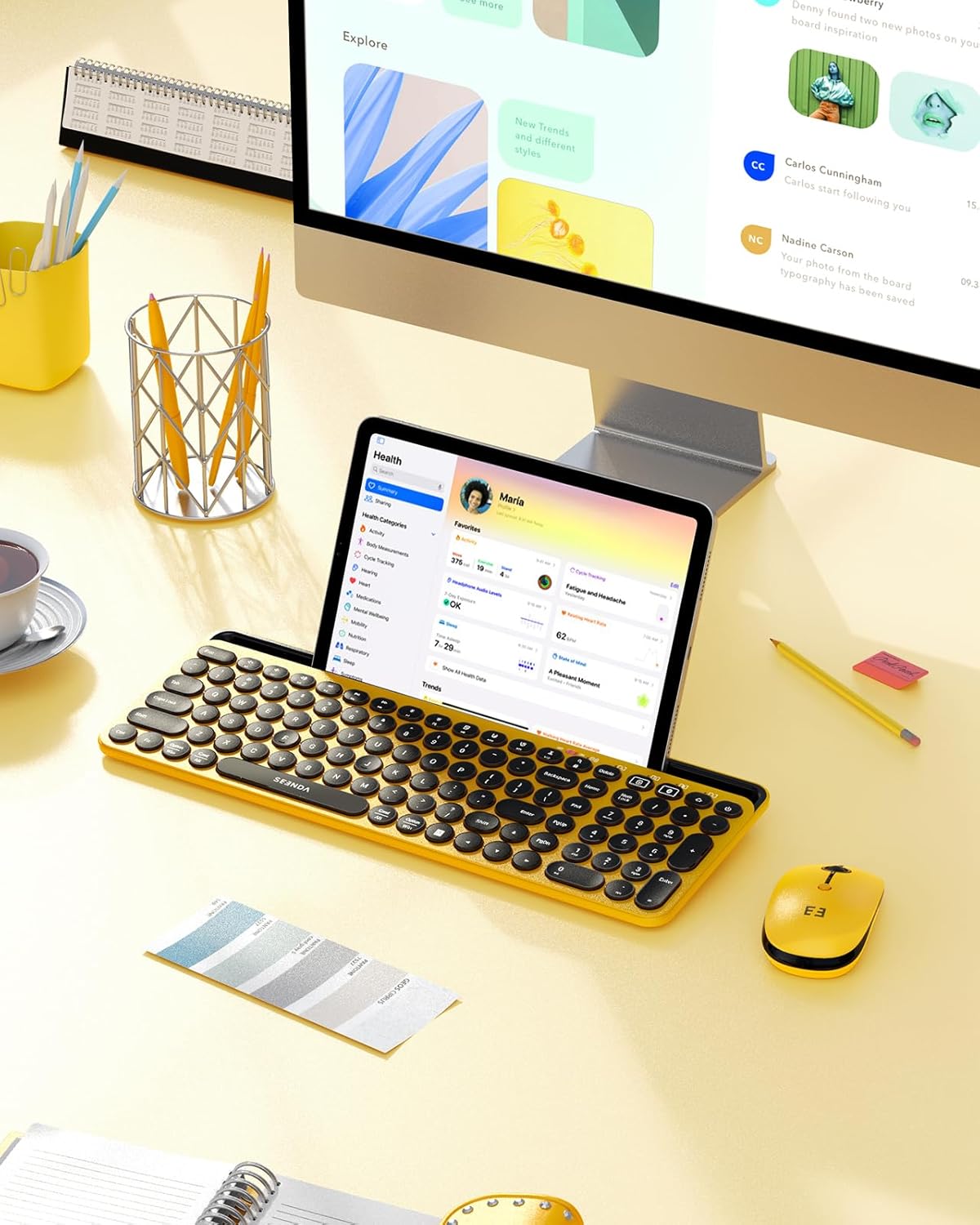
Image: The seenda CTU-301 keyboard and mouse combo integrated into a modern workspace, with a tablet in the holder, demonstrating its practical application.
ഉൽപ്പന്ന സവിശേഷതകൾ
The seenda CTU-301 keyboard and mouse combo offers a range of features designed for versatility and user comfort:
- ഒന്നിലധികം ഉപകരണ അനുയോജ്യത: Seamlessly switch between up to two devices (one 2.4G, one Bluetooth) across iOS, Android, macOS, and Windows operating systems.
- Dual Connection Modes: Connect via Bluetooth 5.0 for wireless convenience or 2.4G USB receiver for stable, plug-and-play connectivity.
- ഇന്റഗ്രേറ്റഡ് ടാബ്ലെറ്റ് ഹോൾഡർ: Features a built-in slot to securely hold tablets and smartphones, providing an optimal viewing ആംഗിൾ.
- Full-Size Keyboard with Numeric Pad: Includes 15 convenient hotkeys and an FN lock function for enhanced productivity.
- Responsive Round Keys: ലോ-പ്രോfile, water-drop concave keys designed for comfortable, quiet, and accurate typing, with an anti-grease finish.
- Silent Symmetrical Mouse: Adjustable DPI (1000/1600/2400) with quiet clicks and an ergonomic, anti-fingerprint design.
- കുറഞ്ഞ വൈദ്യുതി ഉപഭോഗം: Efficient design for extended battery life.

Image: The seenda CTU-301 wireless keyboard and mouse combo, featuring a yellow and black design, with a tablet and smartphone positioned in the integrated holder, showcasing its multi-device capability.

ചിത്രം: ഒരു ക്ലോസ്-അപ്പ് view of the keyboard's low-profile, round, water-drop concave keys, emphasizing quiet typing and an anti-grease surface for comfortable and clean use.

Image: An illustration detailing the mouse's features, including quiet click buttons, three levels of adjustable DPI (1000/1600/2400), and a soft-touch, anti-fingerprint design for enhanced user experience.
പാക്കേജ് ഉള്ളടക്കം
പാക്കേജിൽ ഇനിപ്പറയുന്ന ഇനങ്ങൾ ഉണ്ടോ എന്ന് പരിശോധിക്കുക:
- seenda CTU-301 Wireless Keyboard
- seenda Wireless Mouse
- 2.4G USB Receiver (stored in the mouse battery compartment)
- Silicone Keyboard Cover
- ഉപയോക്തൃ മാനുവൽ (ഈ പ്രമാണം)
കുറിപ്പ്: AAA batteries for the keyboard (2x) and AA battery for the mouse (1x) are അല്ല ഉൾപ്പെടുത്തി പ്രത്യേകം വാങ്ങണം.
സജ്ജീകരണ നിർദ്ദേശങ്ങൾ
1. ബാറ്ററി ഇൻസ്റ്റാളേഷൻ
Ensure fresh batteries are installed in both the keyboard and mouse for optimal performance.
- കീബോർഡ്: Open the battery compartment on the underside of the keyboard. Insert two (2) AAA batteries, ensuring correct polarity. Close the compartment.
- മൗസ്: Open the battery compartment on the underside of the mouse. Insert one (1) AA battery, ensuring correct polarity. The 2.4G USB receiver is also stored in this compartment. Remove it for 2.4G connection. Close the compartment.

ചിത്രം: അടിവശം view of the keyboard and mouse, showing the battery compartments and the location of the 2.4G USB receiver within the mouse.
2. 2.4G Wireless Connection (for Keyboard and Mouse)
This mode uses a single USB receiver for both the keyboard and mouse.
- Locate the 2.4G USB receiver inside the mouse's battery compartment and remove it.
- നിങ്ങളുടെ കമ്പ്യൂട്ടറിലോ ഉപകരണത്തിലോ ലഭ്യമായ USB-A പോർട്ടിലേക്ക് USB റിസീവർ പ്ലഗ് ചെയ്യുക.
- Turn on the keyboard using the ON/OFF switch located on the top right side.
- മൗസിന്റെ അടിവശത്തുള്ള ഓൺ/ഓഫ് സ്വിച്ച് ഉപയോഗിച്ച് അത് ഓണാക്കുക.
- അമർത്തുക 2.4G button on the keyboard (usually indicated by a red light) to select 2.4G mode. The red indicator light will illuminate.
- The keyboard and mouse should automatically connect to your device.
3. Bluetooth Connection (for Keyboard and Mouse)
യുഎസ്ബി റിസീവർ ഇല്ലാതെ തന്നെ ബ്ലൂടൂത്ത് പ്രാപ്തമാക്കിയ ഉപകരണങ്ങളിലേക്ക് കണക്ഷൻ ഈ മോഡ് അനുവദിക്കുന്നു.
Keyboard Bluetooth Pairing:
- ഓൺ/ഓഫ് സ്വിച്ച് ഉപയോഗിച്ച് കീബോർഡ് ഓണാക്കുക.
- അമർത്തുക ബ്ലൂടൂത്ത് button on the keyboard (usually indicated by a blue light) to select Bluetooth mode. The blue indicator light will flash, indicating it's in pairing mode.
- On your device (e.g., iPad, smartphone, computer), go to Bluetooth settings.
- ഇതിനായി തിരയുക available devices and select "seenda Keyboard" (or similar name).
- Follow any on-screen prompts to complete pairing. The blue indicator light will stop flashing once connected.
Mouse Bluetooth Pairing:
- ഓൺ/ഓഫ് സ്വിച്ച് ഉപയോഗിച്ച് മൗസ് ഓണാക്കുക.
- അമർത്തുക ബ്ലൂടൂത്ത് button on the underside of the mouse. The blue indicator light will flash, indicating it's in pairing mode.
- നിങ്ങളുടെ ഉപകരണത്തിൽ, ബ്ലൂടൂത്ത് ക്രമീകരണത്തിലേക്ക് പോകുക.
- ഇതിനായി തിരയുക available devices and select "seenda Mouse" (or similar name).
- Follow any on-screen prompts to complete pairing. The blue indicator light will stop flashing once connected.

Image: Illustration demonstrating the one-click switching mechanism between 2.4G wireless mode (red indicator) and Bluetooth mode (blue indicator) for the keyboard and mouse.
പ്രവർത്തന നിർദ്ദേശങ്ങൾ
1. ഉപകരണങ്ങൾക്കിടയിൽ മാറൽ
The keyboard and mouse support connecting to multiple devices. Use the dedicated buttons to switch between 2.4G and Bluetooth connections.
- ഇതിലേക്ക് മാറാൻ 2.4G വയർലെസ് മോഡ്: Press the button labeled "2.4G" on the keyboard or mouse. The red indicator light will confirm the mode.
- ഇതിലേക്ക് മാറാൻ ബ്ലൂടൂത്ത് മോഡ്: Press the button labeled "Bluetooth" on the keyboard or mouse. The blue indicator light will confirm the mode.
The system automatically recognizes the connected device's operating system (Windows, macOS, iOS, Android) and maps keys accordingly, eliminating manual switching.

Image: An illustration depicting the dual-mode Bluetooth and 2.4G wireless connectivity, showing the keyboard and mouse connected to a laptop and a desktop computer, compatible with Windows, macOS, iOS, and Android.
2. Using the Integrated Tablet Holder
The keyboard features a built-in slot designed to hold your tablet or smartphone.
- Gently place your tablet or smartphone into the slot at the top of the keyboard.
- The slot is 14.4 inches long and 0.43 inches wide, capable of holding devices up to a 12.9-inch iPad Pro horizontally.
- കുറിപ്പ്: If your device has a thick protective case, it may need to be removed for the device to fit securely in the holder. The holder includes anti-slip and anti-scratch pads.

ചിത്രം: ക്ലോസ്-അപ്പ് view of the keyboard's integrated holder, demonstrating its ability to securely hold a tablet and a smartphone simultaneously, highlighting the anti-slip and anti-scratch features.
3. Keyboard Hotkeys and FN Lock
The keyboard includes 15 convenient hotkeys and an FN lock function to enhance your workflow.
- ഹോട്ട്കീകൾ: Access functions like media control (play/pause, volume), brightness adjustment, search, and more directly.
- FN Lock Key: This key allows you to toggle the F1-F12 keys between their standard function key behavior and their media/hotkey functions. Press the FN lock key to switch modes.
- Lock Key: A dedicated "Lock key" is available to quickly lock your device's screen.

ചിത്രം: വിശദമായ ഒരു ചിത്രം view of the keyboard layout, highlighting the 15 hotkeys and the FN lock key, illustrating their functions for Apple and Windows layouts.
4. Adjusting Mouse DPI
The mouse features adjustable DPI settings to customize cursor sensitivity.
- Press the DPI button (usually located near the scroll wheel) to cycle through the available DPI settings: 1000 DPI, 1600 DPI, and 2400 DPI.
- Select the DPI setting that best suits your preference and task.

Image: A close-up of the wireless mouse, indicating the DPI button and the three adjustable DPI levels (1000, 1600, 2400), along with a note about its quiet click functionality.
മെയിൻ്റനൻസ്
- വൃത്തിയാക്കൽ: Use a soft, dry cloth to clean the keyboard and mouse. For stubborn dirt, slightly dampതുണിയിൽ വെള്ളം അല്ലെങ്കിൽ നേരിയ ക്ലീനിംഗ് ലായനി ഉപയോഗിക്കുക. കഠിനമായ രാസവസ്തുക്കൾ ഒഴിവാക്കുക.
- Silicone Keyboard Cover: The included silicone cover can be removed and washed with water to keep your keyboard clean and protected from dust and spills.
- ബാറ്ററി മാറ്റിസ്ഥാപിക്കൽ: Replace batteries when the low battery indicator light illuminates (red light on the keyboard). Always use new, high-quality AAA batteries for the keyboard and AA battery for the mouse.
- സംഭരണം: When not in use for extended periods, turn off both the keyboard and mouse to conserve battery life. Store the 2.4G USB receiver in the mouse's battery compartment to prevent loss.

Image: A visual guide to the keyboard's intuitive indicators (low battery, caps lock, mode, number lock) and the included silicone cover, emphasizing its protective benefits.
ട്രബിൾഷൂട്ടിംഗ്
Keyboard/Mouse Not Connecting or Lagging:
- ബാറ്ററികൾ പരിശോധിക്കുക: ബാറ്ററികൾ ശരിയായി ഇൻസ്റ്റാൾ ചെയ്തിട്ടുണ്ടെന്നും ആവശ്യത്തിന് ചാർജ് ഉണ്ടെന്നും ഉറപ്പാക്കുക. ആവശ്യമെങ്കിൽ മാറ്റി സ്ഥാപിക്കുക.
- പവർ ഓൺ: കീബോർഡും മൗസും ഓൺ ആക്കിയെന്ന് ഉറപ്പാക്കുക.
- ശരിയായ മോഡ്: Ensure the correct connection mode (2.4G or Bluetooth) is selected on both the keyboard and mouse. The indicator lights should confirm the selected mode.
- 2.4G കണക്ഷൻ: For 2.4G, ensure the USB receiver is securely plugged into a working USB port. Try a different USB port.
- ബ്ലൂടൂത്ത് കണക്ഷൻ: For Bluetooth, ensure Bluetooth is enabled on your device. If previously paired, try unpairing and re-pairing the device. Ensure the keyboard/mouse is in pairing mode (flashing blue light).
- ദൂരം: Ensure the keyboard/mouse is within the operating range (up to 33 feet or 10 meters) of your device.
- ഇടപെടൽ: Move away from other wireless devices that might cause interference (e.g., Wi-Fi routers, other Bluetooth devices).
- ഉപകരണങ്ങൾ പുനരാരംഭിക്കുക: Try restarting your computer/tablet/phone and then reconnecting the keyboard and mouse.
പ്രതികരിക്കാത്ത കീകൾ അല്ലെങ്കിൽ ഇരട്ട ടൈപ്പിംഗ്:
- Clean Keyboard: Remove the silicone cover and check for any debris under the keys. Clean as per maintenance instructions.
- ബാറ്ററി നില: Low battery can sometimes cause inconsistent key presses. Replace batteries.
- വീണ്ടും കണക്ഷൻ: Disconnect and reconnect the keyboard (either via 2.4G or Bluetooth).
മൗസ് കഴ്സർ ചാടുന്നു അല്ലെങ്കിൽ കൃത്യമല്ല:
- ഉപരിതലം: Ensure you are using the mouse on a clean, non-reflective, and even surface. A mouse pad is recommended.
- സെൻസർ: Check the mouse's optical sensor for any obstructions or dirt.
- DPI ക്രമീകരണം: കഴ്സർ വളരെ സെൻസിറ്റീവ് ആണെങ്കിൽ DPI ക്രമീകരണം താഴ്ന്ന മൂല്യത്തിലേക്ക് ക്രമീകരിക്കുക.
- ബാറ്ററി നില: Replace the mouse battery if the cursor movement is erratic.
സ്പെസിഫിക്കേഷനുകൾ
| മോഡൽ | CTU-301 |
| കണക്റ്റിവിറ്റി | ബ്ലൂടൂത്ത് 5.0, 2.4G വയർലെസ് (USB റിസീവർ) |
| പ്രവർത്തന ദൂരം | 10 മീറ്റർ വരെ (33 അടി) |
| കീബോർഡ് ലേഔട്ട് | Full-size with Numeric Pad, 15 Hotkeys |
| കീബോർഡ് കീകൾ | ലോ-പ്രോfile, Round, Water-drop Concave |
| മൗസ് ഡിപിഐ | 1000 / 1600 / 2400 adjustable |
| അനുയോജ്യമായ OS | ഐഒഎസ്, ആൻഡ്രോയിഡ്, മാക്ഒഎസ്, വിൻഡോസ് |
| കീബോർഡ് ബാറ്ററി | 2 x AAA ബാറ്ററികൾ (ഉൾപ്പെടുത്തിയിട്ടില്ല) |
| മൗസ് ബാറ്ററി | 1 x AA ബാറ്ററി (ഉൾപ്പെടുത്തിയിട്ടില്ല) |
| കീബോർഡ് അളവുകൾ | Approximately 15.5 x 5.7 x 0.3-0.9 inches |
| മൗസിൻ്റെ അളവുകൾ | ഏകദേശം 4.7 x 2.6 x 1.4 ഇഞ്ച് |
| ഇനത്തിൻ്റെ ഭാരം | Approximately 2.33 pounds (keyboard and mouse combined) |

Image: Technical drawing showing the dimensions of the seenda CTU-301 keyboard and mouse, including length, width, and height measurements.
വാറൻ്റിയും പിന്തുണയും
seenda products are designed for reliability and performance. For specific warranty information, please refer to the warranty card included with your purchase or visit the official seenda webസൈറ്റ്.
If you encounter any issues or have questions regarding your CTU-301 keyboard and mouse, please contact seenda customer support through their official channels. Contact information can typically be found on the product packaging or the brand's webസൈറ്റ്.


