1. ആമുഖം
Welcome to the Keychron Q2 Max user manual. This guide provides detailed instructions for setting up, operating, maintaining, and troubleshooting your new 65% compact custom mechanical gaming keyboard kit. The Keychron Q2 Max is designed for enthusiasts seeking a premium typing experience with extensive customization options and versatile connectivity.
The Q2 Max features a full metal body, advanced 2.4 GHz wireless, Bluetooth 5.1, and wired USB-C connectivity. It supports QMK/VIA for comprehensive key remapping and macro programming, and includes multi-layered acoustic foams and a double-gasket design for an enhanced typing feel.
Please read this manual thoroughly before using your keyboard to ensure proper setup and optimal performance.
2. പാക്കേജ് ഉള്ളടക്കം
The Keychron Q2 Max Barebone Keyboard Kit includes the following components:
- 1x Keychron Q2 Max Keyboard Kit (Barebone Version - without keycaps & switches)
- 1x അലുമിനിയം കേസ്
- 1x PCB (Printed Circuit Board)
- 1x പിസി പ്ലേറ്റ്
- 1x ശബ്ദം ആഗിരണം ചെയ്യുന്ന നുര
- 1x IXPE നുര
- 1x PET ഫിലിം
- 1x ലാറ്റക്സ് ബോട്ടം പാഡ്
- 1x അടിഭാഗം അക്കോസ്റ്റിക് നുര
- 1x ബോട്ടം കേസ് PET ഫിലിം
- 14x Gaskets (10 installed, 4 in box)
- 4 sets x PCB Stabilizers
- 1x ടൈപ്പ്-സി മുതൽ ടൈപ്പ്-സി കേബിൾ വരെ
- 1x ടൈപ്പ്-എ മുതൽ ടൈപ്പ്-സി അഡാപ്റ്റർ വരെ
- റിസീവറിനായുള്ള 1x എക്സ്റ്റൻഷൻ അഡാപ്റ്റർ
- 1x ടൈപ്പ്-എ 2.4 GHz റിസീവർ
- 1x കീക്യാപ്പ് & സ്വിച്ച് പുള്ളർ
- 1x സ്ക്രൂഡ്രൈവർ
- 1x ഹെക്സ് കീ

3. സജ്ജീകരണം
3.1. Assembling Your Keyboard (Barebone Kit)
Since the Q2 Max is a barebone kit, you will need to install your preferred switches and keycaps. Follow these steps:
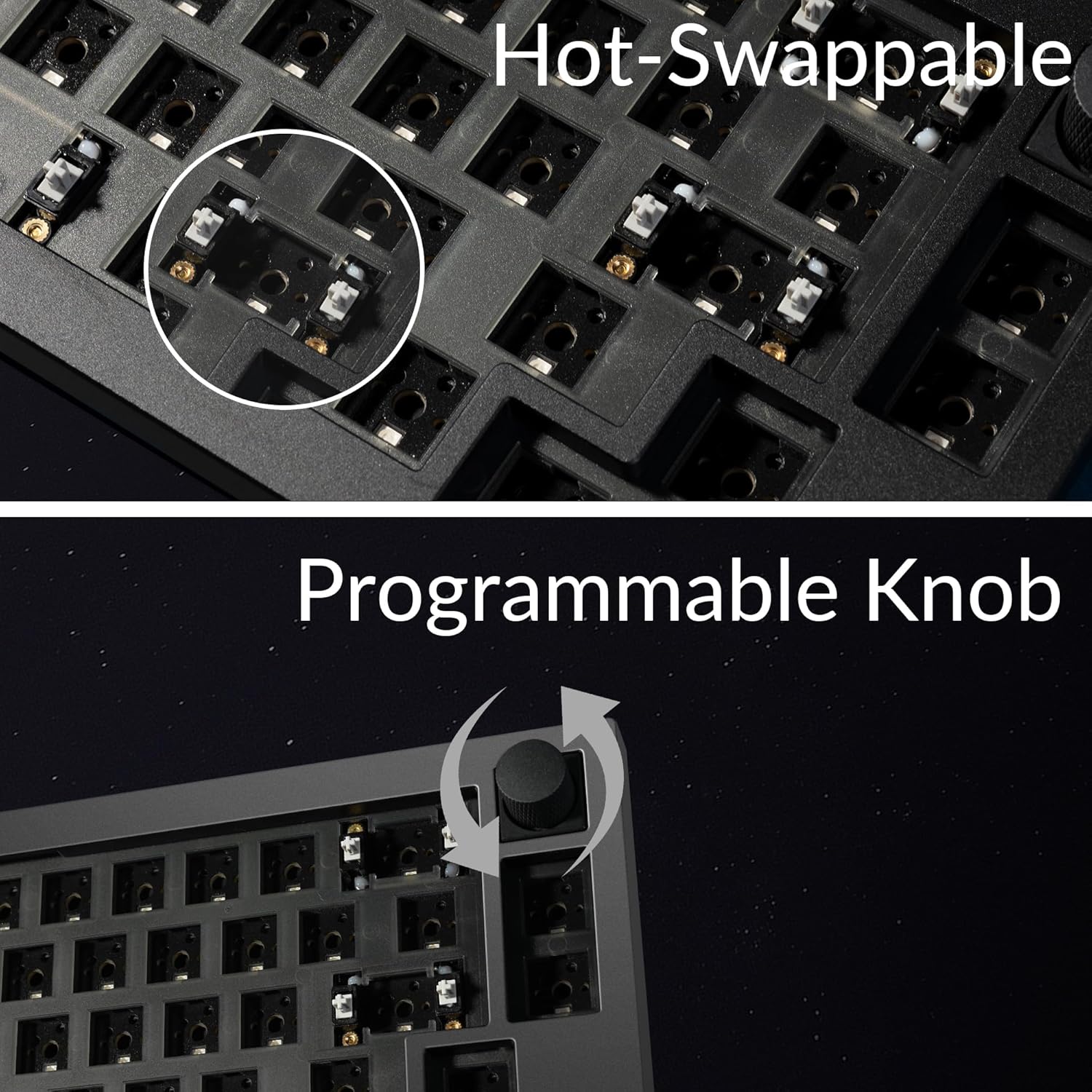
- സ്വിച്ചുകൾ തയ്യാറാക്കുക: Ensure your mechanical switches are compatible with hot-swappable PCBs (3-pin or 5-pin).
- സ്വിച്ചുകൾ ഇൻസ്റ്റാൾ ചെയ്യുക: Align the pins of each switch with the holes on the PCB. Gently press down until the switch clicks into place. Ensure the switch is fully seated and straight.
- കീക്യാപ്പുകൾ ഇൻസ്റ്റാൾ ചെയ്യുക: Align the keycap stem with the cross-shaped stem on the switch. Press firmly until the keycap is securely attached.

3.2. പ്രാരംഭ കണക്ഷൻ
The Keychron Q2 Max offers three connectivity modes: 2.4 GHz wireless, Bluetooth 5.1, and wired USB-C.
- വയർഡ് കണക്ഷൻ: Connect the provided USB-C to USB-C cable (or USB-A to USB-C with adapter) from your keyboard to your computer's USB port. The keyboard will power on automatically.
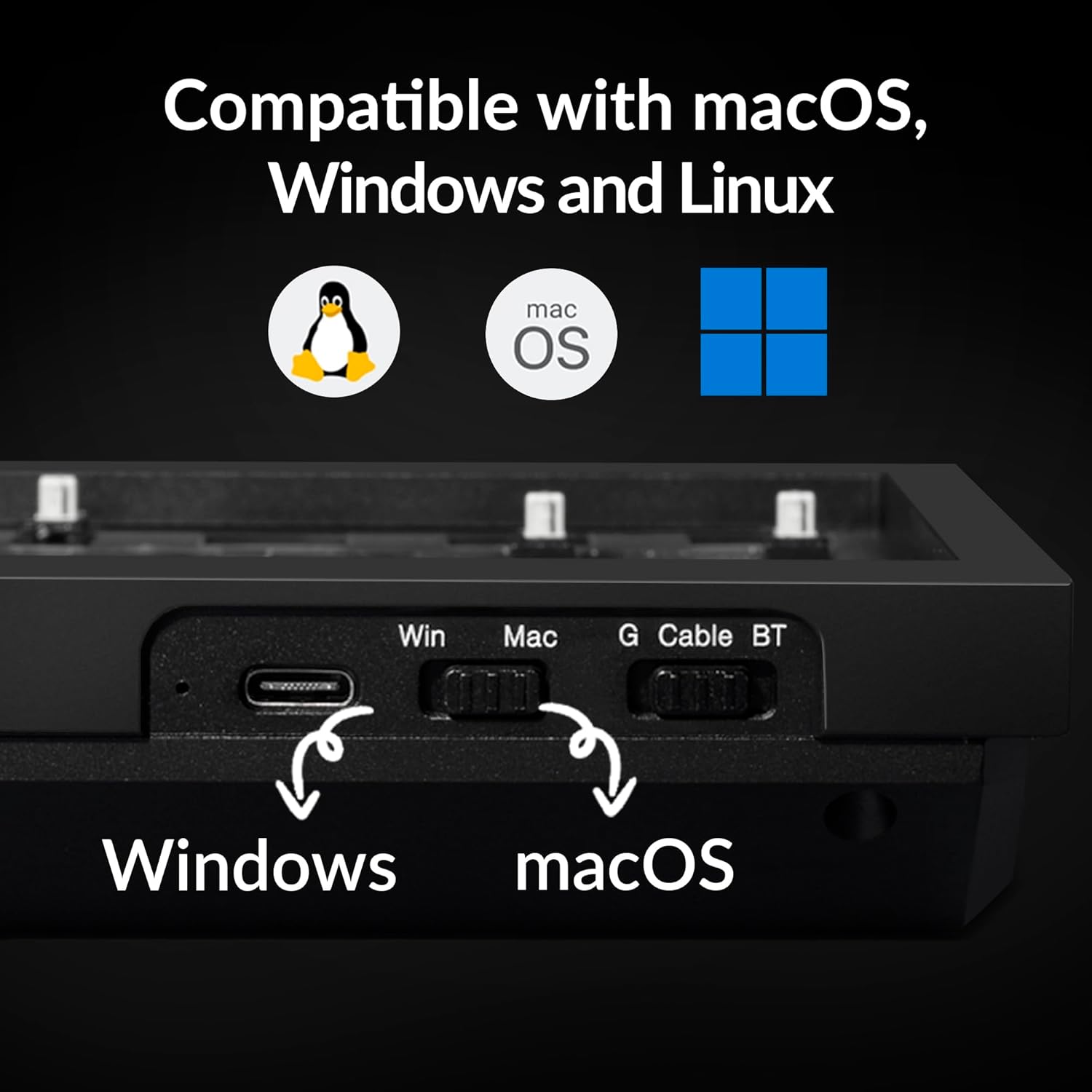
- 2.4 GHz വയർലെസ് കണക്ഷൻ: Insert the 2.4 GHz receiver into an available USB-A port on your computer. Slide the mode switch on the keyboard to the 2.4G position. The keyboard should connect automatically.
- ബ്ലൂടൂത്ത് കണക്ഷൻ: Slide the mode switch on the keyboard to the BT position. Press and hold Fn + 1 (അല്ലെങ്കിൽ Fn + 2 / Fn + 3) for 4 seconds to enter pairing mode. The backlight will flash rapidly. On your device, search for "Keychron Q2 Max" in Bluetooth settings and connect.

3.3. സിസ്റ്റം കോംപാറ്റിബിലിറ്റി സ്വിച്ച്
The Q2 Max has a system toggle switch located on the back or side of the keyboard to switch between macOS and Windows layouts. Ensure this switch is set to your operating system for correct key mapping.

4. പ്രവർത്തന നിർദ്ദേശങ്ങൾ
4.1. QMK/VIA പ്രോഗ്രാമബിലിറ്റി
The Keychron Q2 Max is fully programmable with QMK/VIA open-source software. This allows you to remap keys, create macros, and customize the knob's functions across different layers.
- Download VIA: ഔദ്യോഗിക VIA സന്ദർശിക്കുക website to download the latest software for your operating system (macOS, Windows, Linux).
- Download Keymap JSON: Obtain the specific keymap JSON file for the Keychron Q2 Max from the Keychron support page.
- Load Keymap in VIA: Open VIA, navigate to the "Settings" tab, and enable "Show Design tab". Drag and drop the downloaded JSON file into the "Design" tab to load your keyboard's layout.
- ഇഷ്ടാനുസൃതമാക്കുക: Use the VIA interface to remap keys, assign macros, and configure the rotary knob. Changes are applied in real-time.
4.2. RGB ബാക്ക്ലൈറ്റിംഗ്
The Q2 Max features 22 types of RGB LED backlighting. You can cycle through different lighting effects and adjust brightness directly on the keyboard using function key combinations or through the VIA software for more granular control.

4.3. ബാറ്ററിയും ചാർജിംഗും
The keyboard is equipped with a rechargeable Lithium Polymer battery. Connect the USB-C cable to charge the keyboard. The LED indicator will show charging status (usually red for charging, green for full). For optimal battery life, avoid fully discharging the battery frequently.
5. പരിപാലനം
5.1. നിങ്ങളുടെ കീബോർഡ് വൃത്തിയാക്കൽ
- കീക്യാപ്പുകൾ: Use the provided keycap puller to remove keycaps. Clean them with a mild soap and water solution, then dry thoroughly before reattaching.
- സ്വിച്ചുകൾ: Use compressed air to remove dust and debris from around the switches. Avoid spraying liquid directly into the switches.
- കേസ്: അലൂമിനിയം കേസ് ഒരു സോഫ്റ്റ്, ഡി ക്ലീനർ ഉപയോഗിച്ച് തുടയ്ക്കുക.amp തുണി. ഉരച്ചിലുകൾ ഉള്ള ക്ലീനറുകൾ ഒഴിവാക്കുക.
5.2. സ്വിച്ചുകൾ മാറ്റിസ്ഥാപിക്കൽ
The Q2 Max features hot-swappable sockets, allowing you to change switches without soldering.
- കീക്യാപ്പ് നീക്കം ചെയ്യുക: നിങ്ങൾ മാറ്റിസ്ഥാപിക്കാൻ ആഗ്രഹിക്കുന്ന സ്വിച്ചിൽ നിന്ന് കീക്യാപ്പ് സൌമ്യമായി നീക്കം ചെയ്യാൻ കീക്യാപ്പ് പുള്ളർ ഉപയോഗിക്കുക.
- സ്വിച്ച് നീക്കം ചെയ്യുക: Use the switch puller to grasp the top and bottom clips of the switch. Gently rock and pull the switch upwards until it detaches from the PCB.
- പുതിയ സ്വിച്ച് ഇൻസ്റ്റാൾ ചെയ്യുക: Align the pins of the new switch with the holes on the PCB. Ensure the pins are straight. Gently press down until the switch clicks into place. Do not force it, as bent pins can damage the socket.
- കീക്യാപ്പ് വീണ്ടും ഘടിപ്പിക്കുക: കീക്യാപ്പ് പുതിയ സ്വിച്ചിലേക്ക് തിരികെ വയ്ക്കുക.
6. പ്രശ്നപരിഹാരം
| പ്രശ്നം | സാധ്യമായ കാരണം | പരിഹാരം |
|---|---|---|
| കീബോർഡ് പ്രതികരിക്കുന്നില്ല (വയർ മുഖേന) | Loose cable connection, faulty cable, driver issue. | Check USB-C cable connection. Try a different USB port or cable. Restart your computer. |
| കീബോർഡ് കണക്റ്റ് ചെയ്യുന്നില്ല (വയർലെസ്) | Low battery, incorrect mode switch, pairing issue, receiver not detected. | Charge the keyboard. Ensure mode switch is set to 2.4G or BT. Re-pair Bluetooth (Fn+1/2/3 for 4s). Try receiver in a different USB port. |
| കീകൾ രജിസ്റ്റർ ചെയ്യുന്നില്ല അല്ലെങ്കിൽ ഇരട്ട ടൈപ്പ് ചെയ്യുന്നില്ല. | Loose or faulty switch, debris in switch. | Remove keycap and switch. Clean the switch socket with compressed air. Reinstall or replace the switch. |
| RGB ബാക്ക്ലൈറ്റ് പ്രവർത്തിക്കുന്നില്ല | Backlight turned off, low brightness, software conflict. | Adjust backlight brightness/effect using keyboard shortcuts. Check VIA software settings. |
| QMK/VIA software not detecting keyboard | Keyboard not in wired mode, incorrect firmware, software version. | Ensure keyboard is connected via USB-C cable. Download the correct keymap JSON file. Update VIA software to the latest version. |
7 സ്പെസിഫിക്കേഷനുകൾ
| ഫീച്ചർ | വിശദാംശങ്ങൾ |
|---|---|
| മോഡലിൻ്റെ പേര് | കീക്രോൺ Q2 മാക്സ് |
| ലേഔട്ട് | 65% ഒതുക്കം |
| കണക്റ്റിവിറ്റി | 2.4 GHz വയർലെസ്, ബ്ലൂടൂത്ത് 5.1, USB-C വയേർഡ് |
| പോളിംഗ് നിരക്ക് | 1000 Hz (2.4 GHz Wireless & Wired) |
| ബോഡി മെറ്റീരിയൽ | 6063 Aluminum (CNC machined) |
| ഇഷ്ടാനുസൃതമാക്കൽ | QMK/VIA Programmable, Hot-swappable PCB, Programmable Knob |
| ബാക്ക്ലൈറ്റിംഗ് | RGB LED (22 types) |
| അക്ക ou സ്റ്റിക് ഡിസൈൻ | Multi-layered acoustic foams, Double-gasket design |
| സ്റ്റെബിലൈസറുകൾ | Screw-In PCB Stabilizers |
| ബാറ്ററി തരം | ലിഥിയം പോളിമർ (ഉൾപ്പെടുത്തിയിരിക്കുന്നു) |
| അനുയോജ്യമായ OS | macOS, Windows, Linux |
| ഇനത്തിൻ്റെ ഭാരം | 4.27 പൗണ്ട് |
| അളവുകൾ | 14.26 x 6.89 x 2.83 ഇഞ്ച് |

8. വാറൻ്റിയും പിന്തുണയും
കീക്രോൺ ഉൽപ്പന്നങ്ങൾ സാധാരണയായി നിർമ്മാണ വൈകല്യങ്ങൾ ഉൾക്കൊള്ളുന്ന പരിമിതമായ വാറന്റിയോടെയാണ് വരുന്നത്. നിർദ്ദിഷ്ട വാറന്റി നിബന്ധനകൾക്കും വ്യവസ്ഥകൾക്കും, ദയവായി നിങ്ങളുടെ ഉൽപ്പന്നത്തിനൊപ്പം ഉൾപ്പെടുത്തിയിരിക്കുന്ന വാറന്റി കാർഡ് പരിശോധിക്കുകയോ ഔദ്യോഗിക കീക്രോൺ സന്ദർശിക്കുകയോ ചെയ്യുക. webസൈറ്റ്.
For technical support, troubleshooting assistance, or to download the latest drivers and firmware, please visit the Keychron support page:
Keychron Official Support Page
You can also find additional resources and community support on the Keychron brand store on Amazon: