1. ആമുഖം
Thank you for choosing the Qulose Wireless Bluetooth Keyboard. This keyboard is specifically designed to enhance your experience with Microsoft Surface Pro 8, Surface Pro 9, Surface Pro X, and Surface Pro 11 devices. It features a magnetic detachable design, a responsive multi-touch trackpad, and a long-lasting rechargeable battery, providing a seamless and efficient typing experience.
ശരിയായ പ്രവർത്തനം ഉറപ്പാക്കുന്നതിനും അതിന്റെ ആയുസ്സ് പരമാവധിയാക്കുന്നതിനും ഉൽപ്പന്നം ഉപയോഗിക്കുന്നതിന് മുമ്പ് ദയവായി ഈ മാനുവൽ ശ്രദ്ധാപൂർവ്വം വായിക്കുക.

Image 1.1: Qulose Wireless Bluetooth Keyboard
2. ഉൽപ്പന്ന അനുയോജ്യത
This keyboard is engineered for specific Microsoft Surface Pro models. Ensure your device is compatible before attempting to connect.
- പിന്തുണയ്ക്കുന്ന മോഡലുകൾ: Microsoft Surface Pro 8, Surface Pro 9, Surface Pro X, Surface Pro 11 (13-inch tablets).
- ഇതുമായി പൊരുത്തപ്പെടുന്നില്ല: Surface Pro 7+, Surface Pro 7, Surface Pro 6, Surface Pro 5, Surface Pro 4, Surface Pro 3, or any other Surface models not listed as supported.

Image 2.1: Compatible and Incompatible Surface Pro Models
3. സജ്ജീകരണവും കണക്ഷനും
3.1 കീബോർഡ് ചാർജ് ചെയ്യുന്നു
Before first use, fully charge the keyboard. The keyboard has a built-in 250 mAh rechargeable lithium-ion battery.
- കീബോർഡിൽ USB-C ചാർജിംഗ് പോർട്ട് കണ്ടെത്തുക.
- Connect the included USB-C cable to the keyboard's charging port and the other end to a USB power source (e.g., computer USB port, wall adapter).
- ചാർജിംഗ് ഇൻഡിക്കേറ്റർ ലൈറ്റ് പ്രകാശിക്കും. പൂർണ്ണമായി ചാർജ് ചെയ്തുകഴിഞ്ഞാൽ, മോഡലിനെ ആശ്രയിച്ച് ലൈറ്റ് നിറം മാറുകയോ ഓഫാകുകയോ ചെയ്യാം.
A full charge provides over 25 hours of working time and over 180 days of standby time.

Image 3.1: Keyboard Charging Port and Battery Capacity
3.2 ബ്ലൂടൂത്ത് ജോടിയാക്കൽ
The Qulose keyboard connects to your Surface Pro via Bluetooth, offering a stable and reliable wireless connection.
- കീബോർഡ് ചാർജ് ചെയ്തിട്ടുണ്ടെന്നും പവർ ഓൺ ചെയ്തിട്ടുണ്ടെന്നും ഉറപ്പാക്കുക.
- On your Microsoft Surface Pro, go to ക്രമീകരണങ്ങൾ > ബ്ലൂടൂത്തും ഉപകരണങ്ങളും.
- ബ്ലൂടൂത്ത് ഓണാക്കുക.
- On the Qulose keyboard, press the Fn കീയും C key simultaneously to enter pairing mode. The Bluetooth indicator light on the keyboard will blink.
- On your Surface Pro, select ഉപകരണം ചേർക്കുക > ബ്ലൂടൂത്ത്.
- Select "Qulose Keyboard" (or similar name) from the list of available devices.
- Follow any on-screen prompts to complete the pairing process. The Bluetooth indicator light on the keyboard will stop blinking once successfully paired.
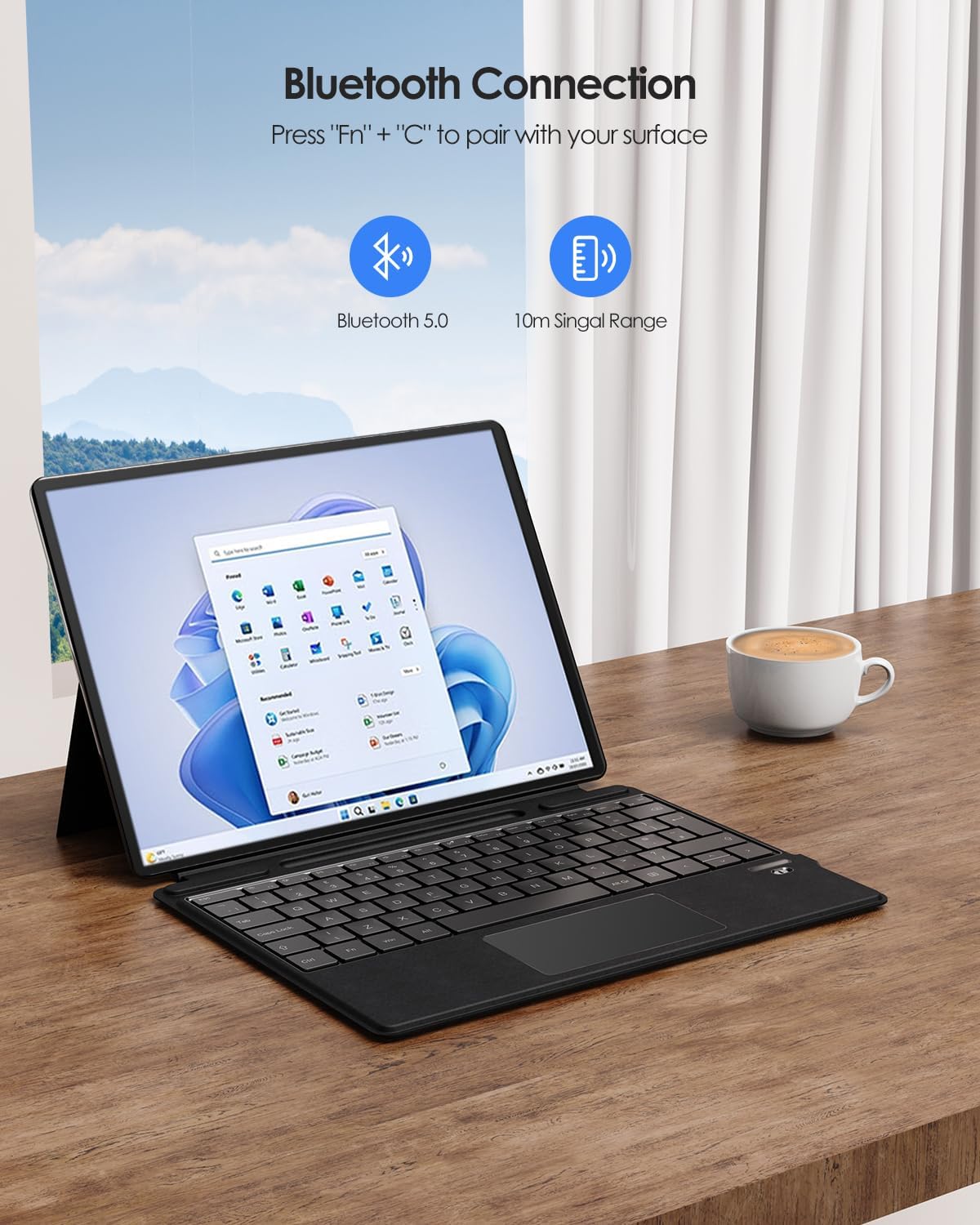
Image 3.2: Bluetooth Connection Instructions
4. കീബോർഡ് പ്രവർത്തിപ്പിക്കൽ
4.1 കാന്തിക അറ്റാച്ച്മെന്റ്
The keyboard features a powerful magnetic attachment strip, allowing you to easily connect and detach it from your Surface Pro. This design enables quick transitions between tablet and laptop modes and provides multiple typing angles for comfort and productivity.

Image 4.1: Multiple Angles with Magnetic Attachment
4.2 Multi-Touch Trackpad
The integrated multi-touch trackpad allows for easy navigation and precise control, enhancing your workflow. It supports various gestures for a smoother interaction with your Surface Pro.
ഈന്തപ്പന നിരസിക്കൽ പ്രവർത്തനം: To prevent accidental inputs, the trackpad is equipped with a palm rejection feature. You can lock or unlock the trackpad by pressing Fn + F7.
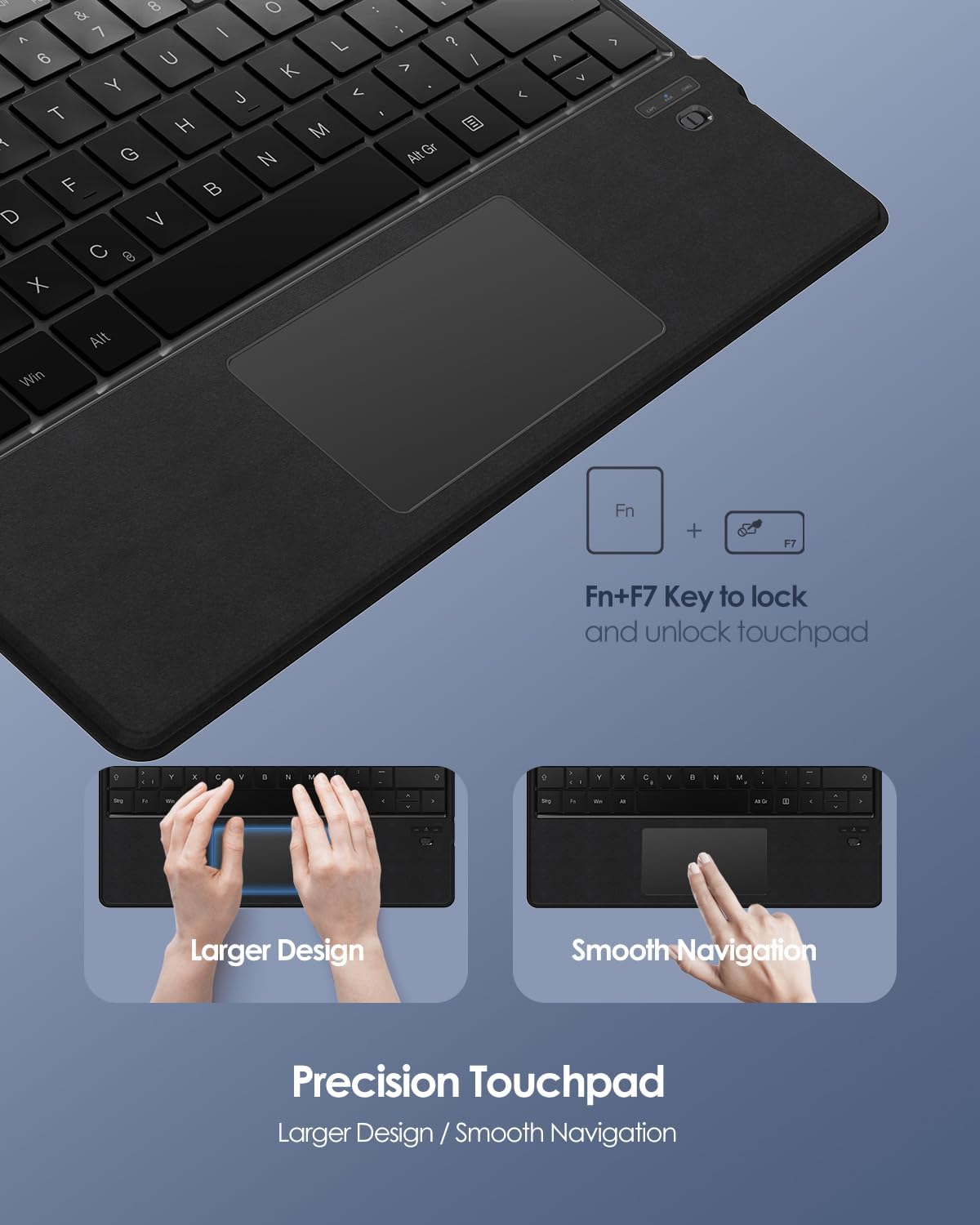
Image 4.2: Precision Touchpad and Palm Rejection
4.3 കുറുക്കുവഴി കീകൾ
The keyboard includes 12 shortcut keys for quick access to common functions, improving efficiency and convenience.
4.4 Integrated Pen Holder
A convenient integrated pen holder is included to keep your stylus easily accessible. Please note that this holder is for storage only and does not provide charging capabilities for your pen.
5. പരിപാലനം
Proper care and maintenance will ensure the longevity and optimal performance of your keyboard.
- വൃത്തിയാക്കൽ: മൃദുവായ, ലിൻ്റ് രഹിത തുണി ഉപയോഗിക്കുകampകീബോർഡിന്റെ ഉപരിതലം തുടയ്ക്കാൻ വെള്ളമോ നേരിയ ക്ലീനിംഗ് ലായനിയോ ഉപയോഗിച്ച് തുടയ്ക്കുക. കഠിനമായ രാസവസ്തുക്കളോ ഉരച്ചിലുകളോ ഉള്ള വസ്തുക്കൾ ഒഴിവാക്കുക.
- ബാറ്ററി കെയർ: To preserve battery life, avoid fully discharging the battery frequently. Charge the keyboard using only the provided USB-C cable. Do not expose the keyboard to extreme temperatures (hot or cold) as this can affect battery performance.
- സംഭരണം: ദീർഘനേരം ഉപയോഗിക്കാത്തപ്പോൾ, കീബോർഡ് തണുത്തതും വരണ്ടതുമായ സ്ഥലത്ത് സൂക്ഷിക്കുക.
6. പ്രശ്നപരിഹാരം
If you encounter any issues with your Qulose keyboard, please refer to the following common troubleshooting steps:
- കീബോർഡ് ബന്ധിപ്പിക്കുന്നില്ല/ജോടിയാക്കുന്നില്ല:
- കീബോർഡ് പൂർണ്ണമായും ചാർജ് ചെയ്തിട്ടുണ്ടെന്ന് ഉറപ്പാക്കുക.
- Make sure Bluetooth is enabled on your Surface Pro.
- Re-enter pairing mode on the keyboard (Fn + C) and try pairing again.
- Forget the device on your Surface Pro's Bluetooth settings and attempt to pair from scratch.
- നിങ്ങളുടെ സർഫേസ് പ്രോയും കീബോർഡും പുനരാരംഭിക്കുക.
- Trackpad Not Responding:
- Check if the trackpad is locked. Press Fn + F7 to toggle the trackpad lock.
- നിങ്ങളുടെ കൈകൾ വൃത്തിയുള്ളതും വരണ്ടതുമാണെന്ന് ഉറപ്പാക്കുക.
- Restart the keyboard and your Surface Pro.
- പ്രതികരിക്കാത്ത കീകൾ:
- കീബോർഡ് ബ്ലൂടൂത്ത് വഴി ശരിയായി ബന്ധിപ്പിച്ചിട്ടുണ്ടെന്ന് ഉറപ്പാക്കുക.
- ബാറ്ററി ലെവൽ പരിശോധിക്കുക, കുറവാണെങ്കിൽ ചാർജ് ചെയ്യുക.
- താക്കോലുകൾക്ക് അടിയിൽ ഉണ്ടായേക്കാവുന്ന അവശിഷ്ടങ്ങൾ വൃത്തിയാക്കുക.
- ചാർജിംഗ് പ്രശ്നങ്ങൾ:
- Ensure the USB-C cable is securely connected to both the keyboard and the power source.
- മറ്റൊരു USB-C കേബിളോ പവർ അഡാപ്റ്ററോ പരീക്ഷിച്ചുനോക്കൂ.
- പവർ സ്രോതസ്സ് പ്രവർത്തിക്കുന്നുണ്ടെന്ന് ഉറപ്പാക്കുക.
If the issue persists after trying these steps, please contact Qulose customer support for further assistance.
7 സ്പെസിഫിക്കേഷനുകൾ
| ഫീച്ചർ | വിവരണം |
|---|---|
| ബ്രാൻഡ് | ക്വലോസ് |
| മോഡൽ നമ്പർ | QUSFKBPRO8BL-UK |
| അനുയോജ്യമായ ഉപകരണങ്ങൾ | Microsoft Surface Pro 8, Surface Pro 9, Surface Pro X, Surface Pro 11 |
| കണക്റ്റിവിറ്റി ടെക്നോളജി | ബ്ലൂടൂത്ത് |
| പ്രത്യേക ഫീച്ചർ | Rechargeable, Multi-touch Trackpad, Magnetic Attachment, Integrated Pen Holder |
| ബാറ്ററി തരം | ലിഥിയം-അയൺ |
| ബാറ്ററി ശേഷി | 250 mAh |
| ജോലി സമയം | 25+ hours (after full charge) |
| സ്റ്റാൻഡ്ബൈ സമയം | 180+ ദിവസം |
| അളവുകൾ (L x W x H) | 28.9 സെ.മീ x 22.6 സെ.മീ x 0.6 സെ.മീ |
| മെറ്റീരിയൽ | പ്ലാസ്റ്റിക് |
| കീബോർഡ് ലേഔട്ട് | യുകെ ലേഔട്ട് |
8. വാറൻ്റിയും പിന്തുണയും
Specific warranty information for this product is not available in this manual. Please refer to the product listing on the retailer's website or the official Qulose webവിശദമായ വാറന്റി നിബന്ധനകൾക്കും വ്യവസ്ഥകൾക്കും സൈറ്റ്.
For technical support, troubleshooting assistance beyond what is provided in this manual, or inquiries regarding product defects, please contact Qulose customer support through their official channels. Keep your purchase receipt or order number handy as it may be required for warranty claims.


