ആമുഖം
This manual provides comprehensive instructions for the setup, operation, and maintenance of your ESR Rebound 360° Keyboard Case. This accessory is designed to enhance the functionality and protection of your compatible iPad Air 13" device, transforming it into a portable productivity tool.
ഉൽപ്പന്നം കഴിഞ്ഞുview
The ESR Rebound 360° Keyboard Case integrates a protective cover with a full-featured keyboard and trackpad. Key components include:
- Magnetic Back Case: A detachable protective case for your iPad, allowing use with or without the keyboard.
- സംയോജിത കീബോർഡ്: Features a QWERTZ layout for efficient typing.
- Multi-Touch Trackpad: Provides precise navigation and gesture support.
- Quick-Set Magnetic Stand: Enables adjustable viewing angles and elevated screen positions.
- Magnetic Clasp: Securely holds your Apple Pencil.
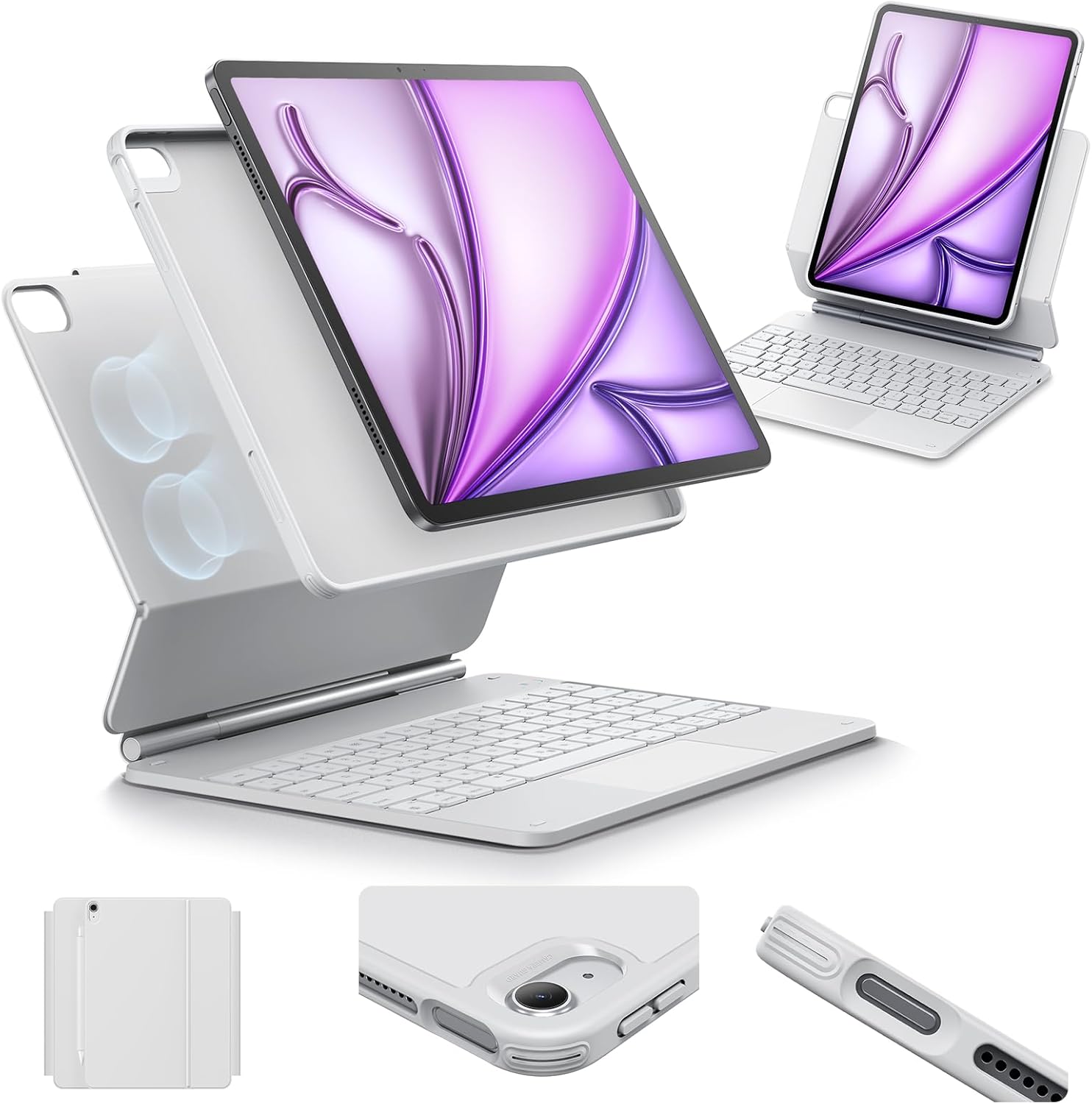
ചിത്രം: കഴിഞ്ഞുview of the ESR Rebound 360° Keyboard Case, showing the detachable iPad case, keyboard, and magnetic stand in various configurations.
അനുയോജ്യത
This keyboard case is specifically designed for the following iPad models:
- iPad Air 13" (M3) 2025: മോഡൽ നമ്പറുകൾ A3268, A3269, A3271
- iPad Air 13" (M2) 2024: മോഡൽ നമ്പറുകൾ A2898, A2899, A2900
To verify your iPad model number, check the back of your device.
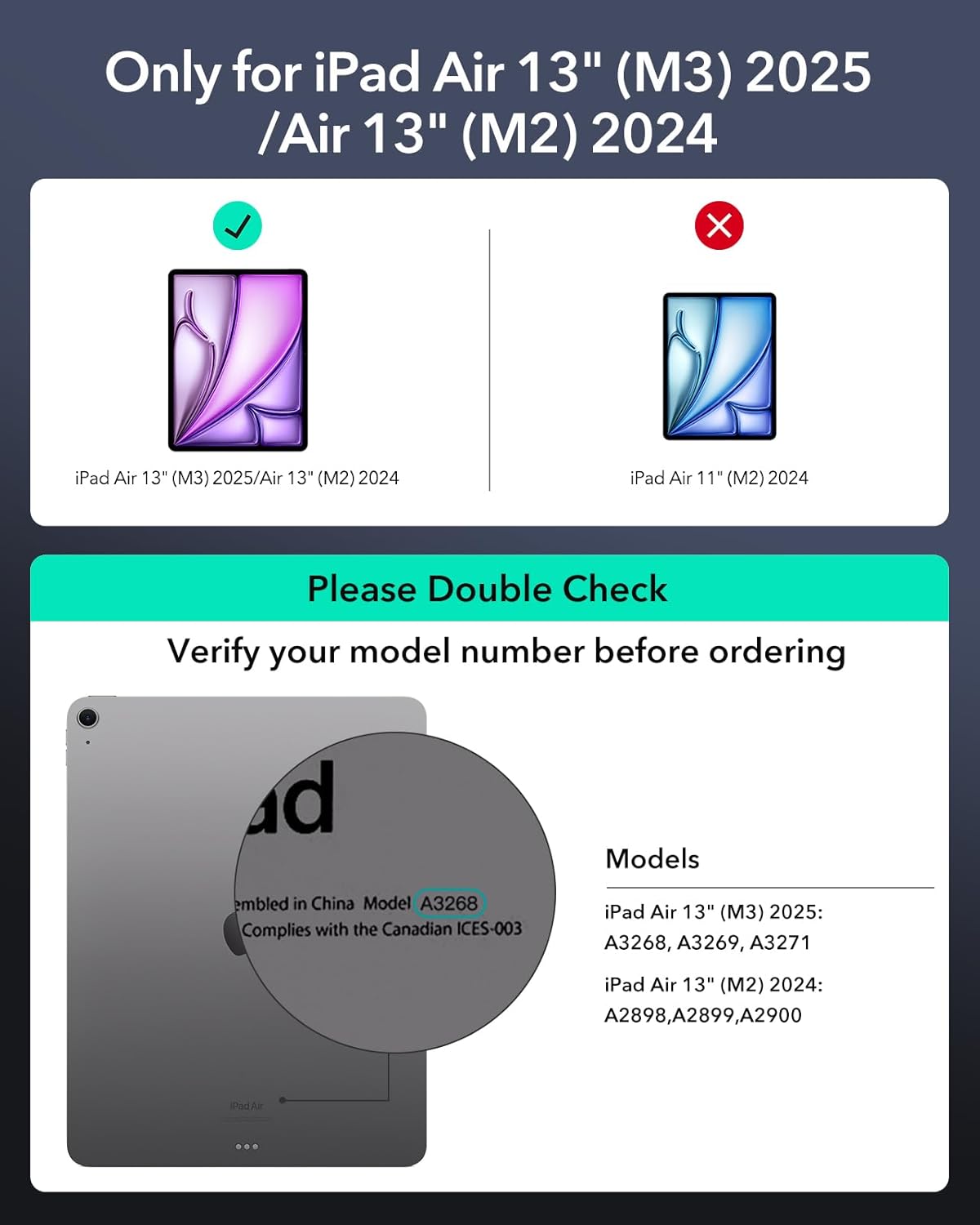
Image: A visual guide illustrating how to check your iPad's model number for compatibility with the keyboard case.
സജ്ജീകരണ നിർദ്ദേശങ്ങൾ
- ഐപാഡ് അറ്റാച്ചുചെയ്യുക: Align your iPad with the magnetic back case. The strong magnets will securely attach the iPad to the case.
- സ്റ്റാൻഡ് തുറക്കുക: Gently open the magnetic stand to your desired viewing or typing angle.
- കീബോർഡ് ഓൺ ചെയ്യുക: Locate the power switch on the keyboard and slide it to the 'On' position.
- ബ്ലൂടൂത്ത് വഴി ജോടിയാക്കുക:
- നിങ്ങളുടെ iPad-ൽ, പോകുക ക്രമീകരണങ്ങൾ > ബ്ലൂടൂത്ത്.
- ബ്ലൂടൂത്ത് പ്രവർത്തനക്ഷമമാക്കിയിട്ടുണ്ടെന്ന് ഉറപ്പാക്കുക.
- On the keyboard, press the Bluetooth pairing button (often indicated by a Bluetooth icon or 'Fn' + a specific key). The indicator light will flash.
- On your iPad, select "ESR Keyboard" (or similar name) from the list of available devices.
- Follow any on-screen prompts to complete the pairing process. The indicator light on the keyboard will stop flashing once paired.
പ്രവർത്തന നിർദ്ദേശങ്ങൾ
കീബോർഡും ട്രാക്ക്പാഡും ഉപയോഗിക്കുന്നു
The integrated QWERTZ keyboard and multi-touch trackpad provide a laptop-like experience for your iPad.
- ടൈപ്പിംഗ്: Utilize the full QWERTZ keyboard for efficient text input.
- ട്രാക്ക്പാഡ് ആംഗ്യങ്ങൾ: The advanced multi-touch trackpad supports various gestures for navigation, scrolling, pinching, and swiping with precision. Refer to your iPad's settings for a full list of supported gestures.

Image: A hand demonstrating multi-touch gestures on the keyboard's trackpad, highlighting its functionality for precise navigation.
ക്രമീകരിക്കാവുന്ന Viewing മോഡുകൾ
The Quick-Set Magnetic Stand allows for versatile positioning:
- ടൈപ്പിംഗ് മോഡ്: Position the iPad at an optimal angle for keyboard use.
- Viewing മോഡ്: Adjust the stand for comfortable media consumption or presentations.
- Raised Screen View: Elevate the iPad screen for improved posture during extended use.
- പോർട്രെയിറ്റ് മോഡ്: The detachable case can be positioned for vertical viewing, ideal for FaceTime or reading.

Image: Demonstrates the keyboard case supporting the iPad in three versatile modes: typing, viewing, and browsing, showcasing its adaptability for different tasks.

Image: Illustrates the Quick-Set Magnetic Stand holding the iPad in a raised screen view, designed to improve user posture compared to a normal view.
Detachable Back Case
The back case can be easily detached from the keyboard base, providing full protection for your iPad while allowing for standalone use. The strong magnets ensure a secure connection when reattaching.

Image: Shows the versatile detachable back case, which can be used with or without the keyboard, offering continuous protection for the iPad.
Secure Magnetic Lock
The case features a secure magnetic lock mechanism that keeps your iPad firmly in place, preventing accidental detachment during transport or use.
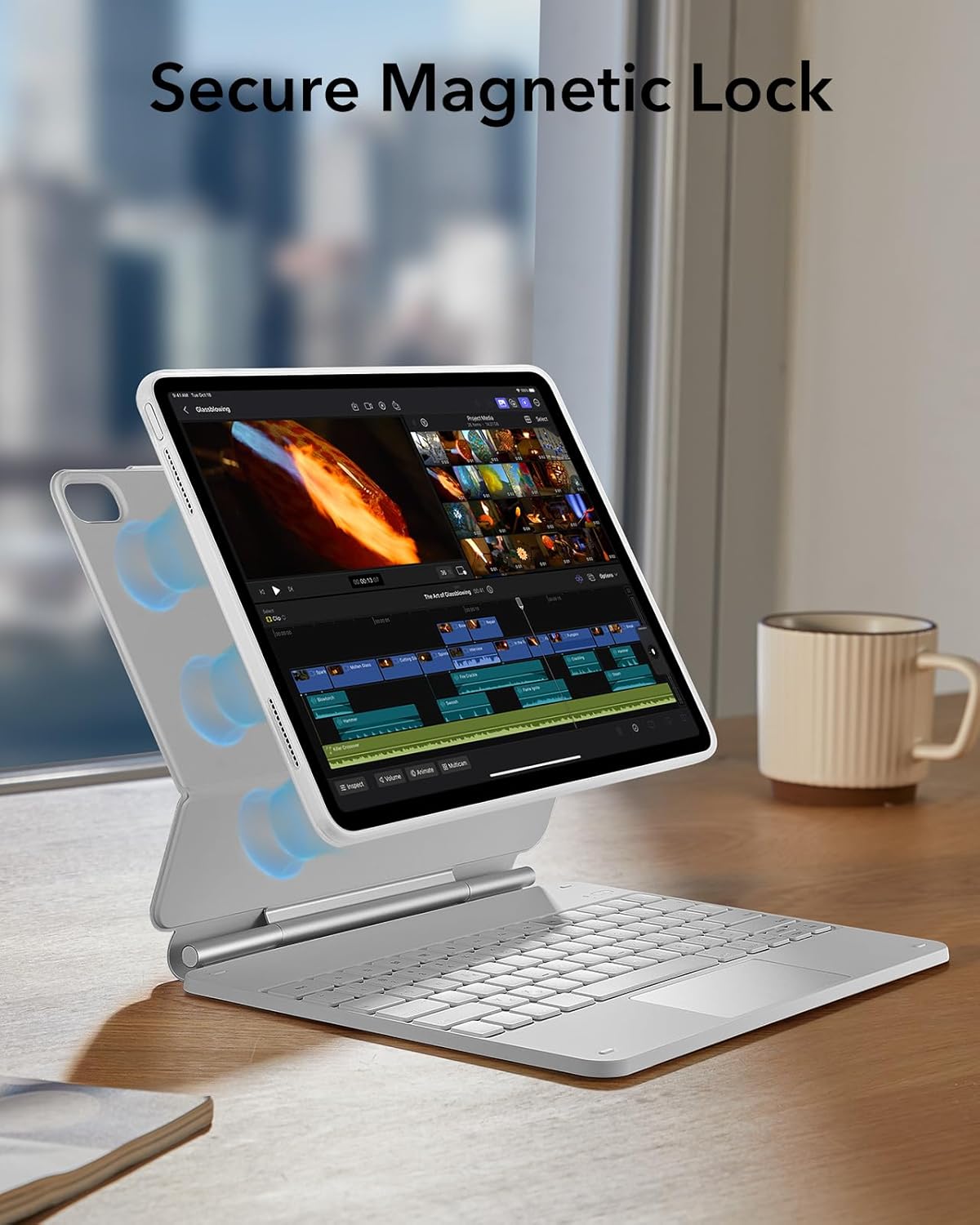
Image: Illustrates the secure magnetic lock feature, showing how the iPad is firmly held in position by strong magnets within the case.
Apple Pencil Protection
A dedicated magnetic clasp is integrated into the design to securely hold and protect your Apple Pencil when not in use.

ചിത്രം: ക്ലോസ്-അപ്പ് view of the magnetic clasp designed to securely hold and protect an Apple Pencil, integrated into the keyboard case.
ബാറ്ററി ലൈഫും ചാർജിംഗും
The keyboard features an efficient power management system. To charge the keyboard, connect it to a power source using the provided charging cable.
- സ്റ്റാൻഡ് ബൈ: 1 വർഷം വരെ
- Daily Use (2 hours/day, backlight off): 3 മാസം വരെ
- Night Use (2 hours/day, backlight on): ഒരു ആഴ്ച വരെ
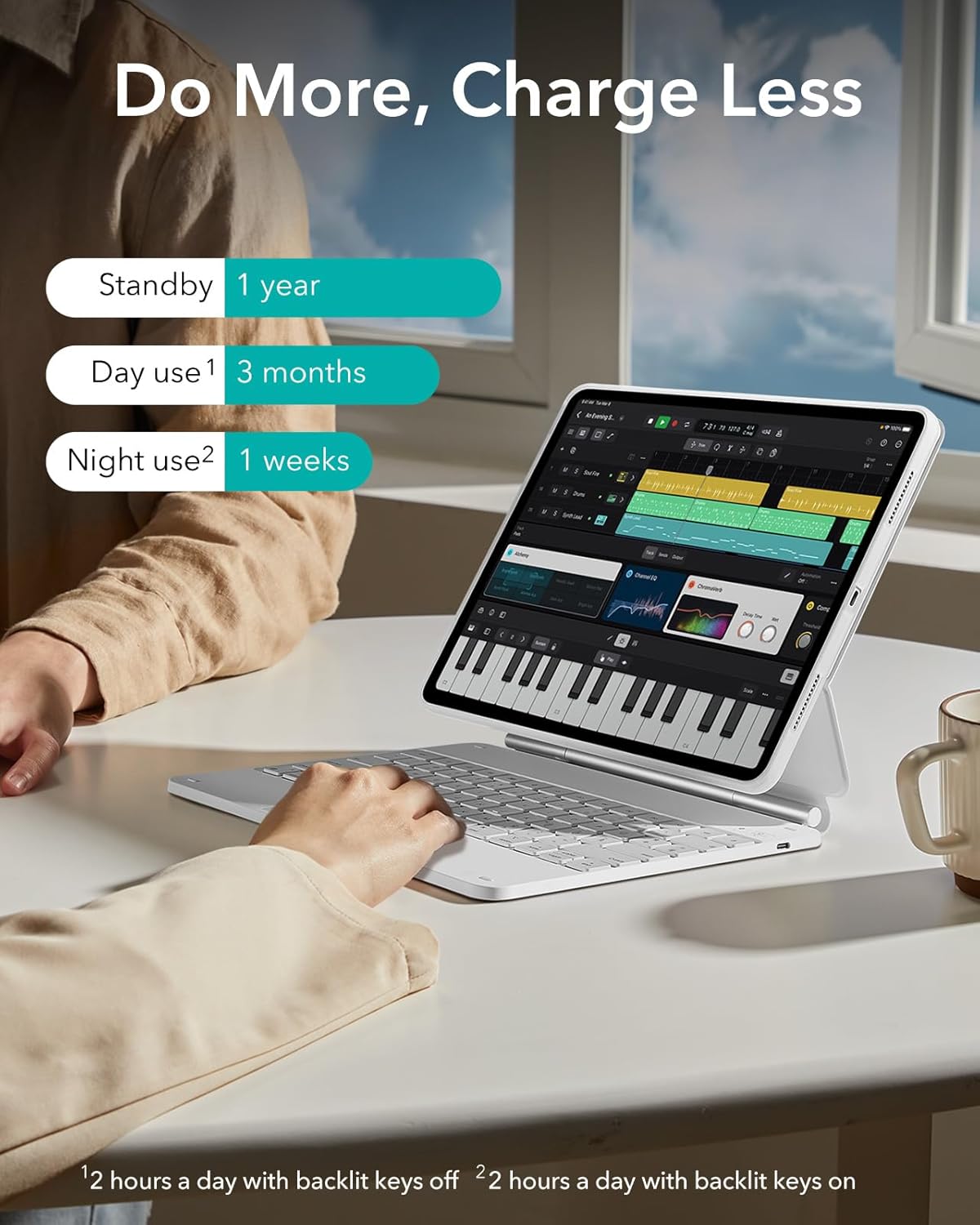
Image: Visual representation of the keyboard's battery life under different usage scenarios, including standby, daily use with backlight off, and daily use with backlight on.
മെയിൻ്റനൻസ്
- വൃത്തിയാക്കൽ: ഒരു സോഫ്റ്റ് ഉപയോഗിക്കുക, ഡിamp കേസിന്റെയും കീബോർഡിന്റെയും പുറംഭാഗം തുടയ്ക്കാൻ തുണി ഉപയോഗിക്കുക. കഠിനമായ രാസവസ്തുക്കളോ ഉരച്ചിലുകളോ ഉള്ള വസ്തുക്കൾ ഒഴിവാക്കുക.
- സംഭരണം: When not in use for extended periods, ensure the keyboard is powered off to conserve battery. Store in a cool, dry place.
- ദ്രാവകങ്ങൾ ഒഴിവാക്കുക: Keep the keyboard and case away from liquids to prevent damage.
ട്രബിൾഷൂട്ടിംഗ്
- കീബോർഡ് പ്രതികരിക്കുന്നില്ല:
- കീബോർഡ് ഓണാണെന്ന് ഉറപ്പാക്കുക.
- ബാറ്ററി ലെവൽ പരിശോധിച്ച് ആവശ്യമെങ്കിൽ ചാർജ് ചെയ്യുക.
- Verify Bluetooth connection on your iPad. If disconnected, re-pair the device.
- നിങ്ങളുടെ ഐപാഡും കീബോർഡും പുനരാരംഭിക്കുക.
- ട്രാക്ക്പാഡ് പ്രവർത്തിക്കുന്നില്ല:
- കീബോർഡ് ബ്ലൂടൂത്ത് വഴി ബന്ധിപ്പിച്ചിട്ടുണ്ടെന്ന് ഉറപ്പാക്കുക.
- Check iPad settings for trackpad functionality and gestures.
- ഏതെങ്കിലും അവശിഷ്ടങ്ങൾ നീക്കം ചെയ്യാൻ ട്രാക്ക്പാഡ് ഉപരിതലം വൃത്തിയാക്കുക.
- കണക്ഷൻ പ്രശ്നങ്ങൾ:
- Move the iPad and keyboard closer together to ensure they are within Bluetooth range.
- Disconnect and forget the device in iPad Bluetooth settings, then re-pair.
- Ensure no other Bluetooth devices are causing interference.
സ്പെസിഫിക്കേഷനുകൾ
| ബ്രാൻഡ് | ESR |
| അനുയോജ്യമായ ഉപകരണങ്ങൾ | iPad Air 13" (M3/M2, 2025/2024) |
| കണക്റ്റിവിറ്റി ടെക്നോളജി | ബ്ലൂടൂത്ത് |
| കീബോർഡ് വിവരണം | Compact, portable, QWERTZ membrane keyboard |
| നിറം | വെള്ള |
| മെറ്റീരിയൽ | പോളിയുറീൻ (PU) |
| പവർ ഉറവിടം | Internal rechargeable battery (no external power source required for operation) |
| കീബോർഡ് ലേഔട്ട് | ക്വെർട്ട്സ് |
| കൈ ഓറിയൻ്റേഷൻ | ഉഭയകക്ഷി |
വാറൻ്റിയും പിന്തുണയും
ESR provides comprehensive customer support for this product, including:
- Detailed installation videos and Frequently Asked Questions (FAQs).
- A full 12-month warranty.
- Lifetime support and personalized assistance.
For further assistance, please refer to the official ESR support channels or contact customer service.