ആമുഖം
This manual provides detailed instructions for setting up, operating, and maintaining your BSIMB W215D 21.5 Inch FHD WiFi Digital Picture Frame. Please read this manual thoroughly before using the product to ensure proper function and longevity.
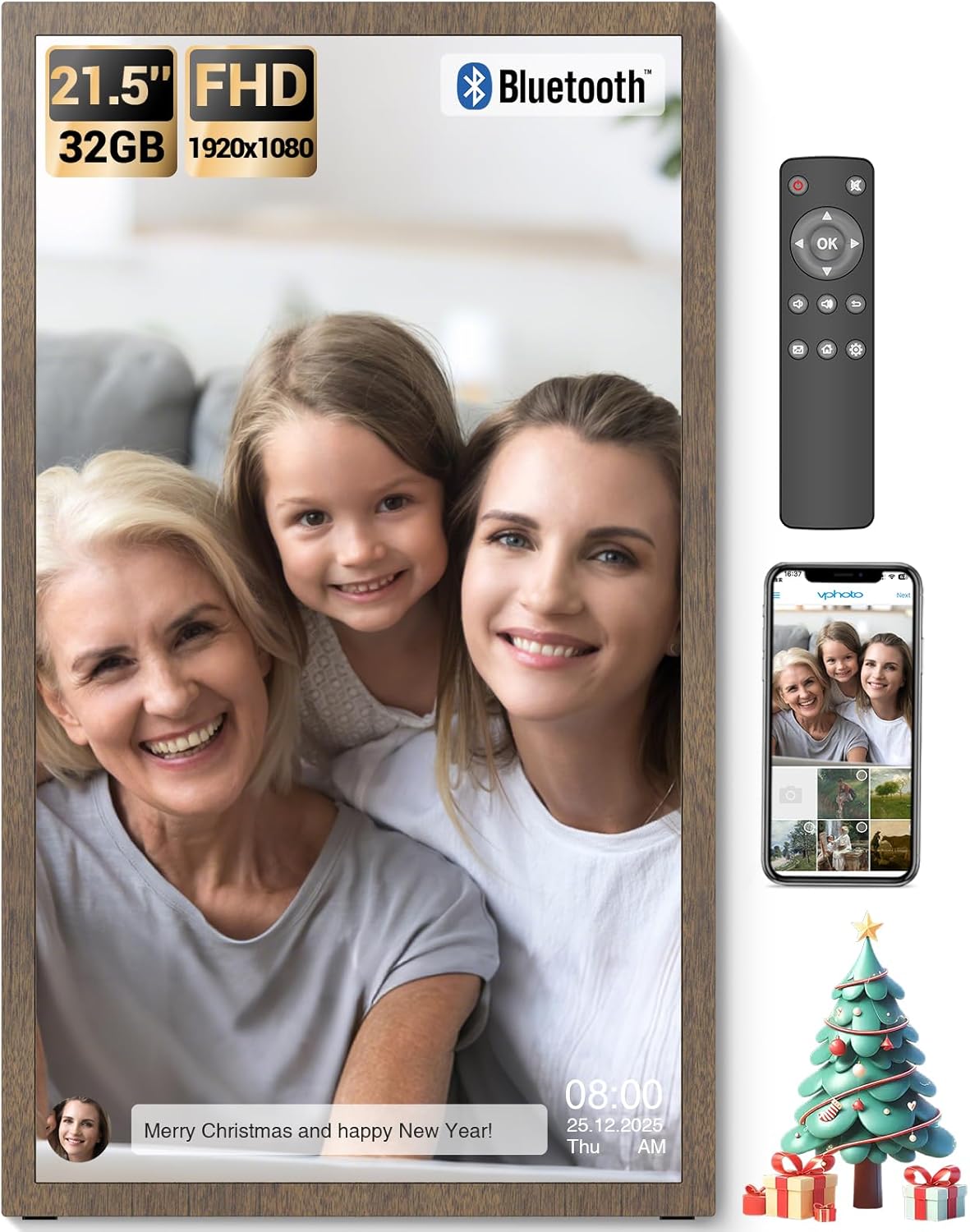
Image: The BSIMB 21.5-inch digital picture frame showcasing a family photo, accompanied by its remote control and a smartphone displaying the companion app interface.
പാക്കേജ് ഉള്ളടക്കം
താഴെ പറയുന്ന ഇനങ്ങൾക്കായി ബോക്സ് ചെക്ക് ചെയ്യുക:
- BSIMB W215D Digital Picture Frame
- Remote Control (AAA+ batteries not included)
- Wall Adapter with US Plug
- ഉപയോക്തൃ മാനുവൽ
- ദ്രുത ആരംഭ ഗൈഡ്
- സ്ക്രൂകളും വാൾ ആങ്കറുകളും
- നിൽക്കുക
- USB Flash Drive (32GB)

Image: An illustration detailing the contents of the product package, including the digital frame, remote control, power adapter, user manuals, stand, wall mounting accessories, and a USB flash drive.
ഉൽപ്പന്നം കഴിഞ്ഞുview
Familiarize yourself with the components of your digital picture frame.

ചിത്രം: പൊട്ടിത്തെറിച്ച ഒരു view diagram of the digital picture frame, highlighting key features such as the non-touch anti-glare FHD display, power button, USB ports, Micro SD slot, DC power input, VESA mounting holes, and speakers.
പ്രധാന സവിശേഷതകൾ:
- 21.5 Inch FHD Matte Screen: 1920x1080 resolution IPS display with a 16:9 aspect ratio for clear image presentation.
- 32 ജിബി ഇന്റേണൽ സ്റ്റോറേജ്: Capable of holding over 80,000 pictures.
- വികസിപ്പിക്കാവുന്ന സംഭരണം: Supports Micro SD Card (TF Card) and USB drives.
- വൈഫൈ കണക്റ്റിവിറ്റി: For sharing photos and videos via the VPhoto app and email.
- റിമോട്ട് കൺട്രോൾ: സൗകര്യപ്രദമായ പ്രവർത്തനത്തിന്.
- സ്മാർട്ട് ലൈറ്റ് സെൻസർ: Automatically adjusts brightness based on ambient light.
- സ്ലീപ്പ് മോഡ്: Schedule on/off times for energy saving.
- വാൾ മൗണ്ടബിൾ ഡിസൈൻ: Allows for flexible placement (swivel wall mount not included).
സജ്ജീകരണ ഗൈഡ്
1. പ്രാരംഭ പവർ ഓൺ
- Connect the power adapter to the DC IN port on the back of the frame and plug it into a power outlet.
- Press the Power Button on the back of the frame to turn it on.
- Follow the on-screen prompts to select your language and time zone.
2. Wi-Fi-ലേക്ക് ബന്ധിപ്പിക്കുന്നു
- പ്രധാന മെനുവിൽ നിന്ന്, ഇതിലേക്ക് നാവിഗേറ്റ് ചെയ്യുക ക്രമീകരണങ്ങൾ.
- തിരഞ്ഞെടുക്കുക വൈഫൈ ലിസ്റ്റിൽ നിന്ന് നിങ്ങളുടെ നെറ്റ്വർക്ക് തിരഞ്ഞെടുക്കുക.
- Enter your Wi-Fi password and confirm. The frame will connect to the internet.
3. VPhoto App Installation and Pairing
- ഡൗൺലോഡ് ചെയ്യുക VPhoto app from the App Store (iOS) or Google Play Store (Android) on your smartphone.
- Open the VPhoto app and create an account.
- On your digital frame, navigate to the ഉപകരണം ബന്ധിപ്പിക്കുക section to find your unique Frame ID or QR code.
- In the VPhoto app, select "Add Device" and enter the Frame ID or scan the QR code to pair your smartphone with the frame.
- Once paired, you can start sharing photos and videos directly from your phone to the frame.

Image: A visual guide illustrating the three main steps for initial setup: downloading the VPhoto app, connecting the frame via its unique ID, and uploading media.
4 മൗണ്ടിംഗ് ഓപ്ഷനുകൾ
The frame can be placed on a flat surface using the included stand or mounted on a wall using the provided screws and wall anchors. The frame supports auto-rotation for both landscape and portrait orientations.

Image: The digital frame positioned on a stand, illustrating its ability to automatically adjust image orientation when rotated between landscape and portrait views.
പ്രവർത്തന നിർദ്ദേശങ്ങൾ
1. റിമോട്ട് കൺട്രോൾ ഉപയോഗം
The included remote control allows for easy navigation and setting adjustments. Insert two AAA+ batteries (not included) into the remote before use.
- നാവിഗേഷൻ ബട്ടണുകൾ: Use the arrow keys to move through menus and select options.
- ശരി ബട്ടൺ: തിരഞ്ഞെടുക്കലുകൾ സ്ഥിരീകരിക്കുന്നു.
- ബാക്ക് ബട്ടൺ: മുമ്പത്തെ സ്ക്രീനിലേക്ക് മടങ്ങുന്നു.
- മെനു ബട്ടൺ: Accesses main settings and options.
- വോളിയം ബട്ടണുകൾ: ഓഡിയോ ഔട്ട്പുട്ട് ക്രമീകരിക്കുന്നു.
2. ഫോട്ടോകളും വീഡിയോകളും അപ്ലോഡ് ചെയ്യുന്നു
You can upload media to your frame using several methods:
- VPhoto App: After pairing, use the VPhoto app on your smartphone to send photos and videos directly to the frame. You can also invite friends and family to share.
- ഇമെയിൽ: The frame has a unique email address. Send photos and short videos (up to 15 seconds) to this address, and they will appear on your frame.
- USB Drive / Micro SD Card: Insert a USB drive or Micro SD card into the respective ports on the frame. Navigate to the Files or സംഭരണം section to browse and import media.

Image: A visual representation of the frame's storage capabilities, with multiple images and video thumbnails surrounding the frame, emphasizing its capacity for a large number of media files.
3. Slideshow Settings
Customize your photo display experience:
- നാവിഗേറ്റ് ചെയ്യുക Settings > Slideshow.
- Adjust parameters such as display interval, transition effects, and playback order.
- Enable or disable photo captions, weather, and clock display.
4. Smart Light Sensor
The frame features a smart light sensor that automatically adjusts screen brightness according to the ambient light in the room. This feature can be enabled or disabled in the ക്രമീകരണങ്ങൾ മെനു.

Image: A visual representation of the frame's smart light sensor, illustrating how the screen brightness dynamically adapts to changes in room lighting conditions.
5. സ്ലീപ്പ് മോഡ്
To conserve energy, you can schedule the frame to automatically turn off and on at specific times. Access this feature in Settings > Sleep Mode.
6. ബ്ലൂടൂത്ത് ഓഡിയോ
Connect Bluetooth speakers or headphones to enjoy audio with your videos or music files. Navigate to ക്രമീകരണങ്ങൾ > ബ്ലൂടൂത്ത് to pair devices.

Image: The digital frame displaying an image, with a smartphone showing a Bluetooth connection to the frame, indicating the ability to play music or audio through connected Bluetooth devices.
മെയിൻ്റനൻസ്
1. ഫ്രെയിം വൃത്തിയാക്കൽ
- Ensure the frame is powered off and unplugged before cleaning.
- സ്ക്രീനും ഫ്രെയിമും മൃദുവായതും ഉണങ്ങിയതും ലിന്റ് രഹിതവുമായ ഒരു തുണി ഉപയോഗിച്ച് മൃദുവായി തുടയ്ക്കുക.
- കഠിനമായ അടയാളങ്ങൾക്ക്, നേരിയ dampതുണിയിൽ വെള്ളം അല്ലെങ്കിൽ സ്ക്രീൻ-സേഫ് ക്ലീനിംഗ് ലായനി ഉപയോഗിക്കുക. കഠിനമായ രാസവസ്തുക്കളോ ഉരച്ചിലുകളോ ഉള്ള വസ്തുക്കൾ ഒഴിവാക്കുക.
2. സോഫ്റ്റ്വെയർ അപ്ഡേറ്റുകൾ
Periodically check for software updates in Settings > About > Check for Updates to ensure your frame has the latest features and performance improvements. A stable internet connection is required for updates.
ട്രബിൾഷൂട്ടിംഗ്
| പ്രശ്നം | സാധ്യമായ കാരണം / പരിഹാരം |
|---|---|
| ഫ്രെയിം പവർ ഓൺ ചെയ്യുന്നില്ല. |
|
| Wi-Fi-ലേക്ക് കണക്റ്റ് ചെയ്യാൻ കഴിയില്ല. |
|
| VPhoto app cannot connect to the frame. |
|
| Images are not displaying correctly or are blurry. |
|
| റിമോട്ട് കൺട്രോൾ പ്രവർത്തിക്കുന്നില്ല. |
|
സ്പെസിഫിക്കേഷനുകൾ
| ഫീച്ചർ | വിശദാംശങ്ങൾ |
|---|---|
| മോഡൽ നമ്പർ | W215D |
| സ്ക്രീൻ വലിപ്പം | 21.5 ഇഞ്ച് |
| റെസലൂഷൻ | 1920x1080 (FHD) |
| വീക്ഷണാനുപാതം | 16:9 |
| ഡിസ്പ്ലേ തരം | IPS Matte Display (Non-Touch) |
| ആന്തരിക സംഭരണം | 32 ജിബി |
| ബാഹ്യ സംഭരണം | Micro SD Card (TF Card), USB Drive |
| കണക്റ്റിവിറ്റി | വൈഫൈ, ബ്ലൂടൂത്ത് |
| നിയന്ത്രണ രീതി | Remote Control, VPhoto App |
| ഉൽപ്പന്ന അളവുകൾ | 19.91 x 11.7 x 0.99 ഇഞ്ച് |
| ഇനത്തിൻ്റെ ഭാരം | 8.98 പൗണ്ട് |
വാറൻ്റിയും പിന്തുണയും
വാറൻ്റി വിവരങ്ങൾ
Your BSIMB Digital Picture Frame comes with a:
- 30 ദിവസത്തെ പണം തിരികെ നൽകാനുള്ള ഗ്യാരണ്ടി
- 1 വർഷത്തെ ആശങ്കരഹിത വാറന്റി
വാറൻ്റി ക്ലെയിമുകൾക്കായി നിങ്ങളുടെ വാങ്ങിയതിൻ്റെ തെളിവ് സൂക്ഷിക്കുക.
ഉപഭോക്തൃ പിന്തുണ
If you encounter any issues or have questions not covered in this manual, please contact our customer service team. We are committed to ensuring your satisfaction with our products.
For support, visit the official BSIMB webസൈറ്റ് അല്ലെങ്കിൽ നിങ്ങളുടെ ക്വിക്ക് സ്റ്റാർട്ട് ഗൈഡിൽ നൽകിയിരിക്കുന്ന കോൺടാക്റ്റ് വിവരങ്ങൾ റഫർ ചെയ്യുക.


