1. ആമുഖം
This manual provides comprehensive instructions for the operation and maintenance of your JADENS Mini Sticker Printer, Model JD-21. This portable thermal printer is designed for convenient, inkless printing of notes, photos, memos, and more directly from your smartphone or tablet.
ബോക്സിൽ എന്താണുള്ളത്
- JADENS Mini Sticker Printer (JD-21)
- 1 തെർമൽ പേപ്പർ റോൾ
- യുഎസ്ബി ടൈപ്പ്-സി ചാർജിംഗ് കേബിൾ
- ഇൻസ്ട്രക്ഷൻ മാനുവൽ

Figure 1: Contents of the JADENS Mini Sticker Printer package, showing the printer, a roll of thermal paper, and the USB charging cable.
2 പ്രധാന സവിശേഷതകൾ
- Mini Bluetooth Thermal Printer: Connects seamlessly via Bluetooth to Android and iOS devices. The companion app provides various templates, graphics, themes, and fonts. Supports both sticky and non-sticky paper with a 2-inch width (50-56mm).
- High Printing Quality: Delivers high-resolution images with vivid detail. Offers up to 15 hours of continuous printing on a single charge, with standby lasting approximately one week.
- Inkless Sticker Printer: Utilizes cost-effective thermal technology, eliminating the need for ink, toner, or ribbons. Ensures quiet operation and effortless one-click printing.
- വിവിധോദ്ദേശ്യ പ്രവർത്തനം: Ideal for work plans, office assistance, photos, memos, greeting cards, meeting notes, study notes, shopping lists, and receipts. Suitable for offices, students, archivists, and busy individuals.
- Portable & Stylish Design: Compact dimensions (3.3 x 3.3 x 1.6 inches) allow for easy portability. An ideal gift for students, teachers, and friends.
3. സജ്ജീകരണ ഗൈഡ്
3.1 പ്രിന്റർ ചാർജ് ചെയ്യുന്നു
Before first use, fully charge the printer using the provided USB Type-C cable. Connect the cable to the printer's charging port and a compatible USB power source. The indicator light will show charging status.
3.2 തെർമൽ പേപ്പർ ലോഡുചെയ്യുന്നു
- Open the printer cover by gently sliding it open or pressing the release button (refer to printer diagram for exact location).
- Insert the thermal paper roll with the printing side facing outwards. Ensure the roll is seated correctly and a small portion of paper extends from the printer slot.
- പ്രിൻ്റർ കവർ സുരക്ഷിതമായി അടയ്ക്കുക.
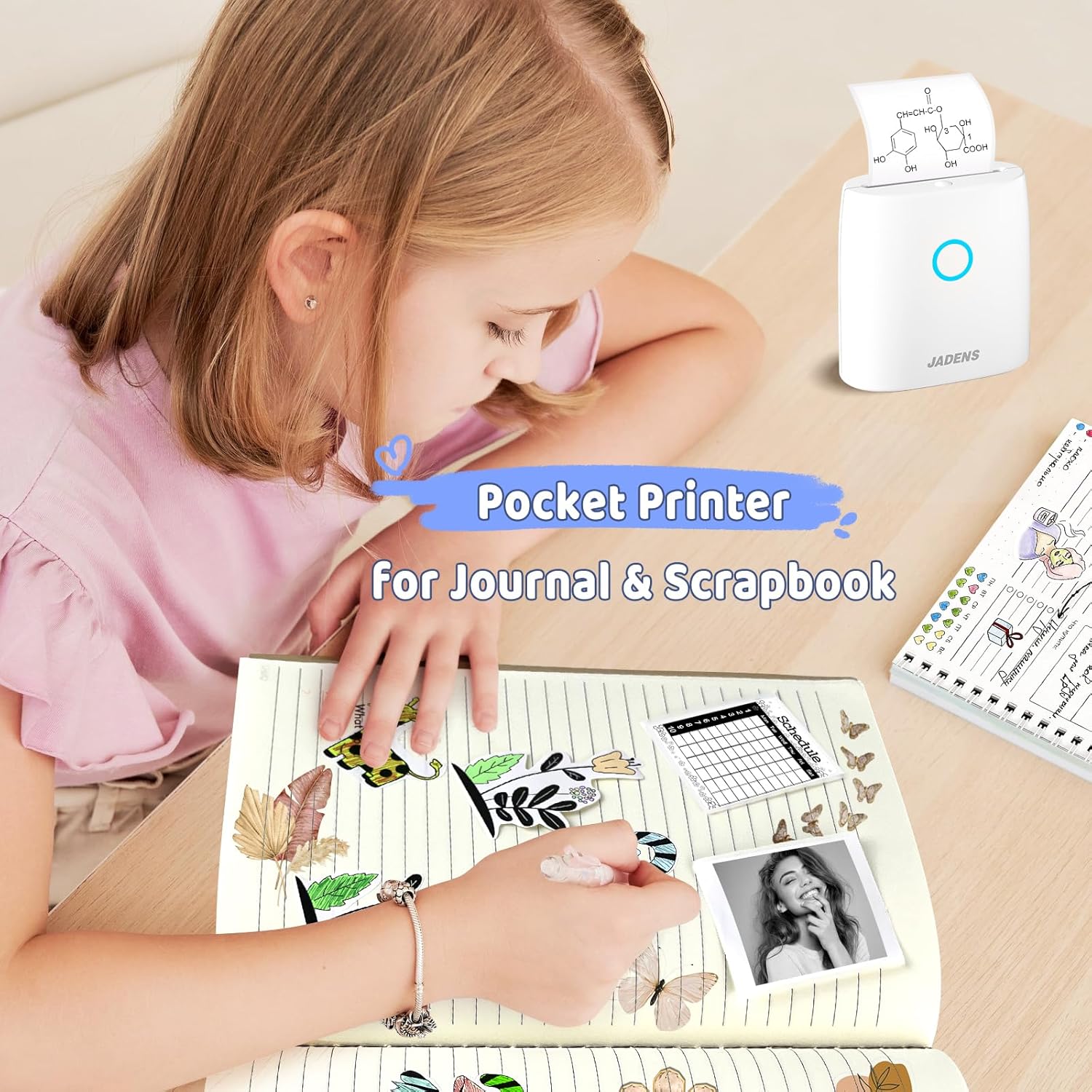
Figure 2: Illustration of how to correctly load thermal paper into the JADENS Mini Sticker Printer.
3.3 ആപ്പ് ഇൻസ്റ്റാളേഷനും ബ്ലൂടൂത്ത് കണക്ഷനും
- Download the official JADENS printer app from your device's app store (available for Android and iOS).
- Turn on the printer by pressing and holding the power button until the indicator light illuminates.
- നിങ്ങളുടെ സ്മാർട്ട്ഫോണിലോ ടാബ്ലെറ്റിലോ ബ്ലൂടൂത്ത് പ്രവർത്തനക്ഷമമാക്കുക.
- Open the JADENS app and follow the on-screen instructions to connect to your printer via Bluetooth. The printer will typically appear as "JD-21" or a similar identifier.
Video 1: Demonstrates the process of connecting the JADENS Mini Sticker Printer to a smartphone via Bluetooth and initiating a print job from the app.
4. പ്രവർത്തന നിർദ്ദേശങ്ങൾ
4.1 Printing Notes and Text
The JADENS app offers various templates for notes, to-do lists, and calendars. Select a template, input your desired text, and adjust formatting as needed. Confirm the print preview and send to the printer.

Figure 3: The JADENS app interface displaying a selection of templates for notes, lists, and other creative uses.
4.2 Printing Photos and Images
Select the "Photos" option within the app to choose an image from your device's gallery. The app allows for basic image editing, including cropping and applying filters, before printing. Note that the printer produces monochrome (black and white) thermal prints.

Figure 4: A JADENS Mini Sticker Printer in operation, producing a black and white image. Surrounding prints include a dog, a sunflower, and a birthday message.
Video 2: Illustrates the versatility of the JADENS Mini Sticker Printer by showing it print various types of content, including text and images.
4.3 Creative Applications
The printer supports various paper types, including standard thermal paper and adhesive sticker paper, available in different colors. This allows for diverse creative projects such as journaling, scrapbooking, creating labels, or personalized gifts.

Figure 5: A child engaged in journaling and scrapbooking, utilizing the JADENS Mini Sticker Printer to add custom stickers to her notebook.

Figure 6: A mother and child enjoying educational time by printing and coloring images using the JADENS Mini Sticker Printer.

Figure 7: The JADENS app showcasing its AI function, which allows users to convert images to other images or generate images from text prompts for printing.
5. പരിപാലനം
- വൃത്തിയാക്കൽ: Use a soft, dry cloth to clean the exterior of the printer. For the print head, use a cotton swab lightly dampened with isopropyl alcohol. Ensure the printer is turned off and disconnected from power before cleaning.
- സംഭരണം: നേരിട്ടുള്ള സൂര്യപ്രകാശവും കടുത്ത താപനിലയും ഏൽക്കാത്ത തണുത്തതും വരണ്ടതുമായ സ്ഥലത്ത് പ്രിന്റർ സൂക്ഷിക്കുക.
- പേപ്പർ കൈകാര്യം ചെയ്യൽ: Use only thermal paper compatible with the JADENS JD-21 printer. Avoid touching the printing surface of the thermal paper directly to prevent smudges.
6. പ്രശ്നപരിഹാരം
- Printer Not Connecting: Ensure Bluetooth is enabled on your device and the printer is powered on. Restart both the printer and your device, then try reconnecting through the app.
- മോശം പ്രിന്റ് നിലവാരം: Check if the thermal paper is loaded correctly and is not expired or damaged. Clean the print head as described in the maintenance section. Ensure the printer battery is sufficiently charged.
- പേപ്പർ ജാം: Turn off the printer, open the cover, and carefully remove any jammed paper. Ensure the paper roll is properly aligned before closing the cover and restarting.
- പ്രിന്റർ പ്രതികരിക്കുന്നില്ല: If the printer is unresponsive, try resetting it by pressing and holding the power button for an extended period (e.g., 10-15 seconds) or until the device powers off.
7 സ്പെസിഫിക്കേഷനുകൾ
| ബ്രാൻഡ് | ജാഡൻസ് |
| മോഡൽ | JD-21 |
| പ്രിൻ്റിംഗ് ടെക്നോളജി | തെർമൽ |
| കണക്റ്റിവിറ്റി ടെക്നോളജി | ബ്ലൂടൂത്ത് |
| അനുയോജ്യമായ ഉപകരണങ്ങൾ | Smartphones, Tablets (Android, iOS) |
| പ്രിൻ്റർ ഔട്ട്പുട്ട് | മോണോക്രോം |
| പരമാവധി പ്രിന്റ് റെസല്യൂഷൻ (കറുപ്പും വെളുപ്പും) | 300 ഡിപിഐ |
| പരമാവധി മീഡിയ വലുപ്പം | 57mm (2-inch width) |
| ഉൽപ്പന്ന അളവുകൾ | 8.9D x 8.4W x 4.1H സെന്റീമീറ്റർ |
| ഇനത്തിൻ്റെ ഭാരം | 272 ഗ്രാം |
| ബാറ്ററി തരം | ലിഥിയം അയോൺ (ഉൾപ്പെടുന്നു) |
| പ്രത്യേക സവിശേഷതകൾ | Portable, Inkless |
8. വാറൻ്റിയും പിന്തുണയും
For warranty information, technical support, or service inquiries, please refer to the contact details provided on the product packaging or the official JADENS webസൈറ്റ്. വാറൻ്റി ക്ലെയിമുകൾക്കായി നിങ്ങളുടെ വാങ്ങൽ രസീത് സൂക്ഷിക്കുക.


