1. ആമുഖം
Thank you for choosing the Makeid S1Pro Label Maker Machine. This device is designed for efficient and convenient label printing, featuring a Bluetooth connection, LCD display, and quick-print functions. It is ideal for organizing your kitchen, home, school, and office. This manual provides detailed instructions on setting up, operating, and maintaining your S1Pro label maker to ensure optimal performance.

Figure 1: Makeid S1Pro Label Maker Machine and included label tapes.
2. ബോക്സിൽ എന്താണുള്ളത്?
Upon unboxing your Makeid S1Pro Label Maker, please verify that all components are present:
- Makeid S1Pro Label Maker Machine
- ലേബലുകൾ
- ടേപ്പുകൾ
- റോൾ ചെയ്യുക
- USB Charging Cable (assumed, common for rechargeable devices)
- ഉപയോക്തൃ മാനുവൽ (ഈ പ്രമാണം)
3 പ്രധാന സവിശേഷതകൾ
The Makeid S1Pro Label Maker offers a range of features designed for ease of use and versatility:
- 2024 Upgraded Smart Labeler: Features 4 quick-print buttons for common words, enhancing efficiency. Includes a 1.85-inch LCD screen for clear display.
- DIY Keyword Library: Customize and store up to 60 frequently used words. "Kitchen" and "Custom" buttons support library selection, while "Date" and "EXP" buttons allow date modification.
- Thermal Label Printer, Two Printing Modes: Supports Bluetooth connectivity to a dedicated app for extensive editing options (9 languages, 88 fonts, 16 borders, 600+ stickers/symbols, 400+ templates). Also allows for offline printing via a material library.
- Various Sizes, Different Scenarios: Compatible with various sizes and colors of waterproof, oil-resistant, wear-resistant, and low-temperature-resistant labels. Automatically recognizes label sizes to prevent waste.
- Compact, Portable and Rechargeable: Smaller than a mobile phone, palm-sized, with a magnetic back for attachment. Features a 1450mAh battery for up to 90 days of standby time.
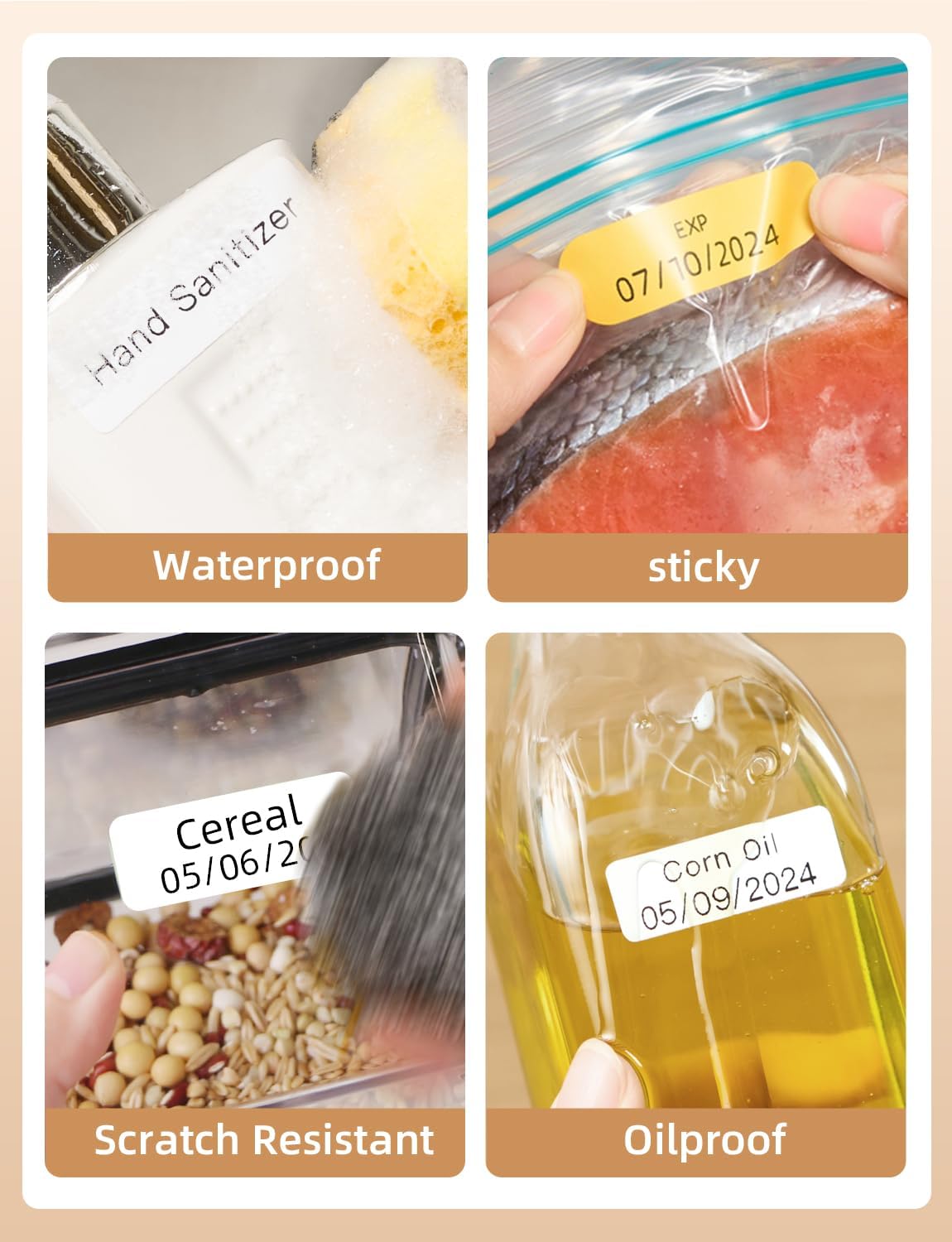
Figure 2: Makeid labels are designed to be waterproof, sticky, scratch-resistant, and oil-proof.
4. സജ്ജീകരണ ഗൈഡ്
4.1 പ്രാരംഭ ചാർജിംഗ്
Before first use, fully charge the Makeid S1Pro label maker. Connect the provided USB charging cable to the charging port on the device and a suitable USB power adapter (not included). The charging indicator on the device will show the charging status. A full charge ensures optimal battery life and performance.
4.2 Loading Label Tape
- ഉപകരണത്തിലെ ലേബൽ കമ്പാർട്ട്മെന്റ് കവർ തുറക്കുക.
- Insert the label roll with the label side facing up, ensuring the leading edge of the tape extends slightly out of the slot.
- Close the label compartment cover firmly. The device will automatically detect the label size.

Figure 3: The label maker automatically recognizes the size of the inserted label tape.
4.3 ആപ്പ് ഇൻസ്റ്റാളേഷനും ബ്ലൂടൂത്ത് പെയറിംഗും
- Download the official Makeid app from your smartphone's app store (iOS or Android).
- നിങ്ങളുടെ സ്മാർട്ട്ഫോണിൽ ബ്ലൂടൂത്ത് പ്രവർത്തനക്ഷമമാക്കിയിട്ടുണ്ടെന്ന് ഉറപ്പാക്കുക.
- Turn on the Makeid S1Pro label maker by pressing the power button.
- Open the Makeid app and follow the on-screen instructions to search for and connect to your device via Bluetooth. The device name will typically appear as "Makeid S1Pro" or similar.
- Once connected, the app will indicate a successful pairing.
5. പ്രവർത്തന നിർദ്ദേശങ്ങൾ
5.1 Basic Printing (One-Click)
The S1Pro features quick-print buttons for common labeling needs.
- Kitchen Button: Press to access a library of common kitchen ingredients. Use the navigation buttons to select and then press "Print".
- ഇഷ്ടാനുസൃത ബട്ടൺ: Access your personalized keyword library. Select a custom word and print.
- Date Button: Press to print the current date. Long-press to modify the date before printing.
- EXP ബട്ടൺ: Press to print an expiration date. Long-press to modify the expiration date.

Figure 4: Smart presets and one-touch printing simplify common labeling tasks.

Figure 5: Print labels with a single click for quick organization.
5.2 DIY Keyword Library
You can customize and store up to 60 commonly used words in your personal keyword library.
- Open the Makeid app on your smartphone.
- Navigate to the "DIY Keyword Library" or "Custom" section.
- Add or edit words as desired. These words will then be accessible via the "Custom" button on the label maker.

Figure 6: Customize your personalized word library through the Makeid app.
5.3 App-Based Printing
For advanced customization, use the Makeid app:
- എഡിറ്റിംഗ്: നിങ്ങൾക്ക് ആവശ്യമുള്ള ടെക്സ്റ്റ് ടൈപ്പ് ചെയ്യുക.
- Fonts & Styles: Choose from 88 fonts, adjust size, bold, italic, etc.
- Borders & Stickers: Select from 16 borders and over 600 stickers and symbols.
- ടെംപ്ലേറ്റുകൾ: Utilize over 400 pre-designed templates, with monthly updates.
- Offline Printing: Create a material library within the app for quick printing even without an internet connection.
- പ്രിൻ്റ്: Once your label is designed, tap the "Print" button in the app.
5.4 കാന്തിക അറ്റാച്ച്മെന്റ്
The S1Pro features a built-in magnetic function on its back, allowing it to be conveniently attached to metallic surfaces like refrigerators or whiteboards. This keeps your label maker easily accessible.
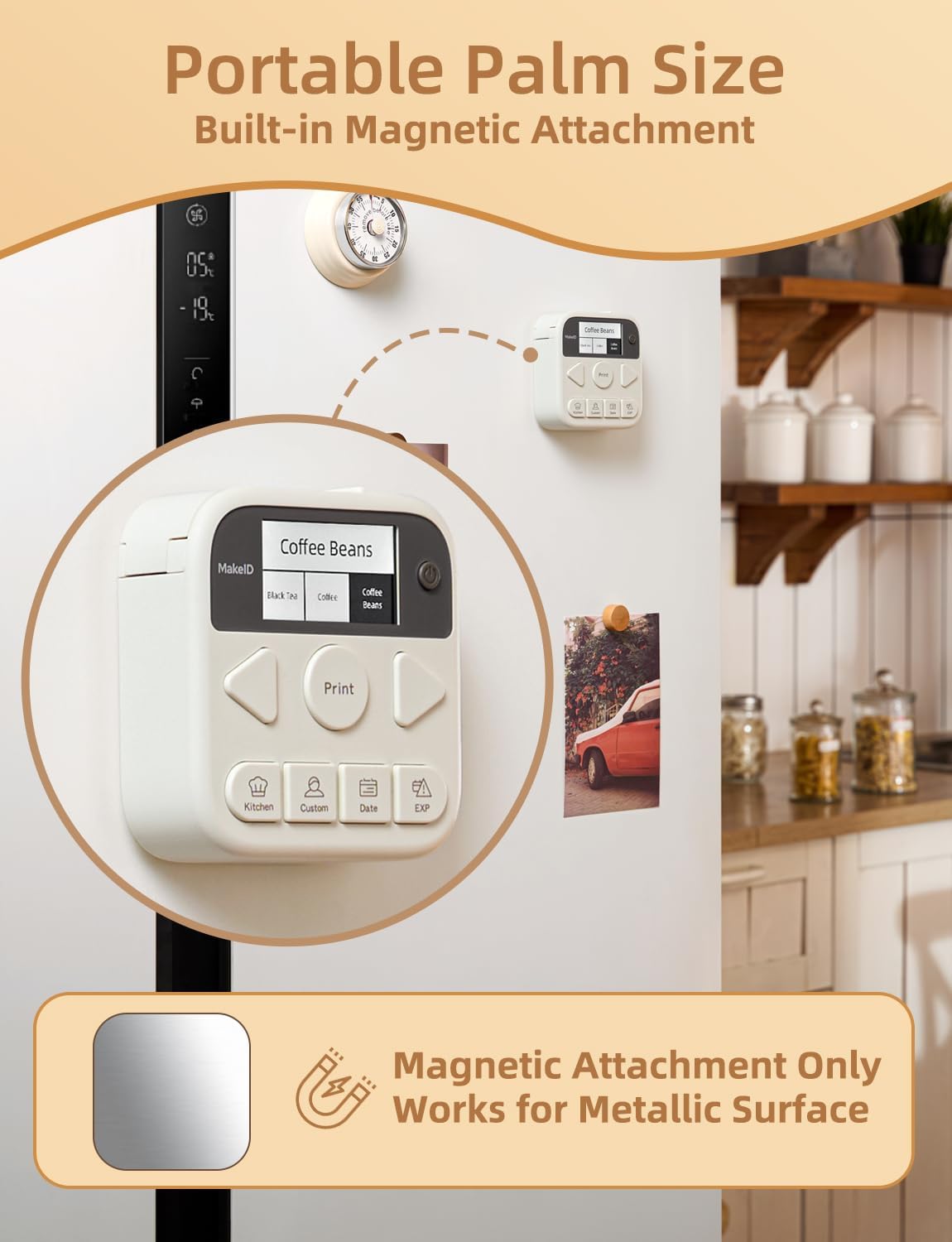
Figure 7: The S1Pro's magnetic back allows for convenient storage on metallic surfaces.
6. പരിപാലനം
6.1 പ്രിന്റ് ഹെഡ് വൃത്തിയാക്കൽ
To ensure clear and consistent print quality, periodically clean the thermal print head.
- Turn off the device and disconnect it from any power source.
- ലേബൽ കമ്പാർട്ട്മെന്റ് തുറക്കുക.
- Gently wipe the print head (the dark strip) with a cotton swab lightly dampഐസോപ്രോപൈൽ ആൽക്കഹോൾ ഉപയോഗിച്ചാണ് നിർവഹിച്ചത്.
- Allow it to dry completely before closing the cover and resuming use.
6.2 ലേബൽ സംഭരണം
Store label rolls in a cool, dry place away from direct sunlight and extreme temperatures to preserve their adhesive and print quality.
6.3 ബാറ്ററി കെയർ
ബാറ്ററി ലൈഫ് വർദ്ധിപ്പിക്കാൻ, ഉപകരണം ഇടയ്ക്കിടെ പൂർണ്ണമായും ഡിസ്ചാർജ് ചെയ്യുന്നത് ഒഴിവാക്കുക. പതിവായി ചാർജ് ചെയ്യുക, പ്രത്യേകിച്ചും ഇത് കൂടുതൽ നേരം സൂക്ഷിക്കണമെങ്കിൽ.
7. പ്രശ്നപരിഹാരം
| പ്രശ്നം | സാധ്യമായ കാരണം | പരിഹാരം |
|---|---|---|
| ഉപകരണം ഓണാക്കില്ല. | കുറഞ്ഞ ബാറ്ററി. | ഉപകരണം പൂർണ്ണമായും ചാർജ് ചെയ്യുക. |
| പ്രിന്റ് അല്ലെങ്കിൽ ഫേംഡ് പ്രിന്റ് ഇല്ല. | Label tape incorrectly loaded; Print head dirty; Out of labels. | Re-insert label tape correctly; Clean the print head; Replace label roll. |
| ബ്ലൂടൂത്ത് കണക്ഷൻ പരാജയപ്പെട്ടു. | Bluetooth off on phone/device; Device too far; App issue. | Ensure Bluetooth is on; Move device closer; Restart app and device. |
| Label not recognized. | Label tape not inserted correctly. | Open and re-insert the label tape, ensuring it's properly seated. |
| മോശം പ്രിന്റ് നിലവാരം. | Dirty print head; Low battery; Old/damaged label tape. | Clean print head; Charge device; Try a new label roll. |
8 സ്പെസിഫിക്കേഷനുകൾ
| ഫീച്ചർ | വിശദാംശങ്ങൾ |
|---|---|
| ബ്രാൻഡ് | മെയ്കിഡ് |
| മോഡലിൻ്റെ പേര് | thermal labe printer (S1 Pro) |
| ഇനം മോഡൽ നമ്പർ | S1 Pro-W&1235F1&1535P |
| കണക്റ്റിവിറ്റി ടെക്നോളജി | ബ്ലൂടൂത്ത് |
| പ്രിൻ്റിംഗ് ടെക്നോളജി | തെർമൽ |
| പ്രിൻ്റർ ഔട്ട്പുട്ട് | മോണോക്രോം |
| പരമാവധി പ്രിന്റ് വേഗത (മോണോക്രോം) | 20 Pages per second |
| പരമാവധി മീഡിയ വലുപ്പം | 4x6 ഇഞ്ച് |
| അനുയോജ്യമായ ഉപകരണങ്ങൾ | Smartphones (iOS) |
| നിയന്ത്രണ രീതി | ആപ്പ് |
| ഉൽപ്പന്ന അളവുകൾ | 2 x 2 x 1 ഇഞ്ച് (ഏകദേശം) |
| പ്രത്യേക ഫീച്ചർ | Portable, Magnetic Function |
| ബാറ്ററി ലൈഫ് | Up to 90 days (standby, 1450mAh capacity) |
9. വാറൻ്റിയും പിന്തുണയും
For warranty information and technical support, please refer to the documentation provided with your purchase or visit the official Makeid webസൈറ്റ്.
നിർമ്മാതാവ്: മെയ്കിഡ്


