ആമുഖം
Congratulations on owning the Google Pixel Watch 2! This sleek device offers a wide range of features and functionalities designed to enhance your daily life. Its intuitive interface and user-friendly design make it easy to navigate. This manual serves as a comprehensive guide to help you understand and fully utilize the potential of your new Google Pixel Watch 2, whether you are a first-time user or upgrading.
This guide provides practical, straightforward instructions to ensure you get the most out of your device.
ഉൽപ്പന്നം കഴിഞ്ഞുview
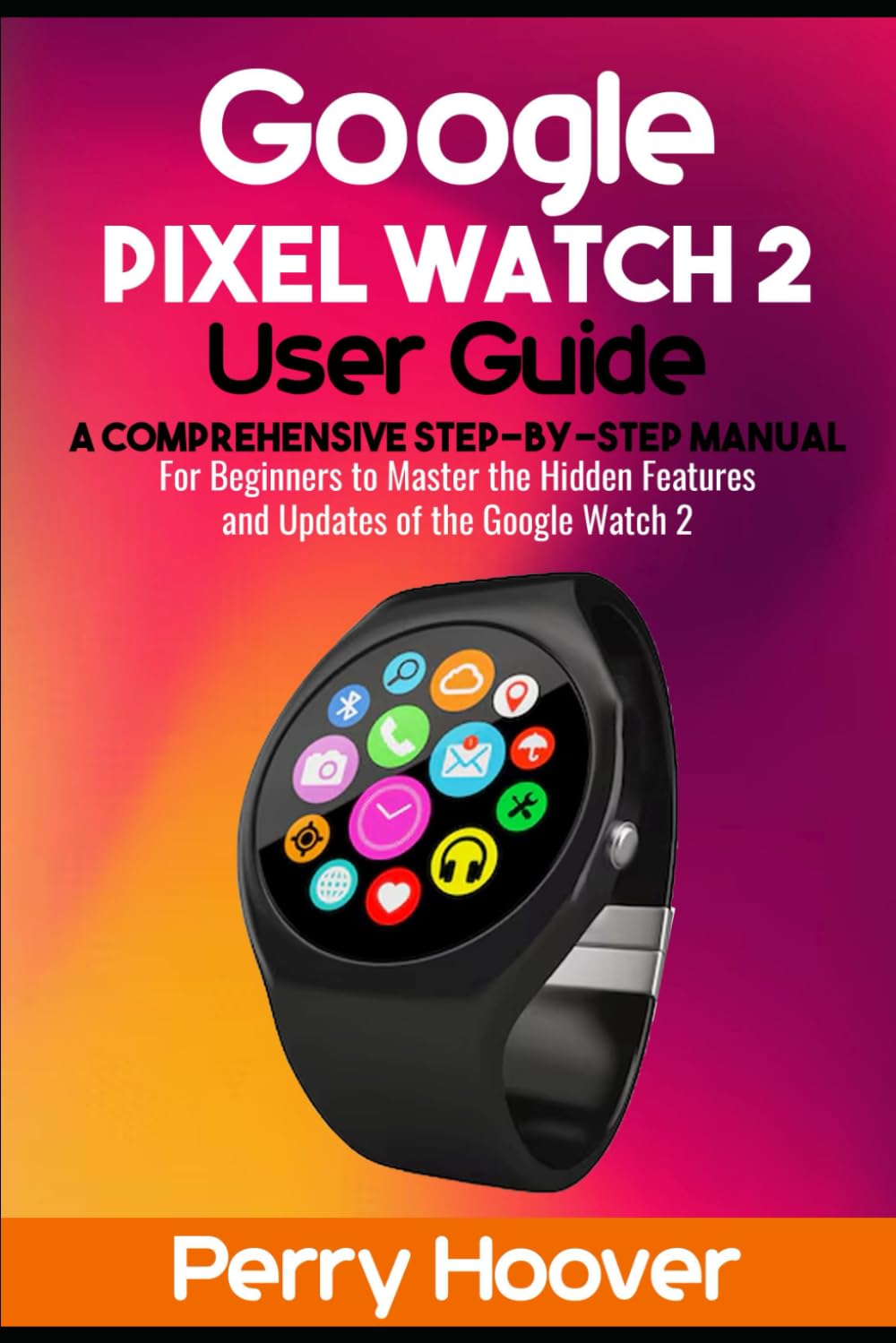
ചിത്രം 1: ഫ്രണ്ട് view of the Google Pixel Watch 2, showcasing its display and app interface.

ചിത്രം 2: തിരികെ view of the Google Pixel Watch 2, highlighting the health sensors and charging area.
The Google Pixel Watch 2 is designed for seamless integration with your digital life, offering advanced health tracking, communication features, and smart notifications directly from your wrist.
സജ്ജീകരണവും പ്രാരംഭ കോൺഫിഗറേഷനും
This section guides you through the initial setup process of your Google Pixel Watch 2.
- How to Set Up Your Google Pixel Watch 2:
Follow the on-screen prompts on your watch and the Google Pixel Watch app on your Android phone to begin the setup process. Ensure your phone's Bluetooth is enabled.
- How to Customize Your New Device:
Explore watch faces, complications, and tile arrangements through the Pixel Watch app to personalize your watch's appearance and quick-access features.
- How to Update Your Pixel Watch 2 Device:
Ensure your watch is connected to Wi-Fi and has sufficient battery. Navigate to Settings > System > System updates on your watch to check for and install available updates.
- How to Know if Your Watch is Connected to Your Smartphone:
Check the connection status icon on your watch face or in the quick settings panel. A cloud icon with a line through it indicates no connection.
- Steps You Need to Follow Before You Pair Your Google Pixel Watch:
Charge both devices, ensure your phone is running the latest Android version, and download the Google Pixel Watch app.
- How to Pair the Google Pixel Watch with Your Android Phone:
Open the Pixel Watch app on your phone, select "Pair new watch," and follow the on-screen instructions to connect your devices.
- How to Set Up Your Fitbit Account on Your Watch:
During initial setup or via the Pixel Watch app, you will be prompted to link or create a Fitbit account for health and fitness tracking.
- How to Set Up LTE Service Through Your Mobile Carrier:
If your watch supports LTE, contact your mobile carrier to add your watch to your plan. This is typically done through the Pixel Watch app's mobile plan settings.
- How the Google Pixel 8 Pro and Pixel Watch 2 Make a Perfect Pair:
The Pixel Watch 2 is optimized to work seamlessly with Pixel phones, offering enhanced features like Watch Unlock and deeper integration with Google services.
നിങ്ങളുടെ പിക്സൽ വാച്ച് 2 പ്രവർത്തിപ്പിക്കുന്നു
Learn how to use the various features and applications on your Google Pixel Watch 2.
- How to Use a Pass on Your Smartwatch:
Access passes (e.g., boarding passes, event tickets) stored in Google Wallet directly from your watch.
- How to Find Pass Details on Your Smartwatch:
Open the Google Wallet app on your watch and tap on the desired pass to view അതിൻ്റെ വിശദാംശങ്ങൾ.
- How to Add a Card to Your Google Wallet:
Open the Google Wallet app on your phone, add a new payment card, and sync it to your watch.
- How to Make a Purchase:
Hold your watch near a contactless payment terminal with Google Wallet open.
- How to Make and Receive Phone Calls:
Use the Phone app on your watch to dial numbers or answer incoming calls. Requires a connected phone or LTE service.
- How to Receive Notifications on Missed Calls:
Missed call notifications will appear on your watch. Tap to view details or call back.
- How to Type and Send a Text or SMS Message:
Use the Messages app on your watch. You can use voice input, a small keyboard, or quick replies.
- How to Use Google Assistant to Call or Text:
Activate Google Assistant (e.g., by saying "Hey Google") and issue commands like "Call Mom" or "Text John 'I'll be late'."
- How to Use Google Assistant:
Access Google Assistant for quick information, setting reminders, controlling smart home devices, and more.
- How to Use the Assistant Tile:
Add the Assistant tile to your watch for quick access to common Assistant actions.
- How to Connect the Fitbit App:
Ensure the Fitbit app is installed on your phone and linked to your Pixel Watch 2 for comprehensive health tracking.
- How to Sign Up for Fitbit Premium Features:
Access advanced health insights and guided programs by subscribing to Fitbit Premium through the Fitbit app.
- How to Exercise with Your Pixel Watch:
Use the Exercise app on your watch to track various workouts, including runs, swims, and more.
- Track Health, Heart Rate, and ECG:
The Pixel Watch 2 continuously monitors your heart rate. Use the ECG app for on-demand electrocardiogram readings.
- Preloaded Apps on Pixel Watch:
Your watch comes with pre-installed apps like Google Maps, Google Wallet, YouTube Music, and more.
- How to Find and Install Apps on Pixel Watch:
Open the Google Play Store on your watch or through the Pixel Watch app on your phone to browse and install new apps.
- How to Keep Pixel Watch Software and Apps Updated:
Regularly check for system and app updates in the watch settings and Play Store.
- How to Set Up Watch Unlock:
Configure Watch Unlock in your phone's security settings to keep your Android phone unlocked when your watch is nearby and unlocked.
- How to Use Watch Unlock:
Once set up, your phone will remain unlocked as long as your watch is on your wrist and unlocked.
- How to Turn Off Watch Unlock:
Disable this feature in your phone's security settings if you prefer to manually unlock your phone.
- How to Get Notified When Your Phone Has Been Unlocked:
You can receive a notification on your watch when Watch Unlock is used to unlock your phone.
- How to Launch Google Play from the Pixel Watch App to Discover Wear OS Apps:
The Pixel Watch app on your phone provides a direct link to the Play Store for Wear OS apps.
- How to Change the Color of Your Pixel Watch Faces:
Customize watch face colors through the Pixel Watch app or by long-pressing the watch face on your device.
- How to Add, Remove, and Reorder Pixel Watch Tiles:
Manage your tiles (quick-access widgets) via the Pixel Watch app to prioritize information and actions.
- How to Get Instant Access to Timers:
Use the Timer app or a dedicated timer tile for quick access to countdowns.
- How to Use Your Watch as a Flashlight:
Activate the flashlight feature from quick settings to illuminate your surroundings with the watch screen.
- How to Use Your Watch to Find Your Phone:
Use the "Find my phone" feature on your watch to make your paired phone ring, even if it's on silent.
- How to Add Google Wallet Cards to Your Pixel Watch:
As mentioned in setup, add cards via the Google Wallet app on your phone and sync to your watch.
- How to Track Your Steps with a Watch Face or a Tile:
Many watch faces display step count, or you can add a Fitbit steps tile for quick access.
- How to Sync Accounts to Your Watch:
Ensure your Google accounts are synced through the Pixel Watch app for calendar, email, and other notifications.
- How to Check Your Daily Schedule and Tasks:
Use the Calendar app or a dedicated tile to view your upcoming events and tasks.
പരിപാലനവും പരിചരണവും
ശരിയായ പരിചരണം നിങ്ങളുടെ പിക്സൽ വാച്ച് 2 ന്റെ ദീർഘായുസ്സും മികച്ച പ്രകടനവും ഉറപ്പാക്കുന്നു.
- How to Swim with and Clean Your Water-Resistant Pixel Watch:
The Pixel Watch 2 is water-resistant. After swimming, rinse it with fresh water and dry it thoroughly with a soft, lint-free cloth. Avoid using soaps or abrasive materials.
പൊതുവായ പ്രശ്നങ്ങൾ പരിഹരിക്കുന്നു
This section addresses common problems and their solutions.
- How to Fix a Pixel Watch That Won't Update:
Ensure sufficient battery, stable Wi-Fi, and enough storage. Try restarting both the watch and phone. If issues persist, factory reset may be necessary.
- How to Fix Watch Unlock Issues:
Verify Bluetooth connection, ensure your watch is unlocked and on your wrist, and check the Watch Unlock settings on your phone.
- How to Turn OFF Settings That Can Drain Battery:
Disable Always-on display, reduce screen brightness, turn off Wi-Fi/LTE when not needed, and limit background app refresh.
- How to Turn ON Settings That Conserve Battery:
Enable Battery Saver mode, use a dark watch face, and ensure only essential notifications are active.
- Other Tips to Maximize Battery Life:
Keep software updated, restart periodically, and avoid extreme temperatures.
- How to Sign Up for Safety Signal:
Safety Signal features are typically part of Google's safety features. Check the Pixel Watch app or Google's safety settings on your phone.
- How to Use Safety Signal:
In an emergency, Safety Signal can alert designated contacts or emergency services. Refer to Google's official safety feature documentation for activation and use.
- How to Fix Issues Using Safety Signal:
Ensure location services are enabled, contacts are correctly set up, and your watch has a network connection (phone or LTE).
- Pairing and Syncing Issues:
Restart both devices, clear Bluetooth cache on your phone, ensure devices are close, and try re-pairing if necessary.
സ്പെസിഫിക്കേഷനുകൾ
Key technical specifications for the Google Pixel Watch 2.
| ഫീച്ചർ | വിശദാംശങ്ങൾ |
|---|---|
| ASIN | B0D2KNJB59 |
| ഭാഷ | ഇംഗ്ലീഷ് |
| ISBN-13 | 979-8323795826 |
| അളവുകൾ | 6 x 0.55 x 9 inches (Book dimensions, refer to Google's official site for watch dimensions) |
| ഭാരം | 15 ounces (Book weight, refer to Google's official site for watch weight) |
Note: The dimensions and weight listed above pertain to this user guide book. For precise specifications of the Google Pixel Watch 2 device, please refer to the official Google product webസൈറ്റ്.
വാറൻ്റിയും പിന്തുണയും
For warranty information, technical support, and service inquiries regarding your Google Pixel Watch 2, please refer to the official Google support website. Google provides comprehensive support resources, including FAQs, troubleshooting guides, and contact options for customer service.
It is recommended to register your product on the official Google website to receive important updates and warranty benefits.


