1. ഉൽപ്പന്നം കഴിഞ്ഞുview
The VSDISPLAY 8 Inch Mini LCD Monitor (Model VS080ZJ-001) is a compact, portable display designed for various applications, including DIY secondary displays and internal PC case screens. It features an IPS panel with a 1280x800 resolution, offering wide viewing angles and clear image quality.
- കോംപാക്റ്റ് ഡിസൈൻ: Outline Size 189.3×118×14(H×V×D)mm; Display Area 172.24×107.64 (H×V)mm.
- ഉയർന്ന നിലവാരമുള്ള ഡിസ്പ്ലേ: IPS panel with 1280x800 full resolution and 16:10 aspect ratio for vivid images.
- തെളിച്ചവും ദൃശ്യതീവ്രതയും: Screen Brightness: 350cd/m2; Screen Contrast: 800:1.
- ബഹുമുഖ കണക്റ്റിവിറ്റി: Supports video input via Mini HD and power via USB-C.
- എളുപ്പമുള്ള ഇൻസ്റ്റാളേഷൻ: Equipped with mounting holes for desk or wall stands, compatible with various PC case fan replacements (e.g., O11 Vision O11DEXL-X).
2. പാക്കേജ് ഉള്ളടക്കം
പാക്കേജിൽ എല്ലാ ഇനങ്ങളും ഉണ്ടെന്ന് ഉറപ്പാക്കുക:
- VSDISPLAY 8 Inch Mini LCD Monitor
- മിനി HD മുതൽ HD കേബിൾ വരെ
- USB-A മുതൽ USB-C പവർ കേബിൾ വരെ
- മൗണ്ടിംഗ് സ്ക്രൂകൾ

Figure 2.1: Monitor and included cables (Mini HD to HD cable and USB-A to USB-C power cable).
3. സജ്ജീകരണ നിർദ്ദേശങ്ങൾ
3.1 മോണിറ്റർ ബന്ധിപ്പിക്കുന്നു
- പവർ കണക്ഷൻ: Connect the USB-C end of the power cable to the USB-C port on the monitor. Connect the USB-A end to a compatible USB power source (e.g., computer USB port, USB wall adapter).
- വീഡിയോ കണക്ഷൻ: Connect the Mini HD end of the video cable to the Mini HD port on the monitor. Connect the other end (standard HD) to your computer's HD output port.
- The monitor is designed for plug-and-play operation and should automatically detect the video signal.

Figure 3.1: Mini HD port for signal transmission and USB-C port for power only.

ചിത്രം 3.2: ഉദാample of the monitor used as an extended display with a laptop.
3.2 മൗണ്ടിംഗ് ഓപ്ഷനുകൾ
The monitor includes mounting holes for flexible installation. It can be mounted on a desk stand, wall mount, or integrated into a PC case as a secondary display. The mounting holes are designed to align with standard 120mm fan locations in compatible PC cases.

Figure 3.3: Rear of the monitor with screw holes. Screw size: 4M.
Video 3.1: Demonstration of installing the VSDISPLAY mini monitor inside various PC cases, including NZXT H9, HYTE Y60, and JONSBO D31, showcasing its use as an internal secondary display.
4. പ്രവർത്തന നിർദ്ദേശങ്ങൾ
Once connected, the VSDISPLAY monitor functions as a standard secondary display. You can extend your desktop, duplicate your main display, or use it as a dedicated screen for specific applications.
4.1 Using as a Secondary Display
- Ensure the monitor is powered on and connected to your computer via the HD cable.
- Your operating system should automatically detect the new display.
- Access your display settings (e.g., Windows: Right-click desktop > Display settings; macOS: System Settings > Displays) to configure display arrangement, resolution, and orientation.
- For optimal clarity, set the resolution to 1280x800.
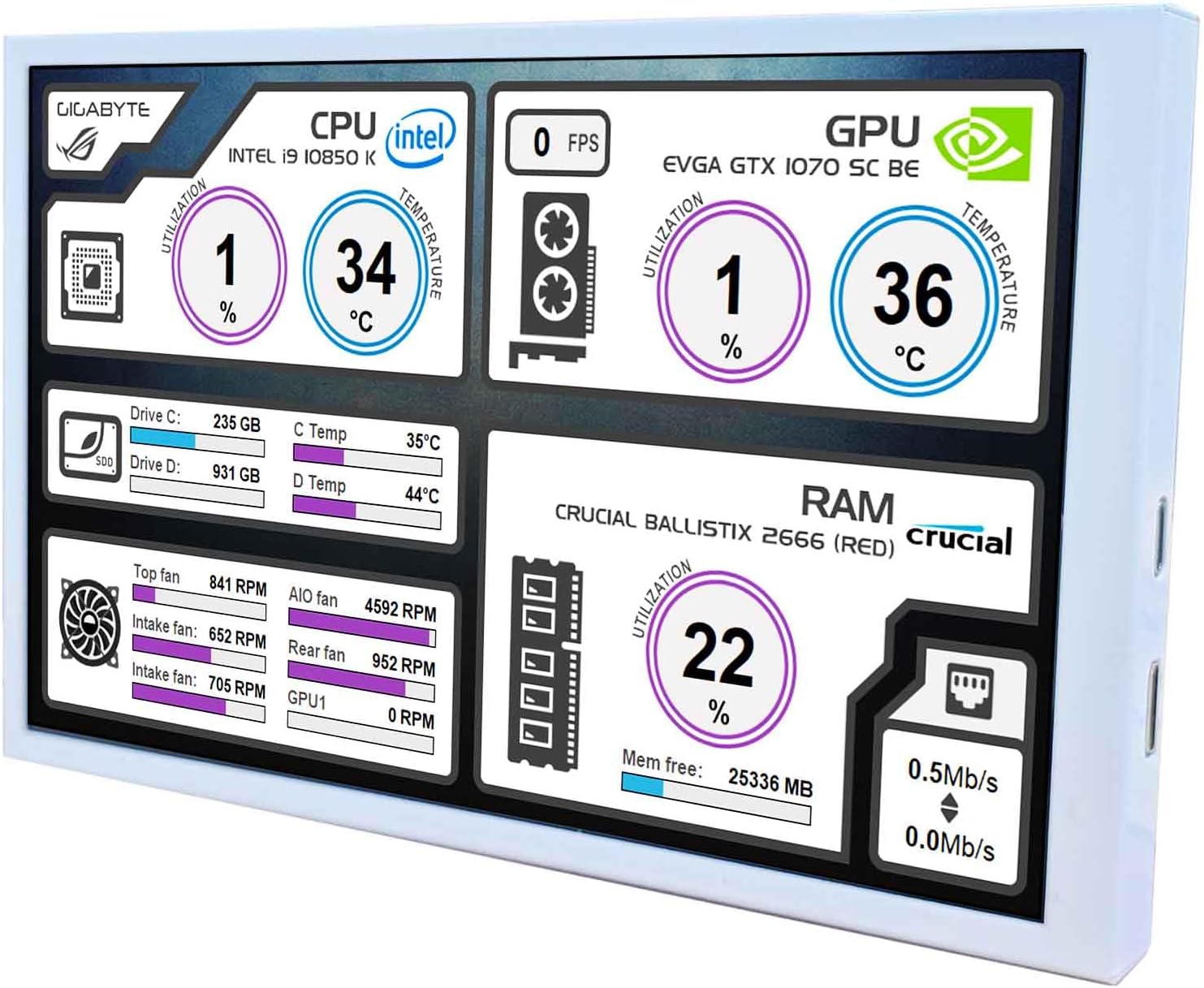
Figure 4.1: Monitor displaying system performance data, often achieved with third-party software.
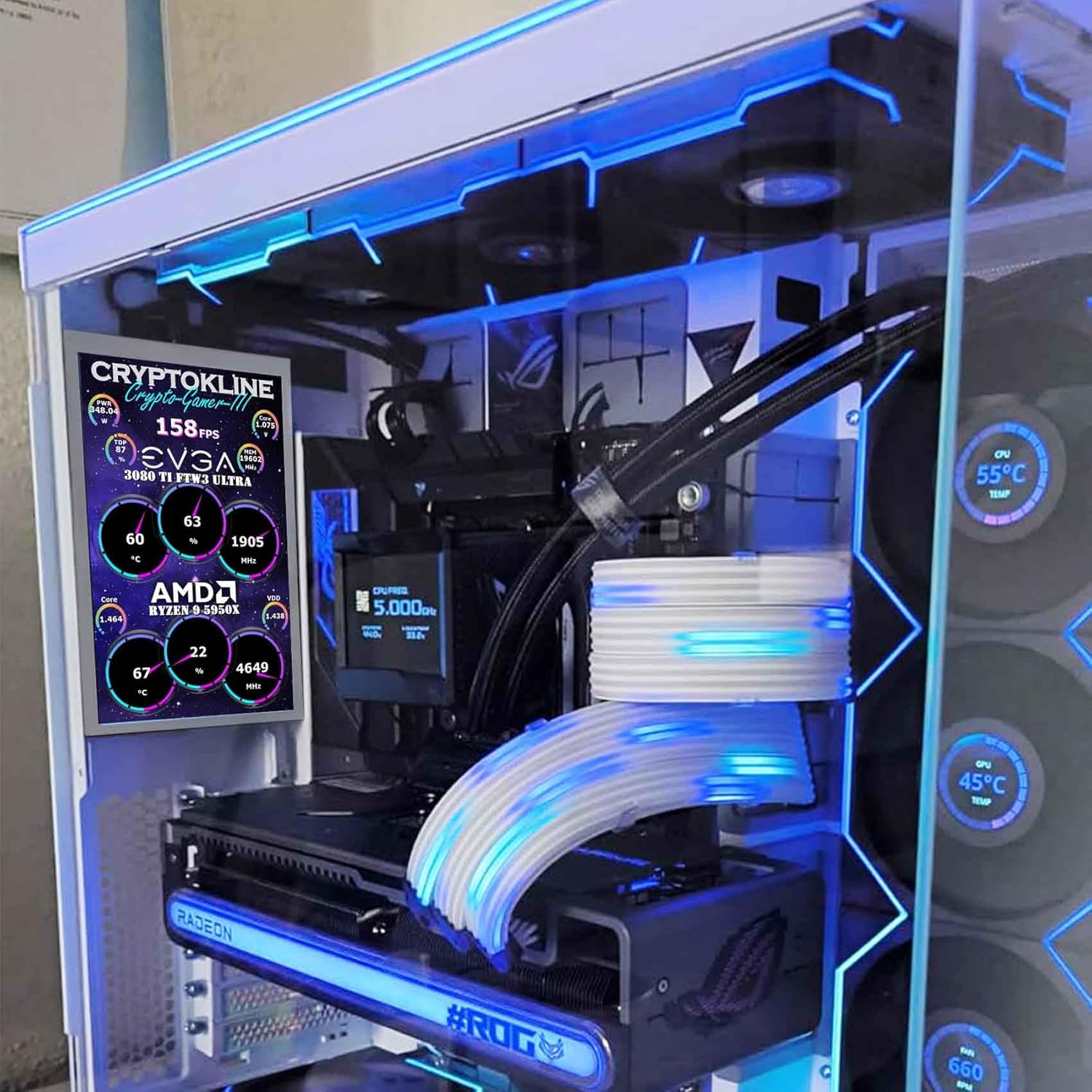
Figure 4.2: Monitor installed inside a PC case, showing system statistics.
4.2 Data Monitoring (Optional)
To display system monitoring data (e.g., CPU temperature, GPU usage, fan speeds), you will need to install third-party software on your computer. Popular options include AIDA64 Extreme or Rainmeter. These applications allow for customizable displays of system metrics on the secondary monitor.
- AIDA64 Extreme: A comprehensive system diagnostic and benchmarking tool that can display detailed hardware information. A license may be required for full functionality.
- Rainmeter: A free, open-source desktop customization tool that allows users to display various information, including system stats, through customizable skins.
Refer to the documentation of your chosen software for specific setup and customization instructions.
5. പരിപാലനം
To ensure the longevity and optimal performance of your VSDISPLAY monitor, follow these maintenance guidelines:
- സ്ക്രീൻ വൃത്തിയാക്കൽ: മൃദുവായ, ലിന്റ് രഹിത തുണി ഉപയോഗിച്ച് സ്ക്രീൻ സൌമ്യമായി തുടയ്ക്കുക. കഠിനമായ പാടുകൾക്ക്, ചെറുതായി dampen the cloth with water or a screen-cleaning solution specifically designed for LCD displays. Avoid using harsh chemicals, abrasive cleaners, or alcohol-based solutions, as these can damage the screen surface.
- സി വൃത്തിയാക്കൽasing: മോണിറ്ററിന്റെ സി വൃത്തിയാക്കാൻ മൃദുവായതും ഉണങ്ങിയതുമായ തുണി ഉപയോഗിക്കുക.asing.
- സംഭരണം: ദീർഘനേരം ഉപയോഗിക്കാത്തപ്പോൾ, മോണിറ്റർ തണുത്തതും വരണ്ടതുമായ സ്ഥലത്ത് സൂക്ഷിക്കുക, നേരിട്ടുള്ള സൂര്യപ്രകാശത്തിൽ നിന്നും കടുത്ത താപനിലയിൽ നിന്നും അകറ്റി നിർത്തുക.
- ആഘാതം ഒഴിവാക്കുക: Protect the monitor from physical shocks and impacts, which can damage internal components or the screen.
6. പ്രശ്നപരിഹാരം
If you encounter issues with your VSDISPLAY monitor, refer to the following common troubleshooting steps:
- ഡിസ്പ്ലേ/കറുത്ത സ്ക്രീൻ ഇല്ല:
- Ensure the USB-C power cable is securely connected to both the monitor and a working power source.
- Verify the Mini HD video cable is firmly connected to both the monitor and your computer's HD output.
- Try connecting the monitor to a different HD port on your computer or a different computer to rule out port issues.
- Check your computer's display settings to ensure the monitor is detected and configured correctly (e.g., extended display, duplicate display).
- മിന്നുന്ന സ്ക്രീൻ അല്ലെങ്കിൽ അസ്ഥിരമായ ചിത്രം:
- എല്ലാ കേബിളുകളും സുരക്ഷിതമായി ബന്ധിപ്പിച്ചിട്ടുണ്ടെന്ന് ഉറപ്പാക്കുക.
- Try a different HD cable if available.
- Reduce the display resolution in your computer's settings to see if the issue persists.
- Incorrect Colors or Image Quality:
- Check your computer's display settings for color calibration options.
- ഡിസ്പ്ലേ റെസല്യൂഷൻ നേറ്റീവ് 1280x800 ആയി സജ്ജീകരിച്ചിട്ടുണ്ടെന്ന് ഉറപ്പാക്കുക.
- Monitor Not Detected by Computer:
- Restart your computer with the monitor connected.
- നിങ്ങളുടെ ഗ്രാഫിക്സ് കാർഡ് ഡ്രൈവറുകൾ ഏറ്റവും പുതിയ പതിപ്പിലേക്ക് അപ്ഡേറ്റ് ചെയ്യുക.
- Ensure the monitor is receiving power.
- System Monitoring Software Not Working:
- Ensure the monitoring software (e.g., AIDA64, Rainmeter) is correctly installed and configured.
- Verify that the software is set to output to the correct display.
- Check for software updates or compatibility issues with your operating system.
ഈ ഘട്ടങ്ങൾ പ്രശ്നം പരിഹരിക്കുന്നില്ലെങ്കിൽ, കൂടുതൽ സഹായത്തിനായി ഉപഭോക്തൃ പിന്തുണയുമായി ബന്ധപ്പെടുക.
7 സ്പെസിഫിക്കേഷനുകൾ
| മോഡൽ നമ്പർ | VS080ZJ-001 |
| സ്ക്രീൻ വലിപ്പം | 8 ഇഞ്ച് |
| റെസലൂഷൻ | 1280 x 800 |
| വീക്ഷണാനുപാതം | 16:10 |
| പാനൽ തരം | ഐ.പി.എസ് |
| ചിത്രത്തിന്റെ തെളിച്ചം | 350 cd/m2 |
| സ്ക്രീൻ കോൺട്രാസ്റ്റ് | 800:1 |
| ഉൽപ്പന്ന അളവുകൾ | 0.55 x 7.45 x 4.64 ഇഞ്ച് (14 x 189.3 x 118 മിമി) |
| ഇനത്തിൻ്റെ ഭാരം | 1.37 പൗണ്ട് |
| കണക്റ്റിവിറ്റി | Mini HD (Signal), USB-C (Power) |
| നിർമ്മാതാവ് | വിഎസ് ഡിസ്പ്ലേ |

Figure 7.1: Detailed product dimensions for the VSDISPLAY 8 Inch Mini LCD Monitor.
8. വാറൻ്റിയും പിന്തുണയും
For warranty information or technical support, please refer to the documentation provided with your purchase or contact VSDISPLAY customer service directly. Keep your purchase receipt as proof of purchase for warranty claims.
നിർമ്മാതാവ്: വിഎസ് ഡിസ്പ്ലേ
Webസൈറ്റ്: www.vsled.com (as per product image label)


