1. സജ്ജീകരണവും ഇൻസ്റ്റാളേഷനും
1.1 പാക്കേജ് ഉള്ളടക്കം
തുടരുന്നതിന് മുമ്പ്, എല്ലാ ഘടകങ്ങളും ഉണ്ടെന്ന് ഉറപ്പാക്കുക:
- CONTINENTAL EDISON CELED50SQLDV24B6 50-inch QLED TV
- റിമോട്ട് കൺട്രോൾ
- പവർ കേബിൾ
- ടിവി സ്റ്റാൻഡ് (2 കഷണങ്ങൾ)
- ടിവി സ്റ്റാൻഡിനുള്ള സ്ക്രൂകൾ
- ഉപയോക്തൃ മാനുവൽ (ഈ പ്രമാണം)
1.2 ടിവി സ്റ്റാൻഡ് ഘടിപ്പിക്കൽ
നിങ്ങളുടെ ടെലിവിഷനിൽ സ്റ്റാൻഡ് ഘടിപ്പിക്കാൻ:
- കേടുപാടുകൾ സംഭവിക്കാതിരിക്കാൻ ടിവി സ്ക്രീൻ-ഡൗൺ മൃദുവായതും പരന്നതുമായ ഒരു പ്രതലത്തിൽ ശ്രദ്ധാപൂർവ്വം വയ്ക്കുക.
- ഓരോ സ്റ്റാൻഡ് പീസും ടിവിയുടെ അടിയിലുള്ള അനുബന്ധ സ്ലോട്ടുകളുമായി വിന്യസിക്കുക.
- നൽകിയിരിക്കുന്ന സ്ക്രൂകൾ ഉപയോഗിച്ച് ഓരോ സ്റ്റാൻഡ് പീസും ഉറപ്പിക്കുക. അവ ദൃഢമായി മുറുക്കിയിട്ടുണ്ടെന്ന് ഉറപ്പാക്കുക.
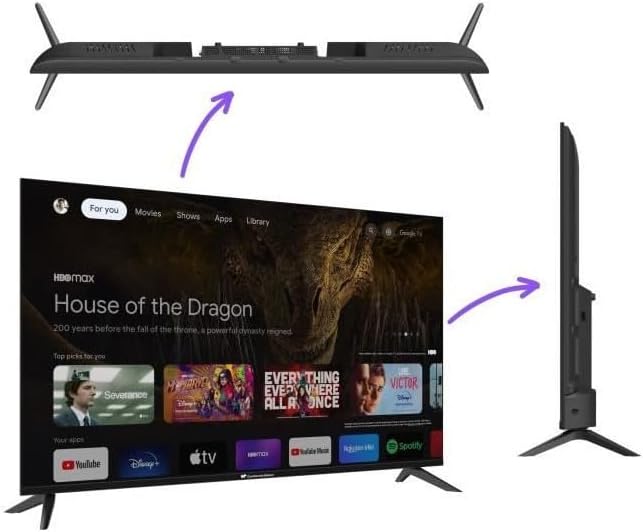
ചിത്രം: പൊട്ടിത്തെറിച്ചു view illustrating the attachment of the TV stand feet to the television base.
1.3 വാൾ മൗണ്ടിംഗ് (ഓപ്ഷണൽ)
This TV is compatible with VESA standard wall mounts. For wall mounting, please refer to the instructions provided with your specific wall mount kit. Ensure the wall mount is suitable for the TV's weight and size. The rear of the TV features mounting points for this purpose.
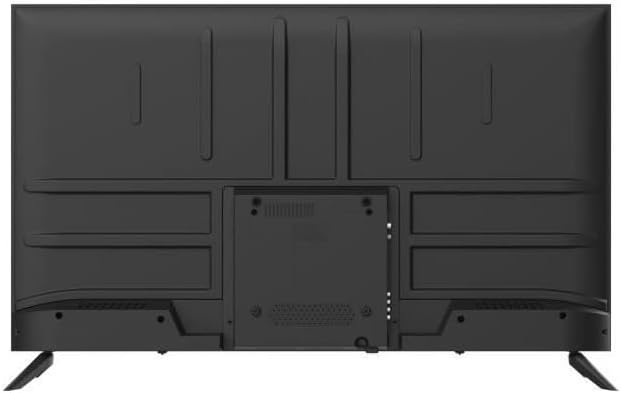
Image: Rear panel of the TV, highlighting the various input ports and VESA mounting screw locations.
1.4 പെരിഫറലുകൾ ബന്ധിപ്പിക്കുന്നു
ഉചിതമായ പോർട്ടുകൾ ഉപയോഗിച്ച് നിങ്ങളുടെ ബാഹ്യ ഉപകരണങ്ങൾ ടിവിയിലേക്ക് ബന്ധിപ്പിക്കുക:
- എച്ച്ഡിഎംഐ: For high-definition video and audio devices (e.g., Blu-ray players, game consoles, set-top boxes). This TV features 4 HDMI ports.
- USB: മീഡിയ പ്ലേ ചെയ്യുന്നതിന് USB സംഭരണ ഉപകരണങ്ങൾ ബന്ധിപ്പിക്കുന്നതിന് files. This TV features 2 USB ports.
- ശക്തി: പവർ കേബിൾ ടിവിയുടെ പവർ ഇൻപുട്ടിലേക്കും തുടർന്ന് ഒരു വാൾ ഔട്ട്ലെറ്റിലേക്കും ബന്ധിപ്പിക്കുക.
1.5 First Power On and Google TV Setup
After connecting all cables, plug in the TV. Press the power button on the remote control or the TV itself. The TV will guide you through the initial setup process for Google TV, which includes:
- ഭാഷ തിരഞ്ഞെടുക്കൽ
- നെറ്റ്വർക്ക് കണക്ഷൻ (വൈ-ഫൈ)
- ഗൂഗിൾ അക്കൗണ്ട് സൈൻ-ഇൻ
- Installation of essential apps

Image: The TV screen showing the Google TV home interface with content recommendations and app icons.
2. നിങ്ങളുടെ ടിവി പ്രവർത്തിപ്പിക്കുന്നു
2.1 റിമോട്ട് കൺട്രോൾ ഓവർview
The remote control allows you to navigate the TV's features. Key functions typically include:
- പവർ ബട്ടൺ: ടിവി ഓണാക്കുകയോ ഓഫാക്കുകയോ ചെയ്യുന്നു.
- നാവിഗേഷൻ പാഡ് (മുകളിലേക്ക്/താഴേക്ക്/ഇടത്/വലത്/ശരി): മെനു നാവിഗേഷനും തിരഞ്ഞെടുപ്പിനും.
- ബാക്ക്/ഹോം ബട്ടണുകൾ: To return to the previous screen or the Google TV home screen.
- വോളിയം കൂട്ടുക/താഴ്ത്തുക: ഓഡിയോ ലെവൽ ക്രമീകരിക്കുന്നു.
- ഇൻപുട്ട്/ഉറവിടം: ഇൻപുട്ട് ഉറവിടം തിരഞ്ഞെടുക്കുന്നു (HDMI 1, HDMI 2, മുതലായവ).
- ഗൂഗിൾ അസിസ്റ്റന്റ് ബട്ടൺ: വോയ്സ് കമാൻഡുകൾ സജീവമാക്കുന്നു.
2.2 ഗൂഗിൾ ടിവി നാവിഗേറ്റ് ചെയ്യൽ
Google TV organizes your content from various streaming services and apps into a unified interface. Use the remote's navigation pad to browse recommendations, access your installed applications, and manage settings.
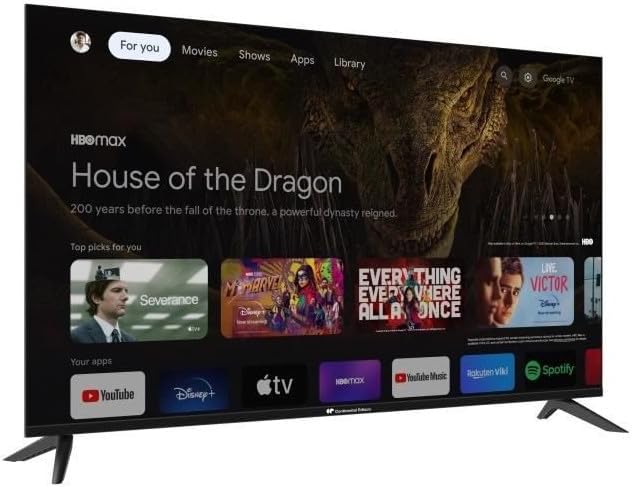
Image: The TV screen from an angle, showing the Google TV interface with various streaming content options.
2.3 വൈഫൈയിലേക്കും ബ്ലൂടൂത്തിലേക്കും കണക്റ്റുചെയ്യുന്നു
Your TV supports both Wi-Fi for internet connectivity and Bluetooth for connecting wireless accessories like headphones or game controllers. These settings can be configured in the TV's main settings menu under 'Network & Internet' and 'Remotes & Accessories' respectively.
2.4 Using Smart Features
With Google TV, you can:
- Stream movies and TV shows from popular services.
- Download and use a wide range of applications from the Google Play Store.
- Cast content from your mobile devices using Chromecast built-in.
- Control smart home devices via Google Assistant.
3. പരിചരണവും പരിപാലനവും
3.1 സ്ക്രീൻ വൃത്തിയാക്കൽ
ടിവി സ്ക്രീൻ വൃത്തിയാക്കാൻ:
- ടിവി ഓഫാക്കി പവർ ഔട്ട്ലെറ്റിൽ നിന്ന് അൺപ്ലഗ് ചെയ്യുക.
- മൃദുവായതും ഉണങ്ങിയതും ലിന്റ് രഹിതവുമായ ഒരു തുണി ഉപയോഗിച്ച് സ്ക്രീൻ സൌമ്യമായി തുടയ്ക്കുക.
- കഠിനമായ അടയാളങ്ങൾക്ക്, നേരിയ dampതുണിയിൽ വെള്ളം അല്ലെങ്കിൽ ഇലക്ട്രോണിക് ഉപകരണങ്ങൾക്കായി പ്രത്യേകം രൂപകൽപ്പന ചെയ്ത സ്ക്രീൻ-ക്ലീനിംഗ് ലായനി ഉപയോഗിക്കുക. സ്ക്രീനിലേക്ക് നേരിട്ട് ദ്രാവകം തളിക്കരുത്.
3.2 പൊതു പരിചരണം
- ടിവി നേരിട്ട് സൂര്യപ്രകാശം ഏൽക്കുകയോ ഉയർന്ന താപനില ഏൽക്കുകയോ ചെയ്യുന്നത് ഒഴിവാക്കുക.
- ടിവിയുടെ പിൻഭാഗത്തുള്ള വെന്റിലേഷൻ തുറസ്സുകൾ തടയരുത്.
- Keep the TV away from sources of moisture.
4. പ്രശ്നപരിഹാരം
നിങ്ങളുടെ ടിവിയിൽ പ്രശ്നങ്ങൾ നേരിടുകയാണെങ്കിൽ, ഇനിപ്പറയുന്ന പൊതുവായ പരിഹാരങ്ങൾ പരിശോധിക്കുക:
- ശക്തിയില്ല: പവർ കേബിൾ ടിവിയിലേക്കും വാൾ ഔട്ട്ലെറ്റിലേക്കും സുരക്ഷിതമായി ബന്ധിപ്പിച്ചിട്ടുണ്ടെന്ന് ഉറപ്പാക്കുക. മറ്റൊരു ഔട്ട്ലെറ്റ് പരീക്ഷിക്കുക.
- ചിത്രം/ശബ്ദം ഇല്ല: Verify the correct input source is selected. Check all cable connections (HDMI, etc.). Restart the TV.
- റിമോട്ട് കൺട്രോൾ പ്രവർത്തിക്കുന്നില്ല: ബാറ്ററികൾ പരിശോധിച്ച് ആവശ്യമെങ്കിൽ അവ മാറ്റിസ്ഥാപിക്കുക. റിമോട്ടിനും ടിവിയുടെ ഐആർ സെൻസറിനും ഇടയിൽ തടസ്സങ്ങളൊന്നുമില്ലെന്ന് ഉറപ്പാക്കുക.
- Wi-Fi കണക്ഷൻ പ്രശ്നങ്ങൾ: Restart your router and modem. Reconnect the TV to the Wi-Fi network in the settings menu. Ensure the TV is within range of your Wi-Fi signal.
- ആപ്പുകൾ ലോഡ് ചെയ്യുന്നില്ല: നിങ്ങളുടെ ഇന്റർനെറ്റ് കണക്ഷൻ പരിശോധിക്കുക. ആപ്പിന്റെ കാഷെ മായ്ക്കുകയോ ആപ്പ് വീണ്ടും ഇൻസ്റ്റാൾ ചെയ്യുകയോ ചെയ്യുക. ടിവിയുടെ സോഫ്റ്റ്വെയർ കാലികമാണെന്ന് ഉറപ്പാക്കുക.
For persistent issues, consult the official CONTINENTAL EDISON support resources.
5 സാങ്കേതിക സവിശേഷതകൾ
| മോഡൽ | CELED50SQLDV24B6 |
| സ്ക്രീൻ വലിപ്പം | 50 ഇഞ്ച് (127 സെ.മീ) |
| ഡിസ്പ്ലേ തരം | ക്യുഎൽഇഡി, എൽഇഡി |
| റെസലൂഷൻ | 4 കെ യുഎച്ച്ഡി (3840 x 2160) |
| ഓപ്പറേറ്റിംഗ് സിസ്റ്റം | Google TV |
| കണക്റ്റിവിറ്റി | Wi-Fi, ബ്ലൂടൂത്ത്, 4x HDMI, 2x USB |
| വീക്ഷണാനുപാതം | 16:9 |
| ഓഡിയോ put ട്ട്പുട്ട് മോഡ് | സ്റ്റീരിയോ |
| മൗണ്ടിംഗ് അനുയോജ്യത | Wall Mount, Tabletop Stand |
| ഉൽപ്പന്ന ഭാരം | 11.1 കി.ഗ്രാം |
| അളവുകൾ (D x W x H) | 12.6 സെ.മീ x 121 സെ.മീ x 73.5 സെ.മീ |
5.1 ഊർജ്ജ കാര്യക്ഷമത

Image: EU Energy Label for the CELED50SQLDV24B6 model, indicating energy efficiency class E for both SDR and HDR content, with consumption of 53 kWh/1000h for SDR and 54 kWh/1000h for HDR.
For detailed energy information, please visit the EPREL ഡാറ്റാബേസ്.
6. വാറൻ്റിയും പിന്തുണയും
6.1 വാറൻ്റി വിവരങ്ങൾ
Your CONTINENTAL EDISON TV is covered by a manufacturer's warranty. Please refer to the warranty card included with your product or visit the official CONTINENTAL EDISON webവാറന്റി കവറേജ്, ദൈർഘ്യം, ക്ലെയിം നടപടിക്രമങ്ങൾ എന്നിവയെക്കുറിച്ചുള്ള വിശദമായ നിബന്ധനകൾക്കും വ്യവസ്ഥകൾക്കും സൈറ്റ് സന്ദർശിക്കുക.
6.2 ഉപഭോക്തൃ പിന്തുണ
Should you require technical assistance, have questions about your product, or need to report a fault, please contact CONTINENTAL EDISON customer support. Contact details can typically be found on the manufacturer's official webസൈറ്റ് അല്ലെങ്കിൽ ഉൽപ്പന്ന പാക്കേജിംഗിൽ.


