1. ആമുഖം
The Darmoshark N5 is a high-performance tri-mode wireless gaming mouse designed for versatility and precision. It offers 2.4G wireless, Bluetooth, and wired USB-C connectivity, making it suitable for various platforms including Windows and Mac. Featuring a lightweight design, a PAW3395 optical sensor with up to 26000 DPI, and 7 programmable buttons, the N5 mouse provides a responsive and comfortable gaming experience.
2 പ്രധാന സവിശേഷതകൾ
- ട്രൈ-മോഡ് കണക്റ്റിവിറ്റി: 2.4G വയർലെസ്, ബ്ലൂടൂത്ത്, വയർഡ് യുഎസ്ബി-സി കണക്ഷനുകൾക്കിടയിൽ സുഗമമായി മാറുക.
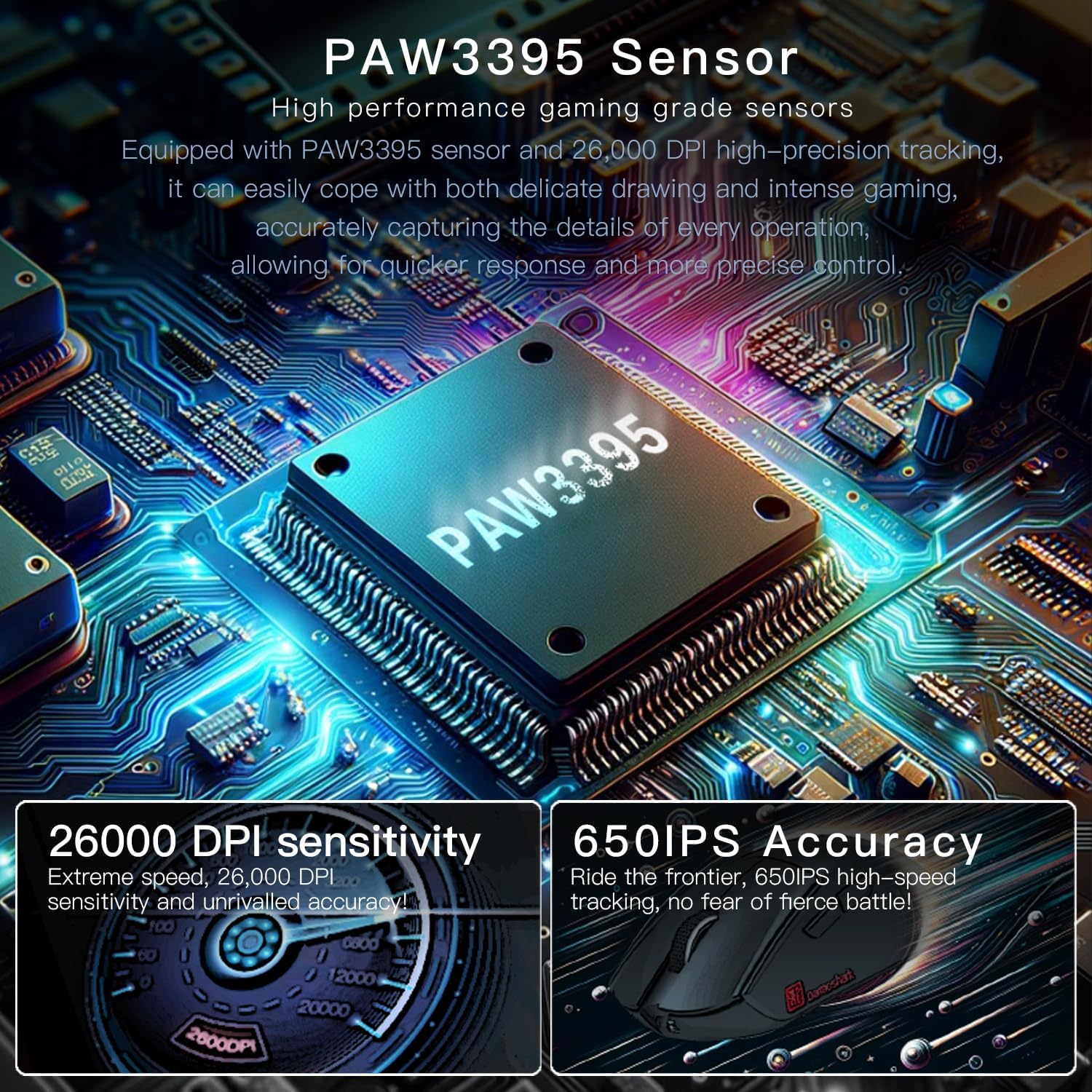
- ഹൈ-പ്രിസിഷൻ സെൻസർ: Equipped with the PAW3395 optical sensor, offering up to 26000 DPI for accurate tracking and quick response.
- വളരെ ഭാരം കുറഞ്ഞ ഡിസൈൻ: Weighing approximately 57 grams, designed for comfortable grip and reduced hand fatigue during extended use.
- 7 പ്രോഗ്രാം ചെയ്യാവുന്ന ബട്ടണുകൾ: Customize controls to suit your gaming style using the official software.
- നീണ്ട ബാറ്ററി ലൈഫ്: Integrated 500mAh battery provides extended usage.
- ബഹുമുഖ അനുയോജ്യത: Compatible with both Windows and Apple Mac operating systems.
- 8KHz പോളിംഗ് നിരക്ക്: Supports up to 8KHz return rate for ultra-low latency (requires separate receiver for 8KHz).

ചിത്രം 1: ഒരു പൊട്ടിത്തെറിച്ചു view of the Darmoshark N5 mouse, detailing internal components such as the PAW3395 sensor, TTC microswitches, PTFE footbeds, NANO receiver, and the built-in 500mAh lithium battery.
3. സജ്ജീകരണ ഗൈഡ്
3.1 അൺബോക്സിംഗും പ്രാരംഭ തയ്യാറെടുപ്പും
Carefully remove the mouse and all accessories from the packaging. Ensure you have the mouse, USB-C cable, 2.4G USB receiver, and any included anti-slip stickers or spare foot stickers. Remove any protective films from the mouse feet for optimal glide.
വീഡിയോ 1: Unboxing and initial setup of the Darmoshark N5 mouse, showing included accessories like the USB-C cable, adapter, and anti-slip stickers. The video also demonstrates removing the protective film from the mouse feet and locating the USB receiver.
3.2 മൗസ് ബന്ധിപ്പിക്കൽ
The Darmoshark N5 supports three connection modes:
- 2.4G വയർലെസ് മോഡ്:
- Locate the 2.4G USB receiver stored in the compartment on the underside of the mouse.
- നിങ്ങളുടെ കമ്പ്യൂട്ടറിൽ ലഭ്യമായ USB പോർട്ടിലേക്ക് USB റിസീവർ പ്ലഗ് ചെയ്യുക.
- Turn on the mouse using the switch on the bottom. The mouse should automatically connect.
- ബ്ലൂടൂത്ത് മോഡ്:
- Turn on the mouse and switch it to Bluetooth mode using the selector on the bottom.
- On your computer (Windows or Mac), go to Bluetooth settings and search for new devices.
- Select "Darmoshark N5" from the list of available devices to pair.
- വയേർഡ് USB-C മോഡ്:
- നൽകിയിരിക്കുന്ന USB-C കേബിൾ മൗസിന്റെ മുൻ പോർട്ടിലേക്ക് ബന്ധിപ്പിക്കുക.
- USB-C കേബിളിന്റെ മറ്റേ അറ്റം നിങ്ങളുടെ കമ്പ്യൂട്ടറിൽ ലഭ്യമായ ഒരു USB പോർട്ടിലേക്ക് ബന്ധിപ്പിക്കുക.
- മൗസ് വയേർഡ് മോഡിൽ പ്രവർത്തിക്കുകയും ഒരേസമയം ചാർജ് ചെയ്യുകയും ചെയ്യും.

ചിത്രം 2: The Darmoshark N5 Tri-Mode Wireless Gaming Mouse in red, showcasinഅതിന്റെ എർഗണോമിക് ഡിസൈനും മിനുസമാർന്ന ഫിനിഷും.
4. മൗസ് പ്രവർത്തിപ്പിക്കൽ
4.1 ഡിപിഐ അഡ്ജസ്റ്റ്മെന്റ്
The mouse features a dedicated DPI adjustment button, typically located on the underside or top of the mouse, allowing you to cycle through different sensitivity levels. Refer to the product diagram for the exact location. Each press will change the DPI setting, indicated by an LED light or software interface.
ചിത്രം 3: A detailed diagram of the Darmoshark N5 mouse, highlighting its dimensions (123mm x 68mm x 40mm) and the location of buttons, including the DPI adjustment key, return rate button, and adapter storage slot.
4.2 പോളിംഗ് നിരക്ക് (റിട്ടേൺ നിരക്ക്)
The N5 mouse supports various polling rates, including an 8KHz return rate for extremely low latency. This feature enhances responsiveness, making cursor movements smoother and more accurate. To utilize the 8KHz polling rate, a separate compatible receiver may be required.
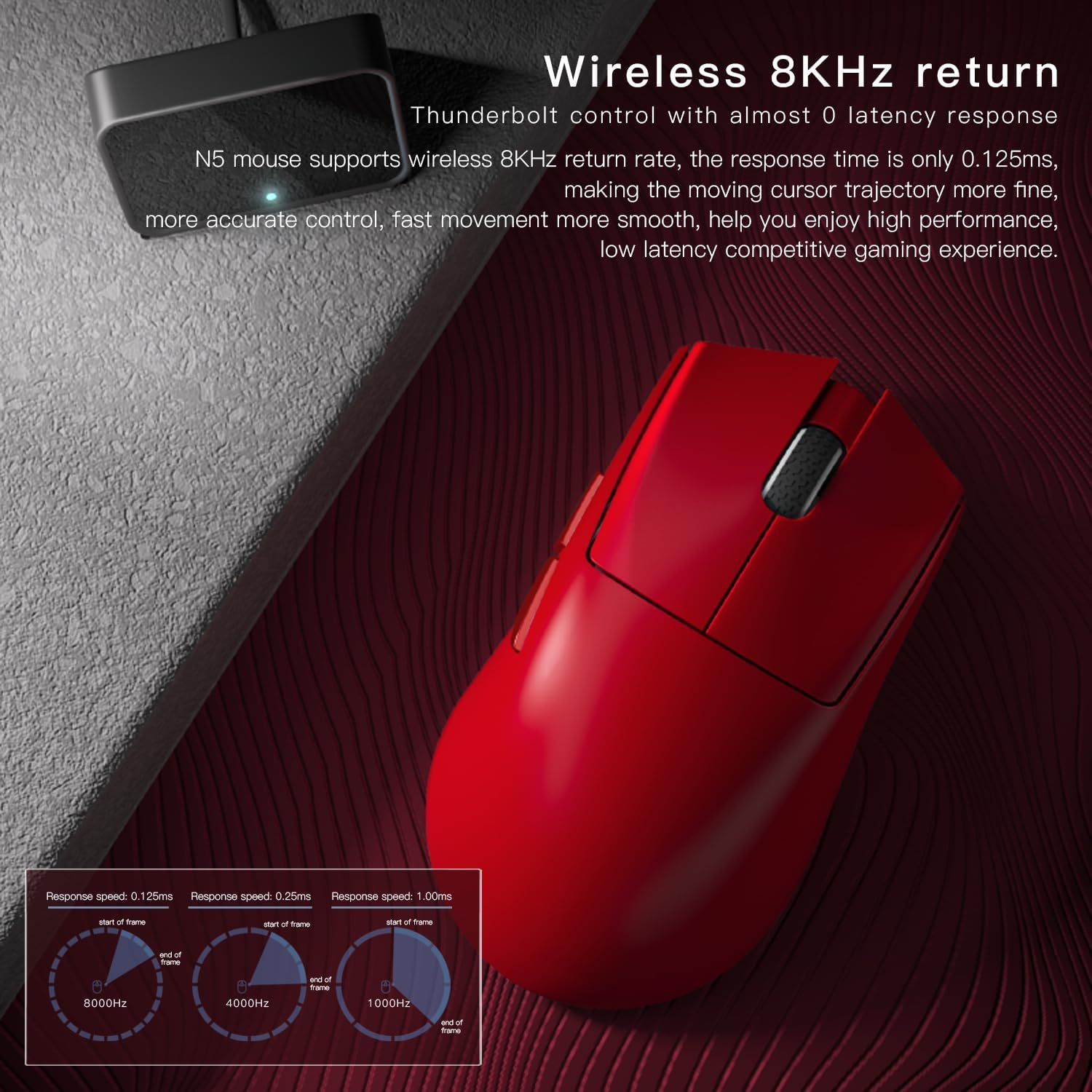
ചിത്രം 4: Illustration demonstrating the wireless 8KHz return rate capability of the Darmoshark N5 mouse, highlighting its low latency response time of 0.125ms for precise control.
4.3 പ്രോഗ്രാം ചെയ്യാവുന്ന ബട്ടണുകൾ
The mouse features 7 programmable buttons. To customize these buttons, download and install the official Darmoshark software from the manufacturer's website. The software allows you to assign macros, rebind keys, and adjust other performance settings.
5. ബാറ്ററിയും ചാർജിംഗും
The Darmoshark N5 is equipped with a 500mAh Lithium Ion battery. To charge the mouse, connect it to your computer using the provided USB-C cable. The mouse can be used in wired mode while charging. A full charge provides approximately 125 hours of usage in no-light mode or 83 hours with lights on.

ചിത്രം 5: The Darmoshark N5 mouse on a charging dock, illustrating its long-lasting 500mAh battery for extended use.
6. പരിപാലനം
- വൃത്തിയാക്കൽ: മൗസ് പ്രതലം വൃത്തിയാക്കാൻ മൃദുവായതും ഉണങ്ങിയതുമായ ഒരു തുണി ഉപയോഗിക്കുക. കഠിനമായ അഴുക്കിന്, അല്പം ഡി.amp തുണി ഉപയോഗിക്കാം, പക്ഷേ ഈർപ്പം മൗസിനുള്ളിൽ കടക്കുന്നില്ലെന്ന് ഉറപ്പാക്കുക.
- സെൻസർ പരിചരണം: കൃത്യമായ ട്രാക്കിംഗ് ഉറപ്പാക്കാൻ മൗസിന്റെ അടിവശത്തുള്ള ഒപ്റ്റിക്കൽ സെൻസർ വൃത്തിയുള്ളതും പൊടിയോ അവശിഷ്ടങ്ങളോ ഇല്ലാതെ സൂക്ഷിക്കുക.
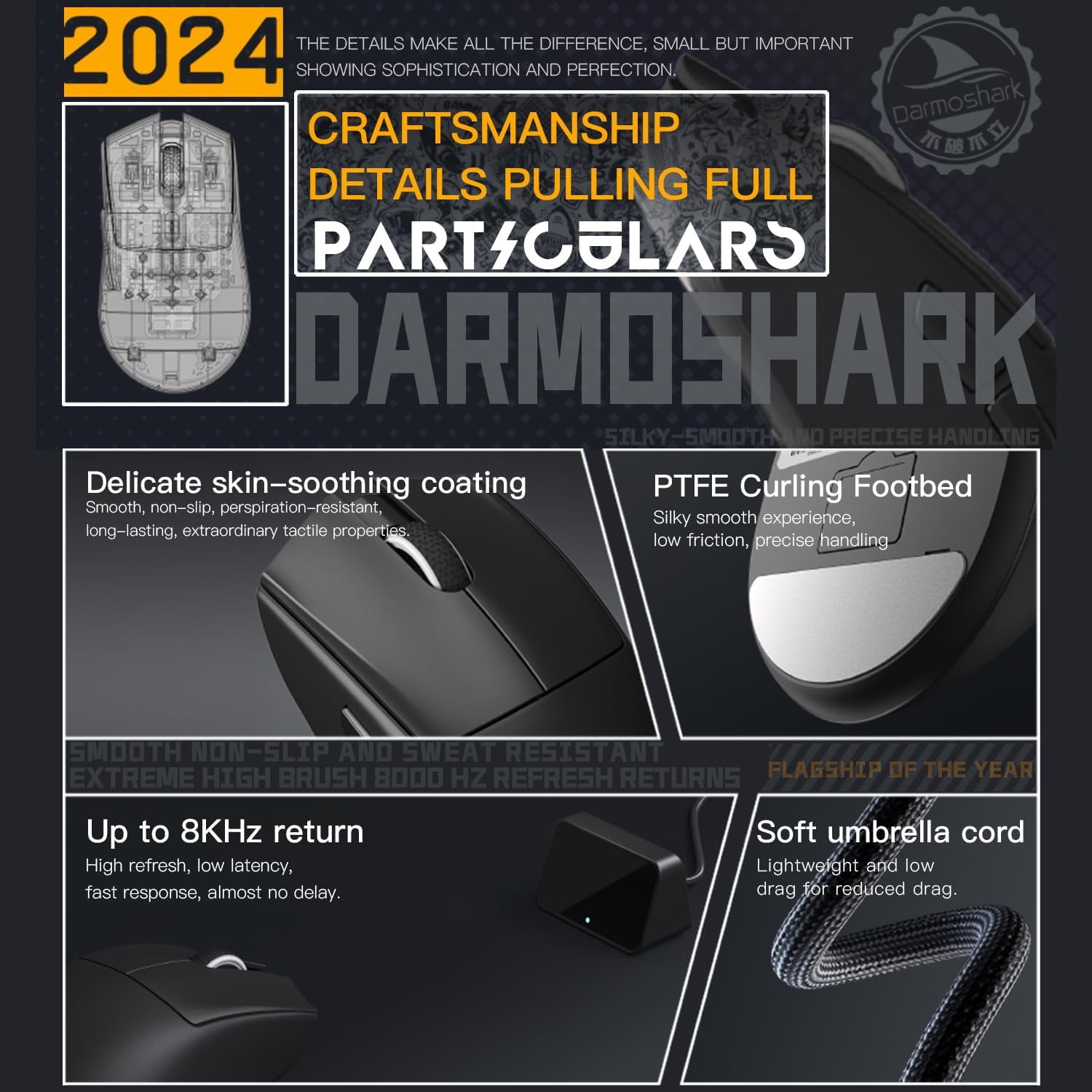
- PTFE അടി: The mouse features 100% PTFE feet for smooth gliding. If the feet become worn, replace them with the provided spare foot stickers or purchase new ones.
- സംഭരണം: ദീർഘനേരം ഉപയോഗിക്കാത്തപ്പോൾ, മൗസ് വരണ്ടതും തണുത്തതുമായ സ്ഥലത്ത് സൂക്ഷിക്കുക.
7. പ്രശ്നപരിഹാരം
- മൗസ് പ്രതികരിക്കുന്നില്ല:
- മൗസ് ചാർജ് ചെയ്തിട്ടുണ്ടെന്ന് ഉറപ്പാക്കുക.
- Check if the mouse is turned on and in the correct connection mode (2.4G, Bluetooth, or wired).
- For 2.4G, ensure the USB receiver is securely plugged into a working USB port.
- For Bluetooth, ensure the mouse is paired correctly and your computer's Bluetooth is enabled.
- വയർലെസ് പ്രശ്നങ്ങൾ ഒഴിവാക്കാൻ വയർഡ് മോഡിൽ മൗസ് ബന്ധിപ്പിക്കാൻ ശ്രമിക്കുക.
- കാലതാമസം അല്ലെങ്കിൽ വിച്ഛേദങ്ങൾ:
- Reduce interference by moving the mouse closer to the receiver or computer.
- മറ്റ് വയർലെസ് ഉപകരണങ്ങൾ തടസ്സപ്പെടുത്തുന്നില്ലെന്ന് ഉറപ്പാക്കുക.
- Update mouse drivers and firmware (via official software).
- Check battery level; low battery can affect wireless performance.
- കൃത്യമല്ലാത്ത ട്രാക്കിംഗ്:
- മൗസിന്റെ അടിവശത്തുള്ള ഒപ്റ്റിക്കൽ സെൻസർ വൃത്തിയാക്കുക.
- വൃത്തിയുള്ളതും ഏകതാനവുമായ പ്രതലത്തിലോ ഉയർന്ന നിലവാരമുള്ള മൗസ് പാഡിലോ മൗസ് ഉപയോഗിക്കുക.
- DPI ക്രമീകരണങ്ങൾ സുഖകരമായ ഒരു തലത്തിലേക്ക് ക്രമീകരിക്കുക.
- ബട്ടണുകൾ പ്രവർത്തിക്കുന്നില്ല:
- മൗസ് ഓൺ ചെയ്തിട്ടുണ്ടെന്നും കണക്റ്റ് ചെയ്തിട്ടുണ്ടെന്നും ഉറപ്പാക്കുക.
- Check for any software conflicts or rebinds in the Darmoshark software.
വീഡിയോ 2: A demonstration of the Darmoshark N5 mouse in use, highlighting its responsiveness and performance during gaming. This video also shows the mouse's lightweight design and ergonomic shape.
8 സ്പെസിഫിക്കേഷനുകൾ
| ഫീച്ചർ | വിശദാംശങ്ങൾ |
|---|---|
| ബ്രാൻഡ് | ഡാർമോഷാർക്ക് |
| മോഡൽ | N5 |
| കണക്റ്റിവിറ്റി ടെക്നോളജി | 2.4G വയർലെസ്, ബ്ലൂടൂത്ത്, യുഎസ്ബി-സി വയേർഡ് |
| മൂവ്മെന്റ് ഡിറ്റക്ഷൻ ടെക്നോളജി | ഒപ്റ്റിക്കൽ (PAW3395 സെൻസർ) |
| പരമാവധി ഡിപിഐ | 26000 ഡിപിഐ |
| പോളിംഗ് നിരക്ക് | Up to 8KHz (with separate receiver) |
| പ്രോഗ്രാം ചെയ്യാവുന്ന ബട്ടണുകൾ | 7 |
| ബാറ്ററി | 500mAh ലിഥിയം അയൺ (ഉൾപ്പെടുത്തിയത്) |
| ഇനത്തിൻ്റെ ഭാരം | ഏകദേശം 57 ഗ്രാം (2.01 ഔൺസ്) |
| അളവുകൾ (L x W x H) | 123mm x 68mm x 40mm |
| അനുയോജ്യത | വിൻഡോസ്, മാക് |
ചിത്രം 6: ഒരു ക്ലോസപ്പ് view of the PAW3395 optical sensor, emphasizing its high-performance capabilities for gaming with 26000 DPI sensitivity and 650 IPS accuracy.
9. വാറൻ്റിയും പിന്തുണയും
The Darmoshark N5 Tri-Mode Wireless Gaming Mouse comes with a manufacturer's warranty. For specific warranty details, please refer to the documentation included with your product or visit the official Darmoshark website. For technical support, troubleshooting assistance, or to download the latest software and drivers, please contact Darmoshark customer service or visit their support page.
നിർമ്മാതാവ്: ഡാർമോഷാർക്ക്
ഉദ്യോഗസ്ഥൻ Webസൈറ്റ്: Darmoshark Store on Amazon


