1. ആമുഖം
This manual provides detailed instructions for the installation, operation, and maintenance of your ANNKE Dual-Lens Outdoor Security Camera System. Please read this manual thoroughly before using the product to ensure proper setup and functionality. Keep this manual for future reference.
2. ബോക്സിൽ എന്താണുള്ളത്?
നിങ്ങളുടെ പാക്കേജിൽ എല്ലാ ഘടകങ്ങളും ഉണ്ടെന്ന് ഉറപ്പാക്കുക:
- 1 x 8CH 6MP NVR (Network Video Recorder)
- 1 x 6TB Hard Drive (pre-installed in NVR)
- 1 x 6MP PoE Dual-Lens Panoramic Camera
- 1 x 30m Ethernet Cable
- 1 x യുഎസ്ബി മൗസ്
- NVR-നുള്ള 1 x പവർ അഡാപ്റ്റർ
- 1 x 1.8m HDMI കേബിൾ
- 1 x ഉപയോക്തൃ മാനുവൽ
- 1 x വാൾ സ്റ്റിക്കർ
- Screws and Wall Plugs for camera installation

Figure 2.1: Package Contents. This image displays the NVR, dual-lens camera, power adapter, USB mouse, 30m network cable, HDMI cable, wall sticker, user manual, screws, and a 6TB surveillance HDD.
3. ഉൽപ്പന്നം കഴിഞ്ഞുview കൂടാതെ പ്രധാന സവിശേഷതകൾ
The ANNKE Dual-Lens Outdoor Security Camera System offers advanced surveillance capabilities with its innovative design and smart features.
3.1. Dual-Lens Panoramic Camera
- 180° Wider View: The camera integrates two 1/2.5" BSI sensors to provide a single, stitched 180° panoramic view without distortion, covering a significantly wider area than standard cameras.
- 6MP Clarity: Delivers high-resolution 6-megapixel video for clear and detailed imaging.
- പൂർണ്ണ വർണ്ണ രാത്രി ദർശനം: Equipped with two spotlights, the camera provides vivid, full-color video even in low-light conditions, extending visibility up to 100 ft.
- AI Smart Motion Detection: Features intelligent detection for human and vehicle motion, reducing false alarms. Customizable detection zones and lines are supported.
- ടു-വേ ഓഡിയോ: ബിൽറ്റ്-ഇൻ മൈക്രോഫോണും സ്പീക്കറും ക്യാമറയിലൂടെ തത്സമയ ആശയവിനിമയം നടത്താൻ അനുവദിക്കുന്നു.
- PoE (പവർ ഓവർ ഇഥർനെറ്റ്): ഒരൊറ്റ ഇതർനെറ്റ് കേബിളിലൂടെ വൈദ്യുതിയും ഡാറ്റയും നൽകിക്കൊണ്ട് ഇൻസ്റ്റാളേഷൻ ലളിതമാക്കുന്നു.
- കാലാവസ്ഥ പ്രതിരോധം: IP66 rated for outdoor use, capable of withstanding various weather conditions.
- പ്രാദേശിക സംഭരണം: Supports a built-in micro SD/SDHC/SDXC slot up to 256 GB (card not included) for local recording.

Figure 3.1: 180° Stitched Panoramic View. This image illustrates the wider field of view provided by the dual-lens camera compared to traditional cameras, showing a seamless 180-degree image.
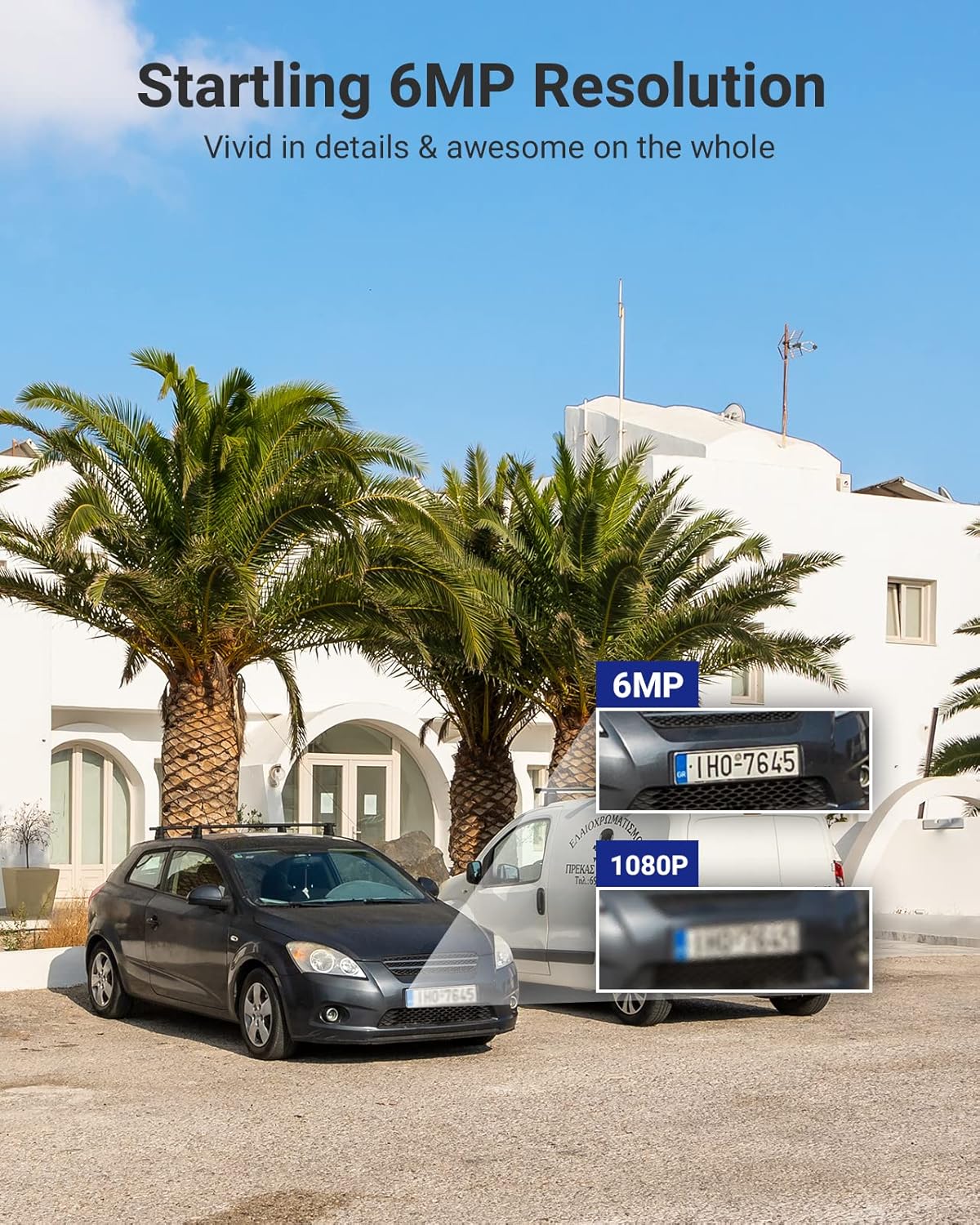
Figure 3.2: 6MP Resolution Clarity. This image demonstrates the enhanced detail of 6MP resolution, showing clearer license plate numbers compared to 1080p resolution.

Figure 3.3: Full-Color Night Vision. This image shows the camera mounted on a building, illuminating a wide outdoor area with its spotlights, providing a full-color view രാത്രിയിൽ.

Figure 3.4: AI Motion Detection. This image depicts the camera's ability to distinguish between a person and a vehicle, highlighting detected objects with bounding boxes and showing a notification alert.

Figure 3.5: Two-Way Audio. This image illustrates a user communicating with a delivery person via the camera's two-way audio feature, with speech bubbles indicating the conversation.

Figure 3.6: Single Camera, Dual Functionality. This diagram visually explains how one dual-lens camera provides the coverage equivalent to two traditional single-lens cameras, simplifying installation.

Figure 3.7: Micro SD Card Slot. A close-up view of the camera's micro SD card slot, indicating support for up to 256GB of local storage.
3.2. 8-Channel NVR (Network Video Recorder)
- 8-Channel PoE Input: Connects up to 8 PoE IP cameras, providing power and data.
- 6MP Max Recording Resolution: Supports recording resolutions up to 6 megapixels.
- H.265+ വീഡിയോ കംപ്രഷൻ: Advanced compression technology for efficient storage and bandwidth usage.
- 6TB HDD ഉൾപ്പെടുത്തിയിരിക്കുന്നത്: Comes with a pre-installed 6TB hard disk drive for extensive video storage.
- HDMI & VGA Output: Connects to monitors for local viewing up to 1080P.
- Onvif Protocols: Supports Onvif for compatibility with various IP cameras.

Figure 3.8: ANNKE Security System Components. This image displays the ANNKE NVR unit and the dual-lens panoramic PoE camera, along with a visual representation of the 6TB hard drive.
4 സ്പെസിഫിക്കേഷനുകൾ
4.1. എൻവിആർ സ്പെസിഫിക്കേഷനുകൾ
| ഫീച്ചർ | സ്പെസിഫിക്കേഷൻ |
|---|---|
| IP വീഡിയോ ഇൻപുട്ട് | 8 Channels PoE |
| പരമാവധി റെക്കോർഡിംഗ് റെസല്യൂഷൻ | 6MP വരെ |
| വീഡിയോ ഔട്ട്പുട്ട് | HDMI & VGA 1080P വരെ |
| വീഡിയോ കംപ്രഷൻ | H.265+/H.265/ H.264+/H.264 |
| HDD ശേഷി | Up to 6TB capacity (6TB HDD Included) |
| പി.ഒ.ഇ | സിംഗിൾ പോർട്ടിന് പരമാവധി 25.5W |
| നെറ്റ്വർക്ക് ഇന്റർഫേസ് | RJ45 x 1 (10/100 M) |
| USB | 2x USB 2.0 |
| പ്രവർത്തന ശക്തി | DC48V |
| പ്രവർത്തന താപനില | 14 °F ~ 131 °F (-10 °C ~ +55 °C) |
| അളവുകൾ (L x W x H) | 10.43 x 8.86 x 1.89 ഇഞ്ച് |
4.2. ക്യാമറ സ്പെസിഫിക്കേഷനുകൾ
| ഫീച്ചർ | സ്പെസിഫിക്കേഷൻ |
|---|---|
| ഇമേജ് സെൻസർ | 2x 1/2.5" Progressive Scan CMOS |
| ലെൻസ് | ഡ്യുവൽ ലെൻസ്: 2.8 മില്ലീമീറ്റർ |
| ഫീൽഡ് View (FoV) | 180 ° പനോരമിക് |
| വീഡിയോ ബിറ്റ് നിരക്ക് | 32 Kbps മുതൽ 16 Mbps വരെ |
| ഓഡിയോ | Built-in Microphone (with environment noise filtering), Two-Way Audio |
| ഇമേജ് മെച്ചപ്പെടുത്തൽ | BLC, HLC, 3D DNR |
| വൈഡ് ഡൈനാമിക് റേഞ്ച് | 120dB WDR |
| പ്രവർത്തന ശക്തി | PoE (802.3af), 12 VDC ± 25% |
| സംഭരണം | Built-in micro SD/SDHC/SDXC slot, up to 256 GB (card not included), support NAS, NVR |
| ഓഡിയോ അലാറം | Support (Parameters adjustable, custom audio, triggered from APP) |
| പരിസ്ഥിതി റേറ്റിംഗ് | ഇൻഡോർ/ഔട്ട്ഡോർ (IP66) |
5. സജ്ജീകരണ ഗൈഡ്
Follow these steps to set up your ANNKE Security Camera System.
5.1. NVR Installation
- പ്ലേസ്മെൻ്റ്: Place the NVR in a secure, dry, and well-ventilated area, away from direct sunlight and heat sources. Ensure it is easily accessible for connections.
- മോണിറ്റർ ബന്ധിപ്പിക്കുക: Connect a monitor to the NVR's HDMI or VGA port using the provided HDMI cable or a VGA cable (not included).
- മൗസ് ബന്ധിപ്പിക്കുക: NVR-ന്റെ USB പോർട്ടുകളിൽ ഒന്നിലേക്ക് USB മൗസ് പ്ലഗ് ചെയ്യുക.
- നെറ്റ്വർക്കിലേക്ക് കണക്റ്റുചെയ്യുക (ഓപ്ഷണൽ പക്ഷേ ശുപാർശ ചെയ്യുന്നു): For remote access and firmware updates, connect the NVR's RJ45 network port to your router/switch using an Ethernet cable.
- പവർ ഓൺ: Connect the NVR to the power adapter and plug it into a power outlet. The NVR will start automatically.
5.2. ക്യാമറ ഇൻസ്റ്റാളേഷൻ
- ലൊക്കേഷൻ തിരഞ്ഞെടുക്കുക: Select a suitable outdoor location for the camera, ensuring it covers the desired area and has a clear line of sight. Consider mounting height for optimal detection and view.
- മൗണ്ടിംഗ്: Use the provided screws and wall plugs to securely mount the camera to a wall or ceiling. Ensure the mounting surface is strong enough to support the camera's weight.
- Connect Camera to NVR: Connect the camera to one of the NVR's PoE ports using the provided 30m Ethernet cable. The camera will receive both power and data through this single cable.
- ആംഗിൾ ക്രമീകരിക്കുക: Loosen the camera's adjustment screws to position the camera for the desired 180° panoramic view. Tighten the screws once the angle is set.
5.3. Initial NVR Configuration
- First-Time Setup Wizard: Upon first boot, the NVR will guide you through a setup wizard. Follow the on-screen prompts to set language, date/time, password, and network settings.
- ഹാർഡ് ഡ്രൈവ് ആരംഭിക്കൽ: The pre-installed 6TB HDD may need to be initialized or formatted by the NVR. Follow the prompts to ensure it's ready for recording.
- ക്യാമറ കണ്ടെത്തൽ: The NVR should automatically detect and add the connected PoE camera. If not, refer to the NVR's specific user manual for manual camera addition.
- നെറ്റ്വർക്ക് കോൺഫിഗറേഷൻ: If you connected the NVR to your network, ensure DHCP is enabled or configure a static IP address. This is crucial for remote access.
6. പ്രവർത്തന നിർദ്ദേശങ്ങൾ
This section covers basic operation of your ANNKE Security Camera System.
6.1. തത്സമയം View
- After successful setup, the NVR will display the live feed from the connected camera(s) on the monitor.
- Use the USB mouse to navigate the NVR interface. Double-click a camera view to enlarge it, or right-click to access the main menu.
6.2. റെക്കോർഡിംഗും പ്ലേബാക്കും
- റെക്കോർഡിംഗ്: The NVR is configured for continuous recording by default. You can adjust recording schedules (e.g., motion-triggered, scheduled) via the NVR's menu (typically under "Record" or "Storage").
- പ്ലേബാക്ക്: Access the "Playback" menu on the NVR. Select the desired camera and date/time to review രേഖപ്പെടുത്തി footage. Use the timeline to navigate through recordings.
6.3. മോഷൻ ഡിറ്റക്ഷനും അലേർട്ടുകളും
- കോൺഫിഗറേഷൻ: Navigate to the "Event" or "Alarm" settings in the NVR menu. Here you can enable and configure Human/Vehicle Detection for your camera.
- Detection Zones/Lines: Draw specific areas or lines on the camera's view where motion detection should be active. This helps to minimize false alarms.
- അലേർട്ടുകൾ: Configure how you receive alerts (e.g., push notifications to your mobile app, email alerts, audible siren from the camera).
6.4. ടു-വേ ഓഡിയോ
- To use two-way audio, access the camera's live view through the NVR interface or the mobile application.
- Look for a microphone icon to speak and a speaker icon to listen. Ensure your mobile device's microphone is enabled for the app.
6.5. Remote Access (Mobile App)
- അപ്ലിക്കേഷൻ ഡൗൺലോഡുചെയ്യുക: Download the official ANNKE mobile application from your smartphone's app store (e.g., "ANNKE Vision" or similar, refer to NVR manual for exact app name).
- അക്കൗണ്ട് രജിസ്റ്റർ ചെയ്യുക: ഒരു അക്കൗണ്ട് സൃഷ്ടിച്ച് ലോഗിൻ ചെയ്യുക.
- ഉപകരണം ചേർക്കുക: Use the app to scan the QR code on your NVR or manually enter its serial number to add the device.
- തത്സമയം View & പ്ലേബാക്ക്: ചേർത്തുകഴിഞ്ഞാൽ, നിങ്ങൾക്ക് കഴിയും view live feeds, play back recordings, receive alerts, and use two-way audio remotely.
7. പരിപാലനം
- വൃത്തിയാക്കൽ: ക്യാമറ ലെൻസ് പതിവായി മൃദുവായ, ഡി-ടച്ച് ഉപയോഗിച്ച് വൃത്തിയാക്കുക.amp cloth to ensure clear image quality. Do not use harsh chemicals.
- ഫേംവെയർ അപ്ഡേറ്റുകൾ: ANNKE പരിശോധിക്കുക website or your mobile app periodically for firmware updates. Keeping your system updated ensures optimal performance and security.
- കേബിൾ പരിശോധന: Periodically inspect all cables for wear and tear, especially outdoor Ethernet cables, to prevent connection issues.
- ഹാർഡ് ഡ്രൈവ് ആരോഗ്യം: The NVR may have a feature to check the health of the hard drive. Monitor this to prevent data loss.
8. പ്രശ്നപരിഹാരം
8.1. No Video Display
- പവർ പരിശോധിക്കുക: NVR ഓണാക്കിയിട്ടുണ്ടെന്നും പവർ അഡാപ്റ്റർ സുരക്ഷിതമായി ബന്ധിപ്പിച്ചിട്ടുണ്ടെന്നും ഉറപ്പാക്കുക.
- മോണിറ്റർ കണക്ഷൻ: Verify the HDMI/VGA cable is securely connected to both the NVR and the monitor. Try a different cable or monitor if possible.
- ക്യാമറ കണക്ഷൻ: Ensure the Ethernet cable from the camera is securely plugged into a PoE port on the NVR. Check if the PoE port indicator light is on.
- NVR Settings: Access the NVR menu (if display works) and check camera management settings to ensure the camera is added and enabled.
8.2. No Remote Access
- നെറ്റ്വർക്ക് കണക്ഷൻ: Verify the NVR is connected to your router/network and has internet access. Check the network status in the NVR settings.
- ആപ്പ് ലോഗിൻ: Ensure you are logged into the correct account on the mobile app.
- ഉപകരണം ചേർത്തു: Confirm the NVR is correctly added to your account in the mobile app.
- Firewall/Router: Check your router's firewall settings. Ensure necessary ports are open if manual port forwarding is required (though P2P usually bypasses this).
8.3. Motion Detection Not Working
- Enable Detection: Ensure Human/Vehicle Detection is enabled for the specific camera in the NVR's event settings.
- സംവേദനക്ഷമത: Adjust the detection sensitivity. Too low may miss events, too high may cause false alarms.
- കണ്ടെത്തൽ ഏരിയ: Verify the detection zones/lines are correctly configured and cover the desired areas.
- ഷെഡ്യൂൾ: Check if the motion detection schedule is active for the current time.
9. വാറൻ്റിയും പിന്തുണയും
ANNKE products typically come with a limited warranty. For specific warranty terms and conditions, please refer to the warranty card included in your package or visit the official ANNKE webസൈറ്റ്.
For technical support, product inquiries, or service requests, please contact ANNKE customer support through their official website or the contact information provided in your NVR's user manual.
ഔദ്യോഗിക ANNKE Webസൈറ്റ്: www.annke.com


