ആമുഖം
The WYRESTORM APO-60-UC is a versatile conference speaker and microphone designed to enhance your meeting experience. It features 360° omnidirectional voice pickup, AI noise reduction, and flexible connectivity options including USB and Bluetooth 5.1. This device is also expandable with a daisy-chain function, making it suitable for various meeting room sizes, from small huddle spaces to large conference halls.

Image: The WYRESTORM APO-60-UC conference speaker and microphone, showcasing its compact design and central control dial.
പാക്കേജ് ഉള്ളടക്കം
സജ്ജീകരണവുമായി മുന്നോട്ടുപോകുന്നതിനുമുമ്പ്, പാക്കേജിൽ എല്ലാ ഇനങ്ങളും ഉണ്ടെന്ന് ഉറപ്പാക്കുക:
- WYRESTORM APO-60-UC Conference Speaker and Microphone Unit
- USB-C to USB-A Cable (long)
- Bluetooth Dongle (if applicable)
- Power Adapter with various international plugs
സജ്ജീകരണ നിർദ്ദേശങ്ങൾ
1. പവർ കണക്ഷൻ
Connect the provided power adapter to the power input port on the APO-60-UC unit. Plug the adapter into a suitable power outlet. The device will power on automatically as there is no dedicated power switch.
2. Connecting to a Computer (USB)
For a direct and stable connection, use the supplied USB-C to USB-A cable. Connect the USB-C end to the APO-60-UC unit and the USB-A end to an available USB port on your computer. The device is plug-and-play and should be recognized automatically by your operating system.

Image: Diagram illustrating both wired USB and wireless Bluetooth connection methods for the APO-60-UC.
3. ബ്ലൂടൂത്ത് 5.1 വഴി ബന്ധിപ്പിക്കുന്നു
- Ensure the APO-60-UC is powered on.
- On the top control panel of the APO-60-UC, press and hold the ബ്ലൂടൂത്ത് ഐക്കൺ until the indicator light begins to flash, indicating pairing mode.
- On your computer or smartphone, navigate to Bluetooth settings and search for available devices.
- Select "WYRESTORM APO-60-UC" from the list of devices to pair.
- Once connected, the Bluetooth indicator light on the APO-60-UC will become solid.
4. Daisy Chain Function for Large Meetings
The APO-60-UC supports daisy-chaining up to three additional HALO-COM-MIC units (sold separately) on each side, allowing for expanded microphone coverage in larger conference rooms. This feature is ideal for meeting spaces up to 50-60m².
- Locate the cascade ports on the bottom of the APO-60-UC unit.
- Connect the HALO-COM-MIC units using appropriate cables (not included with APO-60-UC) to these cascade ports.
- Ensure proper connection for all units in the chain. The system will automatically detect and integrate the additional microphones.

Image: Diagram illustrating various daisy-chain configurations for the APO-60-UC with HALO-COM-MIC units to cover large conference rooms.

Image: Visual representation of the APO-60-UC and daisy-chained microphones integrated into a conference room setup with a display.
പ്രവർത്തന നിർദ്ദേശങ്ങൾ
നിയന്ത്രണ പാനൽ ഓവർview

ചിത്രം: ക്ലോസ്-അപ്പ് view of the APO-60-UC's top control panel, highlighting features like 360° voice pickup, 4 microphone array, AI voice reduction, 10W speaker, Bluetooth 5.1/USB connectivity, and double USB 3.0 ports.
- വോളിയം നിയന്ത്രണം: Rotate the central dial clockwise to increase volume, counter-clockwise to decrease.
- മൈക്രോഫോൺ നിശബ്ദമാക്കുക: അമർത്തുക മൈക്രോഫോൺ ഐക്കൺ to mute or unmute the microphone. An indicator light will show the microphone status.
- ബ്ലൂടൂത്ത് ബട്ടൺ: Press and hold to enter Bluetooth pairing mode. Press briefly to disconnect/reconnect (if already paired).
- കോൾ ഉത്തരം/അവസാനം: (If supported by your conferencing software) Press the ഫോൺ ഐക്കൺ ഒരു കോളിന് ഉത്തരം നൽകാനോ അവസാനിപ്പിക്കാനോ.
പ്രധാന സവിശേഷതകൾ
- 360° Omnidirectional Voice Pickup: The four-array digital microphone system captures clear audio from all directions within a 5m (16ft) radius, ensuring every participant is heard.
- AI നോയ്സ് റിഡക്ഷൻ: Equipped with Acoustic Echo Cancellation (AEC), Automatic Noise Suppression (ANS), and Automatic Gain Control (AGC), the device intelligently filters out background noise, focusing on human voices for clear communication.
- 10W Powerful Speaker: Delivers impressive and clear sound quality, ensuring all participants can hear conversations effectively.

Image: Diagram illustrating how the AI Noise Reduction feature separates speaker's voice from environmental and keyboard noise.
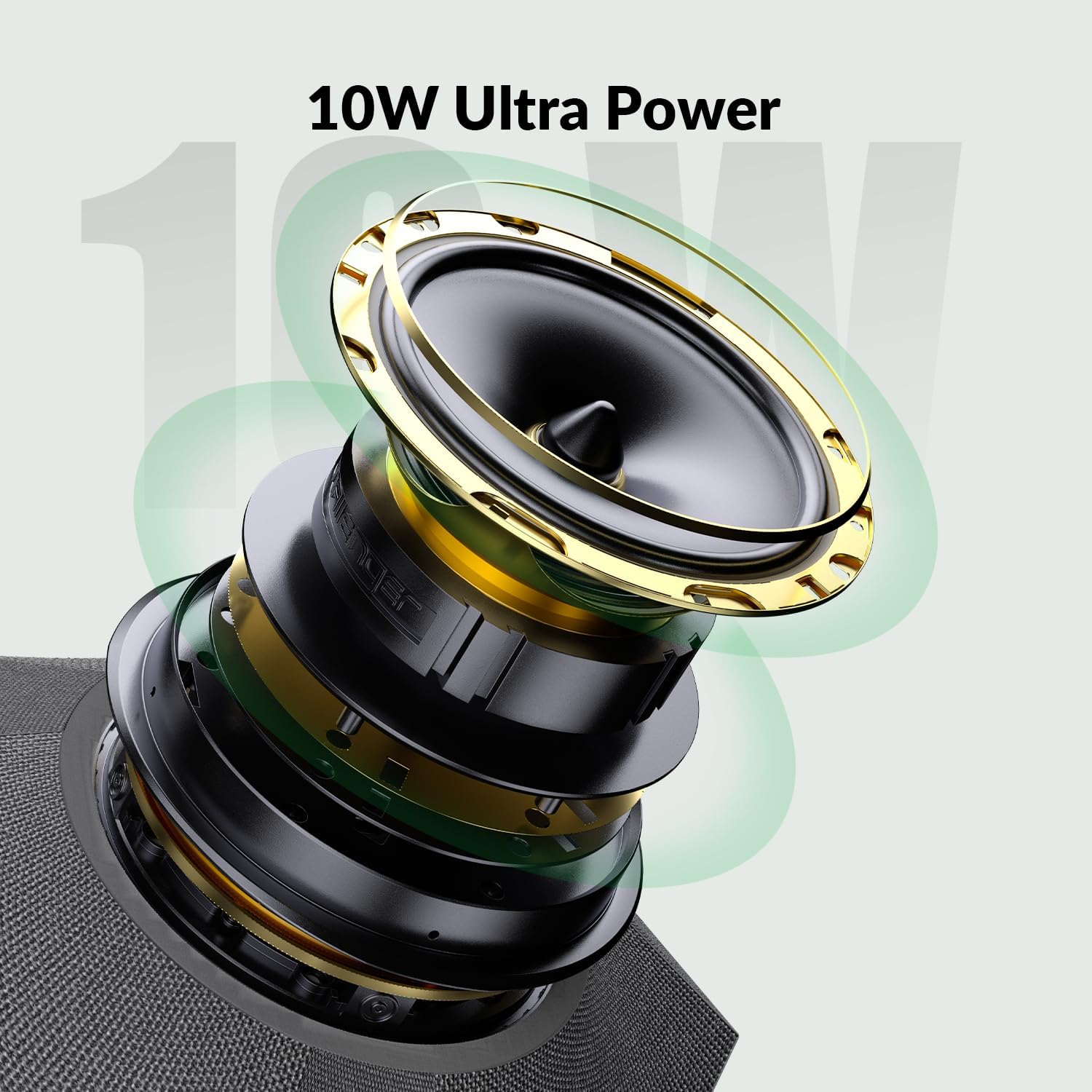
ചിത്രം: പൊട്ടിത്തെറിച്ചു view of the APO-60-UC's 10W speaker components, highlighting its powerful audio capabilities.
Using with Conferencing Software
After connecting the APO-60-UC via USB or Bluetooth, ensure it is selected as the default microphone and speaker in your conferencing application (e.g., Zoom, Microsoft Teams, Google Meet). This can typically be found in the audio settings of the application.
മെയിൻ്റനൻസ്
- വൃത്തിയാക്കൽ: ഉപകരണത്തിന്റെ പുറംഭാഗം വൃത്തിയാക്കാൻ മൃദുവായതും ഉണങ്ങിയതുമായ തുണി ഉപയോഗിക്കുക. ദ്രാവക ക്ലീനറുകളോ ഉരച്ചിലുകളുള്ള വസ്തുക്കളോ ഉപയോഗിക്കുന്നത് ഒഴിവാക്കുക.
- സംഭരണം: ഉപയോഗത്തിലില്ലാത്തപ്പോൾ നേരിട്ടുള്ള സൂര്യപ്രകാശത്തിൽ നിന്നും കടുത്ത താപനിലയിൽ നിന്നും മാറി തണുത്തതും വരണ്ടതുമായ സ്ഥലത്ത് ഉപകരണം സൂക്ഷിക്കുക.
- കൈകാര്യം ചെയ്യൽ: Handle the device with care to prevent damage. Avoid dropping or subjecting it to strong impacts.
ട്രബിൾഷൂട്ടിംഗ്
| പ്രശ്നം | സാധ്യമായ കാരണം | പരിഹാരം |
|---|---|---|
| സ്പീക്കറിൽ നിന്ന് ശബ്ദമില്ല | Volume too low; device not selected as output; cable disconnected; Bluetooth not paired. | Increase volume; select APO-60-UC as default speaker in OS/app settings; check USB/Bluetooth connection. |
| Microphone not picking up audio | Microphone muted; device not selected as input; cable disconnected; Bluetooth not paired. | Unmute microphone; select APO-60-UC as default microphone in OS/app settings; check USB/Bluetooth connection. |
| ബ്ലൂടൂത്ത് കണക്ഷൻ അസ്ഥിരമാണ് | Interference; device too far; low battery (if applicable). | Move closer to the host device; ensure no strong interference sources; try re-pairing. |
| Daisy chain not working | Incorrect cable connection; incompatible units; too many units in chain. | Verify all HALO-COM-MIC units are correctly connected to the cascade ports; ensure compatibility; check maximum chain length. |
If you encounter issues not listed here or require further assistance, please contact WYRESTORM customer support.
സ്പെസിഫിക്കേഷനുകൾ
| ഫീച്ചർ | വിശദാംശങ്ങൾ |
|---|---|
| മോഡലിൻ്റെ പേര് | അപ്പോളോ |
| ഇനം മോഡൽ നമ്പർ | APO-60-UC |
| ബ്രാൻഡ് | WYRESTORM |
| കണക്റ്റിവിറ്റി ടെക്നോളജി | ബ്ലൂടൂത്ത്, യുഎസ്ബി |
| വയർലെസ് കമ്മ്യൂണിക്കേഷൻ | ബ്ലൂടൂത്ത് 5.1 |
| മൈക്രോഫോൺ പിക്കപ്പ് ശ്രേണി | 5m / 16ft (360° omnidirectional) |
| സ്പീക്കർ ഔട്ട്പുട്ട് പവർ | 10 വാട്ട്സ് |
| ശബ്ദം കുറയ്ക്കൽ | AEC, ANS, AGC (AI Noise Reduction) |
| നിയന്ത്രണ രീതി | സ്പർശിക്കുക |
| ഉൽപ്പന്ന അളവുകൾ | 10.5"D x 9.1"W x 4.2"H |
| ഇനത്തിൻ്റെ ഭാരം | 4.91 പൗണ്ട് |
| അനുയോജ്യമായ ഉപകരണങ്ങൾ | ഡെസ്ക്ടോപ്പ്, ലാപ്ടോപ്പ്, ടാബ്ലെറ്റ് |
| പവർ ഉറവിടം | കോർഡഡ് ഇലക്ട്രിക് |
വാറൻ്റിയും പിന്തുണയും
WYRESTORM products come with a 2-year manufacturer replacement warranty. Additionally, lifetime technical support is available from our NY-based team, Monday through Friday, 9 AM - 6 PM EST.
For technical assistance or warranty claims, please refer to the contact details provided on the official WYRESTORM seller page or webസൈറ്റ്.
You can visit the WYRESTORM store for more information: WYRESTORM Store


