1. ആമുഖം
Thank you for choosing the Darmoshark N3PRO 8K Wireless Gaming Mouse. This manual provides detailed instructions for setting up, operating, and maintaining your new gaming mouse. Please read this manual thoroughly before use to ensure optimal performance and longevity of the product.
2. പാക്കേജ് ഉള്ളടക്കം
- Darmoshark N3PRO Wireless Gaming Mouse
- യുഎസ്ബി-സി മുതൽ യുഎസ്ബി-എ ചാർജിംഗ് കേബിൾ വരെ
- 2.4G USB റിസീവർ
- ഉപയോക്തൃ മാനുവൽ

Image: The Darmoshark N3PRO wireless gaming mouse shown with its accompanying 2.4G USB receiver.
3. ഉൽപ്പന്നം കഴിഞ്ഞുview
The Darmoshark N3PRO features a lightweight, ergonomic design with multiple connectivity options and programmable buttons.
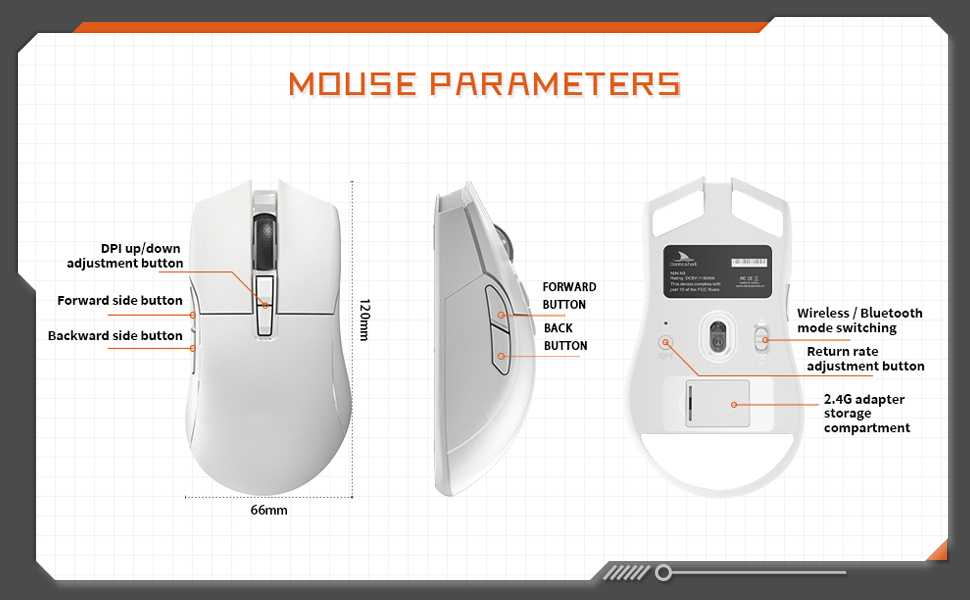
Image: A diagram illustrating the Darmoshark N3PRO mouse from top, side, and bottom views, with labels for buttons and dimensions. Key labels include DPI up/down adjustment button, forward side button, backward side button, forward button, back button, wireless/Bluetooth mode switching, return rate adjustment button, and 2.4G adapter storage compartment.
ബട്ടൺ പ്രവർത്തനങ്ങൾ:
- ഇടത് ക്ലിക്ക് ബട്ടൺ: സ്റ്റാൻഡേർഡ് ഇടത് മൌസ് ബട്ടൺ പ്രവർത്തനം.
- റൈറ്റ് ക്ലിക്ക് ബട്ടൺ: സ്റ്റാൻഡേർഡ് വലത് മൗസ് ബട്ടൺ പ്രവർത്തനം.
- സ്ക്രോൾ വീൽ: Scroll up/down, and middle click function.
- DPI Up/Down Adjustment Buttons: Adjust the mouse's sensitivity (DPI) levels.
- Forward Side Button: Default function is 'Forward' in web browsers/applications.
- Backward Side Button: Default function is 'Back' in web browsers/applications.
- Mode Switch (Bottom): Toggles between 2.4G wireless and Bluetooth modes.
- Return Rate Adjustment Button (Bottom): Adjusts the polling rate.
4. സജ്ജീകരണം
The Darmoshark N3PRO supports three connection modes: Wired (USB-C), 2.4G Wireless, and Bluetooth 5.0. You can connect up to 3 devices simultaneously.

Image: The Darmoshark N3PRO mouse connected to a laptop via a 2.4G receiver, to a device via USB-C cable, and wirelessly to a smartphone via Bluetooth 5.0, illustrating its tri-mode connectivity.
4.1 വയർഡ് കണക്ഷൻ
- ചാർജിംഗ് കേബിളിന്റെ USB-C അറ്റം മൗസുമായി ബന്ധിപ്പിക്കുക.
- Connect the USB-A end of the charging cable to an available USB port on your computer.
- The mouse will be automatically detected and ready for use. This mode also charges the mouse.
4.2 2.4G വയർലെസ് കണക്ഷൻ
- Locate the 2.4G USB receiver, typically stored in a compartment on the underside of the mouse.
- നിങ്ങളുടെ കമ്പ്യൂട്ടറിൽ ലഭ്യമായ ഒരു USB പോർട്ടിലേക്ക് 2.4G USB റിസീവർ പ്ലഗ് ചെയ്യുക.
- Slide the mode switch on the bottom of the mouse to the 2.4G position.
- മൗസ് യാന്ത്രികമായി കണക്ട് ചെയ്യും.
4.3 ബ്ലൂടൂത്ത് കണക്ഷൻ
- Slide the mode switch on the bottom of the mouse to the Bluetooth position.
- നിങ്ങളുടെ കമ്പ്യൂട്ടറിലോ ഉപകരണത്തിലോ, Bluetooth ക്രമീകരണങ്ങൾ തുറക്കുക.
- ഇതിനായി തിരയുക new devices and select "Darmoshark N3PRO" from the list.
- ജോടിയാക്കൽ പ്രക്രിയ പൂർത്തിയാക്കാൻ ഏതെങ്കിലും ഓൺ-സ്ക്രീൻ നിർദ്ദേശങ്ങൾ പാലിക്കുക.
5. പ്രവർത്തന നിർദ്ദേശങ്ങൾ
5.1 ഡിപിഐ അഡ്ജസ്റ്റ്മെന്റ്
The mouse features a PAW3395 optical sensor with adjustable DPI settings up to 26000 DPI. Use the dedicated DPI adjustment buttons on the top of the mouse to cycle through preset DPI levels. The current DPI level may be indicated by an LED color change or through the software.
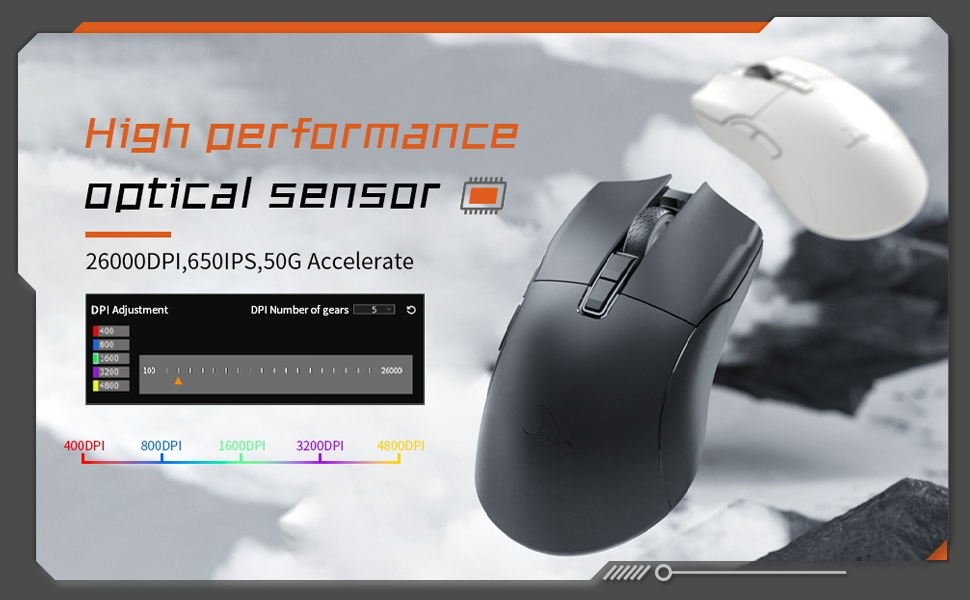
Image: The Darmoshark N3PRO mouse with a blue glowing light, highlighting its adjustable DPI (up to 26000) and IPS (650) settings for precision and speed.
5.2 പോളിംഗ് നിരക്ക് ക്രമീകരണം
The polling rate can be adjusted using the button on the underside of the mouse or through the customization software. The N3PRO supports polling rates up to 8000Hz for ultra-responsive tracking.
5.3 Programmable Buttons and Software Customization
The Darmoshark N3PRO features 7 programmable buttons. To customize button functions, DPI settings, macros, and other advanced features, download the official Darmoshark software from the manufacturer's website. The software allows for personalized configurations to suit your preferences.
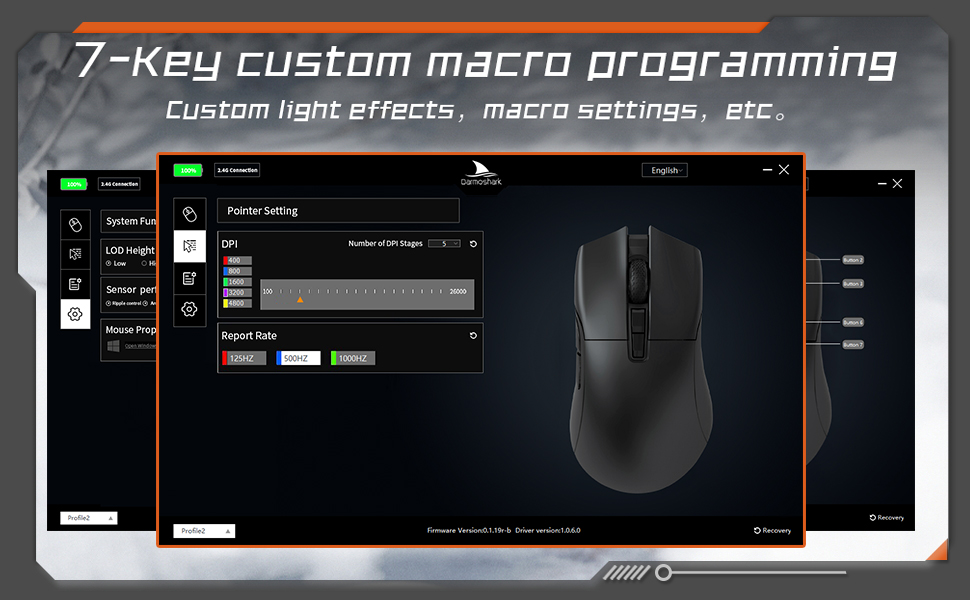
Image: A screenshot of the Darmoshark N3PRO customization software interface, showing options for DPI settings, polling rate, and button assignments, with a visual representation of the mouse.
5.4 മൗസ് ചാർജ് ചെയ്യുന്നു
Connect the mouse to your computer using the provided USB-C cable. The mouse will charge automatically. A full charge provides approximately 80 hours of battery life (depending on usage and polling rate). The mouse is equipped with a 300mAh Lithium Ion battery.

Image: A close-up of the Darmoshark N3PRO mouse, indicating its 300mAh battery capacity.
6. പരിപാലനം
- വൃത്തിയാക്കൽ: മൗസ് വൃത്തിയാക്കാൻ മൃദുവായതും ഉണങ്ങിയതുമായ ഒരു തുണി ഉപയോഗിക്കുക. കഠിനമായ അഴുക്കിന്, അല്പം ഡി.amp എലിയുടെ ഉള്ളിലേക്ക് ദ്രാവകം കടക്കാതിരിക്കാൻ തുണി ഉപയോഗിക്കാം.
- സെൻസർ: കൃത്യമായ ട്രാക്കിംഗിനായി മൗസിന്റെ അടിവശത്തുള്ള ഒപ്റ്റിക്കൽ സെൻസർ വൃത്തിയുള്ളതും പൊടിയോ അവശിഷ്ടങ്ങളോ ഇല്ലാതെ സൂക്ഷിക്കുക.
- സംഭരണം: When not in use for extended periods, store the mouse in a dry, cool place.
- ബാറ്ററി കെയർ: Avoid fully discharging the battery frequently. Charge the mouse when the battery indicator is low.
7. പ്രശ്നപരിഹാരം
| പ്രശ്നം | പരിഹാരം |
|---|---|
| മൗസ് പ്രതികരിക്കുന്നില്ല (വയേർഡ്) |
|
| Mouse not responding (2.4G Wireless) |
|
| മൗസ് പ്രതികരിക്കുന്നില്ല (ബ്ലൂടൂത്ത്) |
|
| കൃത്യമല്ലാത്ത ട്രാക്കിംഗ് അല്ലെങ്കിൽ കഴ്സർ കാലതാമസം |
|
| ബട്ടണുകൾ പ്രതീക്ഷിച്ചതുപോലെ പ്രവർത്തിക്കുന്നില്ല. |
|
8 സ്പെസിഫിക്കേഷനുകൾ
- മോഡൽ: N3PRO
- കണക്റ്റിവിറ്റി: Tri-Mode (2.4G Wireless, Bluetooth 5.0, USB-C Wired)
- സെൻസർ: PAW3395 ഒപ്റ്റിക്കൽ സെൻസർ
- DPI: 26000 DPI വരെ
- ട്രാക്കിംഗ് വേഗത: 650 ഐ.പി.എസ്
- ത്വരണം: 50G
- പോളിംഗ് നിരക്ക്: Up to 8000Hz (wired/2.4G, depending on settings)
- ബട്ടണുകൾ: 7 പ്രോഗ്രാം ചെയ്യാവുന്ന ബട്ടണുകൾ
- ഭാരം: ഏകദേശം 64 ഗ്രാം
- അളവുകൾ: 120mm x 66mm x 40mm (Length x Width x Height)
- ബാറ്ററി: 300mAh Lithium Ion (Rechargeable)
- Keystroke Lifespan: 60 million clicks (approx.)
- അനുയോജ്യത: PC, Laptop, Windows, Linux (Bluetooth for various devices)
9. വാറൻ്റിയും പിന്തുണയും
Darmoshark products are designed for reliability and performance. For warranty information, technical support, or to download the latest software and drivers, please visit the official Darmoshark webസൈറ്റിൽ ബന്ധപ്പെടുക അല്ലെങ്കിൽ അവരുടെ ഉപഭോക്തൃ സേവനവുമായി ബന്ധപ്പെടുക. വാറന്റി ക്ലെയിമുകൾക്കായി നിങ്ങളുടെ വാങ്ങിയതിന്റെ തെളിവ് സൂക്ഷിക്കുക.
കുറിപ്പ്: ഉൽപ്പന്ന സവിശേഷതകളും സവിശേഷതകളും മുൻകൂർ അറിയിപ്പ് കൂടാതെ മാറ്റത്തിന് വിധേയമാണ്.


