1. ആമുഖം
This manual provides detailed instructions for the MESWAO 15.6 Inch Android 14 Tablet, model MES-B3. It covers essential information regarding product features, setup, operation, maintenance, and troubleshooting to ensure optimal performance and user experience. Please read this manual thoroughly before using your device.
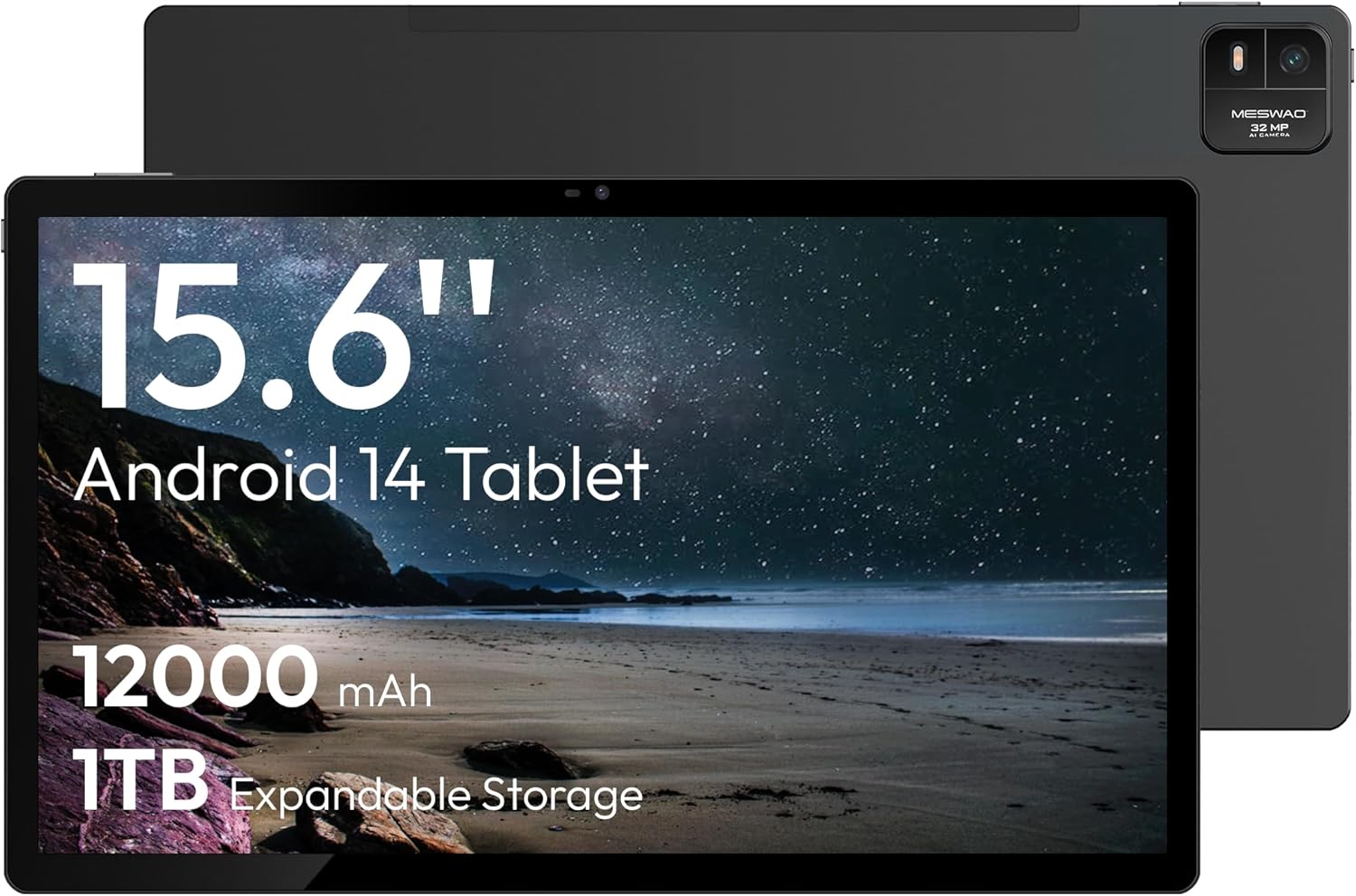
Figure 1.1: MESWAO 15.6 Inch Android 14 Tablet. This image displays the front and back view of the tablet, highlighting its large screen and rear camera module.
2 സുരക്ഷാ വിവരങ്ങൾ
To prevent damage to your device or injury to yourself or others, please observe the following precautions:
- ടാബ്ലെറ്റിനെ തീവ്രമായ താപനിലയിലോ, നേരിട്ടുള്ള സൂര്യപ്രകാശത്തിലോ, ഉയർന്ന ആർദ്രതയിലോ തുറന്നുകാട്ടരുത്.
- ടാബ്ലെറ്റ് താഴെയിടുകയോ ഗുരുതരമായ ആഘാതത്തിന് വിധേയമാക്കുകയോ ചെയ്യുന്നത് ഒഴിവാക്കുക.
- അംഗീകൃത ചാർജറുകളും അനുബന്ധ ഉപകരണങ്ങളും മാത്രം ഉപയോഗിക്കുക.
- Do not attempt to disassemble or repair the tablet yourself.
- ടാബ്ലെറ്റ് വെള്ളത്തിൽ നിന്നും മറ്റ് ദ്രാവകങ്ങളിൽ നിന്നും അകറ്റി നിർത്തുക.
- Observe all local regulations regarding the use of electronic devices.
3. പാക്കേജ് ഉള്ളടക്കം
പാക്കേജിൽ എല്ലാ ഇനങ്ങളും ഉണ്ടെന്ന് ഉറപ്പാക്കുക:
- 15.6-inch Tablet x1
- 15W Charger x1
- Type-C to 3.5mm Adapter x1
- USB-A to Type-C Adapter x1
- Stuck Pin x1 (for SIM/TF card tray)
4. ഡിവൈസ് ഓവർview
Familiarize yourself with the physical components of your MESWAO tablet.
4.1. ഭൗതിക സവിശേഷതകൾ
- മുൻ ക്യാമറ: Located at the top center of the screen when held horizontally.
- ഫ്ലാഷുള്ള പിൻ ക്യാമറ: Located on the back, typically in a corner.
- പവർ ബട്ടൺ: Usually on the side, used to power on/off or wake/sleep the device.
- വോളിയം ബട്ടണുകൾ: ഓഡിയോ ലെവലുകൾ ക്രമീകരിക്കുക.
- യുഎസ്ബി-സി പോർട്ട്: ചാർജിംഗിനും ഡാറ്റ കൈമാറ്റത്തിനും.
- ടിഎഫ് കാർഡ് സ്ലോട്ട്: വികസിപ്പിക്കാവുന്ന സംഭരണത്തിനായി.
- സ്പീക്കറുകൾ: Quad speakers with 8 sound chambers for audio output.

ചിത്രം 4.1: ഓവർview of MESWAO Tablet's physical features. This image illustrates the location of stereo speakers, power and volume buttons, front camera, rear camera with flashlight, Type-C port, and TF card slot.
5. സജ്ജീകരണം
5.1. പ്രാരംഭ ചാർജിംഗ്
Before first use, fully charge the tablet using the provided 15W charger and USB-C cable. Connect the charger to the USB-C port on the tablet and plug it into a power outlet. The battery indicator on the screen will show charging progress.

Figure 5.1: Tablet charging illustration. This image shows the tablet connected to a charger, displaying a charging icon and indicating 100% charge in 3.5 hours.
5.2. പവർ ഓൺ/ഓഫ്
- പവർ ഓണാക്കാൻ: Press and hold the Power button until the MESWAO logo appears.
- പവർ ഓഫ് ചെയ്യാൻ: പവർ ഓപ്ഷൻ മെനു ദൃശ്യമാകുന്നതുവരെ പവർ ബട്ടൺ അമർത്തിപ്പിടിക്കുക, തുടർന്ന് "പവർ ഓഫ്" തിരഞ്ഞെടുക്കുക.
- ഉറങ്ങാൻ/ഉണരാൻ: പവർ ബട്ടൺ ഹ്രസ്വമായി അമർത്തുക.
5.3. പ്രാരംഭ കോൺഫിഗറേഷൻ
ആദ്യമായി പവർ-ഓൺ ചെയ്യുമ്പോൾ, നിങ്ങളുടെ ടാബ്ലെറ്റ് സജ്ജീകരിക്കാൻ ഓൺ-സ്ക്രീൻ നിർദ്ദേശങ്ങൾ പാലിക്കുക:
- നിങ്ങൾ ഇഷ്ടപ്പെടുന്ന ഭാഷ തിരഞ്ഞെടുക്കുക.
- ഒരു Wi-Fi നെറ്റ്വർക്കിലേക്ക് കണക്റ്റുചെയ്യുക.
- നിങ്ങളുടെ Google അക്കൗണ്ട് ഉപയോഗിച്ച് സൈൻ ഇൻ ചെയ്യുക അല്ലെങ്കിൽ പുതിയൊരെണ്ണം സൃഷ്ടിക്കുക.
- Review നിബന്ധനകളും വ്യവസ്ഥകളും അംഗീകരിക്കുക.
- സ്ക്രീൻ ലോക്ക് (പിൻ, പാറ്റേൺ അല്ലെങ്കിൽ പാസ്വേഡ്) സജ്ജീകരിക്കുക.
5.4. ഒരു TF കാർഡ് ചേർക്കൽ
To expand storage, insert a TF (microSD) card:
- ടാബ്ലെറ്റിന്റെ വശത്ത് TF കാർഡ് സ്ലോട്ട് കണ്ടെത്തുക.
- Use the provided stuck pin to gently eject the card tray.
- Place the TF card into the tray with the gold contacts facing down.
- ടാബ്ലെറ്റിലേക്ക് ട്രേ ശ്രദ്ധാപൂർവ്വം വീണ്ടും തിരുകുക.

Figure 5.2: Tablet storage capabilities. This image highlights the 128GB ROM and support for up to 1TB expandable storage via TF card.
6. പ്രവർത്തന നിർദ്ദേശങ്ങൾ
6.1. അടിസ്ഥാന നാവിഗേഷൻ
The MESWAO tablet uses Android 14, offering intuitive touch-based navigation:
- ടാപ്പ് ചെയ്യുക: ഒരു ഇനം തിരഞ്ഞെടുക്കുകയോ ഒരു ആപ്ലിക്കേഷൻ തുറക്കുകയോ ചെയ്യുക.
- സ്വൈപ്പ്: സ്ക്രീനുകളിലൂടെയോ ലിസ്റ്റുകളിലൂടെയോ സ്ക്രോൾ ചെയ്യുക.
- പിഞ്ച്-ടു-സൂം: സ്ക്രീനിലെ ഉള്ളടക്കം വലുതാക്കുക അല്ലെങ്കിൽ കുറയ്ക്കുക.
- ലോംഗ് പ്രസ്സ്: സന്ദർഭോചിത മെനുകൾ ആക്സസ് ചെയ്യുക അല്ലെങ്കിൽ ഐക്കണുകൾ നീക്കുക.

Figure 6.1: Android 14 operating system interface. This image displays various application icons and highlights features like smooth multitasking, parental control, and enhanced privacy.
6.2. Wi-Fi-ലേക്ക് ബന്ധിപ്പിക്കുന്നു
- പോകുക ക്രമീകരണങ്ങൾ > നെറ്റ്വർക്കും ഇൻ്റർനെറ്റും > വൈഫൈ.
- വൈഫൈ ടോഗിൾ ചെയ്യുക On.
- ലിസ്റ്റിൽ നിന്ന് നിങ്ങൾക്ക് ആവശ്യമുള്ള നെറ്റ്വർക്ക് തിരഞ്ഞെടുക്കുക.
- ആവശ്യപ്പെടുകയാണെങ്കിൽ പാസ്വേഡ് നൽകുക, തുടർന്ന് ടാപ്പുചെയ്യുക ബന്ധിപ്പിക്കുക.
6.3. ആപ്ലിക്കേഷനുകൾ കൈകാര്യം ചെയ്യൽ
- ആപ്പുകൾ ഇൻസ്റ്റാൾ ചെയ്യുക: ഗൂഗിൾ പ്ലേ സ്റ്റോറിൽ നിന്ന് ഡൗൺലോഡ് ചെയ്യുക.
- ആപ്പുകൾ അൺഇൻസ്റ്റാൾ ചെയ്യുക: Long-press an app icon, then drag it to "Uninstall" or go to ക്രമീകരണങ്ങൾ > ആപ്പുകൾ.
- Close Apps: Swipe up from the bottom of the screen and swipe away the app card.
6.4. ക്യാമറ ഉപയോഗം
The tablet features a 32MP rear camera with flash and a 5MP front camera.
- തുറക്കുക ക്യാമറ അപേക്ഷ.
- ഒരു ഫോട്ടോ എടുക്കാൻ ഷട്ടർ ബട്ടൺ ടാപ്പ് ചെയ്യുക.
- ക്യാമറ സ്വിച്ച് ഐക്കൺ ഉപയോഗിച്ച് മുൻ ക്യാമറയും പിൻ ക്യാമറയും തമ്മിൽ മാറുക.
- Access settings for flash, modes, and other options.
6.5. ബാറ്ററി മാനേജ്മെന്റ്
The 12000mAh battery provides extended usage. To optimize battery life:
- സ്ക്രീൻ തെളിച്ചം ക്രമീകരിക്കുക.
- ഉപയോഗിക്കാത്ത ആപ്ലിക്കേഷനുകൾ അടയ്ക്കുക.
- ബാറ്ററി സേവർ മോഡ് പ്രവർത്തനക്ഷമമാക്കുക ക്രമീകരണങ്ങൾ > ബാറ്ററി.
6.6. കണക്റ്റിവിറ്റി
- ബ്ലൂടൂത്ത്: Pair with wireless headphones, speakers, or other devices via ക്രമീകരണങ്ങൾ > ബന്ധിപ്പിച്ച ഉപകരണങ്ങൾ > ബ്ലൂടൂത്ത്.
- യുഎസ്ബി-സി: ഇതിനായി ഒരു കമ്പ്യൂട്ടറിലേക്ക് കണക്റ്റുചെയ്യുക file transfer or use with compatible USB-C accessories.
- Wireless Screen Casting: Share your tablet's screen to a compatible smart TV or monitor. Access this feature from the Quick Settings panel or ക്രമീകരണങ്ങൾ > ബന്ധിപ്പിച്ച ഉപകരണങ്ങൾ > കാസ്റ്റ്.
6.7. ശബ്ദ ക്രമീകരണങ്ങൾ
Adjust volume and audio output options:
- Use the physical volume buttons on the side of the tablet.
- Access detailed settings in ക്രമീകരണങ്ങൾ > ശബ്ദവും വൈബ്രേഷനും.
- The tablet supports multiple audio options, including USB-C audio and 3.5mm via the provided adapter.
7. പരിപാലനം
7.1. നിങ്ങളുടെ ടാബ്ലെറ്റ് വൃത്തിയാക്കൽ
To clean the tablet, use a soft, lint-free cloth. For stubborn smudges, slightly dampഇലക്ട്രോണിക് ഉപകരണങ്ങൾക്കായി രൂപകൽപ്പന ചെയ്ത ഒരു സ്ക്രീൻ ക്ലീനർ അല്ലെങ്കിൽ വെള്ളം ഉപയോഗിച്ചുള്ള തുണി. കഠിനമായ രാസവസ്തുക്കളോ ഉരച്ചിലുകളോ ഉള്ള വസ്തുക്കൾ ഒഴിവാക്കുക.
7.2. സോഫ്റ്റ്വെയർ അപ്ഡേറ്റുകൾ
മികച്ച പ്രകടനം, സുരക്ഷ, പുതിയ സവിശേഷതകളിലേക്കുള്ള ആക്സസ് എന്നിവ ഉറപ്പാക്കാൻ സോഫ്റ്റ്വെയർ അപ്ഡേറ്റുകൾ പതിവായി പരിശോധിച്ച് ഇൻസ്റ്റാൾ ചെയ്യുക. പോകുക ക്രമീകരണങ്ങൾ > സിസ്റ്റം > സിസ്റ്റം അപ്ഡേറ്റ്.
7.3. സ്റ്റോറേജ് മാനേജ്മെൻ്റ്
To maintain performance, periodically manage your tablet's storage:
- ആവശ്യമില്ലാത്ത ആപ്പുകൾ ഇല്ലാതാക്കുക, files.
- വലുതായി നീക്കുക files to the TF card or cloud storage.
- ആപ്പുകളുടെ കാഷെ ഡാറ്റ മായ്ക്കുക ക്രമീകരണങ്ങൾ > ആപ്പുകൾ > [ആപ്പ് നാമം] > സംഭരണവും കാഷെയും.
8. പ്രശ്നപരിഹാരം
ഇനിപ്പറയുന്ന പൊതുവായ പ്രശ്നങ്ങളും പരിഹാരങ്ങളും പരിശോധിക്കുക:
| പ്രശ്നം | പരിഹാരം |
|---|---|
| ടാബ്ലെറ്റ് ഓണാക്കുന്നില്ല. | ബാറ്ററി ചാർജ്ജ് ചെയ്തിട്ടുണ്ടെന്ന് ഉറപ്പാക്കുക. ചാർജർ കണക്റ്റ് ചെയ്ത് വീണ്ടും പവർ ചെയ്യാൻ ശ്രമിക്കുന്നതിന് മുമ്പ് കുറച്ച് മിനിറ്റ് കാത്തിരിക്കുക. |
| Wi-Fi-ലേക്ക് കണക്റ്റ് ചെയ്യാൻ കഴിയില്ല. | Check if Wi-Fi is enabled. Verify the Wi-Fi password. Restart your router and the tablet. |
| ആപ്പുകൾ ക്രാഷ് ചെയ്യുകയോ മരവിക്കുകയോ ചെയ്യുന്നു. | Close background apps. Clear the app's cache. Restart the tablet. Ensure the app is updated. |
| മന്ദഗതിയിലുള്ള പ്രകടനം. | Free up storage space. Close unused apps. Restart the tablet. |
| ബാറ്ററി പെട്ടെന്ന് തീരുന്നു. | Reduce screen brightness. Disable unused features like Bluetooth or GPS. Close background apps. Check battery usage in settings. |
9 സ്പെസിഫിക്കേഷനുകൾ
Key technical specifications for the MESWAO 15.6 Inch Android 14 Tablet (MES-B3):
| ഫീച്ചർ | വിശദാംശങ്ങൾ |
|---|---|
| ബ്രാൻഡ് | MESWAO |
| മോഡലിൻ്റെ പേര് | എംഇഎസ്-ബി3 |
| ഓപ്പറേറ്റിംഗ് സിസ്റ്റം | ആൻഡ്രോയിഡ് 14 |
| സ്ക്രീൻ വലിപ്പം | 15.6 ഇഞ്ച് |
| സ്ക്രീൻ റെസല്യൂഷൻ | 1920 x 1080 പിക്സലുകൾ (IPS HD) |
| പ്രോസസ്സർ | Octa-Core (MediaTek Helio G99, up to 2.2 GHz) |
| ഗ്രാഫിക്സ് കോപ്രൊസസർ | മാലി-ജി57 |
| RAM (Memory Storage Capacity) | 6GB (DDR3 SDRAM) |
| Internal Storage (Flash Memory Size) | 128 ജിബി |
| വികസിപ്പിക്കാവുന്ന സംഭരണം | TF കാർഡ് വഴി 1TB വരെ |
| പിൻ ക്യാമറ റെസല്യൂഷൻ | 32 എം.പി |
| ഫ്രണ്ട് ക്യാമറ റെസല്യൂഷൻ | 5 എം.പി |
| ബാറ്ററി ശേഷി | 12000mAh |
| ശരാശരി ബാറ്ററി ലൈഫ് | 12 മണിക്കൂർ |
| വയർലെസ് തരം | 802.11a/b/g/n/ac (വൈ-ഫൈ 5) |
| നിറം | ചാരനിറം |
| ഇനത്തിൻ്റെ ഭാരം | 2.35 പൗണ്ട് |
| ഉൽപ്പന്ന അളവുകൾ (LxWxH) | 14.53 x 8.78 x 0.43 ഇഞ്ച് |
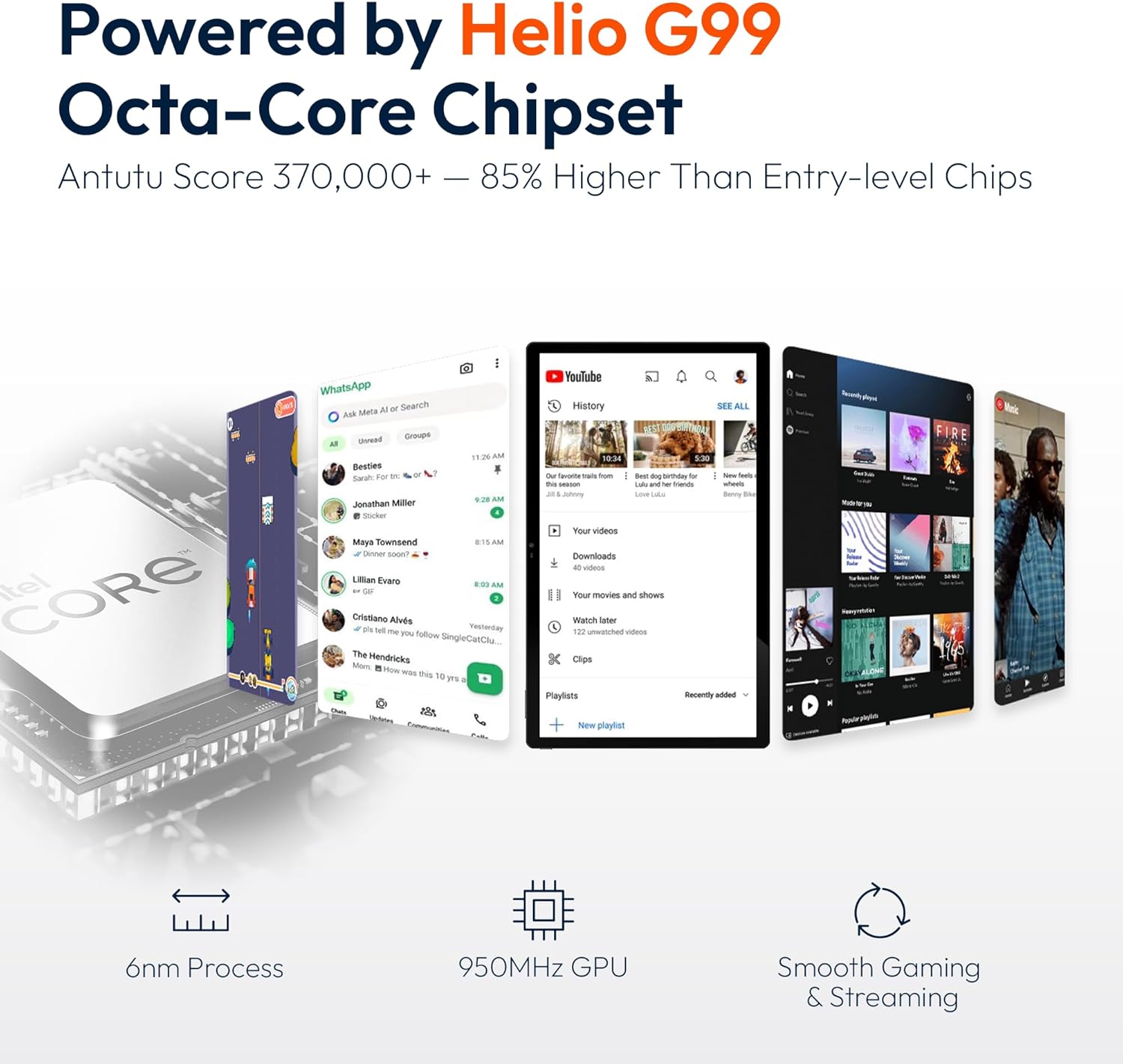
Figure 9.1: Processor and performance details. This image highlights the Helio G99 Octa-Core chipset, 6nm process, 950MHz GPU, and smooth gaming/streaming capabilities.
10. വാറൻ്റിയും പിന്തുണയും
10.1. വാറൻ്റി വിവരങ്ങൾ
The MESWAO 15.6 Inch Android 14 Tablet comes with a 12 മാസ വാറൻ്റി നിർമ്മാണ വൈകല്യങ്ങൾ ഉൾക്കൊള്ളുന്നു. വാറന്റി ക്ലെയിമുകൾക്കായി നിങ്ങളുടെ വാങ്ങിയതിന്റെ തെളിവ് സൂക്ഷിക്കുക.
10.2. ഉപഭോക്തൃ പിന്തുണ
For technical assistance, troubleshooting, or warranty inquiries, please contact MESWAO customer support. They offer 24-മണിക്കൂർ ഉപഭോക്തൃ പിന്തുണ ഉണ്ട് local service centers in the US, EU, and Japan.
- ബന്ധപ്പെടാനുള്ള രീതി: Refer to the contact information provided with your product packaging or visit the official MESWAO webസൈറ്റ്.
- പ്രശ്ന പരിഹാരം: Issues reported are typically responded to within 24 hours, with problems resolved or replaced according to policy.

Figure 10.1: MESWAO customer support and warranty details. This image highlights the 12-month warranty, 24-hour customer support, local after-sales centers, and quick response flow.


