1. ആമുഖം
Thank you for choosing the FUNYET 2-in-1 Touchscreen Laptop, Model FUN01-03. This device combines the versatility of a tablet with the productivity of a laptop, featuring a 14-inch display, 12th Gen N100 Processor, 16GB DDR5 RAM, and a 512GB SSD. This manual provides essential information for setting up, operating, maintaining, and troubleshooting your new device to ensure optimal performance and longevity.
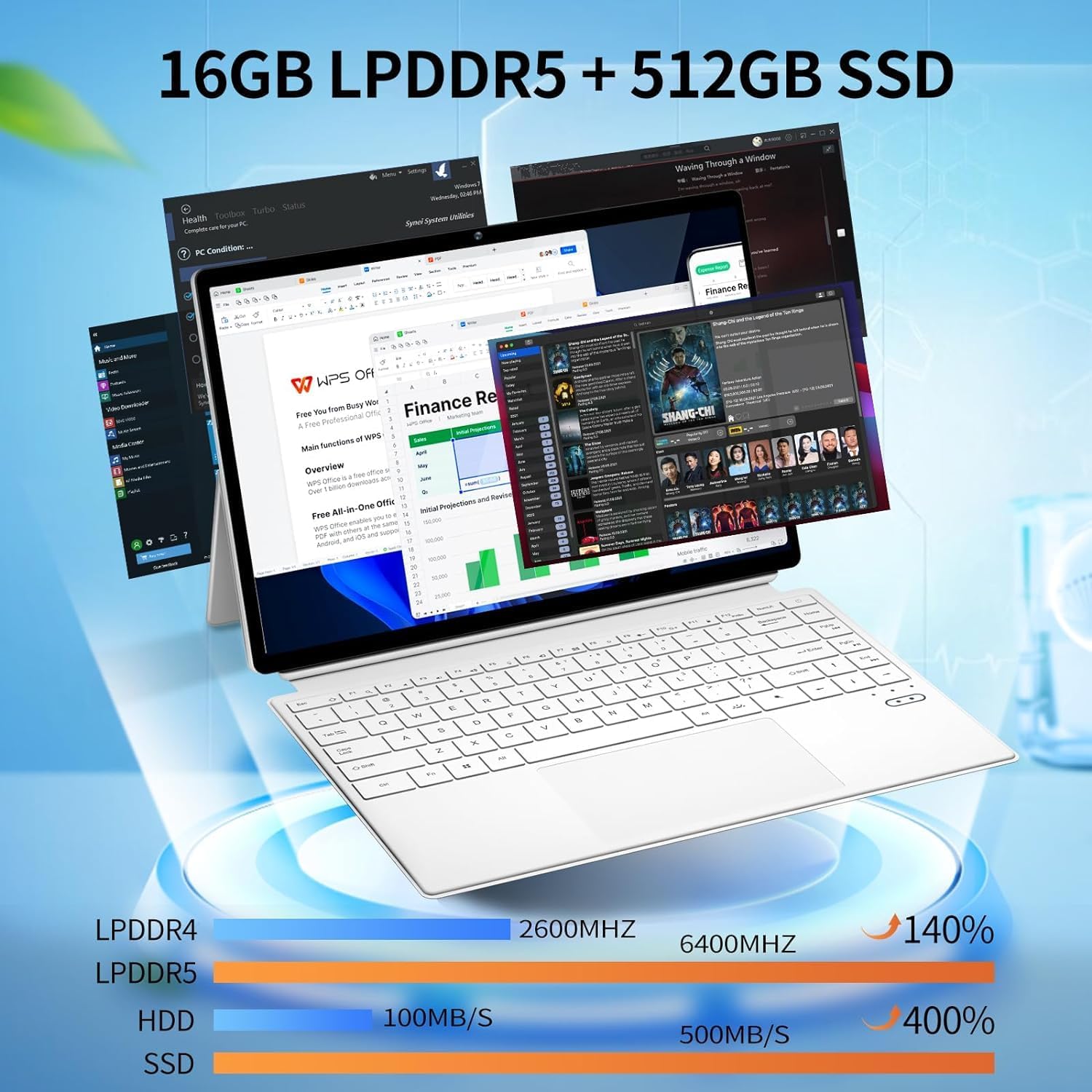
Figure 1: FUNYET 2-in-1 Laptop in its standard laptop configuration.
2. പാക്കേജ് ഉള്ളടക്കം
നിങ്ങളുടെ ഉൽപ്പന്ന പാക്കേജിംഗിൽ എല്ലാ ഇനങ്ങളും ഉണ്ടെന്ന് ഉറപ്പാക്കുക:
- 14 ഇഞ്ച് ടാബ്ലെറ്റ് കമ്പ്യൂട്ടർ
- എസി അഡാപ്റ്റർ
- നിർദ്ദേശങ്ങൾ (ഈ മാനുവൽ)
- വാറൻ്റി കാർഡ്
3. ഉൽപ്പന്നം കഴിഞ്ഞുview
3.1 പ്രധാന സ്പെസിഫിക്കേഷനുകൾ
- പ്രോസസ്സർ: 12th Gen Celeron N100 (up to 3.4 GHz, 4 cores, 4 threads)
- റാം: 16GB DDR5
- സംഭരണം: 512GB SSD
- ഡിസ്പ്ലേ: 14-inch Touchscreen, 1920 x 1200 pixels (16:10 aspect ratio)
- ഓപ്പറേറ്റിംഗ് സിസ്റ്റം: വിൻഡോസ് 11 പ്രോ
- വയർലെസ് കണക്റ്റിവിറ്റി: വൈ-ഫൈ 6 (802.11ax), ബ്ലൂടൂത്ത് 5.2
- ക്യാമറകൾ: 2MP ഫ്രണ്ട്, 5MP പിൻഭാഗം
- ബാറ്ററി ലൈഫ്: 8 മണിക്കൂർ വരെ (ശരാശരി ഉപയോഗം)
- ഭാരം: ഏകദേശം 2 പൗണ്ട്
- അളവുകൾ: 12.5 x 8.4 x 0.4 ഇഞ്ച്

ചിത്രം 2: ഉപകരണ ഷോക്asing its memory and storage capabilities with multiple applications running.
3.2 ഫിസിക്കൽ ഓവർview (പോർട്ടുകളും ബട്ടണുകളും)
Familiarize yourself with the various ports and buttons on your FUNYET 2-in-1 Laptop:

ചിത്രം 3: വിശദമായി view of the device's ports and controls.
- പവർ ബട്ടൺ: ഉപകരണം ഓണാക്കാനോ ഓഫാക്കാനോ അമർത്തിപ്പിടിക്കുക.
- വോളിയം നിയന്ത്രണം: ഓഡിയോ ഔട്ട്പുട്ട് ലെവൽ ക്രമീകരിക്കുക.
- Type-C (Full-featured): ഡാറ്റ കൈമാറ്റം, വീഡിയോ ഔട്ട്പുട്ട്, പവർ ഡെലിവറി എന്നിവ പിന്തുണയ്ക്കുന്നു.
- Type-C (Charging and Data Transfer): Primarily for charging the device and basic data transfer.
- മൈക്രോ HDMI: ബാഹ്യ ഡിസ്പ്ലേകളിലേക്കോ പ്രൊജക്ടറുകളിലേക്കോ കണക്റ്റുചെയ്യുക.
4. പ്രാരംഭ സജ്ജീകരണം
4.1 പവർ ചെയ്യുന്നു
- Ensure the device is charged or connected to the AC adapter.
- അമർത്തിപ്പിടിക്കുക പവർ ബട്ടൺ (refer to Figure 3) until the screen illuminates.
4.2 Wi-Fi-ലേക്ക് ബന്ധിപ്പിക്കുന്നു
- Once the device is powered on, navigate to the Wi-Fi settings in Windows 11.
- Select your preferred network and enter the password if prompted.
4.3 ഓപ്പറേറ്റിംഗ് സിസ്റ്റം സജ്ജീകരണം (Windows 11 Pro)
Follow the on-screen prompts to complete the Windows 11 Pro setup, including language selection, user account creation, and privacy settings.

Figure 4: The Windows 11 Pro interface pre-installed on the device.
5. പ്രവർത്തന നിർദ്ദേശങ്ങൾ
5.1 കീബോർഡും ടച്ച്പാഡും
The device features a full-sized backlit keyboard and a responsive touchpad for navigation and input.

Figure 5: The backlit keyboard and integrated touchpad.
5.2 ടച്ച്സ്ക്രീൻ പ്രവർത്തനം
Utilize the 14-inch touchscreen for intuitive interaction with Windows 11 Pro. Pinch-to-zoom, swipe, and tap gestures are supported.

Figure 6: Device used in tablet mode, highlighting the touchscreen.
5.3 2-ഇൻ-1 മോഡുകൾ
The flexible hinge allows the device to transform into various modes:
- ലാപ്ടോപ്പ് മോഡ്: ടൈപ്പിംഗിനും ഉൽപ്പാദനക്ഷമതയ്ക്കുമുള്ള സ്റ്റാൻഡേർഡ് ലാപ്ടോപ്പ് കോൺഫിഗറേഷൻ.
- ടാബ്ലെറ്റ് മോഡ്: Fold the keyboard back to use as a tablet.
- സ്റ്റാൻഡ് മോഡ്: Position the screen for media consumption or presentations.

Figure 7: Proper and improper kickstand usage for stable positioning.
For a visual guide on transforming your device into different modes, please watch the official product video below:
Video 1: Official FUNYET demonstration of the 2-in-1 laptop's various modes and tablet functionality.
6. ബാറ്ററി മാനേജ്മെന്റ്
6.1 ചാർജിംഗ്
Connect the provided AC adapter to the designated Type-C port (refer to Figure 3) and plug it into a power outlet. The charging indicator light will illuminate.
6.2 ബാറ്ററി ലൈഫ് ഒപ്റ്റിമൈസേഷൻ
ബാറ്ററി ലൈഫ് വർദ്ധിപ്പിക്കാൻ:
- സ്ക്രീൻ തെളിച്ചം സുഖകരമായ തലത്തിലേക്ക് ക്രമീകരിക്കുക.
- ഉപയോഗിക്കാത്ത ആപ്ലിക്കേഷനുകളും ബ്രൗസർ ടാബുകളും അടയ്ക്കുക.
- Enable battery saver mode in Windows settings.
- ഉപയോഗത്തിലില്ലാത്തപ്പോൾ ബാഹ്യ അനുബന്ധ ഉപകരണങ്ങൾ വിച്ഛേദിക്കുക.

Figure 8: Battery performance estimates for various usage scenarios.
7. കണക്റ്റിവിറ്റി
7.1 Wi-Fi 6 and Bluetooth 5.2
The device supports Wi-Fi 6 for fast and stable internet connections and Bluetooth 5.2 for connecting wireless peripherals like headphones or mice.

ചിത്രം 9: ഓവർview of wireless connectivity and camera specifications.
7.2 External Displays
Use the Micro HDMI port to connect your laptop to an external monitor or television for an extended display experience.
8. Integrated Cameras
The FUNYET 2-in-1 Laptop is equipped with two cameras:
- മുൻ ക്യാമറ: 2 Megapixels, suitable for video calls and online meetings.
- പിൻ ക്യാമറ: ഫോട്ടോകളും വീഡിയോകളും പകർത്താൻ 5 മെഗാപിക്സലുകൾ.
9 സാങ്കേതിക സവിശേഷതകൾ
| ഫീച്ചർ | സ്പെസിഫിക്കേഷൻ |
|---|---|
| മോഡലിൻ്റെ പേര് | വിനോദം 1 |
| ഇനം മോഡൽ നമ്പർ | FUN01-03 |
| സ്റ്റാൻഡിംഗ് സ്ക്രീൻ ഡിസ്പ്ലേ വലുപ്പം | 14 ഇഞ്ച് |
| സ്ക്രീൻ റെസല്യൂഷൻ | 1920 x 1200 പിക്സലുകൾ |
| പരമാവധി സ്ക്രീൻ റെസല്യൂഷൻ | 1920x1200 പിക്സലുകൾ |
| പ്രോസസ്സർ | 1.0 Celeron (12th Gen N100) |
| റാം | 16 DDR5 |
| ഹാർഡ് ഡ്രൈവ് | 512 ജിബി എസ്എസ്ഡി |
| ഗ്രാഫിക്സ് കോപ്രൊസസർ | ഇൻ്റൽ UHD ഗ്രാഫിക്സ് |
| ഓപ്പറേറ്റിംഗ് സിസ്റ്റം | വിൻഡോസ് 11 പ്രോ |
| വയർലെസ് തരം | ബ്ലൂടൂത്ത്, വൈ-ഫൈ 6 |
| ശരാശരി ബാറ്ററി ലൈഫ് | 8 മണിക്കൂർ |
| ഇനത്തിൻ്റെ ഭാരം | 2 പൗണ്ട് |
| ഉൽപ്പന്ന അളവുകൾ | 12.5 x 8.4 x 0.4 ഇഞ്ച് |
10. പ്രശ്നപരിഹാരം
നിങ്ങളുടെ ഉപകരണത്തിൽ പ്രശ്നങ്ങൾ നേരിടുകയാണെങ്കിൽ, ഇനിപ്പറയുന്ന പരിഹാരങ്ങൾ പരീക്ഷിക്കുക:
- ഉപകരണം ഓണാക്കുന്നില്ല: Ensure the AC adapter is securely connected and the battery has sufficient charge. Try a different power outlet.
- സ്ക്രീൻ ശൂന്യമാണ് അല്ലെങ്കിൽ പ്രതികരിക്കുന്നില്ല: Restart the device. If in tablet mode, ensure the screen is clean and free of obstructions.
- വൈഫൈ കണക്റ്റിവിറ്റി പ്രശ്നങ്ങൾ: Check your router and modem. Restart the device and your network equipment. Ensure Wi-Fi is enabled in Windows settings.
- മന്ദഗതിയിലുള്ള പ്രകടനം: Close unnecessary applications. Check for Windows updates. Ensure sufficient free space on the SSD.
- കീബോർഡോ ടച്ച്പാഡോ പ്രതികരിക്കുന്നില്ല: Restart the device. Ensure no physical obstructions are present.
11. വാറണ്ടിയും ഉപഭോക്തൃ പിന്തുണയും
FUNYET offers a 1 വർഷത്തെ സൗജന്യ റിപ്പയർ വാറന്റി for all products. Additionally, we provide 30 ദിവസത്തെ സൗജന്യ കൈമാറ്റം. If you have any questions or require assistance with your FUNYET 2-in-1 Laptop, please do not hesitate to contact our customer support team. We are dedicated to providing prompt assistance and will reply within 24 hours.
ബന്ധപ്പെടാനുള്ള വിവരങ്ങൾ:
- ഇമെയിൽ: funyetstore@outlook.com
- ഫോൺ: +1 800-986-9631 (4AM-10PM PT)

Figure 10: FUNYET customer support and warranty details.


