1. ആമുഖം
This manual provides detailed instructions for setting up, operating, and maintaining your XPPen Artist Pro 19 Gen2 4K UHD Drawing Tablet. Please read this manual thoroughly before using the device to ensure optimal performance and longevity.
2. പാക്കേജ് ഉള്ളടക്കം
താഴെ ലിസ്റ്റ് ചെയ്തിരിക്കുന്ന എല്ലാ ഇനങ്ങളും നിങ്ങളുടെ പാക്കേജിൽ ഉൾപ്പെടുത്തിയിട്ടുണ്ടെന്ന് ഉറപ്പാക്കുക:
- H11 Pen Case: Includes X3 Pro Roller Stylus (1), X3 Pro Slim Stylus (1), Bluetooth Receiver for Wireless Shortcut Remote (1), Replaceable Button Cap for Slim Stylus (1), Standard Nib for Slim Stylus (4), Standard Nib for Roller Stylus (2), Felt Nib for Roller Stylus (2), Nib Extractor (1).
- 3-in-1 Cable (1)
- USB-C to USB-C Cable (2)
- USB-C മുതൽ USB-A കേബിൾ (1)
- PD Power Adapter (1)
- Wireless Shortcut Remote ACK05 (1)
- Drawing Glove (1)
- Cleaning Cloth (1)
- Pen Nibs Bag: Includes Standard Nib for Slim Stylus (5), Standard Nib for Roller Stylus (5), Felt Nib for Roller Stylus (5).

Image: All components included in the XPPen Artist Pro 19 Gen2 package, including the tablet, two styluses, pen case, cables, power adapter, wireless shortcut remote, drawing glove, cleaning cloth, and extra nibs.
3. സജ്ജീകരണ ഗൈഡ്
3.1 ഫിസിക്കൽ ഇൻസ്റ്റലേഷൻ
Place the drawing tablet on a stable surface. The integrated wing-shaped stand allows for adjustable angles. For alternative mounting, the tablet supports a standard VESA adapter (75x75mm).
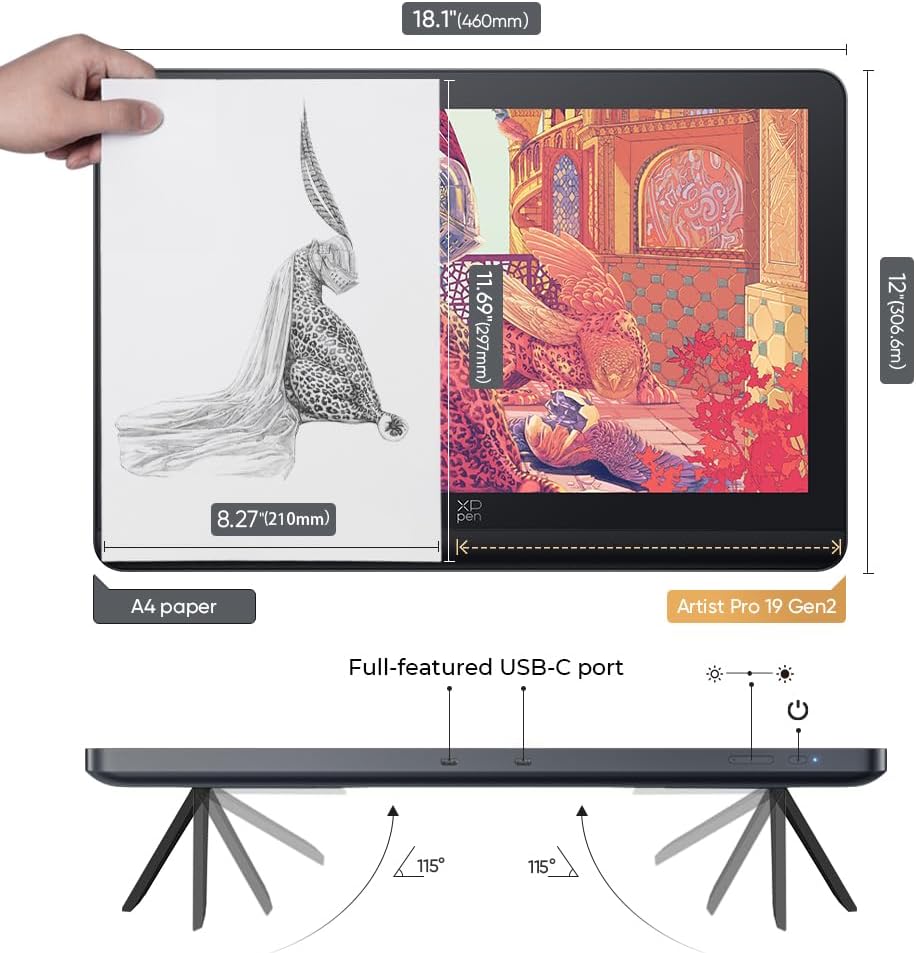
Image: The XPPen Artist Pro 19 Gen2 drawing tablet shown with its integrated adjustable stand, demonstrating its stable placement and ergonomic design.
3.2 നിങ്ങളുടെ കമ്പ്യൂട്ടറുമായി ബന്ധിപ്പിക്കുന്നു
The XPPen Artist Pro 19 Gen2 is not a standalone tablet and requires connection to a computer (desktop or laptop) to function. Ensure your computer meets the minimum system requirements for optimal performance.
USB-C Connection (Full-featured USB-C Port)
If your computer has a full-featured USB-C port that supports video output (DP Alt Mode) and power delivery, you can connect the drawing display using a single USB-C to USB-C cable. If the display does not power on, connect the PD Power Adapter to the drawing display via another USB-C to USB-C cable.

Image: A diagram illustrating two methods for connecting the drawing display to a PC using USB-C cables. One method uses a single USB-C cable for data, video, and power, while the other adds a separate USB-C cable for power via a PD adapter if needed.
3-in-1 Cable Connection
For computers without a full-featured USB-C port, use the provided 3-in-1 cable. Connect the HDMI and USB-A ends of the 3-in-1 cable to your computer. Then, connect the USB-C end of the 3-in-1 cable to the drawing display. Ensure the PD Power Adapter is connected to the drawing display via a USB-C to USB-C cable for power.

Image: A diagram illustrating two methods for connecting the drawing display to a PC using a 3-in-1 cable. This setup typically involves HDMI and USB-A connections to the PC, with a separate USB-C power connection to the display.
3.3 ഡ്രൈവർ ഇൻസ്റ്റലേഷൻ
Before installing new drivers, it is recommended to uninstall any existing tablet drivers from your computer to prevent conflicts. Download the latest driver for the Artist Pro 19 Gen2 from the official XP-Pen website. Follow the on-screen instructions to complete the installation. After installation, restart your computer.
4. പ്രവർത്തന നിർദ്ദേശങ്ങൾ
4.1 ഡിസ്പ്ലേ സവിശേഷതകൾ
- 4K UHD റെസല്യൂഷൻ: The 18.4-inch display offers a 3840x2160 resolution for detailed visuals.
- വർണ്ണ കൃത്യത: Calman Verified with a ΔE < 1.5, covering 99.8% sRGB, 96% Adobe RGB, and 98% Display P3 color gamuts. Supports 1.07 billion colors for smooth gradients.
- Anti-Glare Etched Glass: Reduces reflections and provides a paper-like texture for a natural drawing experience.
- TÜV SÜD Certified: Minimizes blue light exposure to reduce eye fatigue during extended use.
- Full-Laminated Display: Eliminates parallax for precise cursor placement.

Image: An infographic highlighting key display features of the XPPen Artist Pro 19 Gen2, including its 18.4-inch size, 4K UHD resolution, TÜV SÜD certification for low blue light, Calman verification, Delta E < 1.5 color accuracy, and support for 1.07 billion colors.
4.2 Stylus Operation
The tablet comes with two X3 Pro styluses: the X3 Pro Roller Stylus and the X3 Pro Slim Stylus. Both feature 16,384 pen pressure levels, 3g initial active force, and 60° tilt function.
- X3 Pro Roller Stylus: Features a scroll wheel and customizable shortcut keys.
- X3 Pro Slim Stylus: Lightweight design with removable buttons to prevent accidental activation.
- ഇഷ്ടാനുസൃതമാക്കൽ: Pen tilt can be disabled in the driver settings.

ചിത്രം: വിശദമായ ഒരു ചിത്രം view of the X3 Pro Slim Stylus and X3 Pro Roller Stylus, illustrating their buttons, scroll wheel (on the roller stylus), and highlighting the 16,384 pressure levels and X3 Pro Smart Chip technology.
4.3 ACK05 Wireless Shortcut Keyboard
The ACK05 remote features a physical dial and ten customizable keys. It connects via Bluetooth 5.0 or a Bluetooth dongle, enhancing workflow efficiency. Customize key functions through the tablet driver software.

Image: The ACK05 Wireless Shortcut Keyboard shown next to the drawing tablet, highlighting its compact design, physical dial, and customizable keys for improved workflow.
4.4 System and Software Compatibility
The Artist Pro 19 Gen2 is compatible with a wide range of operating systems and creative software:
- ഓപ്പറേറ്റിംഗ് സിസ്റ്റങ്ങൾ: Windows 7 (or later), macOS 10.13 (or later), ChromeOS 88 (or later), Android (USB3.1 DP1.2), Linux.
- സോഫ്റ്റ്വെയർ: Adobe Photoshop, Illustrator, SAI, CorelDRAW, GIMP, Krita, MediBang, FireAlpaca, Toon Boom, Maya, Blender 3D, and more.

Image: An illustration displaying the XPPen Artist Pro 19 Gen2's compatibility with major operating systems (Windows, macOS, Android, ChromeOS, Linux) and popular creative software applications (e.g., Photoshop, Illustrator, Krita, Blender 3D).
5. പരിപാലനം
5.1 ഡിസ്പ്ലേ വൃത്തിയാക്കുന്നു
Use the provided cleaning cloth to gently wipe the display surface. Avoid using harsh chemicals or abrasive materials that could damage the screen.
5.2 Replacing Stylus Nibs
When the stylus nib wears down, use the nib extractor tool (located in the pen case) to carefully pull out the old nib. Insert a new nib firmly into the stylus. A variety of replacement nibs (standard and felt) are included in the pen case and nibs bag.
6. പ്രശ്നപരിഹാരം
- ഡിസ്പ്ലേ പ്രകാശിക്കുന്നില്ല: Ensure all cables are securely connected. If using USB-C, confirm your computer's USB-C port supports video output and power delivery, or connect the PD Power Adapter.
- സ്റ്റൈലസ് പ്രതികരിക്കുന്നില്ല: Check if the stylus is charged. Verify that the drivers are correctly installed and updated. Ensure no other tablet drivers are causing conflicts.
- ഡ്രൈവർ വൈരുദ്ധ്യങ്ങൾ: Uninstall all previous tablet drivers before installing the XPPen driver.
- Color Inaccuracy: Ensure your display settings are correctly calibrated and that the tablet driver is configured for the desired color profile (sRGB, Adobe RGB, Display P3).
കൂടുതൽ സഹായത്തിന്, ദയവായി പിന്തുണ വിഭാഗം പരിശോധിക്കുക.
7 സ്പെസിഫിക്കേഷനുകൾ
| ഫീച്ചർ | വിശദാംശങ്ങൾ |
|---|---|
| ഉൽപ്പന്ന അളവുകൾ | 19 x 14 x 0.1 ഇഞ്ച് |
| ഇനത്തിൻ്റെ ഭാരം | 9.58 പൗണ്ട് |
| മോഡൽ നമ്പർ | Artist Pro 19 Gen2 |
| ഡിസ്പ്ലേ റെസല്യൂഷൻ | 4K UHD (3840x2160) |
| സ്ക്രീൻ വലിപ്പം | 18.4 ഇഞ്ച് (ഡയഗണൽ) |
| വർണ്ണ ഗാമറ്റ് | 99.8% sRGB, 96% Adobe RGB, 98% Display P3 |
| വർണ്ണ ആഴം | 1.07 ബില്യൺ നിറങ്ങൾ (10-ബിറ്റ്) |
| Stylus Pressure Levels | 16,384 |
| Stylus Tilt Support | 60° |
| കണക്റ്റിവിറ്റി | 3-in-1 Cable, USB-C to USB-C Cable |
| ഓപ്പറേറ്റിംഗ് സിസ്റ്റം അനുയോജ്യത | Windows 7+, macOS 10.13+, ChromeOS 88+, Android (USB3.1 DP1.2), Linux |
| പ്രത്യേക സവിശേഷതകൾ | AG etched glass, TÜV SÜD certified, Calman Verified, Dual Stylus, ACK05 Wireless Shortcut Keyboard |
8. വാറൻ്റിയും പിന്തുണയും
8.1 വാറൻ്റി വിവരങ്ങൾ
All XPPen products come with a 1-Year Protection Plan. Please refer to the terms and conditions for support, returns, and refunds.

Image: The XP-Pen brand logo, representing the manufacturer of the drawing tablet.
8.2 ഉപഭോക്തൃ പിന്തുണ
For any questions or assistance regarding your product, you can contact XPPen customer service via Amazon Message. XPPen also offers lifetime service for its products.


