1. ഉൽപ്പന്നം കഴിഞ്ഞുview
The eKids Disney Frozen Kids Camera is designed for young photographers to capture photos and videos with ease. It features a durable design, built-in digital stickers, and games for an engaging experience.
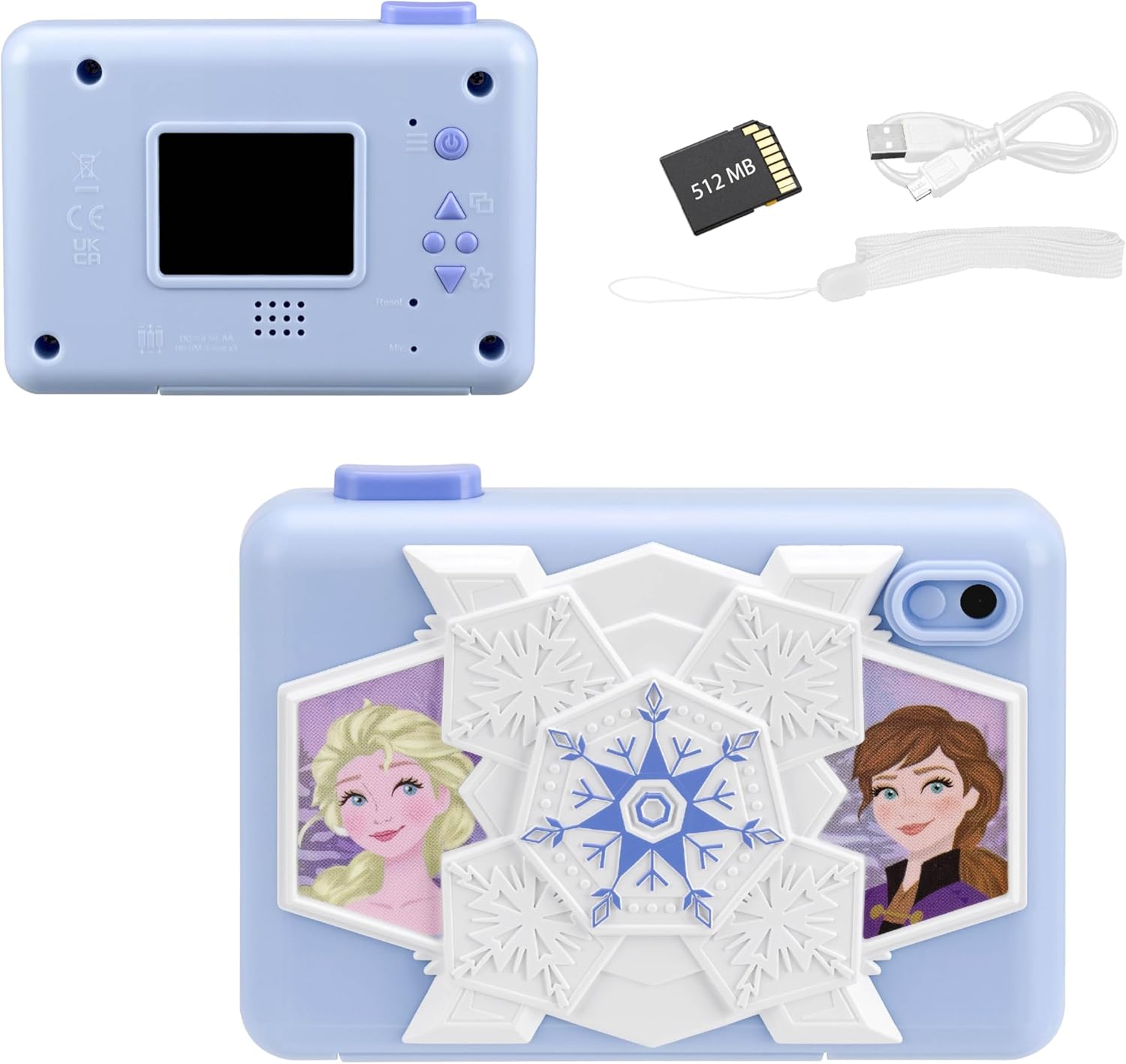
ഫ്രണ്ട് view of the eKids Disney Frozen Kids Camera, featuring Elsa and Anna characters.

തിരികെ view of the camera showing the screen and controls, alongside the included 512MB SD card, micro USB cable, and wrist strap.
പ്രധാന സവിശേഷതകൾ:
- Digital Camera Functionality: Capture photos and videos with user-friendly controls.
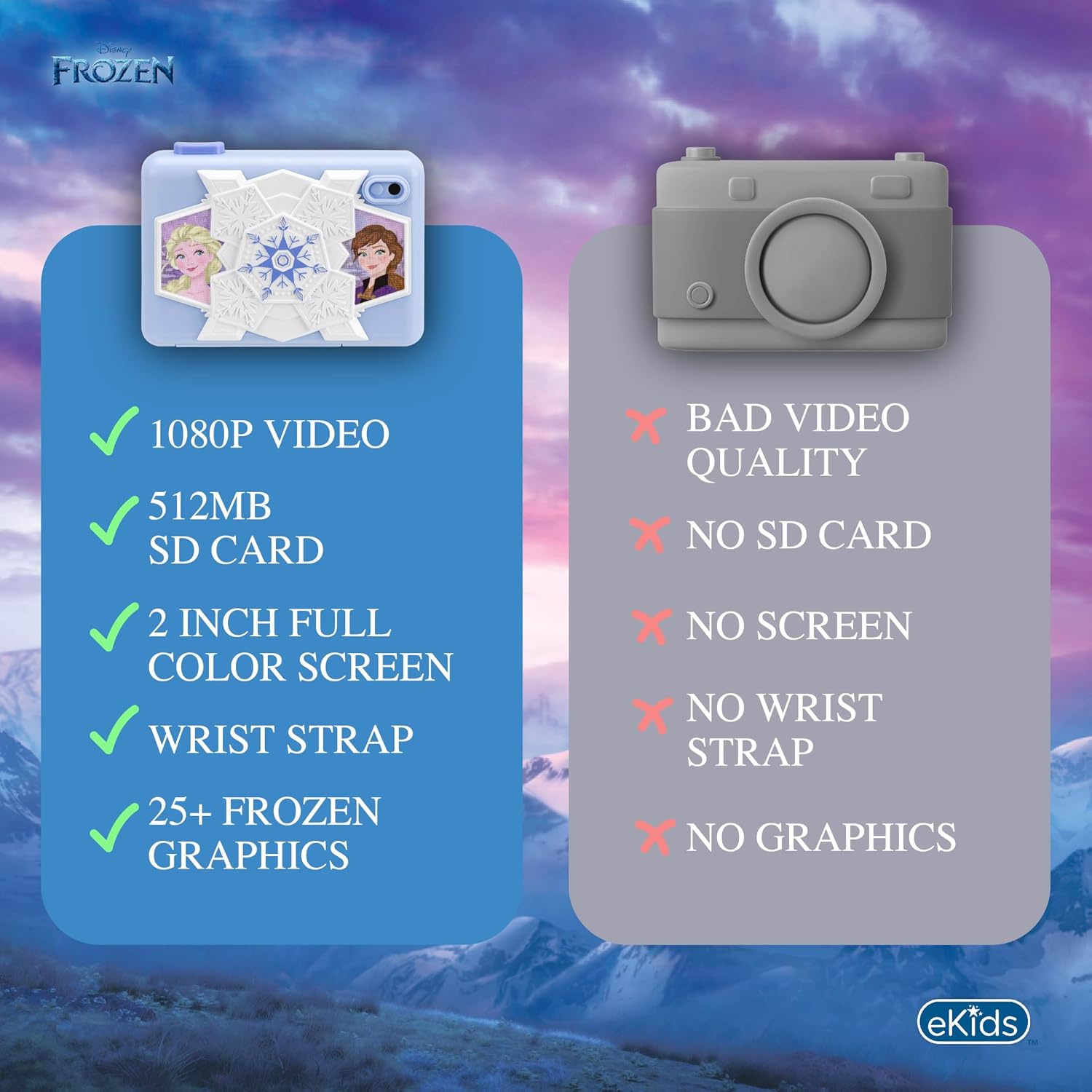
- വീഡിയോ റെക്കോർഡിംഗ്: Record and save videos, viewable on the 2-inch full-color screen.
- വികസിപ്പിക്കാവുന്ന മെമ്മറി: Comes with a 512MB SD card for storage, which can be replaced with a larger SD memory card.
- Creative Decoration: Over 25 built-in photo frames and digital stickers inspired by Disney Frozen.
- അന്തർനിർമ്മിത ഗെയിമുകൾ: Includes 5 pre-loaded games for entertainment.
- കണക്റ്റിവിറ്റി: Micro USB port for connecting to a computer to transfer content.
- പോർട്ടബിലിറ്റി: Lightweight design with an included wrist strap.
2. സജ്ജീകരണം
2.1 ബാറ്ററി ഇൻസ്റ്റാളേഷൻ
The camera requires 3 AA batteries (not included).
- ക്യാമറയുടെ അടിയിൽ ബാറ്ററി കമ്പാർട്ട്മെന്റ് കണ്ടെത്തുക.
- ബാറ്ററി കമ്പാർട്ട്മെൻ്റ് കവർ തുറക്കുക.
- ശരിയായ പോളാരിറ്റി (+/-) ഉറപ്പാക്കിക്കൊണ്ട് 3 AA ബാറ്ററികൾ ഇടുക.
- ബാറ്ററി കമ്പാർട്ട്മെൻ്റ് കവർ സുരക്ഷിതമായി അടയ്ക്കുക.
2.2 SD കാർഡ് ഇൻസ്റ്റലേഷൻ
The camera comes with a 512MB SD card. You can use this card or replace it with another compatible SD card (up to 32GB max).
- Locate the SD card slot next to the battery compartment.
- SD കാർഡ് സ്ലോട്ടിൽ ക്ലിക്ക് ചെയ്യുന്നത് വരെ ഇടുക. കാർഡ് ശരിയായ ഓറിയന്റേഷനിൽ ചേർത്തിട്ടുണ്ടെന്ന് ഉറപ്പാക്കുക.
- To remove the SD card, gently push it in until it clicks, then release to eject.

Diagram showing the SD card slot and Micro USB port on the camera.
2.3 റിസ്റ്റ് സ്ട്രാപ്പ് ഘടിപ്പിക്കൽ
Attach the included wrist strap to the designated loop on the camera for secure handling and to prevent accidental drops.
3. പ്രവർത്തന നിർദ്ദേശങ്ങൾ
3.1 പവർ ഓൺ/ഓഫ്
- പവർ ഓണാക്കാൻ, അമർത്തിപ്പിടിക്കുക പവർ ബട്ടൺ (usually marked with a power symbol) located on the back of the camera.
- പവർ ഓഫ് ചെയ്യുന്നതിന്, അമർത്തിപ്പിടിക്കുക പവർ ബട്ടൺ വീണ്ടും സ്ക്രീൻ ഓഫാകുന്നതുവരെ.
The camera's screen displaying the main menu with various function icons.
3.2 മെനു നാവിഗേറ്റ് ചെയ്യുന്നു
Use the directional buttons (Up, Down, Forward/Photo Frames, Reverse/Mode Select) to navigate through the camera's menu options on the 2-inch full-color LCD screen. Press the Camera Shutter / OK Button ഒരു ഓപ്ഷൻ തിരഞ്ഞെടുക്കാൻ.
വിശദമായി view of the camera's back panel, highlighting the display, speaker, microphone, and control buttons including Camera Shutter/OK, Indicator Light, Power, Up, Forward/Photo Frames, Reverse/Mode Select, Down, and Reset.
3.3 ഫോട്ടോ എടുക്കൽ
- പ്രധാന മെനുവിൽ നിന്ന്, തിരഞ്ഞെടുക്കുക ഫോട്ടോ ഐക്കൺ.
- എൽസിഡി സ്ക്രീൻ ഉപയോഗിച്ച് നിങ്ങളുടെ ഷോട്ട് ഫ്രെയിം ചെയ്യുക.
- അമർത്തുക Camera Shutter / OK Button ഒരു ചിത്രമെടുക്കാൻ.
3.4 വീഡിയോ റെക്കോർഡിംഗ്
- പ്രധാന മെനുവിൽ നിന്ന്, തിരഞ്ഞെടുക്കുക വീഡിയോ ഐക്കൺ.
- അമർത്തുക Camera Shutter / OK Button റെക്കോർഡിംഗ് ആരംഭിക്കാൻ.
- അമർത്തുക Camera Shutter / OK Button റെക്കോർഡിംഗ് നിർത്താൻ വീണ്ടും.
Official product video demonstrating the eKids Disney Frozen Digital Camera for Kids, showcasing അതിന്റെ സവിശേഷതകളും ഉപയോഗ എളുപ്പവും.
3.5 Applying Digital Stickers and Frames
The camera offers over 25 built-in Frozen-themed photo frames and digital stickers to decorate your images.
- After taking a photo, or when viewing a saved photo, use the Forward / Photo Frames button to browse available frames and stickers.
- അമർത്തുക Camera Shutter / OK Button to apply the selected decoration.
An image illustrating how to add fun digital images and record videos using filters or slow motion, with examples of photos decorated with Frozen characters.
3.6 ഗെയിമുകൾ കളിക്കൽ
The camera includes 5 built-in games for entertainment.
- പ്രധാന മെനുവിൽ നിന്ന്, തിരഞ്ഞെടുക്കുക ഗെയിംസ് ഐക്കൺ.
- Use the directional buttons to choose a game.
- അമർത്തുക Camera Shutter / OK Button കളിക്കാൻ തുടങ്ങാൻ.

Visual representation of the camera's multi-functional capabilities, including playing games, playing music, taking photos, and recording videos.
3.7 Transferring Content to a Computer
You can transfer your photos and videos to a computer using the included micro USB cable.
- Connect the micro USB cable to the camera's micro USB port and to an available USB port on your computer.
- The camera should appear as a removable storage device on your computer.
- നിങ്ങളുടെ files.
4. പരിപാലനം
4.1 ക്യാമറ വൃത്തിയാക്കൽ
- Use a soft, dry cloth to clean the exterior of the camera.
- For the screen, use a microfiber cloth specifically designed for electronics.
- ദ്രാവക ക്ലീനറുകളോ ഉരച്ചിലുകളുള്ള വസ്തുക്കളോ ഉപയോഗിക്കരുത്, കാരണം അവ ക്യാമറയ്ക്ക് കേടുവരുത്തും.
4.2 ബാറ്ററി കെയർ
- ക്യാമറ കൂടുതൽ നേരം ഉപയോഗിക്കുന്നില്ലെങ്കിൽ, ചോർച്ച തടയാൻ ബാറ്ററികൾ നീക്കം ചെയ്യുക.
- പഴയതും പുതിയതുമായ ബാറ്ററികളോ വ്യത്യസ്ത തരം ബാറ്ററികളോ മിക്സ് ചെയ്യരുത്.
- ഉപയോഗിച്ച ബാറ്ററികൾ പ്രാദേശിക നിയന്ത്രണങ്ങൾ അനുസരിച്ച് ഉത്തരവാദിത്തത്തോടെ നീക്കം ചെയ്യുക.
4.3 സംഭരണം
നേരിട്ടുള്ള സൂര്യപ്രകാശവും ഉയർന്ന താപനിലയും ഏൽക്കാത്ത തണുത്തതും വരണ്ടതുമായ സ്ഥലത്ത് ക്യാമറ സൂക്ഷിക്കുക.
5. പ്രശ്നപരിഹാരം
| പ്രശ്നം | സാധ്യമായ കാരണം | പരിഹാരം |
|---|---|---|
| ക്യാമറ ഓണാകുന്നില്ല. | കുറഞ്ഞതോ ഡെഡ് ബാറ്ററികളോ; തെറ്റായ ബാറ്ററി ഇൻസ്റ്റാളേഷൻ. | Replace with fresh AA batteries; ensure batteries are inserted with correct polarity. |
| ഫോട്ടോകൾ/വീഡിയോകൾ എടുക്കാൻ കഴിയില്ല. | SD card full or not inserted correctly; camera mode not selected. | Check SD card storage and reinsert if necessary; ensure photo/video mode is active. |
| മോശം ഇമേജ്/വീഡിയോ നിലവാരം. | Insufficient lighting; dirty lens. | Ensure adequate lighting; gently clean the camera lens with a soft cloth. |
| കമ്പ്യൂട്ടറുമായി ബന്ധിപ്പിക്കാൻ കഴിയില്ല. | Faulty USB cable; incorrect USB port; driver issue. | Try a different USB cable or port; restart computer and camera. |
If problems persist, please refer to the Warranty and Support section for further assistance.
6 സ്പെസിഫിക്കേഷനുകൾ
| ഫീച്ചർ | വിശദാംശങ്ങൾ |
|---|---|
| മോഡലിൻ്റെ പേര് | FR-533 |
| ബ്രാൻഡ് | eKids |
| സ്ക്രീൻ വലിപ്പം | 2 ഇഞ്ച് |
| ഡിസ്പ്ലേ തരം | എൽസിഡി |
| മെമ്മറി സ്റ്റോറേജ് | 512 MB SD Card (expandable up to 32GB) |
| ബാറ്ററി തരം | 3 x AA ആൽക്കലൈൻ ബാറ്ററികൾ (ഉൾപ്പെടുത്തിയിട്ടില്ല) |
| കണക്റ്റിവിറ്റി | മൈക്രോ യുഎസ്ബി |
| ഫോട്ടോ സെൻസർ റെസല്യൂഷൻ | 2 എം.പി |
| വീഡിയോ റെസല്യൂഷൻ | 1080p |
| ഇമേജ് സ്റ്റെബിലൈസേഷൻ | ഡിജിറ്റൽ |
| File ഫോർമാറ്റുകൾ | JPEG (images), MP4 (video) |
| അളവുകൾ (D x W x H) | 4.49"D x 1.38"W x 3.3"H |
| മെറ്റീരിയൽ | പ്ലാസ്റ്റിക് |
7. വാറൻ്റിയും പിന്തുണയും
7.1 ലിമിറ്റഡ് വാറൻ്റി
This eKids Disney Frozen Kids Camera (Model: FR-533) comes with a 1 വർഷത്തെ പരിമിത വാറൻ്റി from the manufacturer, KIDdesigns. This warranty covers defects in materials and workmanship under normal use.
For full warranty details and terms, please refer to the documentation included with your product or visit the eKids official webസൈറ്റ്.
7.2 ഉപഭോക്തൃ പിന്തുണ
If you have any questions, require technical assistance, or need to make a warranty claim, please contact eKids customer support:
- ഓൺലൈൻ പിന്തുണ: സന്ദർശിക്കുക eKids Brand Store on Amazon ഉൽപ്പന്ന വിവരങ്ങൾക്കും പിന്തുണാ ഉറവിടങ്ങൾക്കും.
- നിർമ്മാതാവ്: കിഡ്ഡിസൈനുകൾ
Please have your product model number (FR-533) and proof of purchase ready when contacting support.


