ആമുഖം
This manual provides detailed instructions for the setup, operation, maintenance, and troubleshooting of your OBSBOT Tail Air Bundle. This bundle includes the OBSBOT Tail Air 4K smart streaming PTZ camera, a SanDisk Extreme 128 GB microSDXC card, and a Pearstone Standard Series HDMI to HDMI High-Speed Ethernet Cable.
The OBSBOT Tail Air is designed to provide high-quality video capture and streaming with advanced AI tracking capabilities, making it suitable for remote work, content creation, and conference environments.
ബോക്സിൽ എന്താണുള്ളത്
താഴെ കൊടുത്തിരിക്കുന്ന എല്ലാ ഇനങ്ങളും നിങ്ങളുടെ പാക്കേജിൽ ഉണ്ടെന്ന് ദയവായി ഉറപ്പാക്കുക:
- 1x OBSBOT Tail Air Camera (OSB-2108-CW)
- 1x Storage Case
- 1x USB-C Male to Dual USB-C Female Splitter
- 1x USB-C കേബിൾ
- 1x USB-C മുതൽ USB-A അഡാപ്റ്റർ വരെ
- 1x SanDisk Extreme 128 GB microSDXC Card (SDSQXA1-128G-AN6MA)
- 1x Pearstone Standard Series HDMI to HDMI High-Speed Ethernet Cable (PEHDA106), 6'
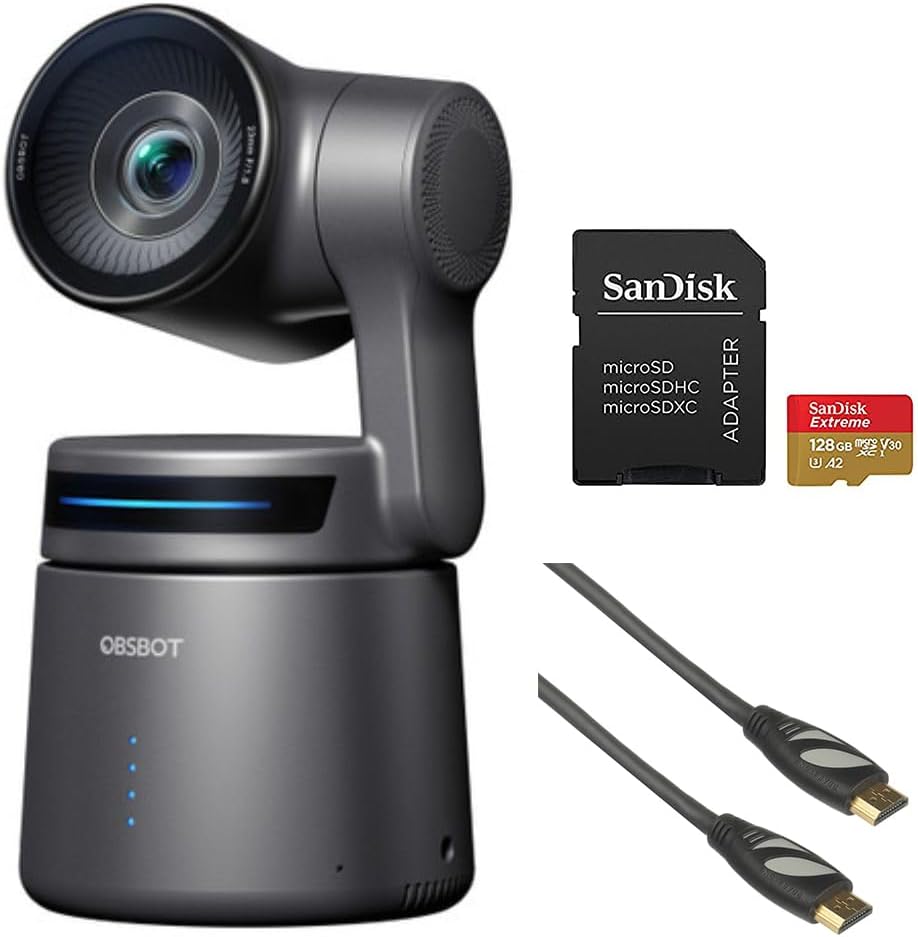
Image: Contents of the OBSBOT Tail Air Bundle, showing the camera, SanDisk Extreme 128 GB microSDXC card, and Pearstone 6' HDMI cable.
സജ്ജമാക്കുക
1. ക്യാമറ പ്ലേസ്മെന്റ്
Place the OBSBOT Tail Air camera on a stable, flat surface or mount it on a compatible tripod. Ensure the camera has a clear line of sight to the area you intend to capture.
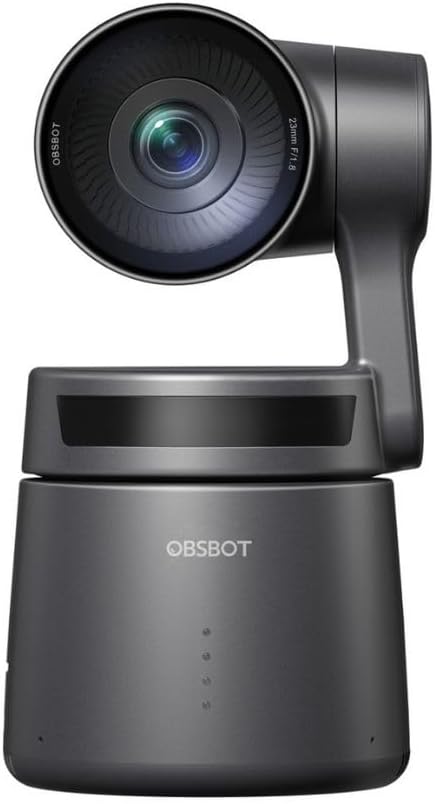
ചിത്രം: മുൻഭാഗം view of the OBSBOT Tail Air camera, showing the lens and base.
2. പവർ കണക്ഷൻ
- Connect the USB-C cable to the camera's USB-C port.
- Connect the other end of the USB-C cable to a power source (e.g., a USB wall adapter or computer USB port). Use the provided USB-C to USB-A adapter if your power source only has USB-A ports.
- The camera's indicator lights will illuminate upon successful power connection.

Image: OBSBOT Tail Air camera with its blue indicator lights active, signifying power or operational status.
3. മൈക്രോ എസ്ഡി കാർഡ് ഇൻസ്റ്റാളേഷൻ
To enable local recording, insert the SanDisk Extreme 128 GB microSDXC card into the camera's microSD card slot. Ensure the card is inserted with the correct orientation until it clicks into place.

Image: SanDisk Extreme 128 GB microSDXC card, suitable for high-speed data storage.
4. കണക്റ്റിവിറ്റി ഓപ്ഷനുകൾ
The OBSBOT Tail Air offers multiple connectivity options:
- USB: Connect the camera to a computer via USB-C for use as a webcam or for data transfer.
- എച്ച്ഡിഎംഐ: Use the Pearstone HDMI cable to connect the camera's micro-HDMI output to a display or capture card for high-quality video output.
- Ethernet/PoE: For network connectivity and Power over Ethernet (PoE), an optional adapter is required. This enables NDI|HX3 support for professional streaming setups.
- വൈഫൈ: Connect the camera to your wireless network for remote control and streaming via the OBSBOT app.

ചിത്രം: പിൻഭാഗം view of the OBSBOT Tail Air camera, highlighting its various connectivity ports including USB-C and micro-HDMI.

Image: Pearstone Standard Series HDMI to HDMI High-Speed Ethernet Cable, 6 feet in length.
Operating the OBSBOT Tail Air
1. പ്രാരംഭ പവർ ഓൺ
Once powered, the camera will perform a self-calibration. The lens will pan and tilt to its home position. Wait for the indicator lights to stabilize before proceeding.
2. OBSBOT App Control
For full control and advanced features, download the official OBSBOT app on your smartphone or tablet. Connect the camera to the app via Wi-Fi or USB.
- റിമോട്ട് കൺട്രോൾ: Pan, tilt, and zoom the camera remotely.
- AI ട്രാക്കിംഗ്: Activate and manage AI human, animal, or object tracking.
- ആംഗ്യ നിയന്ത്രണം 2.0: Learn and utilize various hand gestures for quick control of tracking, recording, and zoom.
- ക്രമീകരണങ്ങൾ: Adjust video resolution (up to 4K), frame rate, exposure, white balance, and other camera parameters.
3. AI Tracking Features
The Tail Air features advanced AI tracking:
- മനുഷ്യ ട്രാക്കിംഗ്: Automatically follows a designated person, keeping them centered in the frame.
- Animal Tracking: Capable of tracking pets or other animals.
- ഒബ്ജക്റ്റ് ട്രാക്കിംഗ്: Can track specific objects, useful for demonstrations or product showcases.
To activate tracking, use the OBSBOT app or specific gesture controls.
4. റെക്കോർഡിംഗും സ്ട്രീമിംഗും
- പ്രാദേശിക റെക്കോർഡിംഗ്: വീഡിയോ footage can be recorded directly to the inserted microSD card.
- തത്സമയ സ്ട്രീമിംഗ്: The camera supports direct streaming to platforms via the OBSBOT app or through NDI|HX3 (with optional adapter) for professional broadcast setups.
- ഓഡിയോ ഇൻപുട്ട്: Utilize the 3.5mm audio input jack for external microphone connection to enhance audio quality.
മെയിൻ്റനൻസ്
1. വൃത്തിയാക്കൽ
- ക്യാമറ ബോഡി വൃത്തിയാക്കാൻ മൃദുവായതും ഉണങ്ങിയതുമായ തുണി ഉപയോഗിക്കുക.
- ലെൻസിന്, ലെൻസ് ക്ലീനിംഗ് തുണിയും പ്രത്യേക ലെൻസ് ക്ലീനിംഗ് ലായനിയും ഉപയോഗിക്കുക. ഉരച്ചിലുകൾ ഉള്ള വസ്തുക്കൾ ഒഴിവാക്കുക.
- വീര്യം കൂടിയ ഡിറ്റർജന്റുകളോ ലായകങ്ങളോ ഉപയോഗിക്കരുത്.
2. സംഭരണം
When not in use, store the camera in its provided storage case in a cool, dry place, away from direct sunlight and extreme temperatures.
3. ഫേംവെയർ അപ്ഡേറ്റുകൾ
Regularly check for firmware updates via the OBSBOT app to ensure optimal performance and access to new features. Follow the app's instructions carefully during updates.
ട്രബിൾഷൂട്ടിംഗ്
| പ്രശ്നം | സാധ്യമായ കാരണം | പരിഹാരം |
|---|---|---|
| ക്യാമറ ഓണാക്കുന്നില്ല. | Loose power connection; faulty cable/adapter; insufficient power source. | Check all cable connections. Try a different USB port or power adapter. Ensure power source meets camera requirements. |
| AI tracking not working. | Poor lighting; subject too far/close; camera obstruction; AI tracking not activated. | Ensure adequate lighting. Position subject within optimal range (1-5 meters). Clear any obstructions. Activate tracking via the OBSBOT app or gesture. |
| മൈക്രോഎസ്ഡി കാർഡ് തിരിച്ചറിഞ്ഞില്ല. | Card not inserted correctly; card corrupted; incompatible card. | Reinsert the card. Try formatting the card (this will erase data). Ensure the card is a genuine SanDisk Extreme 128 GB microSDXC or similar compatible card. |
| HDMI വഴി വീഡിയോ ഔട്ട്പുട്ട് ഇല്ല. | HDMI cable faulty; display input not selected; camera not in video output mode. | Check the Pearstone HDMI cable for damage. Ensure the display is set to the correct HDMI input. Verify camera settings in the OBSBOT app. |
| ആപ്പ് കണക്ഷൻ പ്രശ്നങ്ങൾ. | Wi-Fi interference; incorrect network; camera not discoverable. | Ensure camera and device are on the same Wi-Fi network. Restart both camera and app. Check for app updates. |
സ്പെസിഫിക്കേഷനുകൾ
| ഫീച്ചർ | വിശദാംശങ്ങൾ |
|---|---|
| മോഡൽ | OBSBOT Tail Air (OSB-2108-CW) |
| സെൻസർ | 1/1.8" CMOS 8MP |
| വീഡിയോ ക്യാപ്ചർ റെസല്യൂഷൻ | 4K വരെ |
| കണക്റ്റിവിറ്റി ടെക്നോളജി | USB-C, Micro-HDMI, Wi-Fi, Ethernet (with optional adapter) |
| ഓഡിയോ ഇൻപുട്ട് | 3.5 എംഎം ജാക്ക് |
| ട്രാക്കിംഗ് | AI Human/Animal/Object Tracking |
| നിയന്ത്രണം | Gesture Control 2.0, OBSBOT App |
| സംഭരണം | MicroSDXC (SanDisk Extreme 128 GB included) |
| യു.പി.സി | 810160682202 |
വാറൻ്റിയും പിന്തുണയും
For warranty information and technical support, please refer to the official OBSBOT webസൈറ്റിൽ ബന്ധപ്പെടുക അല്ലെങ്കിൽ അവരുടെ ഉപഭോക്തൃ സേവനവുമായി നേരിട്ട് ബന്ധപ്പെടുക. വാങ്ങിയതിന്റെ തെളിവായി നിങ്ങളുടെ വാങ്ങൽ രസീത് സൂക്ഷിക്കുക.
OBSBOT Official Webസൈറ്റ്: www.obsbot.com


